VI User Manual.pdf - 第348页
Superviseur 13 - 4 Vi sion 2007 4.10 User Manual Rev 01 13.2 Superviseur use 13.2.1 User interface This screen is the super visor user inter- face. It presents the globa l view of all the sy s- tems conne cted: AOI syst …
Superviseur
Vision 2007 4.10 User Manual Rev 01 13 - 3
13.1.3 Access database
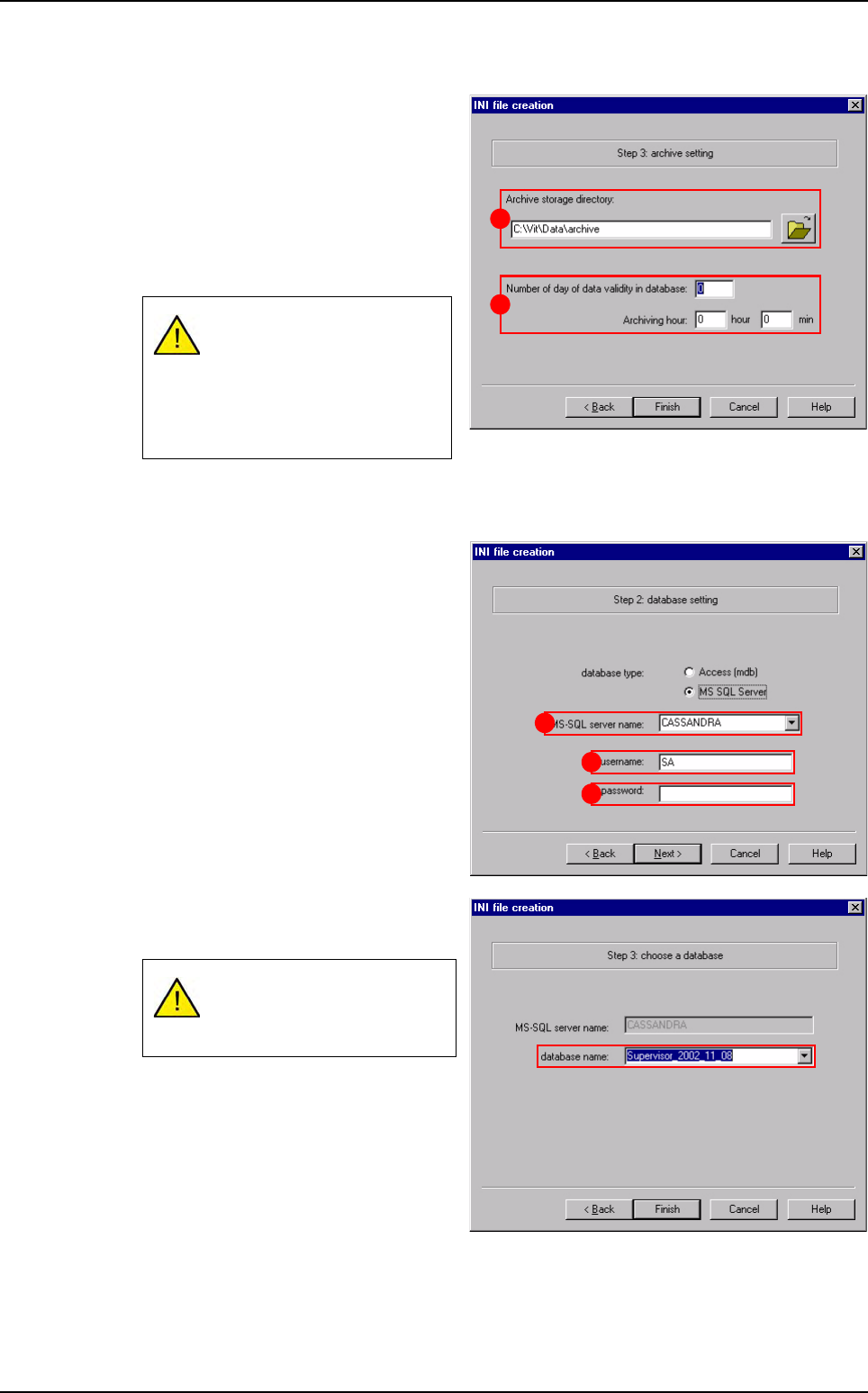
Select the Archive storage directory
(A).
Define archive setting. The Number of
day of data validity in database (B)
corresponds to the number of days you
want to keep in the database. If this
number is > 1 than the auto-archiving
will start every day.
13.1.4 MS-SQL database
If you choose MS-SQL server, these
fields appears:
Select the MS-SQL server (A) you want
to use.
Enter the username (B) and the pass-
word (C). Then, click on Next.
Select the database and click on Fin-
ish.
If you do not want to auto-
archive every day, put 0 for
the Number of day of data
validity in database. Then
the auto-archiving will never
start.
When using MS-SQL data-
base there is no auto-
archiving.
A
B
B
C
A
Superviseur configuration
Superviseur
13 - 4 Vision 2007 4.10 User Manual Rev 01
13.2 Superviseur use
13.2.1 User interface
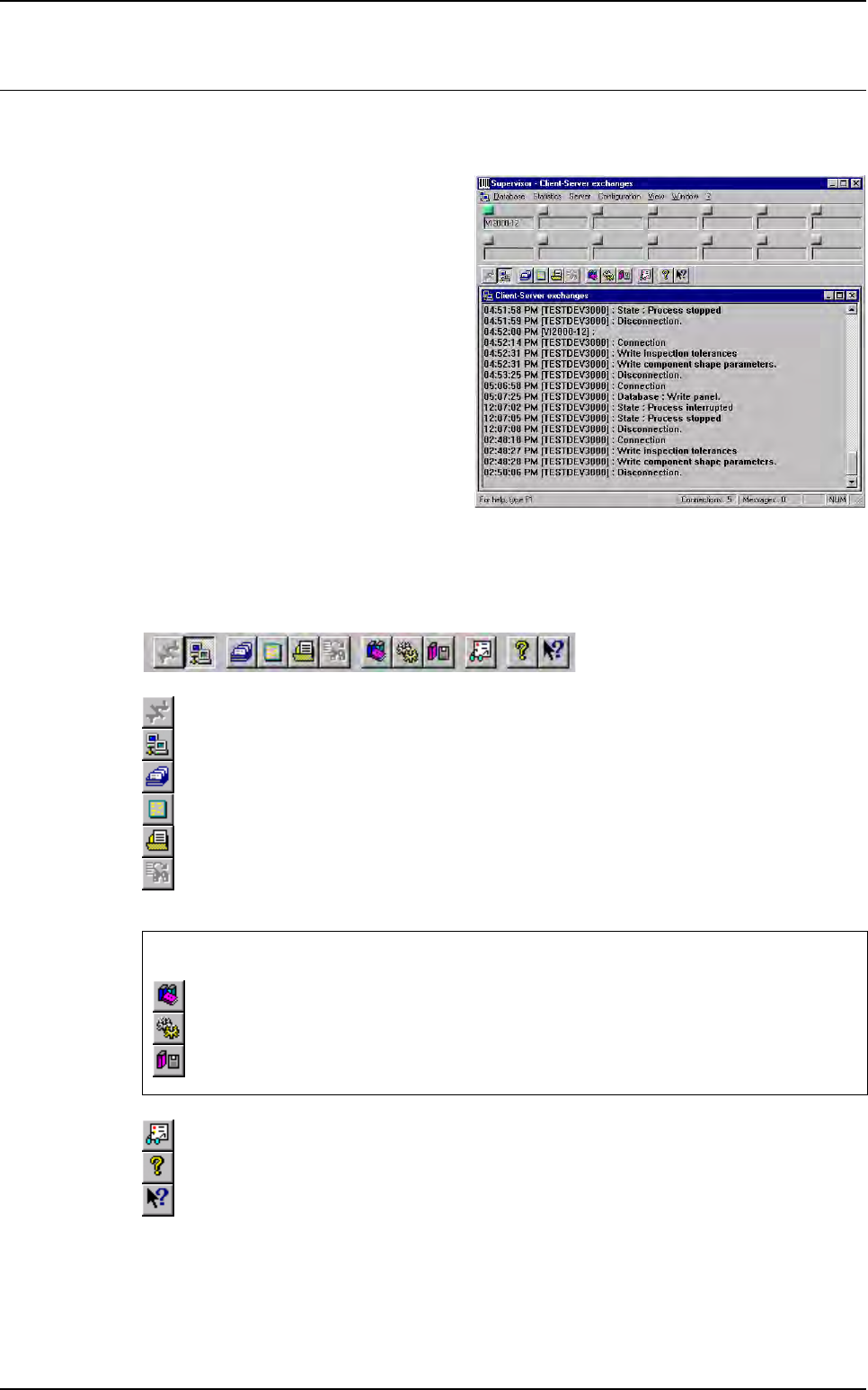
This screen is the supervisor user inter-
face.
It presents the global view of all the sys-
tems connected: AOI systems and repair
stations.
Green: running,
Red: problem.
In the exchange window, all the commu-
nication status are displayed (ex: vision
writing in database, disconnecting or
connecting, any troubles …).
13.2.2 Tool bar
The tool bar can be used to activate all the functions:
Disconnection of one system.
Network (stop the exchange window filling).
Panels table.
Boards table.
Anomalies table.
Refresh the selected table.
Not available.
About Supervisor.
Help (not available).
These 3 icons are only accessible when using an Access database:
Connection to archives (if you want to consult the archiving database).
Define the numbers of validity days to keep in the database.
Starts the database archiving.
Superviseur
Vision 2007 4.10 User Manual Rev 01 13 - 5
13.2.3 Consult the inspection results
13.2.3.1 On panels table
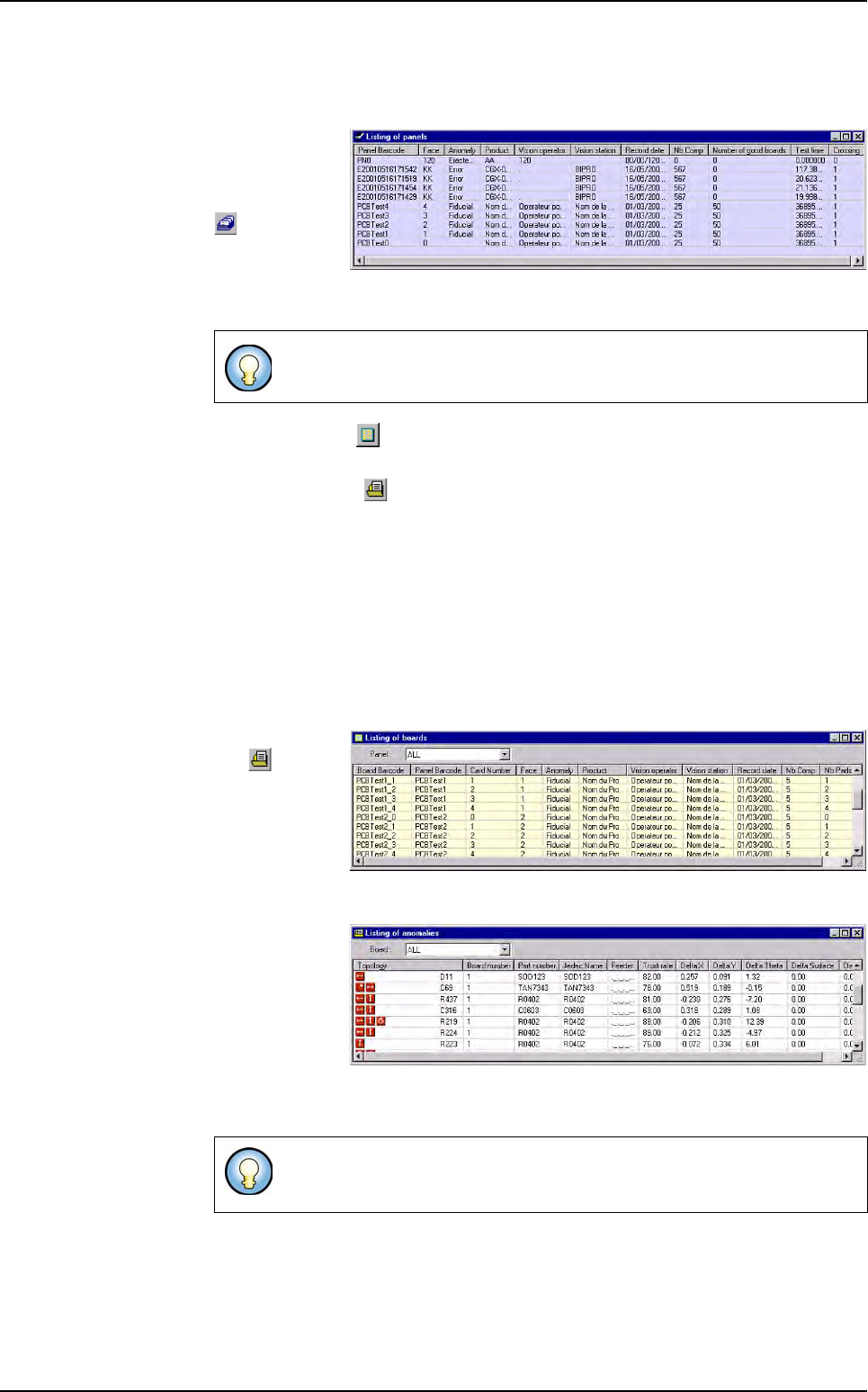
Open the panels
table (in the da-
tabase menu or
tools bar icon
).
Then, you have
the list of the
panels inspected by all the AOI systems.
If you click on the icon or the boards table menu, you will see all boards stored
in the database.
If you click on the icon or the anomalies table menu, you will see all defects
stored in the database.
If you select one panel and double click on it, you will open the boards table. Then
you can see the boards list of the selected panel.
If you run many times the same board, we record it on the same line but the crossing
parameter is incremented. The inspection time saved is the panel treatment time. It
starts from the 1st fiducial acquisition and stops when all the treatments are ended.
(before sending the results)
13.2.3.2 On boards table
If you click on
the icon or
the
anomalies
table
menu you
will see all the
defects stored in
the database.
If you select one
board and dou-
ble click on it,
you will open the
anomalies ta-
ble
, and see
only the defects
of this board.
You can click on the top of each column to sort the list.
You can click on the top of each column to sort the list. The list of the de-
fects found for each component appears with different icons.
Superviseur use