VI User Manual.pdf - 第368页
Reparation 14 - 16 Vision 2007 4.10 User Manu al Rev 01 Repair status signal option The repair status signal ena bles to guide not repaired PCB a f ter the oper- ator diagnost ic on the repair statio n. This option is us…
Reparation
Vision 2007 4.10 User Manual Rev 01 14 - 15
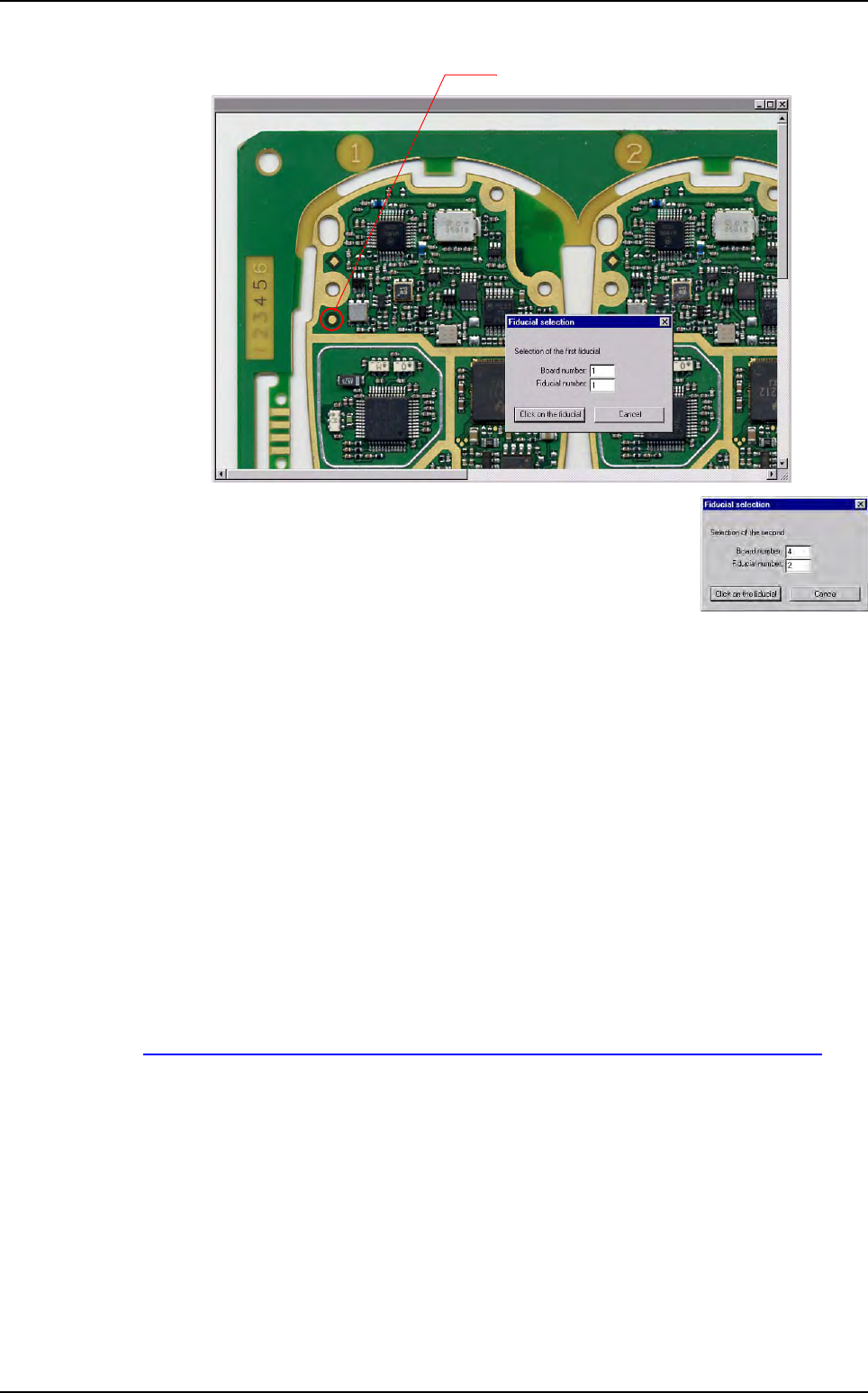
Use the scroll bar to see the fiducial you want to pick on the real picture.
In the Fiducial selection window, indicate the board number
and the order of the second fiducial, according to the .tst file
information and press Click on the fiducial button.
14.3.5.4 Password
You can use a password to limit access to the configuration menus. Every time you
want to access to the menu bar to configure the repair station (press Alt+F4), you
will be asked the password.
Enter the password and confirm it.
14.3.6 Bar code printing
This feature gives the opportunity to the operator to print a label (1D bar code) with the iden-
tifier of the inspection, in order to be able to repair offline afterwards.
The identifier may be a bar code or the date and time stamp of this inspection.
The supported printer is the Zebra bar code printer TLP 3842. It should be connected to the
parallel port of the PC.
The EPL table for Zebra printer is available on:
http://www.megacz.com/software/eltron/manuals/EPL2ProgrammersManual.pdf
This feature can be configured in ConfigReparation.ini file, in the [Barcode printer] sec-
tion.
Reparation use
Reparation
14 - 16 Vision 2007 4.10 User Manual Rev 01
Repair status signal option
The repair status signal enables to
guide not repaired PCB after the oper-
ator diagnostic on the repair station.
This option is used when a diagnostic
station is placed after the AOI system
and when boards which need to be re-
paired later on must be oriented.
The diagnostic station runs with the
repair software connected to the data-
base.
In the repair software, the operator
gives a status for each defect.
If the board can not be repaired at this
stage and needs to be oriented, the
NO GOOD signal is sent to the IO
card after the operator release the
PCB.
PCB with the Not repaired status in
the database will be oriented.
To activate this option set the following parameters in the C:\VIT\ConfigReparation.ini file:
This option requires to have an I/O card in the diagnostic PC. Contact support to check your
equipment compatibility.
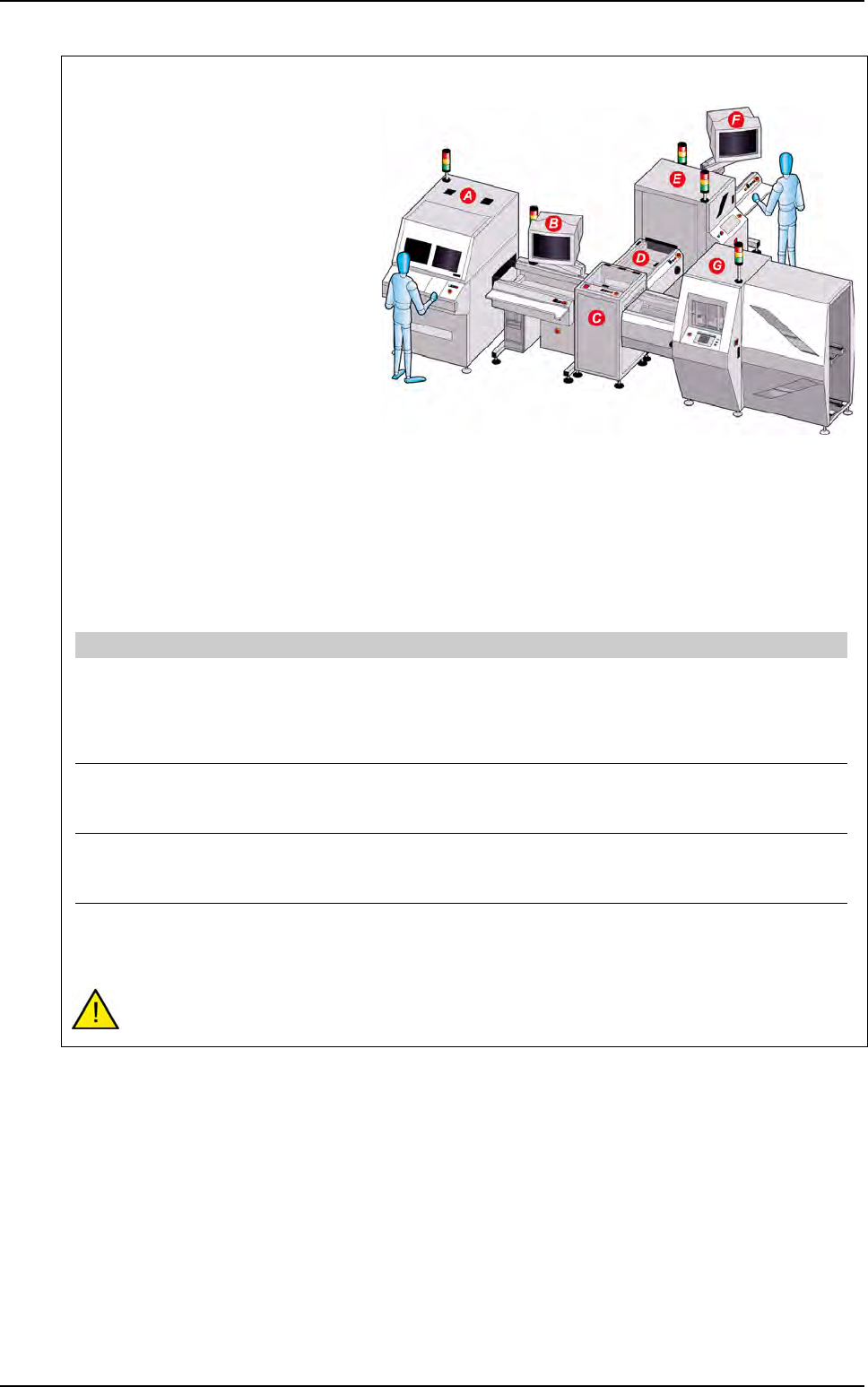
A AOI system
B Diagnostic station with Reparation software installed
C T conveyor
D Conveyor
E Buffer conveyor
F Repair station
G Downstream equipment
[Unloading board : Signal Cfg]
Send unloading signal state [0:1]=1 Unloading and state (optional) of the board
1: after repair diagnostic, the No good signal is sent on the B1 relay
of the I/O card i the PCB needs to be oriented.
0: will not send the No good signal after repair diagnostic even if the
PCB is still not repaired.
Start IO board driver [0:1]=1 Board driver activation
1: start the IO card driver
0: do not start the IO card driver
Reset state signal after unloading [0:1]=1 Signal reset
1: the No good signal come down after the specified signal time.
0: the No good signal stays ON until the next PCB.
Signal time (ms)=500 Signals activation time
Time to let the "acknowledge" and "No good" signal ON on the IO
card driver
Reparation use
Reparation
Vision 2007 4.10 User Manual Rev 01 14 - 17
14.4 Reparation software initialization file
Open the ConfigReparation.ini file to access the software parameters.
[VERSION]
Number=18 File revision number
[PATH]
TstFilePath=\ViT\Data
TstFileUnit=c:
Directory to find the icons files
PrmFilePath=\ViT\Data
PrmFileUnit=c:
Directory to find the REPAR.PRM file
IconPath=\ViT\Icon
IconUnit=c:
Directory where Vision 2007 copies the .tst file
RealPicturePath=\ViT\Data
RealPictureUnit=c:
Directory to store the real picture
of the whole board for the board display
[ZOOM]
CompMin=1,000
CompMax=8,000
Size in mm
ZoomInf=20,000
ZoomSup=90,000
Size of the components in window (%)
[Message]
Confirmation message=0 Allow the operator to make another turn even
if all the errors are repaired
Escape [0: 1]=0 Corresponds to
1: Cancel
0: Stop&Save
Change CB=0 Allow to enter a barcode in case of reading
or root error on the vision machine
Always ask for panel code [0:1]=0 Ask for panel barcode
1: always ask
0: do not ask.
Always ask for subpanel codes [0:1]=0 Ask for subpanel barcode
1: always ask
0: do not ask.
Spread codes [0:1]=0 Propagate the barcode
1: the barcode panel is propagated on the board
0: the barcode panel is not propagated on the board.
Enable operator analysis [0:1]=0 Operator analysis
1: the operator can modify the error type and put in error
a component which does not have it
0: the operator can not modify the error type and put in error
a component which does not have it.
[Tempo]
Network query tempo init (s)=5 Time out for initialization query
Network query tempo init read panel (s)=5 Time out for reading initialization
Network time out query (s)=30 Time out for queries to database
Network time out panel (s)=300 Time out to send a panel
Number of connection retry when network failed=5
[FIFO]
Waiting Stop tempo (s)=5 Available time to press Alt+F4 after each required board
in order to load another product
[Unloading board : Signal Cfg]
Send unloading signal state [0:1]=0 Unloading and state (optional) of the board
Start IO board driver [0:1]=1 Board driver activation
Reset state signal after unloading [0:1]=0 Signal reset
Signal time (ms)=500 Signals activation time
[Machine Offline]
Type [(Standard: 0, FIFO: 1, TConveyor: 2)=0] Choice of the type of machine offline
0: Standard
1: FIFO
2: TConveyor.