VI User Manual.pdf - 第248页
Tools library 7 - 86 Vision 2007 4.10 User Manual Re v 01 2. Offset adjustment Place the mas k in the area with the Off- set X/Y [pixels] ( D ) parameters. Display or not th e mask on th e image with the Do not di splay …
Tools library
Vision 2007 4.10 User Manual Rev 01 7 - 85
3. # to find (C): the blob tool will return only the results of the biggest blob of the re-
sults list. The number to find selects how many results are displayed in the list, al-
though only the first one is used. This is useful for debugging purpose.
4. Score (D) is the score min to find blob. All blob which their score is lower than de-
fined score have zero score.
5. Advanced Filter (E): If you want to define the parameters more precise (see be-
low
Advanced Filter).
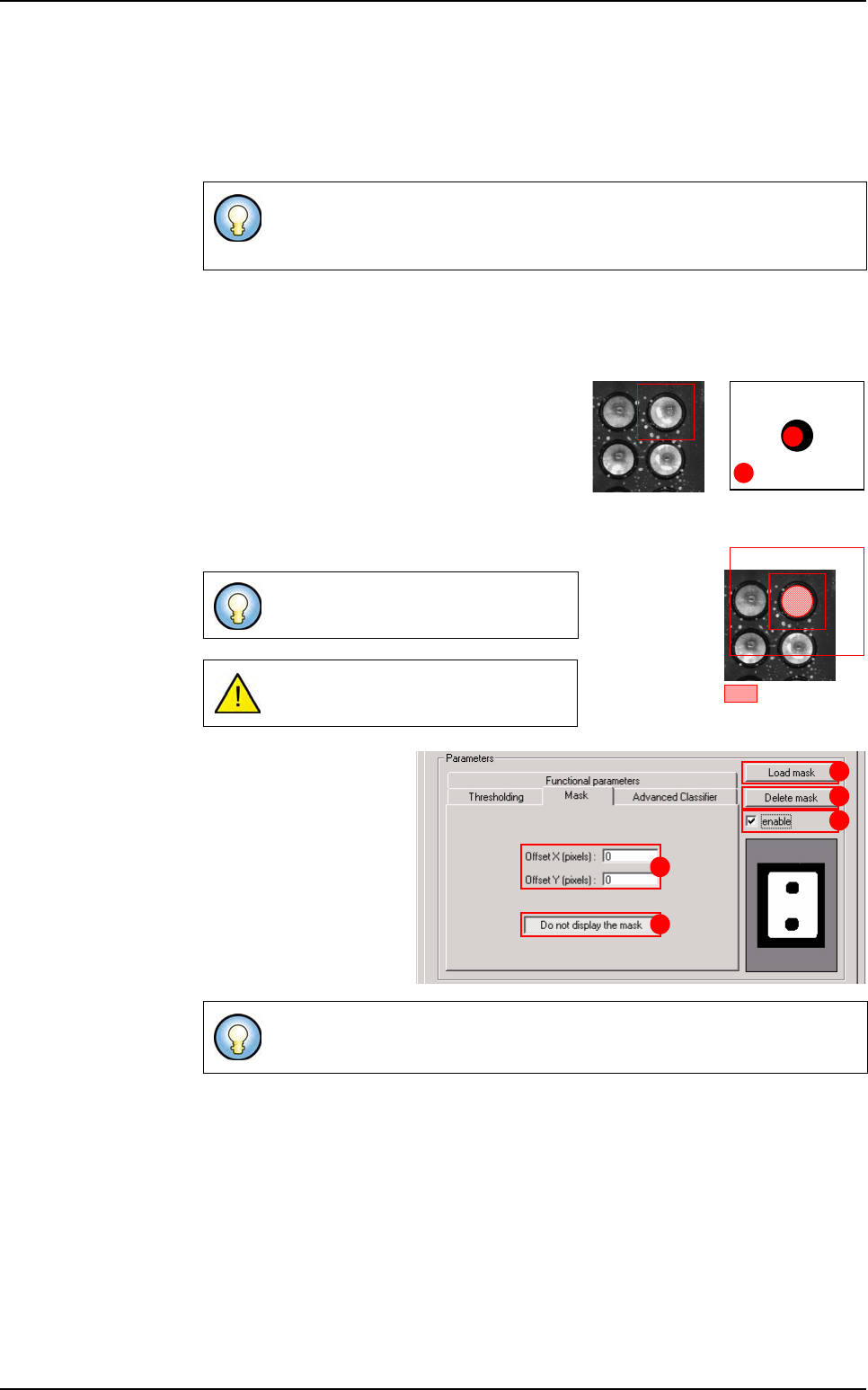
Mask tab
The mask is a binary bitmap image. Using a
mask you can hide portions of the search area
so that the blob finds no result in the masked ar-
eas.
The centre of the mask is realigned to the centre
of the search area. Pixels of the search area
covered with black pixels of the mask won’t be
included in the results.
1. Mask loading
Use
Load mask (A) but-
ton to load a mask image
from the hard drive.
Press
Delete mask (B)
button to clear the mask.
Tick
enable (C) to enable
the mask.
In the file .ini, there is a parameter No Score Min (and nb blob searched:#
)
, if this parameter is equal to 0, there is no score min: you have a blob sim-
ilar to Release.
Use
Image Edit
or any other bitmap ed-
itor to draw the mask from an image.
The mask image dimensions must be
greater than the blob’s search area.
Right click in the mask image pops up a display menu to zoom in / out...
Masked area
Mask image
A Gray level = 0
B Gray level ≠ 0
A
B
+
=
A
B
C
D
E
Blob
Tools library
7 - 86 Vision 2007 4.10 User Manual Rev 01
2. Offset adjustment
Place the mask in the area with the
Off-
set X/Y [pixels]
(D) parameters.
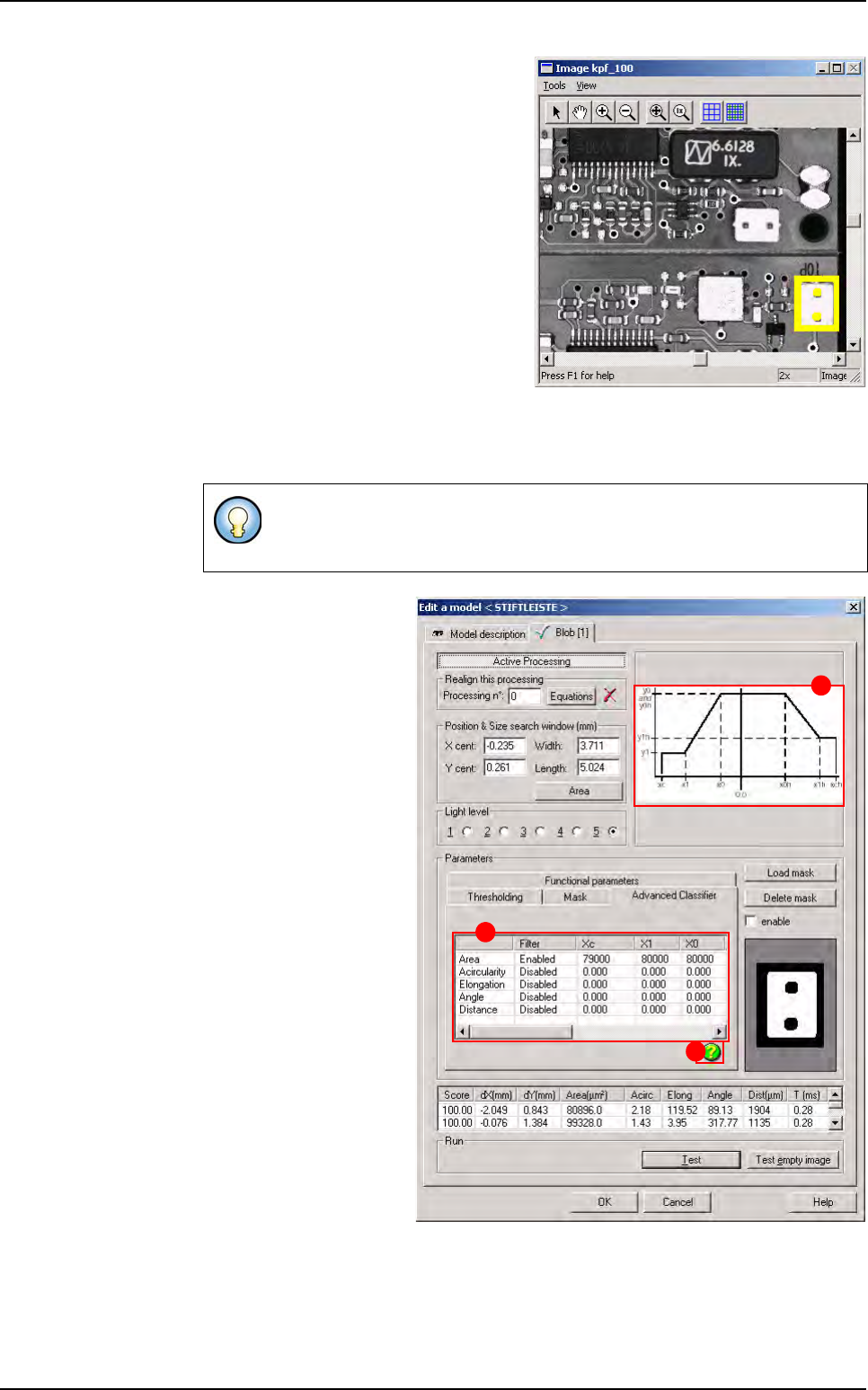
Display or not the mask on the image
with the
Do not display the mask (E)
button.
The mask appears in yellow in the cam-
era window.
Advanced Classifier tab
This tool introduces scoring functions for each filter. Area, Acircularity, Elongation,
Angle, Distance
Click on the icon (
A) to
display the drawing (
B) in
order to choose the en-
abled parameters (
C).
Define a scoring function by defining values for xc, x1, x0, x0h, x1h, xch, y1, y1h, y0
and y0h.
The
Advanced Classifier
does not modify the functional parameters.
The values of the Advanced Classifier are independent of the values of the
functional parameters.
A
B
C
Blob
Tools library
Vision 2007 4.10 User Manual Rev 01 7 - 87
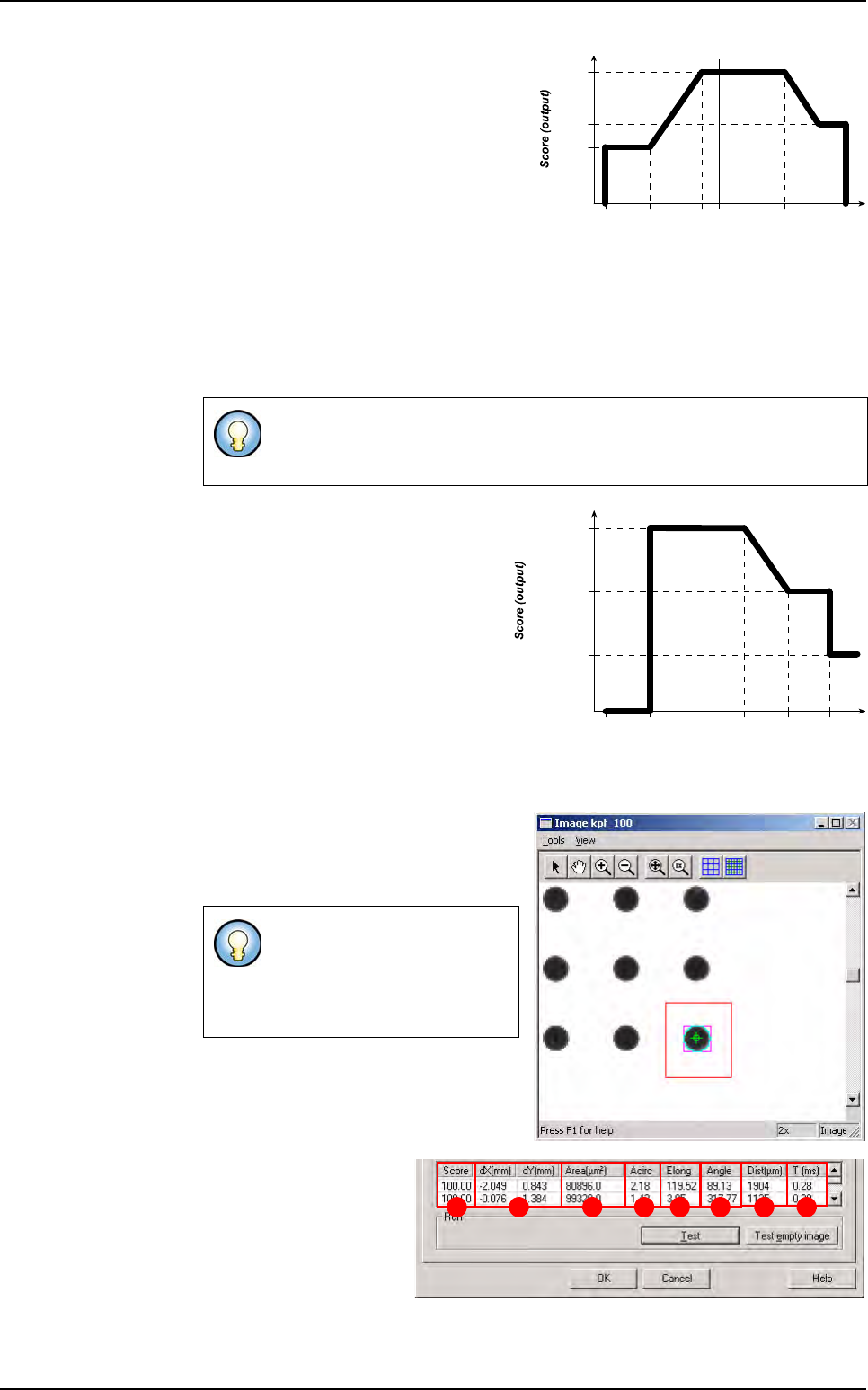
Feature values between xc and x1 are
mapped to a score of y1.
Feature values between x1 and x0 are
mapped linearly to the range of scores
between y1 and y0.
Feature values between x0 and x0h
are mapped to a score of y0 (here y0
= y0h).
Feature values between x0h and x1h are mapped linearly to the range of scores
between y0 and y1h.
Feature values between x1h and xch are mapped to a score of y1h.
While input values can have any values, output scores, must be in the range from 0.0
through 1.0.
Example:
7.14.3.2 Blob test
Click on Test button to apply all the in-
spection parameters to the model, then
a red box representing the tool’s search
area will appear in the camera window.
Score (A): score of the
tested tool (rate of detec-
tion success). The score
is either 100.00 % when
the blob tool finds a re-
sult, or 0.00 when no re-
sult found.
dX/Y[mm] (B): position in X and Y of the model found with respect to the center of
the model’s encompassing area.
The values are such as:
xc <= x1 <= x0 <= x0h <= x1h <= xch and y0 >= y1
(y0 can be equal to y0h and y1 can be equal to y1h )
If the tool finds a blob, it will
display a purple box (blob’s re-
sult box), and a blue line sur-
rounding the blob (blob’s
boundaries).
Feature value (input)
xc x1h
y0 & y0h
y1
y1h
x1 x0 x0h xch0.0
Area
xc = 0 x1h =
60 000
y0 & y0h = 1
y1 = 0.5
y1h = 0.8
x1 = x0 =
3 000
x0h =
30 000
xch =
126 000
BA C D E F G H
Blob