VI User Manual.pdf - 第316页
Production 11 - 16 Vision 2007 4.10 User Manual Re v 01 1 1.3 .3 SPC default values In order to edit the SPC engine parameters for one .tst file defined, click on icon in the tool bar. In the Test file conf iguration win…
Production
Vision 2007 4.10 User Manual Rev 01 11 - 15
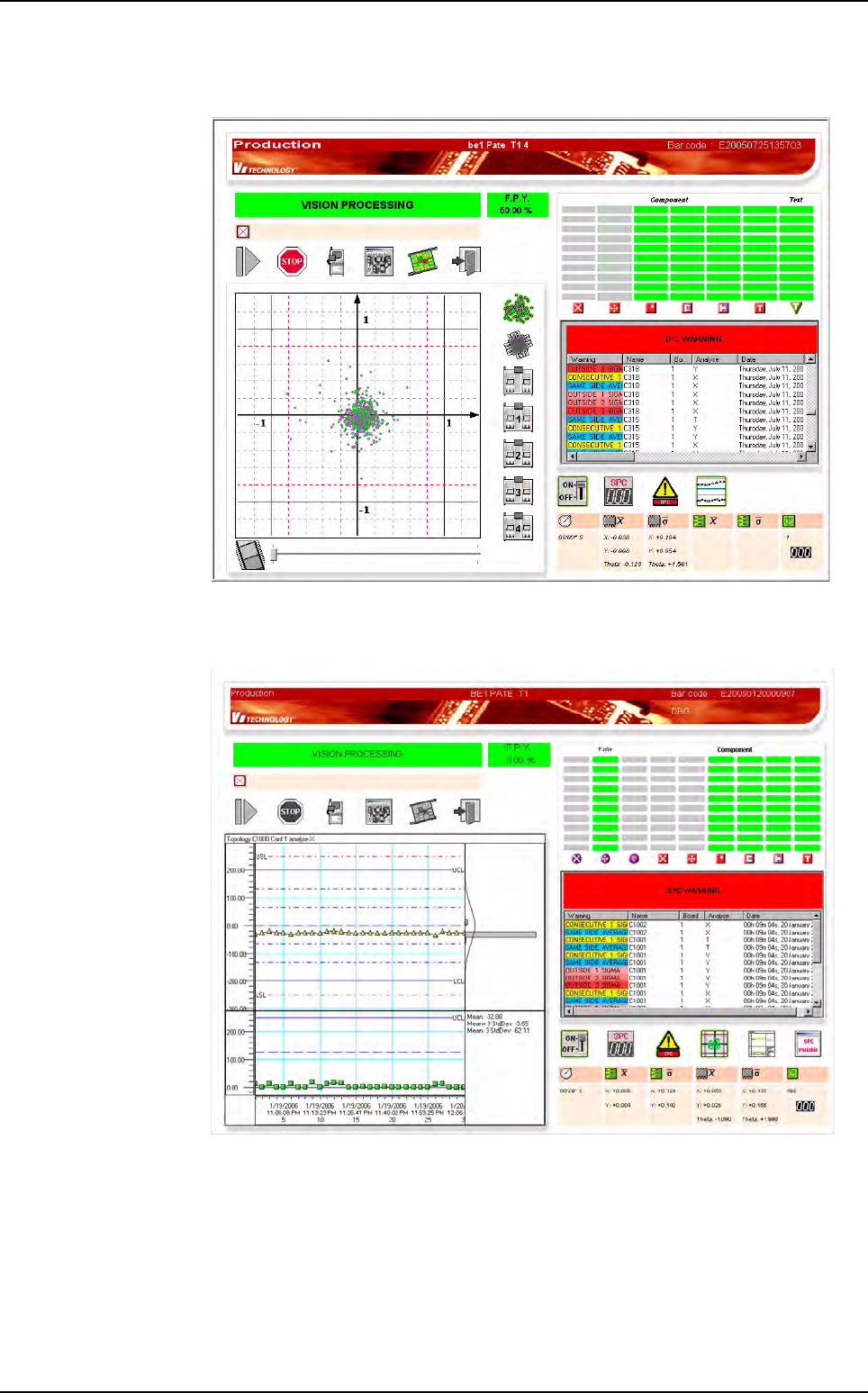
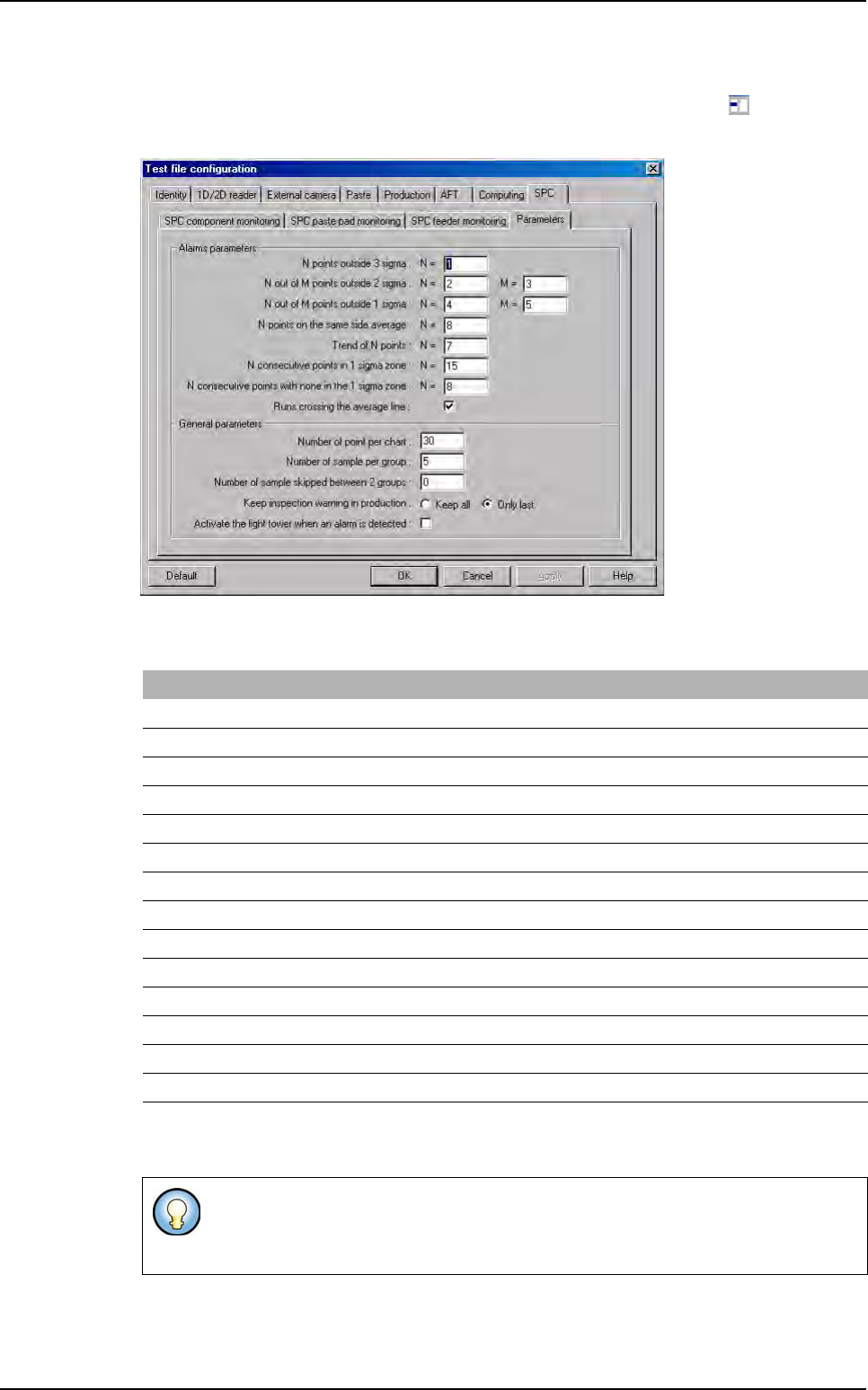
When the SPC engine compute 1 SPC WARNING, the warning dialog box is auto-
matically displayed.
When you click on a
SPC WARNING
, it display the corresponding chart:
Embedded SPC
Production
11 - 16 Vision 2007 4.10 User Manual Rev 01
11.3.3 SPC default values
In order to edit the SPC engine parameters for one .tst file defined, click on icon in the tool
bar. In the Test file configuration window select SPC tab and Parameters sub tab.
The SPC engine parameters are in the DefaultValue.ini file under the key [SPC].
You can choose to use the light tower to alert when an SPC warning is detected. It will use
the orange light. The light tower lit off when warnings are removed.
[SPC] SPC functions parameters
N_OUTSIDE_3_SIGMA = 1
N_OUTSIDE_2_SIGMA = 2
M_OUTSIDE_2_SIGMA = 3
N_OUTSIDE_1_SIGMA = 4
M_OUTSIDE_1_SIGMA = 5
N_SAME_SIDE_AVERAGE = 8
N_TREND = 7
N_CONSECUTIVE_1_SIGMA = 15
N_CONSECUTIVE_OUT_SIGMA = 8
Number of point per chart = 30
Number of sample per group = 5
Number of sample skipped between 2 groups = 0
Show only last inspection warning = 1
Warning of runs crossing the average line used = 1
The SPC engine parameters modification for one .tst defined in the Test file config-
uration window, will not modify the SPC default values recorded in the DefaultVal-
ue.ini file.
Embedded SPC
Production
Vision 2007 4.10 User Manual Rev 01 11 - 17
11.4 MSA mode
MSA is Measurement System Analysis. This mode allows to record data from production mode for
MSA analysis in GraphStat software.
MSA data are saved in the supervisor MSA database (see chapter 12 Supervisor and chapter 15
GraphStat for settings and use of this MSA mode).
To start MSA mode:
1. Edit the DefaultValue .ini file and set the following keys accordingly:
2. From Vision 2007, open the .tst file to run the board.
Select some components to be followed in statistical monitoring (edit component and tick statistical
monitoring, or right click on the test file and select Put some jedecs on statistics).
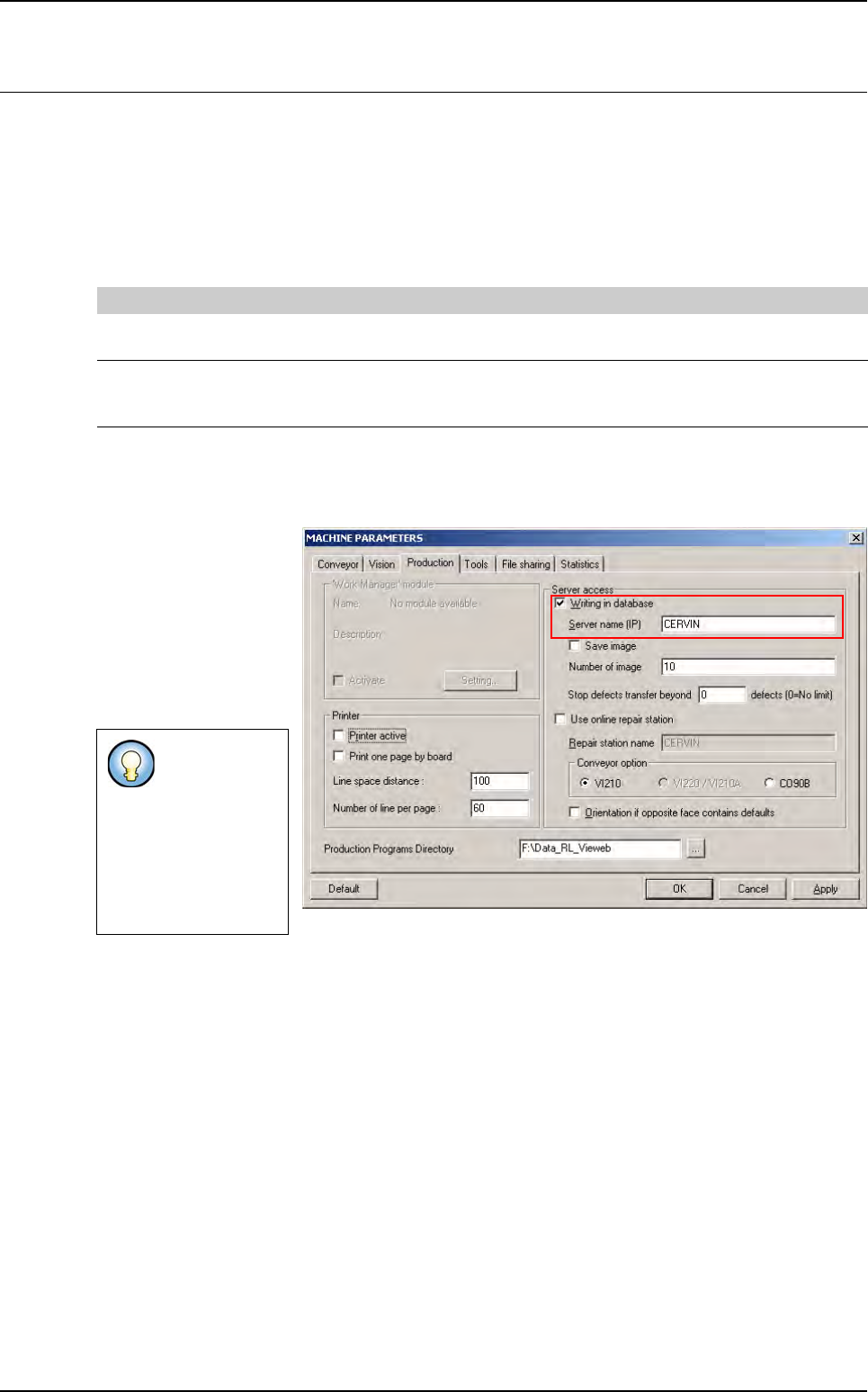
3. In Maintenance mode,
go in Machine Parame-
ters and select Produc-
tion tab, tick Writing in
database and enter the
Server name of the su-
pervisor PC (see chap-
ter 12 Supervisor for
settings).
4. From Vision 2007 Production menu, tick MSA mode and start production.
5. In Production mode, press GO and load a board in the AOI system.
The same board will be executed the number of cycle defined in the DefaultValue .ini file.
Results will be saved in the database.
Bar codes will be incremented according to the panel bar code of the board: XXX_MSA1,
XXX_MSA2, ...
[MSA]
Cycle number = 30 Indicates the number of time for the sameboard to be run
0 = MSA mode menu is gray out from Production mode
Clamp/unclamp mode = 0 Indicate if the board is unclamped between each run
0 = The board is not unclamped
1 = The board is unclamped and clamped again
Even if you se-
lect an on-line
station, it will
not be started
and used if you
start produc-
tion in MSA
mode.