VI User Manual.pdf - 第24页
Getting started 1 - 4 Vision2007 4.10 User Manu al Rev 01 1.2 Vision 2007 encryption 1.2.1 Encrypting principle Licenses are required to use soft ware versions equal or upper th an release J for Vision system, Repair and…

Getting started
Vision 2007 4.10 User Manual Rev 01 1 - 3
4. At the Vision System Setup screen select the type of machine you want to install:
AOI system: click Next. If the wrong Cognex driver is installed, the setup asks you to unin-
stall it before.
Supervision & Repair Station: click Next, select the software, click Next to finish.
5. When Setup has finished copying files, you have to reboot your computer to complete the
installation. Click Finish to shutdown your computer.
6. Plug the Cognex board in the computer (if it is not already inside), and restart.
7. On Windows 2000 Professional or Windows XP after restarting your computer, the plug &
play system detects your new Cognex board. It asks you to select the drivers information file
(.inf) to finish the installation. You must select C:\WINNT\System32\VIT\drivers directory.
After installing ViTechnology software, please take time to read the Release Notes
for the latest information available. The Release Notes are available in electronic
form (.doc & .pdf) on the CD-ROM.
Vision 2007 setup
Getting started
1 - 4 Vision2007 4.10 User Manual Rev 01
1.2 Vision 2007 encryption
1.2.1 Encrypting principle
Licenses are required to use software versions equal or upper than release J for Vision system,
Repair and Supervisor software. Licenses are generated in factory according to the dongle by
a ViTechnology software.
1.2.2 Available options
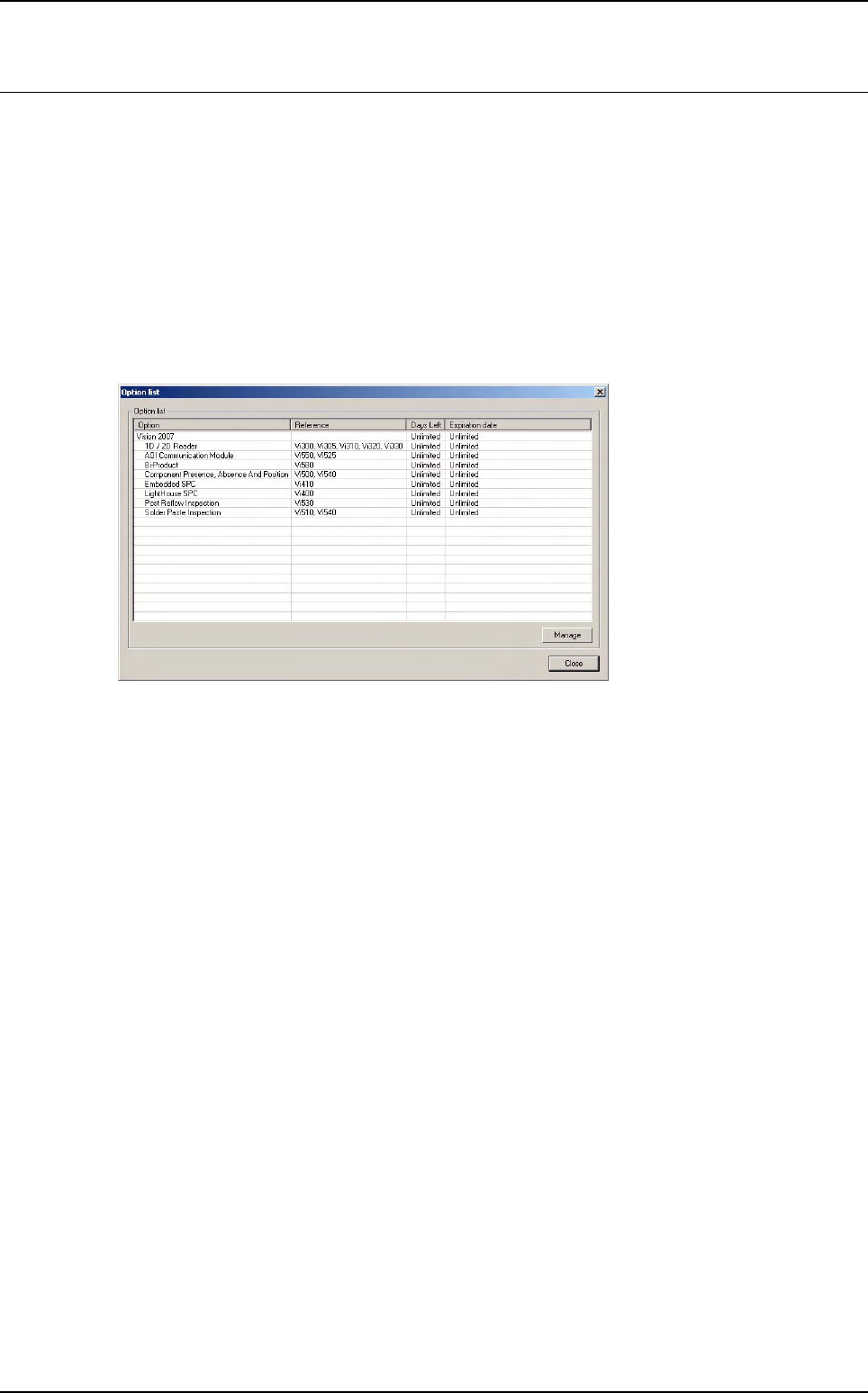
From all ViTechnology software you can see the list of all available options. In main menu bar,
go in Help menu and select Display available options…
1.2.3 Update options
To update option:
1. Select the Adding option menu from the ? section.
2. Get the locking code and send it to ViTechnology to update options.
3. ViTechnology return you a new code that you have to copy in Updating code.
4. Click on Update and news options are directly available.
Getting started
Vision 2007 4.10 User Manual Rev 01 1 - 5
1.3 AOI system configuration
To ensure AOI system fonctionning, hardware configuration must be set properly when starting Vision
2007 for the 1 st time. A user friendly interface, accessible when starting Vision 2007 in RESET mode,
gives access to AOI system configuration. All settings are saved in a .cfg file for AOI use and a .cf~ file
for safety back up.
1.3.1 Vision 2007 shortcut creation
The hardware configuration window is accessible using an Vision shortcut with an additional
parameter: RESET.
1.3.1.1 Create Shortcut
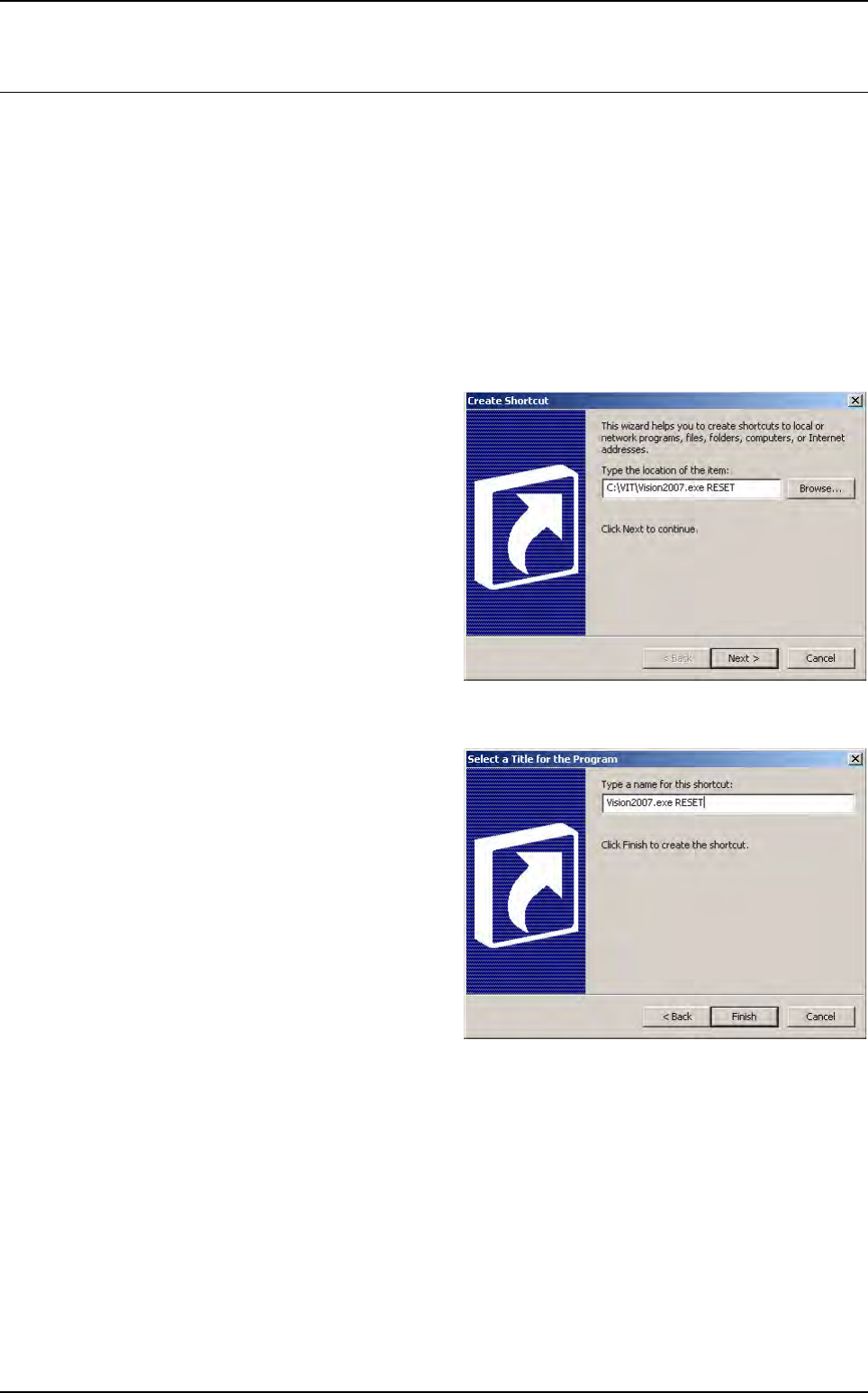
To create a shortcut, right click on
the desktop and select a new short-
cut, the opposite window appears.
Use the Browse button to select
the Vision software and after enter
RESET.
So the command line should finish
by ...\Vision2007.exe RESET.
Then click on Next.
1.3.1.2 Select a Title for the Program
This window asks you a name for
the shortcut. It is advise to add RE-
SET at the end of the name, so you
can distinguish the 2 Vision short-
cuts on the desktop.
Then, click on Finish and the
shortcut is created.
Double click on it to run vision sof-
ware and the hardware configura-
tion window.