VI User Manual.pdf - 第225页
Tools library Vision 2007 4.10 User Manua l Rev 01 7 - 63 7.9.5.4 Impurities 7.9.6 Profiler™ result To return th e Profiler™ result, in Equations area on the Model description tab, use Z instead of J in Joint field. Equa…
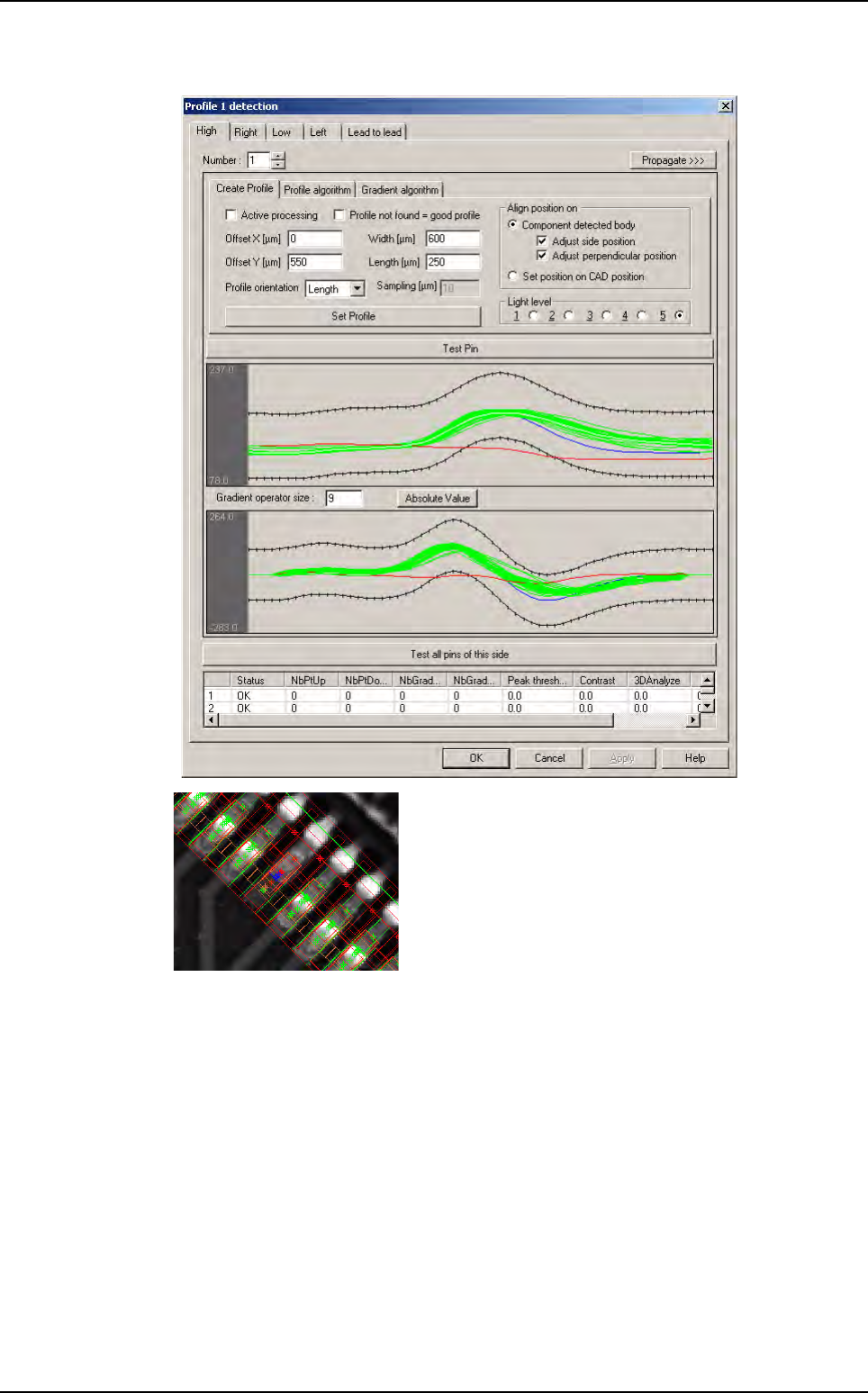
Tools library
7 - 62 Vision 2007 4.10 User Manual Rev 01
7.9.5.3 Complete welding absence
Profiler
™
in Custom
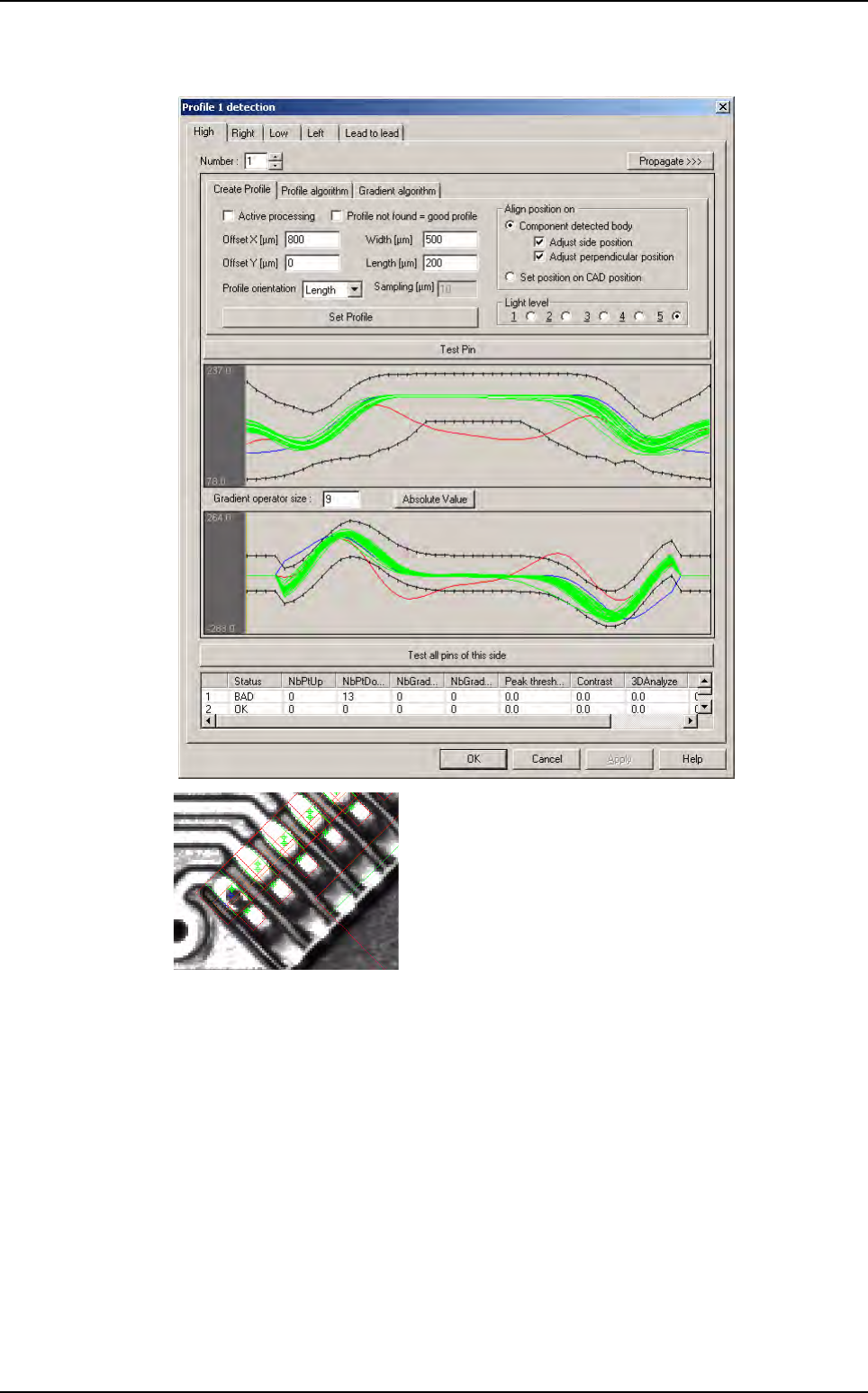
Tools library
Vision 2007 4.10 User Manual Rev 01 7 - 63
7.9.5.4 Impurities
7.9.6 Profiler™ result
To return the Profiler™ result, in Equations area on the Model description tab, use Z instead
of
J in Joint field.
Equation is:
1-Z (Z = Profiler™ 1 and Profiler™ 2)
Profiler
™
in Custom
Tools library
7 - 64 Vision 2007 4.10 User Manual Rev 01
7.10 Profiler
™
The Profiler
™
tool is also available separate of Custom tool. This treatment can be use like the other
tools (Vi-Pro, Edge ...).
Programmation of this Profiler
™
is like Profiler
™
in Custom tool (without lead to lead). This tool is used
to control the solder of component like resistor.
7.10.1 Model description tab
On the Model description tab, choose the treatment operation: a new Profiler™ tab ap-
pears behind the
Model description tab. All treatment windows (position & size) are auto-
matically created according to the encompassing rectangle definition.
7.10.2 Profiler™ tab
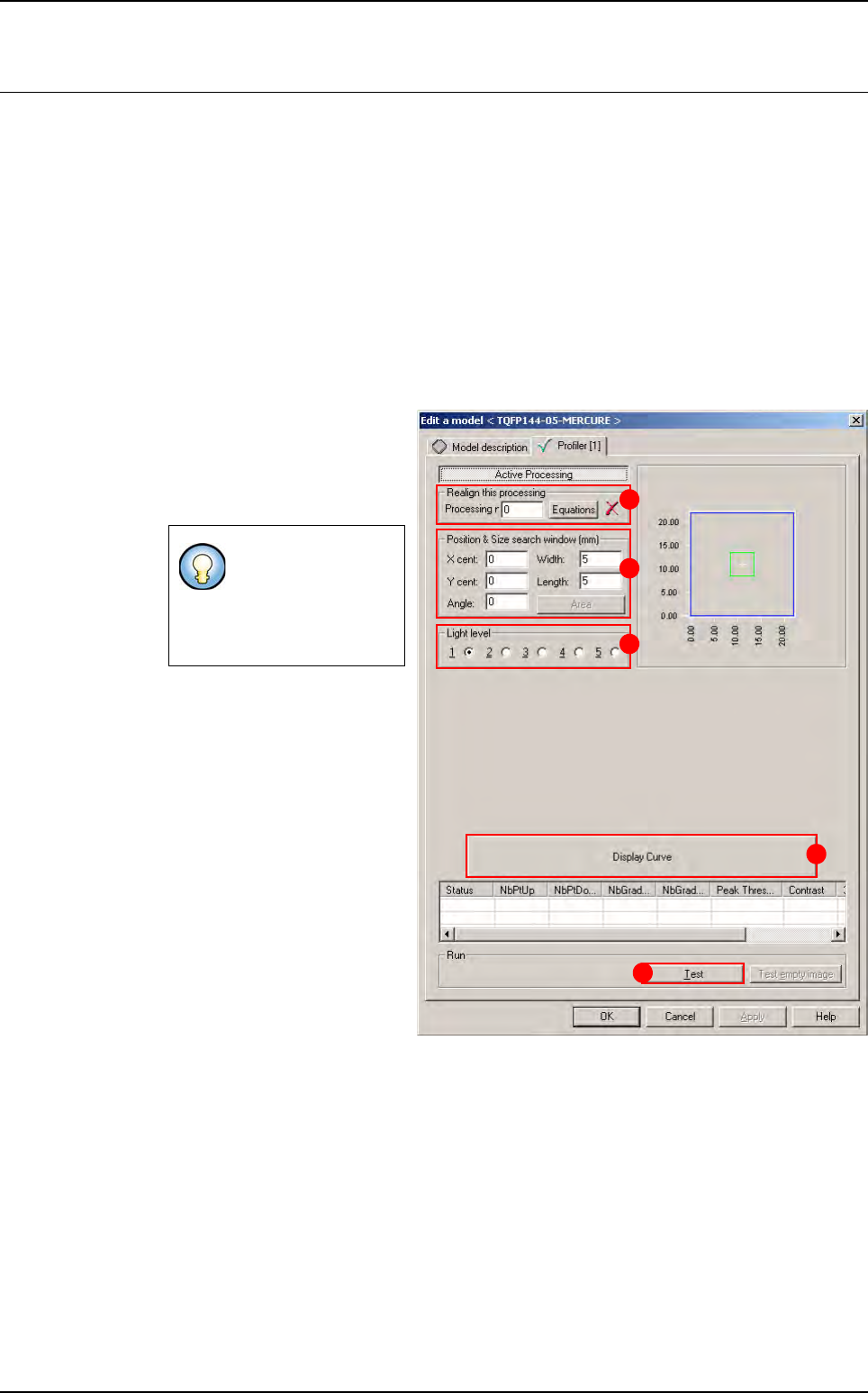
1. Use Realign this processing
(A) section if you want to re-
align the position of the tool
with another one (not avail-
able for window 1).
2. In Position & Size search
window (mm)
(B) area define
the position and the size of the
Profiler™ construction win-
dow.
3. In Light level (C) section, se-
lect the light level to use.
4. Click Display Curve (D) but-
ton to display the configura-
tion window (see below §
7.10.3 Profiler
™
window).
5. Click Test (E) button to test
the
Profiler™ tool and display
the results.
If you need a special
equation to realign,
you can do so using
the
Equations but-
ton.
A
B
C
D
E