VI User Manual.pdf - 第123页
.TST file edition Vision 2007 4.10 User Manua l Rev 01 5 - 15 5.5.4 Delete a component You can pe rmanently de lete a comp onent from the .tst file : 1 . After having selected the Erase button, accessible fr om the Tools…
.TST file edition
5 - 14 Vision 2007 4.10 User Manual Rev 01
5.5.2 Test conditions
5.5.2.1 Test component
By default, all the components will be tested. To ignore a component, deselect
Test com-
ponent
. You can deselect a component for inspection. The component to ignore during
inspection appears in red in the .tst file, like the components associated with no zone.
5.5.2.2 Absent
You can check that a component has not been placed. This can help you to verify the
version of the PCB. Your .tst file must contain the topologies supposed to be absent. Tick
Absent to indicate that a topology is not placed. The software executes the component
and return the opposite result:
If the component is missing = No error,
If the component is found = Missing error.
5.5.2.3 Statistical monitoring
By default, the components will not be selected for Statistical monitoring. You can
place a component in Statistical monitoring using the optional software SPC Software,
VieWeb or Supervisor.
If you want to activate this option, tick the relevant box. When a component is in Statis-
tical monitoring, all the information from production will be transferred to the supervisor
(even if it is not in error). The component selected in Statistical monitoring appears in
blue in the .tst file. Set the sampling rate to transfer statistical data in the Maintenance/
Parameters/Statistics menu.
5.5.2.4 Reference fiducials
In the .tst file, components can be realigned with panel or board fiducials. If you have
both types in the .tst file, you can choose. The fiducial type comes from the .vis file. The
type indicated in the fiducial edition is only for the model name in the library.
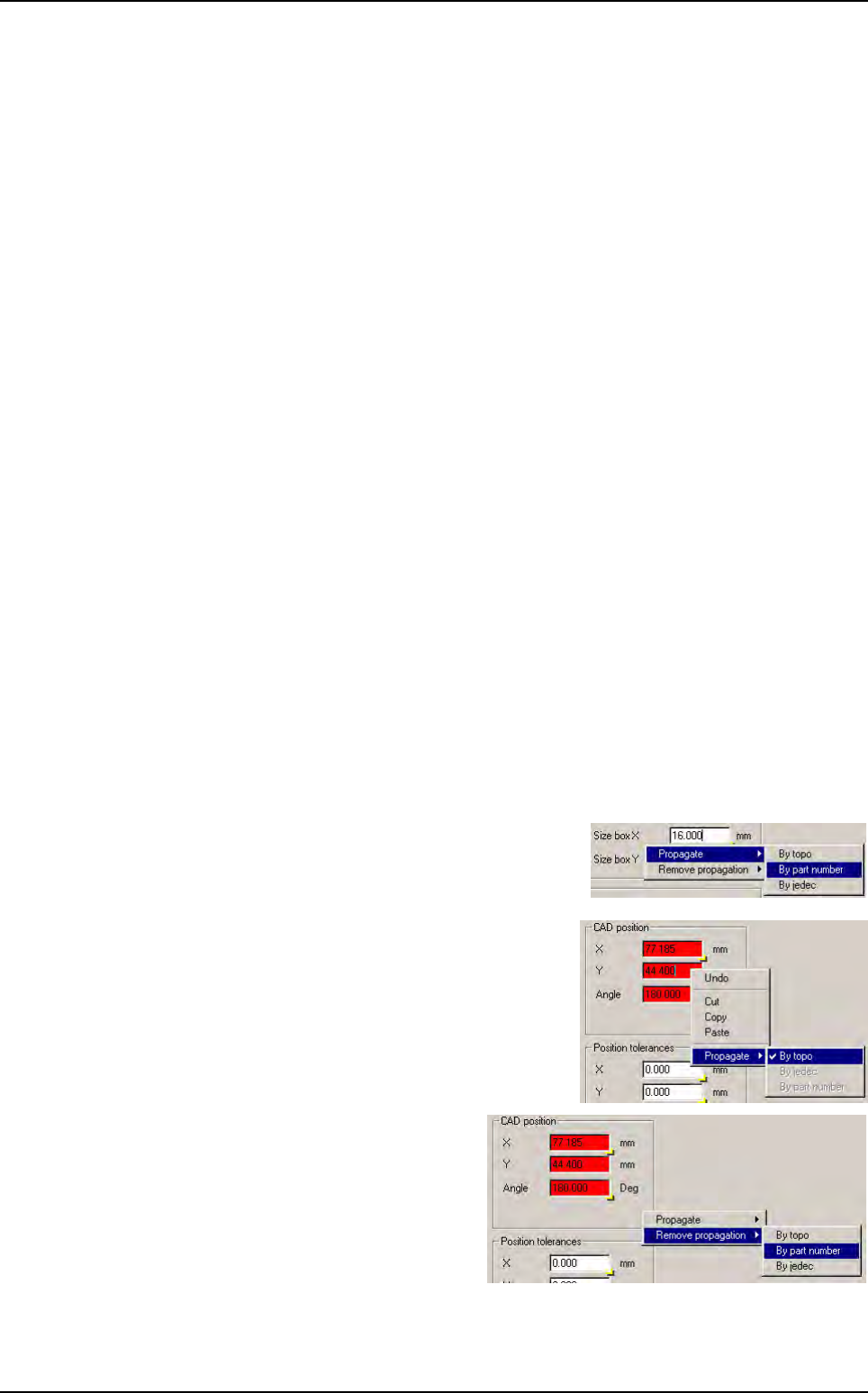
5.5.3 Propagating component data
To propagate component data, use the mouse right click
button to see the available propagation oportunities: by To-
po, Part number or Jedec, according to parameters you in-
tend to propagate.
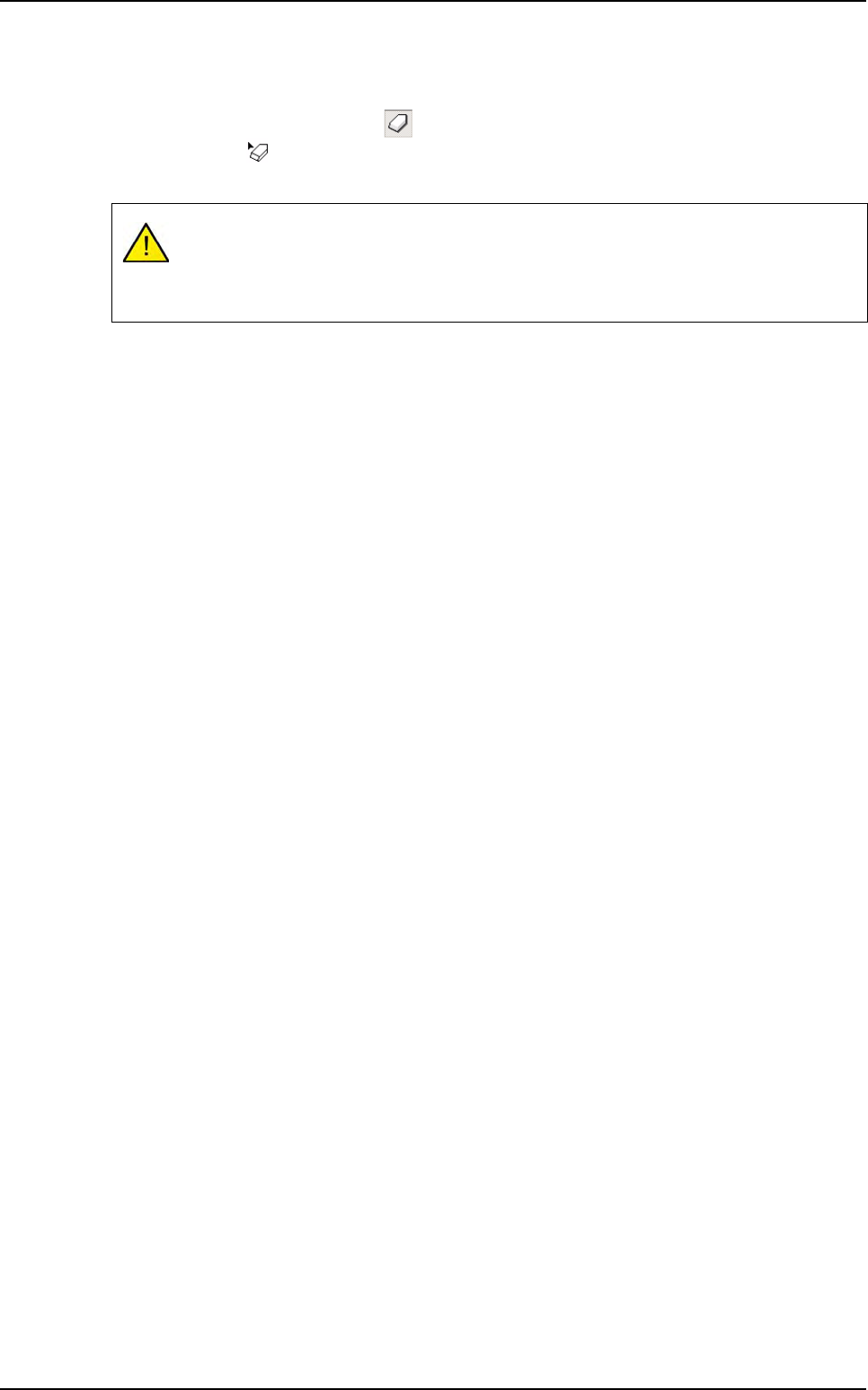
Parameters, that will be propagated, appear in red.
To remove the propagation tag, right click on
the text field or on the gray area around it and
select remove propagation.
Components edition
.TST file edition
Vision 2007 4.10 User Manual Rev 01 5 - 15
5.5.4 Delete a component
You can permanently delete a component from the .tst file:
1. After having selected the Erase button, accessible from the Tools palette, the mouse cur-
sor change to .
2. Then click directly on the component to delete, it appears in yellow.
Once deleted, a component cannot be restored.
Click OK to confirm the changes.
Click Cancel to interrupt the current changes.
Components edition
.TST file edition
5 - 16 Vision 2007 4.10 User Manual Rev 01
5.6 Treatments selection
You have the possibility to run or not some functionalities for each model. For one .tst file you can de-
select some tests for components or some labels for text inspection (OCV). The configuration is saved
in the .tst file. When you start production, we execute only the selected tests. When you deselect op-
tions, it does not change the library:
The corresponding treatment is not executed,
The corresponding image is not acquired.
5.6.1 For components
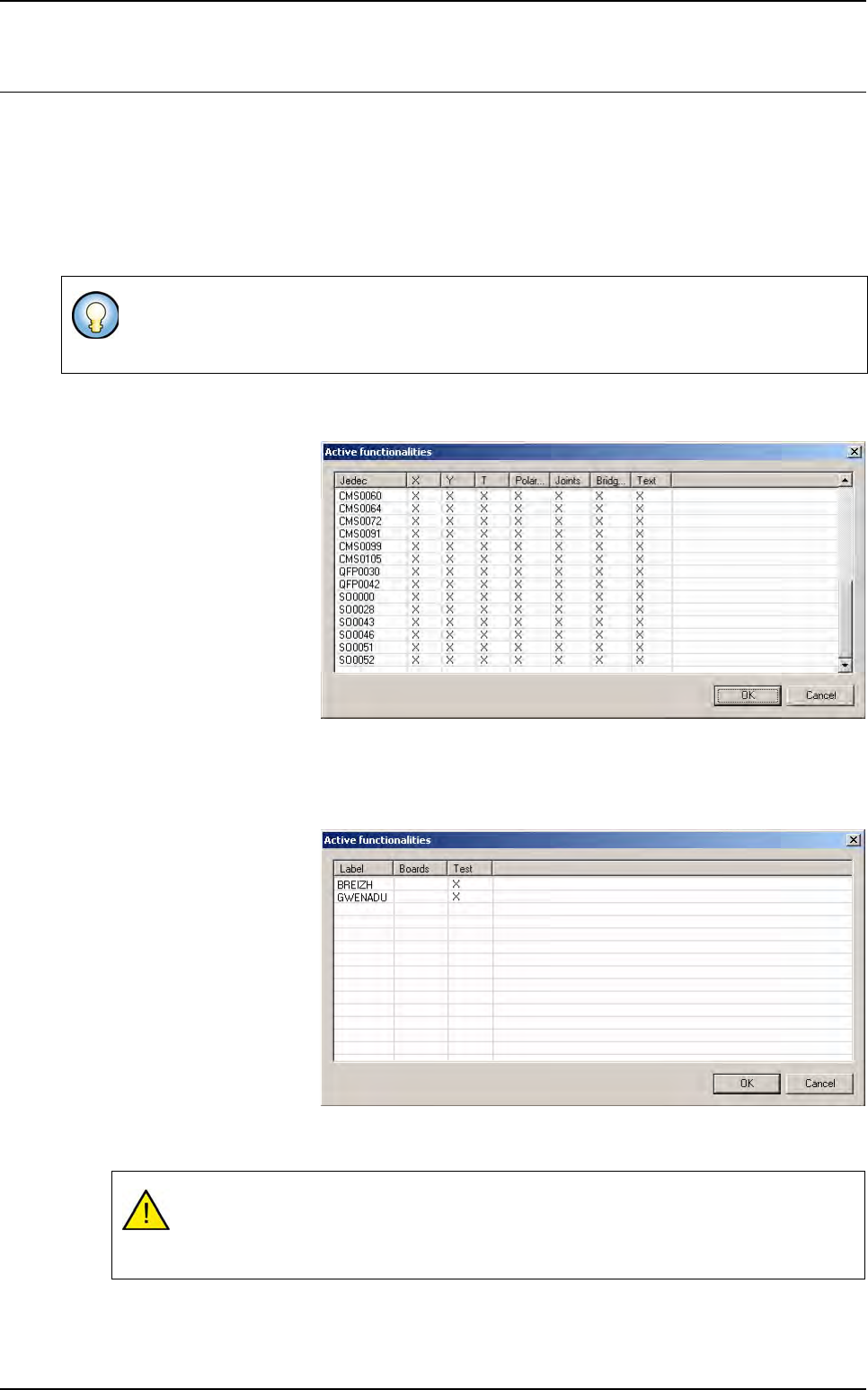
In Edit menu, go to
Component and press
Select functionality.
This will display the list of
all the models you have
in the .tst file.
By default, all the func-
tionalities are ticked. (It
does not check what is
programmed in the li-
brary)
You can deselect some
tests by removing the
cross of the corresponding column (You can not remove the Presence Test).
5.6.2 For text
In Edit menu, go to Text
and press Select labels.
This will display the list of
all the labels you have in
the .tst file.
By default, the text in-
spection is ticked. If you
click on the top of the col-
umn you will remove /
add the test for all the
models. If you click on
the top of the column you
will remove the text veri-
fication for the whole panel. You can deselect some labels by removing the cross of the corre-
sponding line.
This tool is helpful when you use a library made for post-reflow inspection and you want to use
it pre-reflow. You just have to deselect the joints and brigdes tests without changing anything
in the library. You still can use the same library pre and post-reflow.
Removing a text verification revises automatically the Test text box from the Text object
edition window.
Removing a text label, changes automatically the links organization.