VI User Manual.pdf - 第179页
Tools library Vision 2007 4.10 User Manua l Rev 01 7 - 17 When to us e Vector Tool Model Creator ? Vector Tool Model Creator option can b e used among other: To create a model of complex shape. To create model of opened …
Tools library
7 - 16 Vision 2007 4.10 User Manual Rev 01
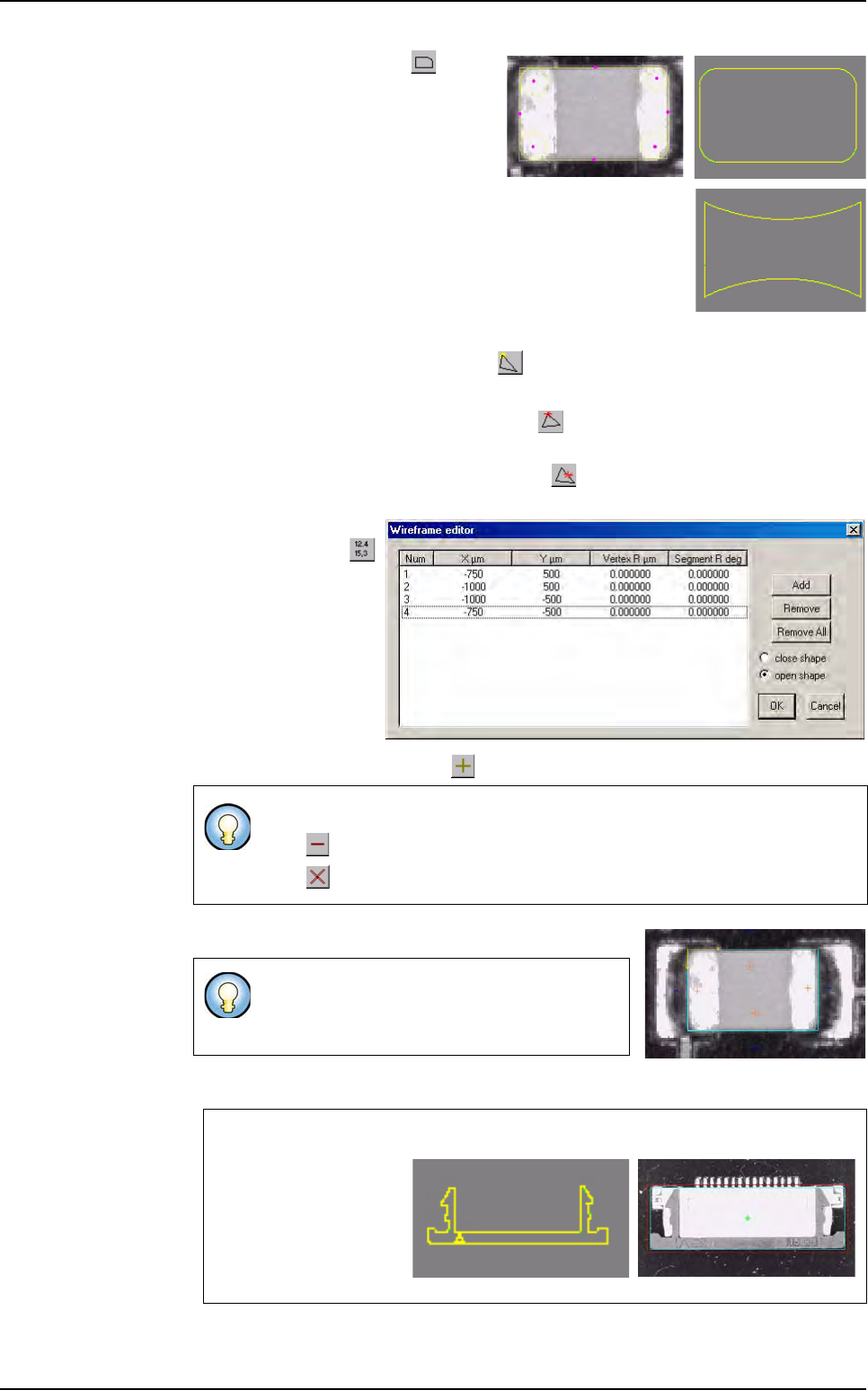
5. To round the shape, press button,
then click on the wanted vertex or seg-
ment and define the circle diameter.
6. To add or remove a vertex, and to remove a segment, several tools are available:
To add a vertex to the shape, press button, then click on the segment on which
the vertex is added, and move it to the wanted place.
To remove a vertex of the shape, press button, then click on the vertex to re-
move.
To remove a segment of the shape, press button, then click on the segment to
remove.
7. To edit the coordinates
of a vertex, press
button, the opposite
window appears in
which the vertex coor-
dinates are modified.
8. After the shape definition, press button to add it in the Shape list.
9. Click on Polarity button to reverse the vector polarity.
10. When the shape is OK, click on Train button to create the vector tool model.
For a same model, several shapes could be defined by using the Shape list.
Press button to remove a shape from the
Shape list.
Press button to remove all shapes from the
Shape list.
The old way of model programming used syn-
thetic image, so vector polarity was automati-
cally set during the training.
Example
This model is done with
2 shapes: 1 polygon
and 1 triangle.
The model is used like
a classical Vi-Pro mod-
el.
Model
with rouding vertex
Model
with rouding segment
Trained image
Vi-Pro
Tools library
Vision 2007 4.10 User Manual Rev 01 7 - 17
When to use Vector Tool Model Creator ?
Vector Tool Model Creator option can be used among other:
To create a model of complex shape.
To create model of opened shape. This ability could be very
useful for components whose part of edge is not visible.
To create model without certain segment (choose rep-
resentative segment for the model).
7.3.2.3 Vi-Pro test
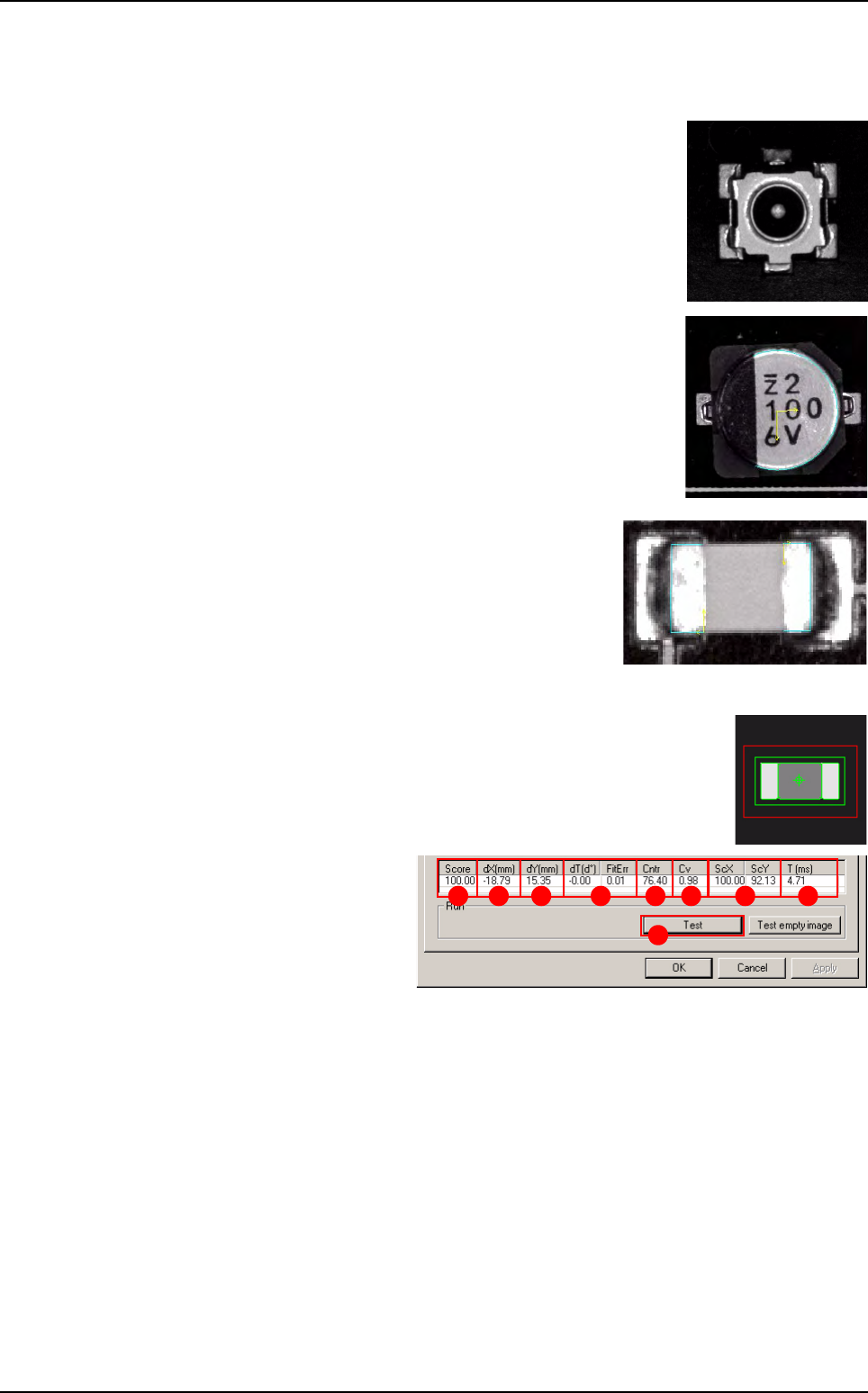
Click on Test (A) button to apply all the inspection parameters to the
model, then a fiducial representing the center of the model will appear
in the camera window.
Score (B): score of the test-
ed tool (rate of detection suc-
cess).
dXY(mm) (C): position in X
and Y of the model found with
respect to the center of the
model’s encompassing area.
dT(d°) (D): position result in theta of the tested model.
FitErr
(Vi-Pro algorithm) (
E
): the closer the measurement is to 0, the better the model is.
Cntr (F): difference of a transition, in gray level values between background brightness
and component brightness. This value is the average of the transition contrast found dur-
ing the test.
Cv (
Vi-Pro
algorithm) (G): the coverage measures the percentage of vectors found in the
image of the search window with respect to the trained model:
The more vectors found, the closer the result will be to 1.
The fewer vectors found, the closer the result will be to 0.
ScXY (H): scale of the model found with respect to the trained model.
T (ms) ( I ): inspection time.
A
B C D E F G H I
Vi-Pro

Tools library
7 - 18 Vision 2007 4.10 User Manual Rev 01
Recommendations for using Vi-Pro
Choose a representative synthetic model with clear lines
Delete unimportant lines and image noise.
Only train important lines.
A large model will be more accurate.
Search window size affects inspection time (width) x (length) x (search angle).
Reduction of the Fine grain limit parameters increases inspection time.
Increase of the Coarse grain limit parameters reduces inspection time.
Consideration of polarity slightly increases inspection time.
Set a Contrast Threshold greater than 0.0 to accelerate inspection.
Vi-Pro