VI User Manual.pdf - 第273页
Optical Character Verification Vision 2007 4.10 User Manua l Rev 01 8 - 11 Click on the icon ( B ) to display all tr ained characters in the opposite window. In order to not test a char acter, put them in quaran- tine wi…
Optical Character Verification
8 - 10 Vision 2007 4.10 User Manual Rev 01
8.2.4.2 Running
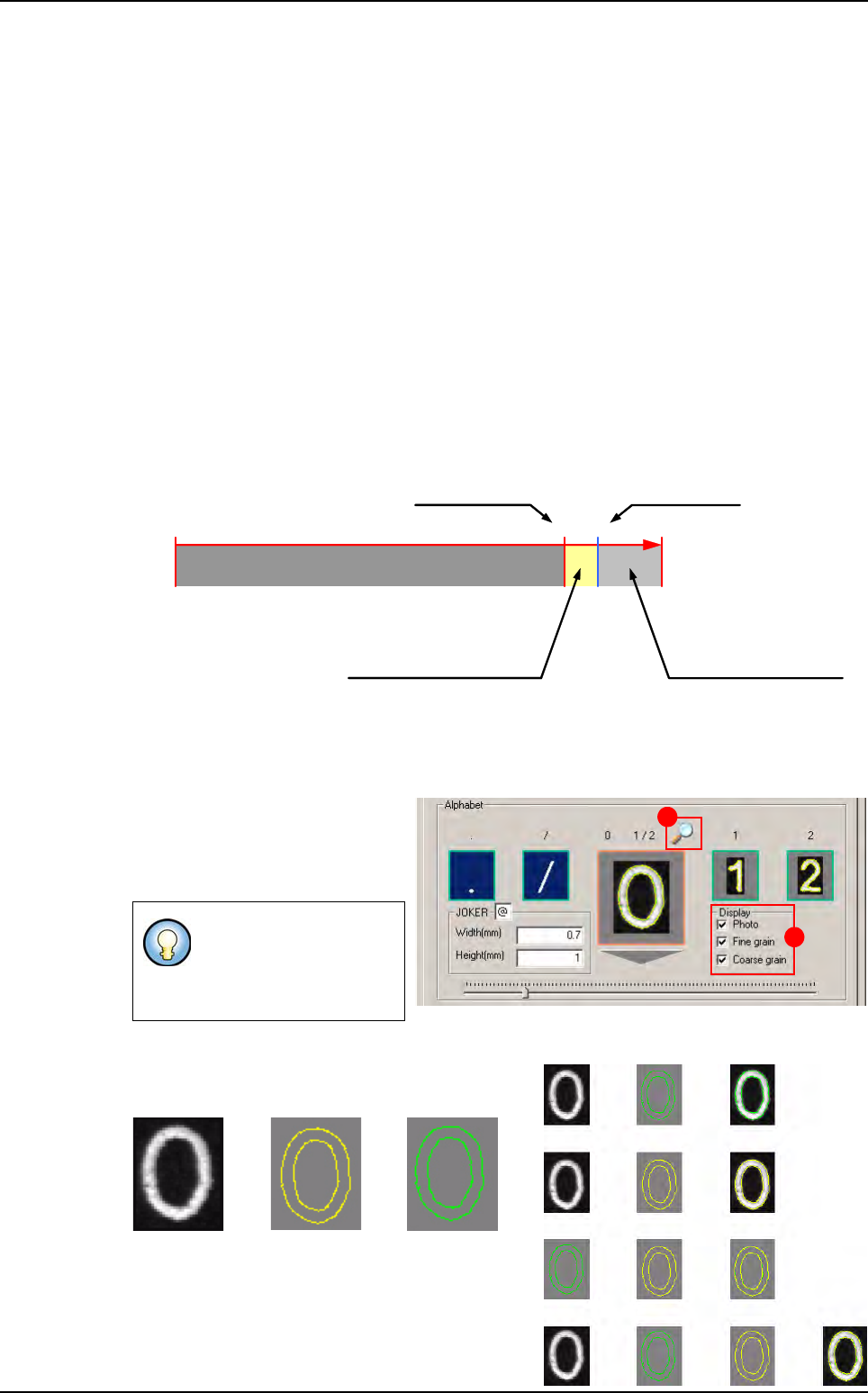
To reduce cycle time, the confusion algorithm is only executed in certain conditions.
Each letter has its own decision score to activate the Confusion algorithm; it is called
the Confusion score.
Example 1
The system verifies a O and it is really a O.
The score of the model O is higher than the Confusion score, the confusion algorithm
is not executed.
Example 2
The system verifies a O but in reality it a G.
The score of the model O is lower than the Confusion score, the confusion algorithm is
executed.
When to start the Confusion algorithm ?
8.2.5 Test of one letter
1. Select the picture.
2.
Scroll to the letter which you want
to test on the center of the alphabet
A Joker letter is a letter which is
not tested.
To change the character drawing, tick the 3 check
boxes (A):
Photo Coarse Grain Fine Grain
For example, if you deci-
de that A is a joker letter,
then all A in you text will
be not tested.
0 1008780
Acceptable score
Confusion algorithm executed
Confusion score
Unacceptable score
Confusion algorithm
NOT executed:
the letter has been found
with its model
A
B
+ =
+ =
+ =
+ + =
Photo + Fine grain
Photo + Coarse grain
Fine grain + Coarse grain
Photo + Fine grain + Coarse grain
Creation procedure
Optical Character Verification
Vision 2007 4.10 User Manual Rev 01 8 - 11
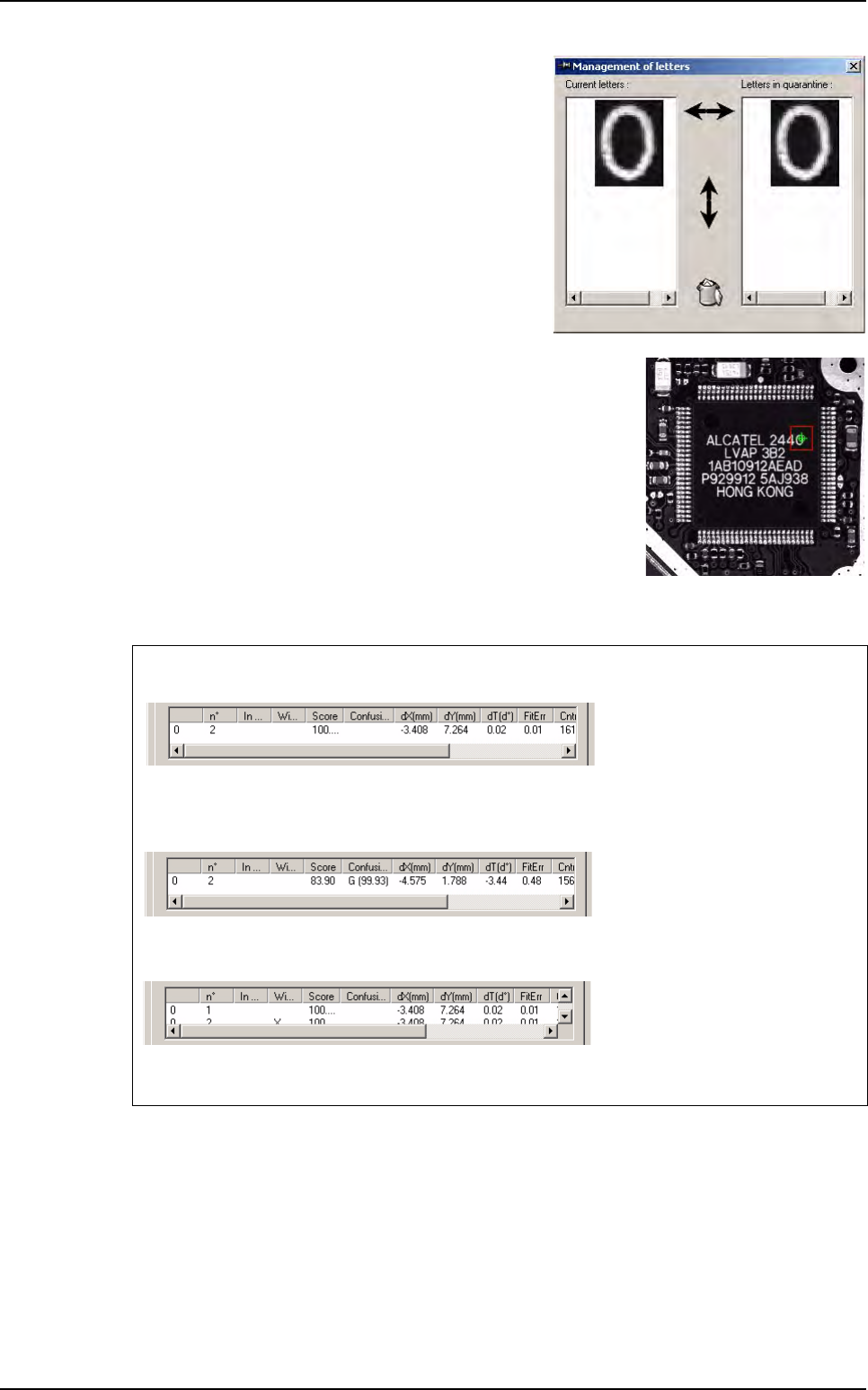
Click on the icon (B) to display all trained characters
in the opposite window.
In order to not test a character, put them in quaran-
tine with horizontal arrows.
To change the order of the execution of the models,
use the vertical arrows.
To delete one or more models, select them in Cur-
rent letters or Letters in quarantine, and click on
Dustbin icon.
3. Draw the area on the image.
4. Click on Test button to test one model, the result is shown in the table.
If the character is in quarantine, a cross appear in the second column
.
If the Confusion is activated, the algorithm confusion is launched if necessary. If it is the
case, the letter of confusion appears in the table.
If you want to test all the models of the current character, use the Test All button
The winner letter is notified by a cross (You can use the algorithm confusion too)
Creation procedure
Optical Character Verification
8 - 12 Vision 2007 4.10 User Manual Rev 01
8.2.6 Test the string
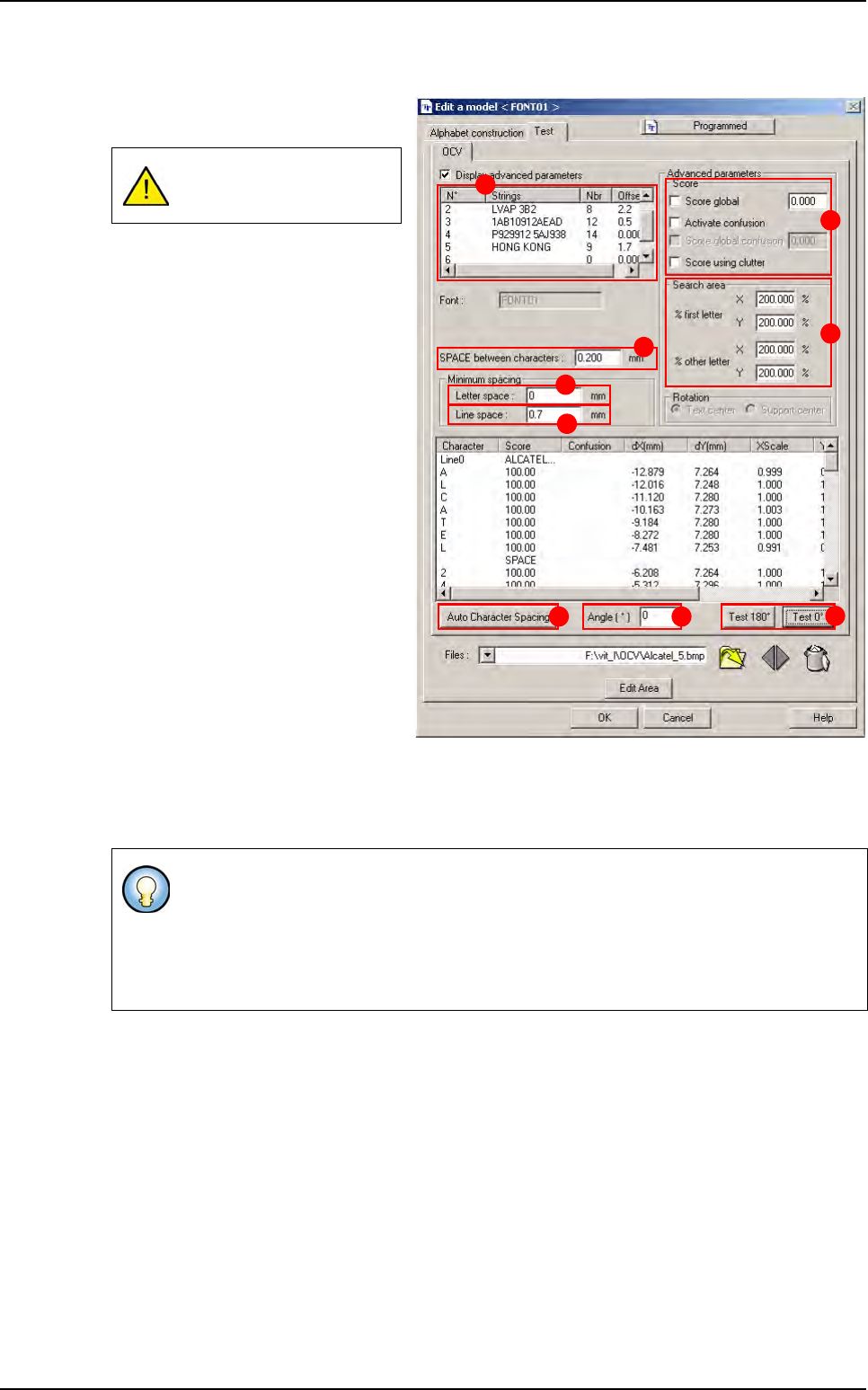
Test: to test the settings on a real im-
age.
1. Open an image.
2. Draw the area around the text.
3. Define the text to find (A).
4. Define the SPACE between char-
acters (B) (the size of the space
character).
5. Define Letter space (C) (the mini-
mum spacing between 2 charac-
ters).
The Auto Character Spacing
button (D) defines, for one line,
the space between 2 characters.
6. Define Line space (E) (the mini-
mum space between 2 lines of
text.)
7. If necessary define the Score pa-
rameters (F) for all letters.
8. Define the Search area (G) in % of
the train area, for the 1
st
letter of
the string and for the others let-
ters.
9. Define the Angle [°] (H) of the text.
10. Click on the Test 0° button ( I ), or if the text is at 180°, use the Test 180° button.
All modifications made on
this tab will not be saved.
In the line, if a character is in error, the other characters of the line are not tested.
In the line, if the number of characters found is larger than the number Nbr, then the
test succeeded.
If you define a joker character, then JOKER character is written near the character. It is
not tested.
A
B
C
D
E
F
G
H
I
Creation procedure