SL940-Install-Ops-Maintenance-7210918_B.pdf - 第103页
Operation 5- 23 5.17 Loading a P rogram Programs can be loaded from both the ECXP Operato r Screen ( Fig ur e 5-16) and the ECXP Edit Screen ( Fi gur e 5-17). Following ar e detailed instruction s on loading a pr ogram f…
5-22 Operation
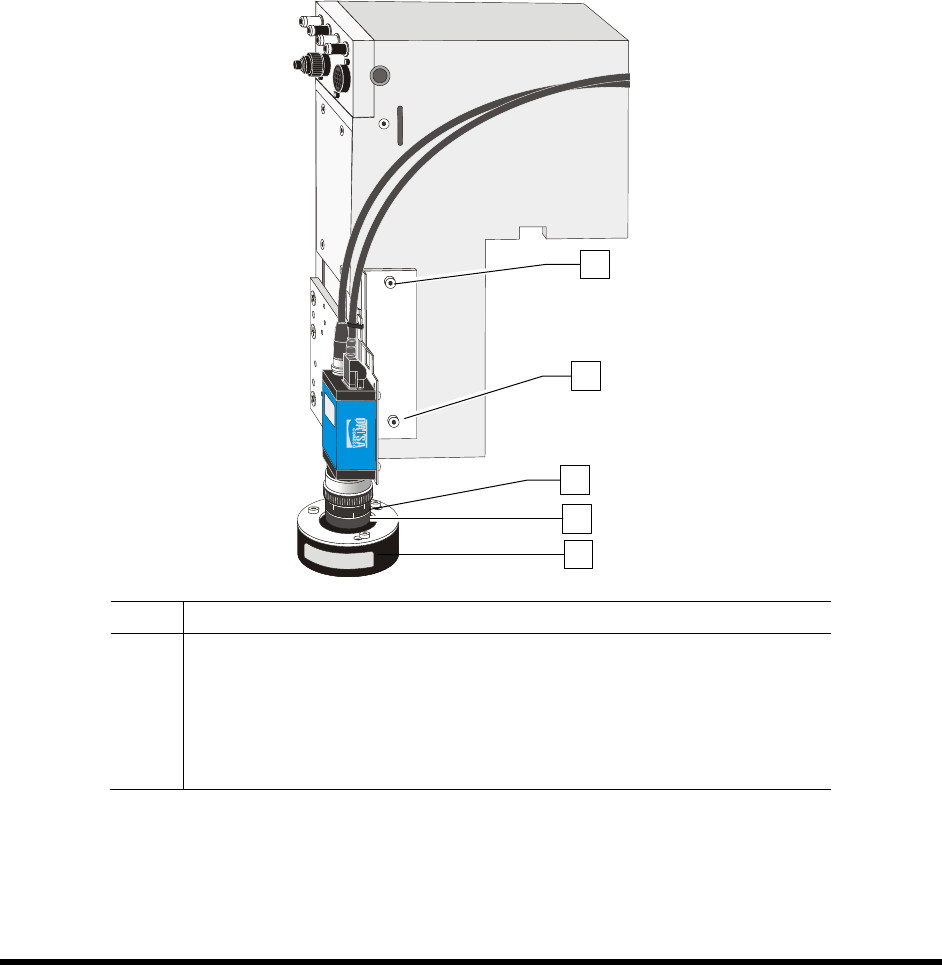
5.16 Focusing the Camera
1. Position the camera over an easily recognized feature on the substrate.
2. Loosen the thumb screws on the focal ring (Figure 5-15).
3. Twist the focal ring until a sharp image is obtained.
4. Tighten the thumb screw.
5. Loosen the thumb screws on the F-stop ring (Figure 5-15).
6. Twist the F-stop ring until the desired lighting is obtained. Twist the ring one click brighter
so that when the door closes, the lighting is correct.
7. Tighten the thumb screws.
8. The camera is now ready for use.
Item Description
1 Upper Side Screw
2 Lower Side Screw
3 F-Stop Ring
4 Focal Ring
5 Light Ring (Fiducial Find Camera Only)
Figure 5-15 Focusing the Camera
NOTE Refer to the ECXP User Guide for instructions on using the camera to teach coating
locations when creating a program.
1
2
4
3
5
Operation 5-23
5.17 Loading a Program
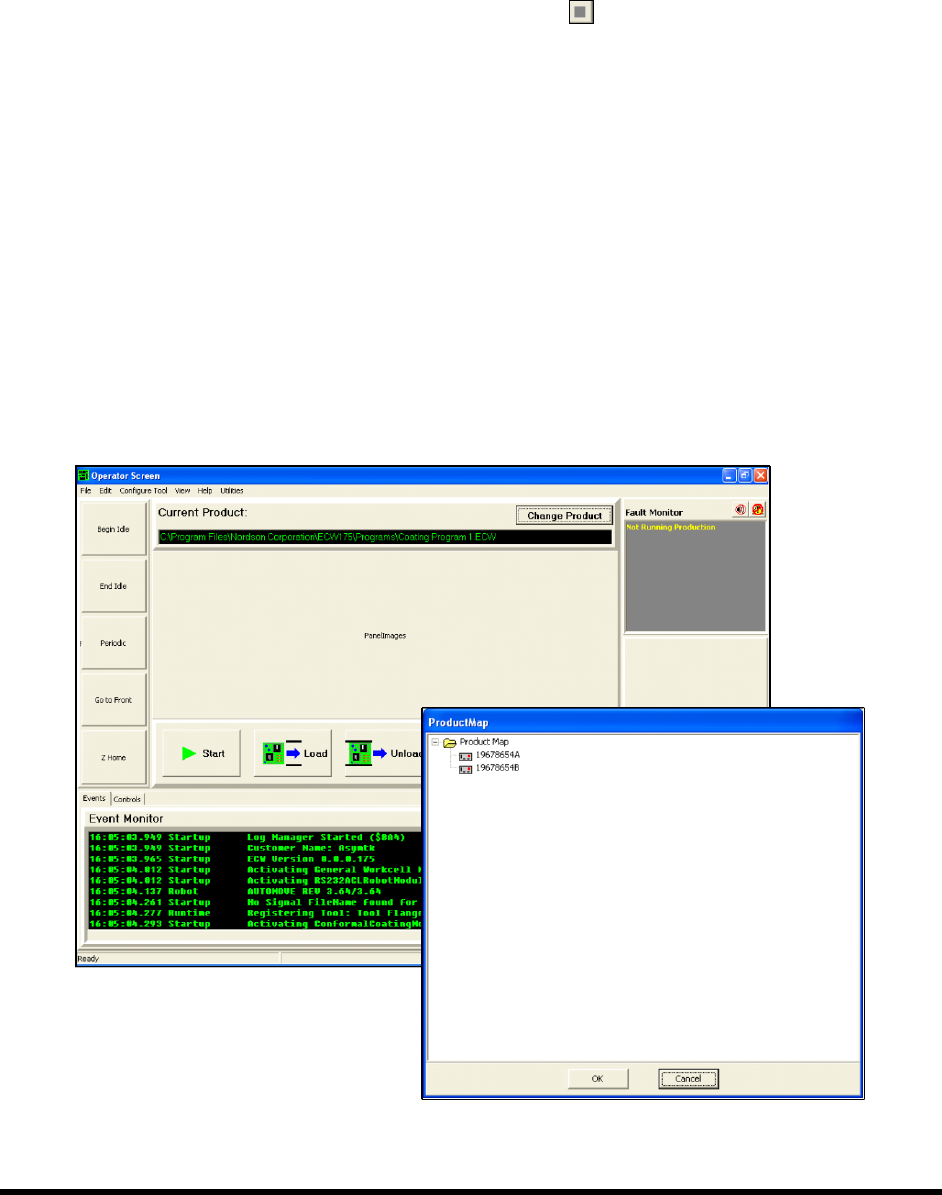
Programs can be loaded from both the ECXP Operator Screen (Figure 5-16) and the ECXP Edit Screen
(Figure 5-17). Following are detailed instructions on loading a program from both screens.
To load a program from the Operator Screen:
1. If a program is currently running, click on the
Stop button.
Production stops after the currently loaded product is coated.
2. Click on the
Change Product button or double-click the Current Product field
(Figure 5-16).
The product map opens. The product map is a tree structure of the folders and subfolders
where the programs are stored.
- Click on a plus sign (+) to expand a group and view the product programs in that group.
- Click on a minus sign (-) to collapse a group.
3. Click on the desired program to select it. When selected, it is highlighted in blue.
4. Click on the
OK button to load the selected program.
NOTE Click on the Cancel button to exit the product map without loading a program.
Figure 5-16 Loading a Program - Operator Screen
5-24 Operation
To load a program from the Edit Screen:
1. Make sure you are in the Product Program View by clicking on
View > Product Program
from the menu bar.
There will be a checkmark next to Product Program on the View menu when the Product
Program view is activated.
If it is not activated, click on
Product Program to activate it.
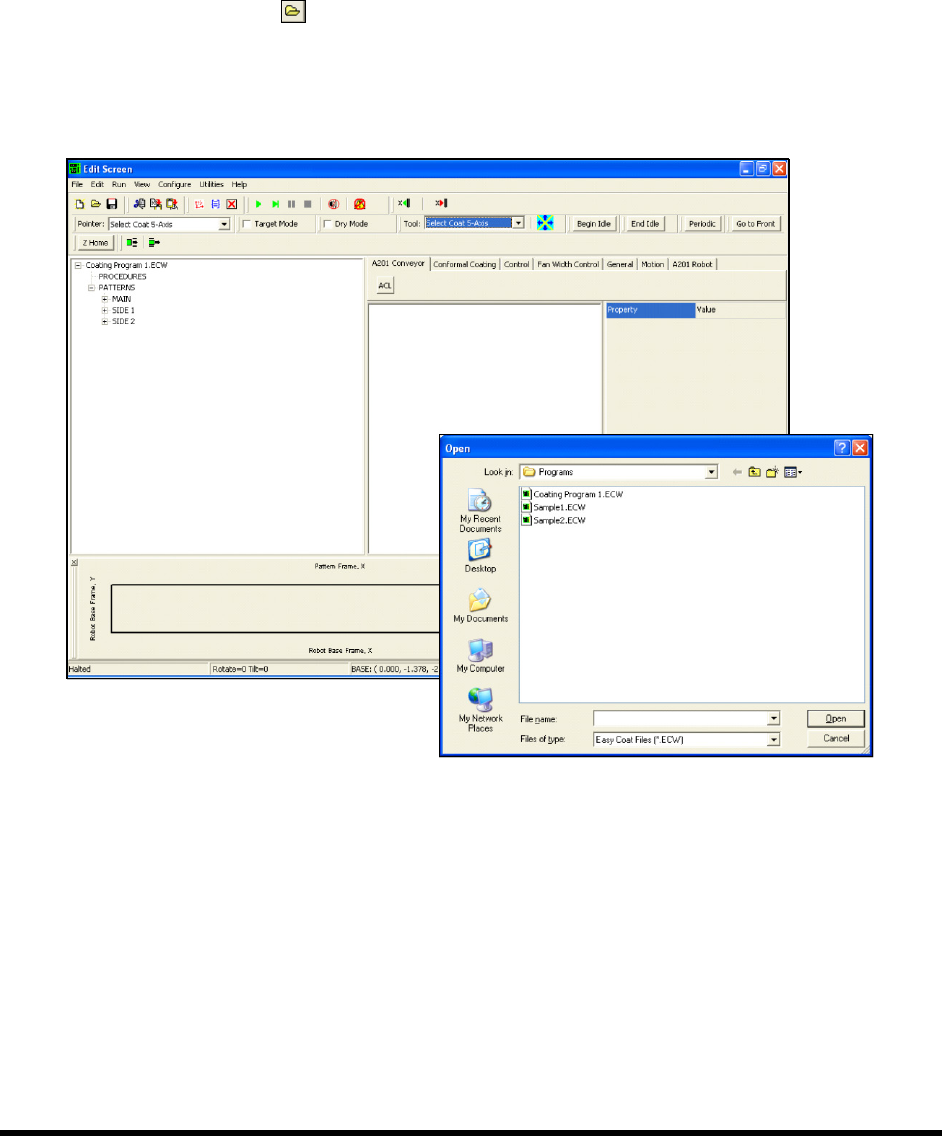
2. Click on the
Open button, or click on File > Open Product Program.
The Open dialog box appears (Figure 5-17).
3. Select the file you want to load and click on
Open.
Figure 5-17 Loading a Program - Edit Screen