SL940-Install-Ops-Maintenance-7210918_B.pdf - 第112页
6-4 Configurati on and C hara cterizat ion 4. Select Configur e > Re configure from the ECXP Edit Screen. The Configure Dialog Box ( Figur e 6-3) opens. Figure 6-3 ECXP Conf igure Dialo g Box 5. Select the item to b…
Configuration and Characterization 6-3
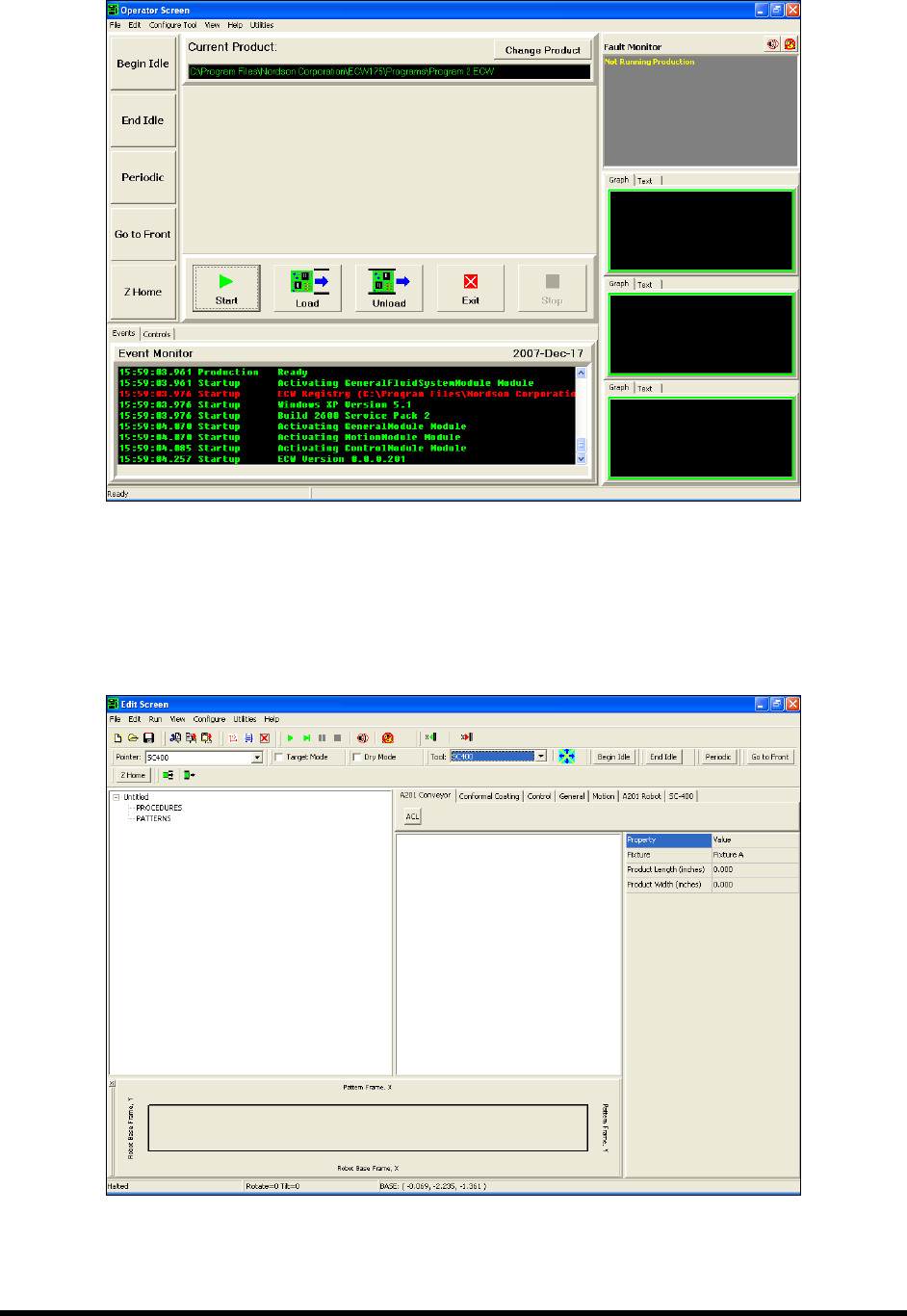
Figure 6-1 ECXP Operator Screen
NOTE The operator screen may vary depending upon system configuration.
3. Select
Edit > Edit Mode from the ECXP Operator Screen menu bar to access the ECXP Edit
Screen (Figure 6-2).
Figure 6-2 ECXP Edit Screen
6-4 Configuration and Characterization
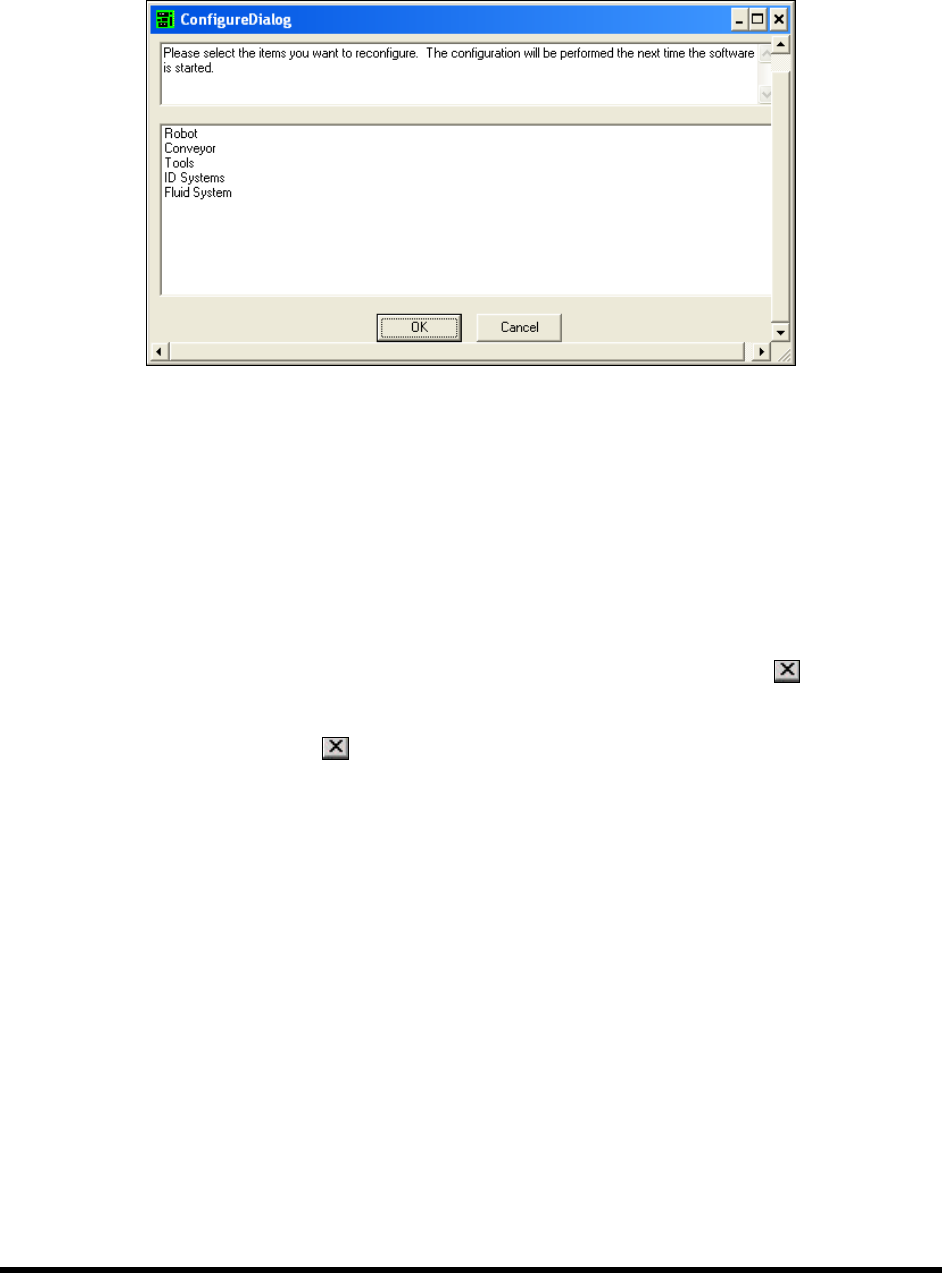
4. Select Configure > Reconfigure from the ECXP Edit Screen.
The Configure Dialog Box (Figure 6-3) opens.
Figure 6-3 ECXP Configure Dialog Box
5. Select the item to be configured by clicking on it.
NOTE To select more than one item, hold down the <Ctrl> key while selecting
additional items.
6. When you are finished, click on
OK.
The software must be restarted in order to perform the configuration.
7. To close the ECXP Edit Screen and return to the Operator Screen, click on
or select
File > Exit from the menu bar.
8. To exit ECXP, click on
or select File > Exit from the Operator Screen menu bar.
9. Restart ECXP to perform the configuration procedure. ECXP will prompt you to answer a
series of questions defining your system configuration.
NOTE Prompts will vary depending on the items selected and answers to previous
prompts.
10. After you have responded to all the prompts, the ECXP program will start.
NOTE ECXP menu choices may vary depending on the answers to the prompts. Refer to
the Easy Coat User Guide for detailed instructions.
Configuration and Characterization 6-5
6.5 Camera Configuration
NOTE ECXP is configured at the factory for your particular coating system. If you should need
to reconfigure the camera, follow the steps below.
To configure the Genie Camera:
1. Select
Configure > Reconfigure from the ECXP Edit Screen.
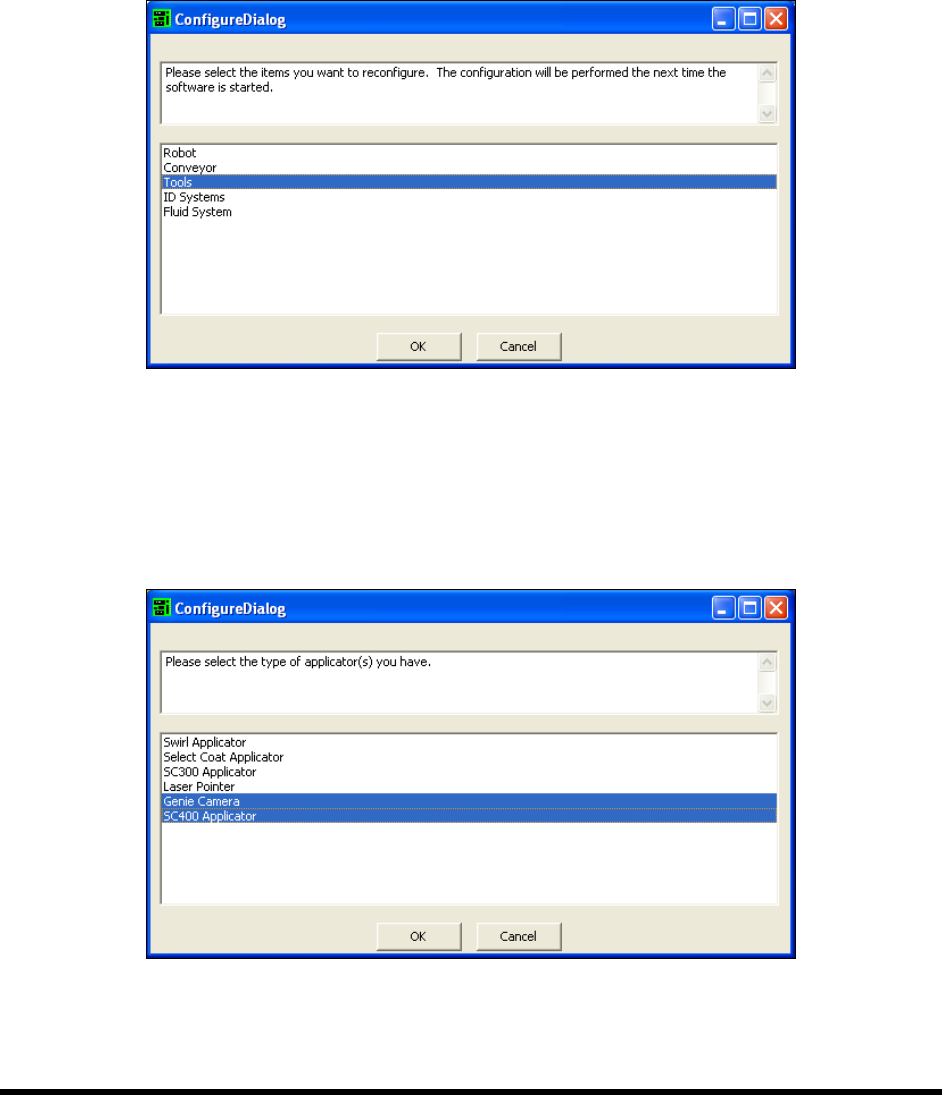
2. When prompted to select the item to be reconfigured (Figure 6-4), select
Tools and click OK.
Figure 6-4 Reconfiguring ECXP Tools
3. Restart the ECXP software. When prompted to select an applicator:
a. Select
Genie Camera.
b. Press the <
Ctrl> key and select the appropriate coating applicator (Figure 6-5) and then
click
OK.
Figure 6-5 Configuring ECXP for the Genie Camera
4. After you have responded to all the on-screen prompts, the ECXP program will start.