SL940-Install-Ops-Maintenance-7210918_B.pdf - 第69页
Pow er - up an d Test in g 4-9 NOTE Menu choices may vary depending upon system conf iguration. 4. Select Robot Utiliti es > IO Tool from the Utilities menu . A dialog box open s containing a list of Robot inpu ts…
4-8 Power-up and Testing
4.10 Testing the System
After initial installation and power-up, the system must be tested to ensure that it is working properly.
This section includes the procedures for testing the following:
Robot/Conveyor I/O Conveyor Function
Pneumatics Coating System Options
Robot (Dispensing Head) Function
These procedures should be performed on initial installation and after the machine has been moved
or serviced.
CAUTION! The following procedures should only be performed by a trained service technician.
4.11 Robot/Conveyor I/O
To test the Robot I/O:
1. Follow the instructions in 4.9 Starting Easy Coat for Windows (ECXP) to start ECXP.
2. Select
Edit > Edit Mode from the ECXP Operator Screen menu bar to access the ECXP
Edit Screen.
3. Select
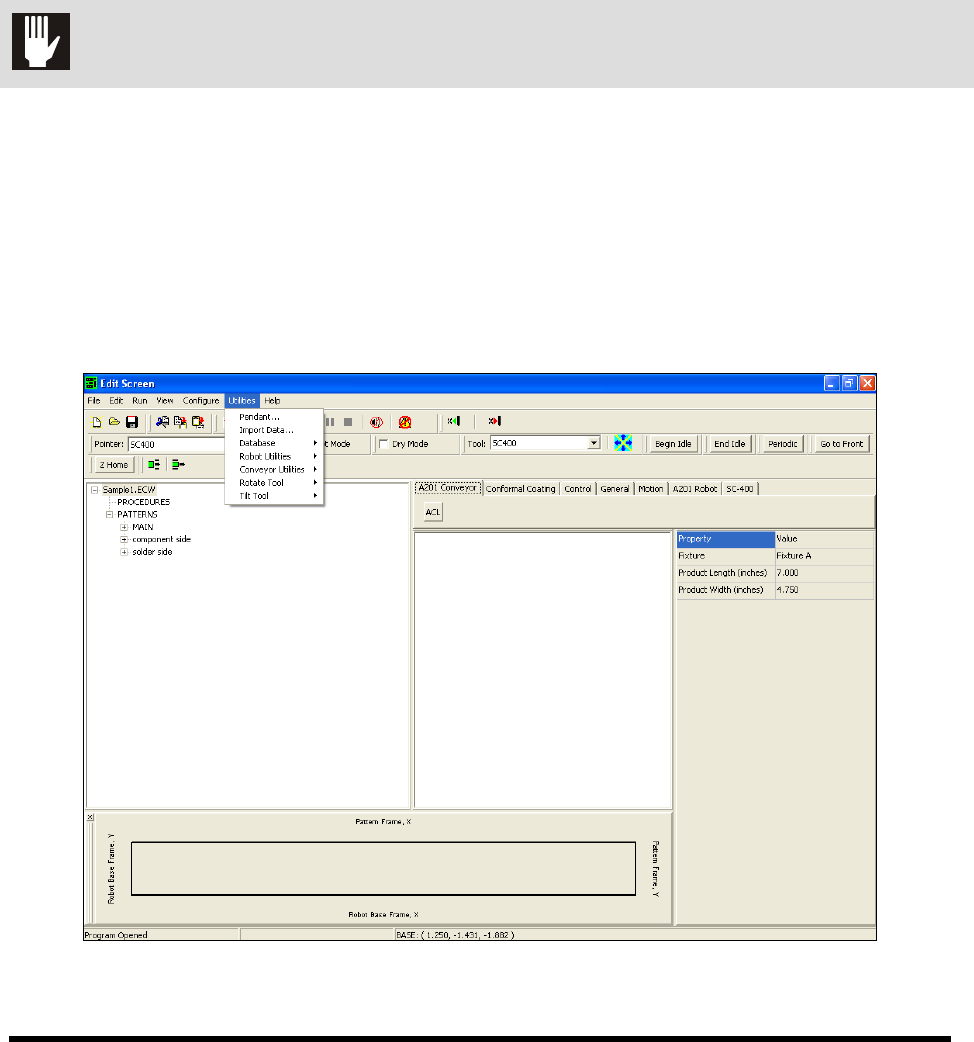
Utilities from the Edit Screen menu bar (Figure 4-5).
Figure 4-5 ECXP Edit Screen - Utilities Menu
Power-up and Testing 4-9
NOTE Menu choices may vary depending upon system configuration.
4. Select
Robot Utilities > IO Tool from the Utilities menu.
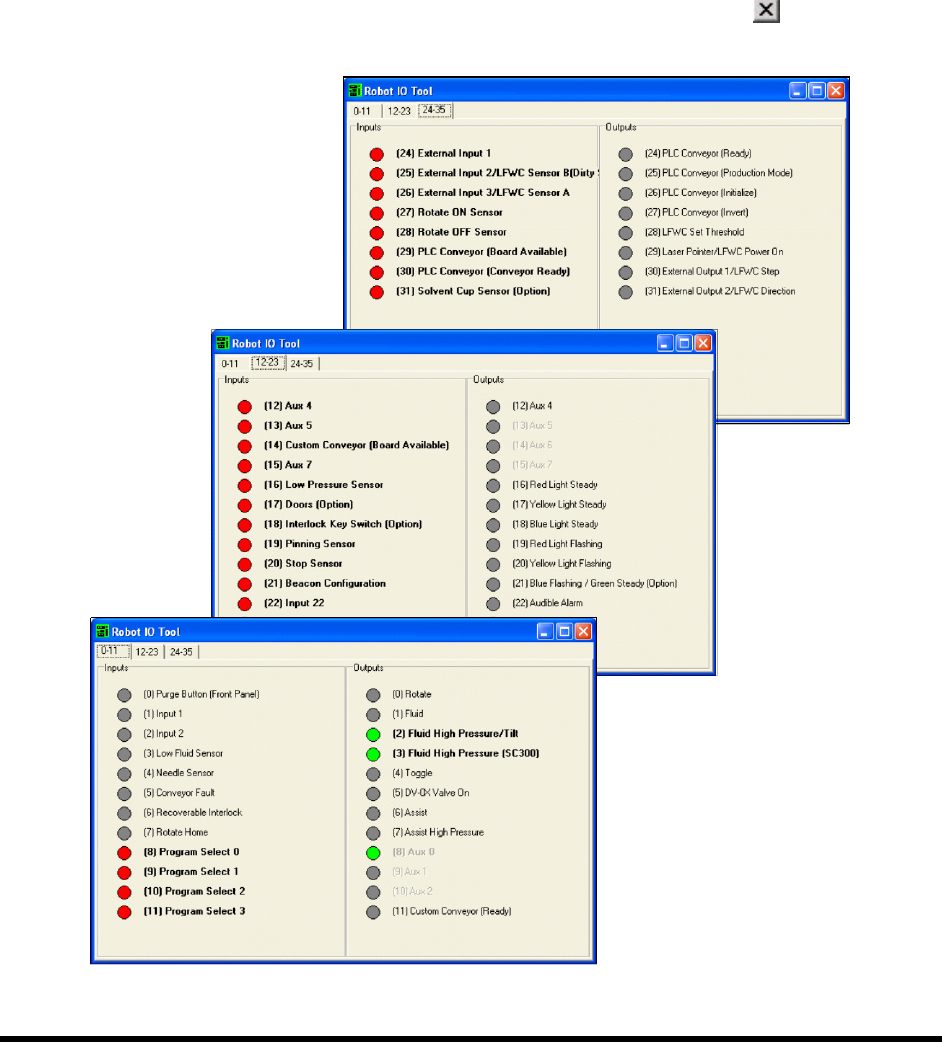
A dialog box opens containing a list of Robot inputs and outputs, grouped by tabs
(Figure 4-6).
5. Click on the I/O’s to verify that they are working properly.
Clicking on an output should toggle it ON or OFF. If an item is OFF, the corresponding
button is gray. If it is ON, the corresponding button is green.
When you are done, select
File > Exit from the menu bar or click on to return to the
ECXP Operator Screen.
Figure 4-6 Robot IO Tool
4-10 Power-up and Testing
To test the Conveyor I/O:
1. Follow the instructions in 4.9 Starting Easy Coat for Windows (ECXP) to start ECXP.
2. Select
Edit > Edit Mode from the ECXP Operator Screen menu bar to access the ECXP
Edit Screen.
3. Select
Utilities > Conveyor Utilities > IO Tool from the menu bar.
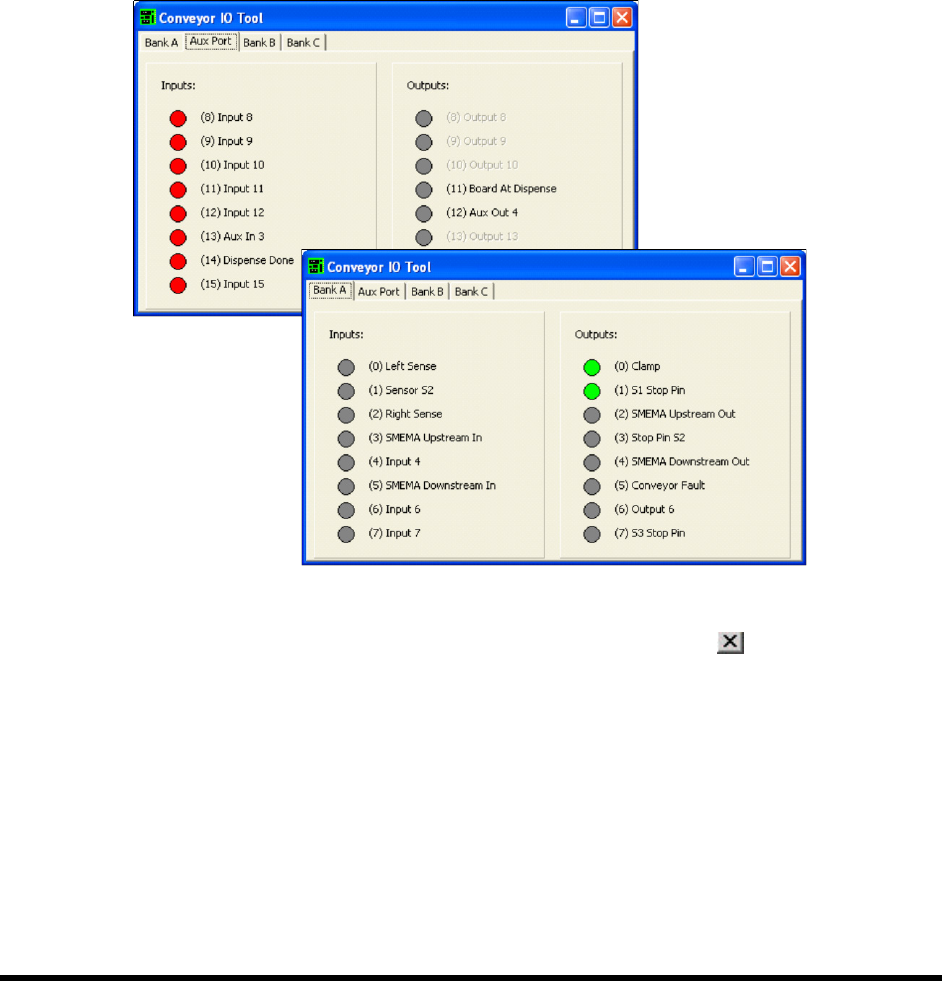
A dialog box opens containing lists of Conveyor inputs and outputs, grouped by tabs.
4. Click on the I/O’s to verify that they are working properly (Figure 4-7).
Clicking on an output should toggle it ON or OFF. If an item is OFF, the corresponding
button is gray. If it is ON, the corresponding button is green.
Figure 4-7 Conveyor IO Tool
5. When you are done, select File > Exit from the menu bar or click on to return to the
ECXP Operator Screen.