SL940-Install-Ops-Maintenance-7210918_B.pdf - 第127页
Configuration a nd C haract erization 6- 19 To perform a charac terization: NOTE Make sur e you hav e selec ted the p roper tool as the poi nter in the E dit Sc reen ( Fi gur e 6-16 ). T his is the too l that will be u…

6-18 Configuration and Characterization
2. Move the robot until the tool tip is above all components on the boards you are coating, and
any other component in the workcell with which the tool tip could collide.
3. Select the
Safe Z Height value field.
When you click on the Safe Z Height value field, the
Teach Field button appears.
4. Click on the
Teach Field button.
The value entered is the current Z coordinate of the tool tip, and should be negative.
If you wish to edit this value manually, select the property field and enter a new value.
5. Enter the desired Z-Speed.
6. Click on
OK.
6.13 Bar Code/DataMatrix Scanner Configuration
If your system is equipped with the optional Bar Code/DataMatrix Scanner, you will need to perform a
Scanner configuration. For additional information, refer to the appropriate Scanner User Manual or
contact your Asymtek representative.
6.14 Characterization
NOTE A characterization must be performed for each tool and each coating material used or as
required to ensure quality and consistent dispensing.
Many variables, such as material type, temperature, viscosity, substrate type, robot velocities, and
dispenser response times affect the coating process. Characterization improves coating placement
accuracy and repeatability. The Characterization Wizard helps you adjust program values to compensate
for these variables. The characterization process consists of defining the following values:
• On/Off Response Times
• Coating Height
• Coating Speed (Velocity)
• Coating Width
NOTE All of these variables are interrelated. Make your selections based on the results you want
to achieve. Refer to the ECXP User Guide or Online Help or contact your Asymtek
representative for additional information.
The characterization automatically calculates dispensing ON and OFF times. Characterization
compensates for such variables as:
• Change in air pressure
• Fluid viscosity
• Coating applicator velocity
When you perform a characterization, the coating applicator will dispense three stripes of material. You
will then be prompted to select the best pass for both the start and end values. The values will be stored in
the robot controller. The coating applicator will then dispense three additional stripes of material. These
lines should correspond to the best pass previously selected. This is your characterization.
Configuration and Characterization 6-19
To perform a characterization:
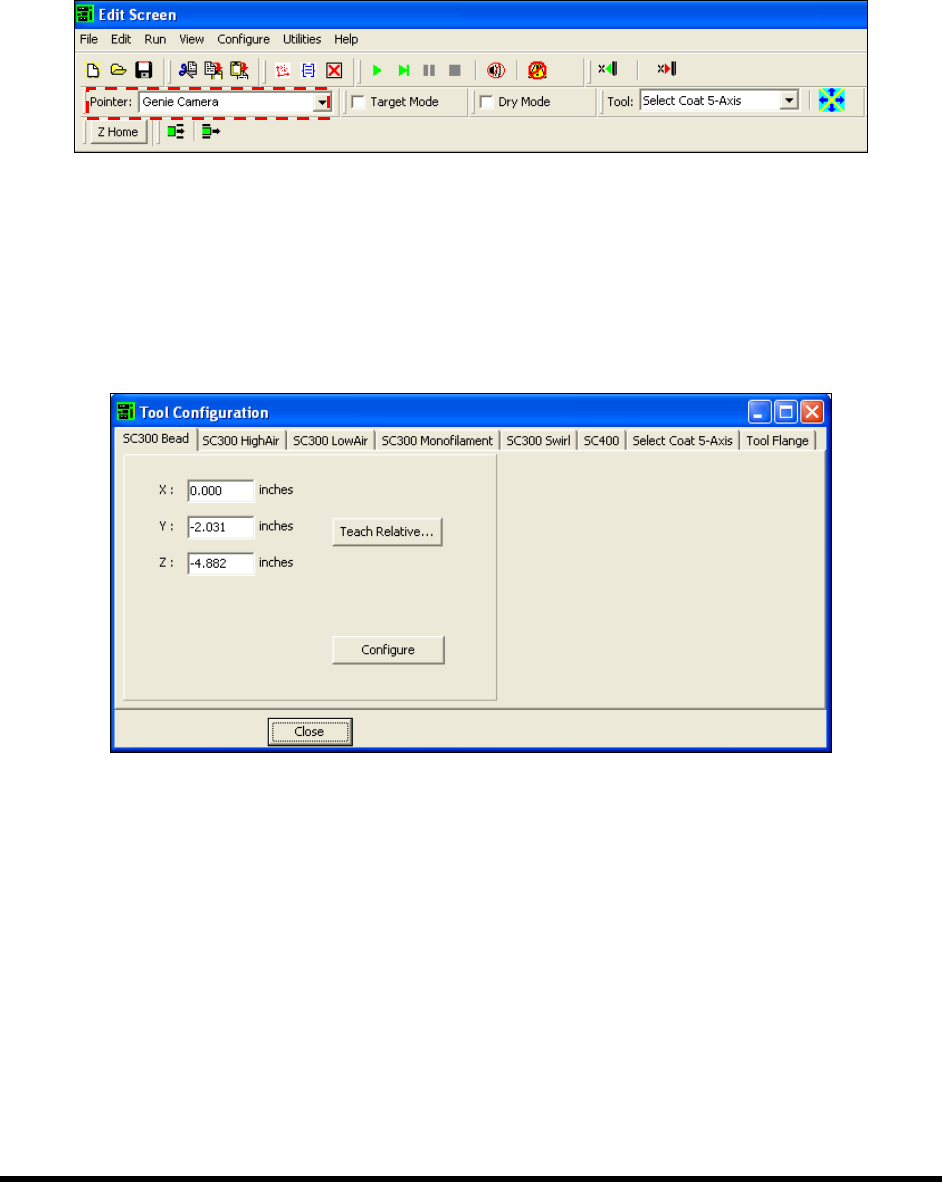
NOTE Make sure you have selected the proper tool as the pointer in the Edit Screen
(Figure 6-16). This is the tool that will be used to teach the positions. If the
system is configured with a Genie Camera or a Laser Pointer and you are going
to use one of these to teach positions, make sure it is selected.
Figure 6-16 Selected Pointer
1. From the Edit screen, click on Configure > Tools.
2. Select the tab for the tool to be configured and then click the
Configure button
(Figure 6-1).
The tabs will vary depending on system configuration.
Figure 6-17 ECXP Tool Configuration
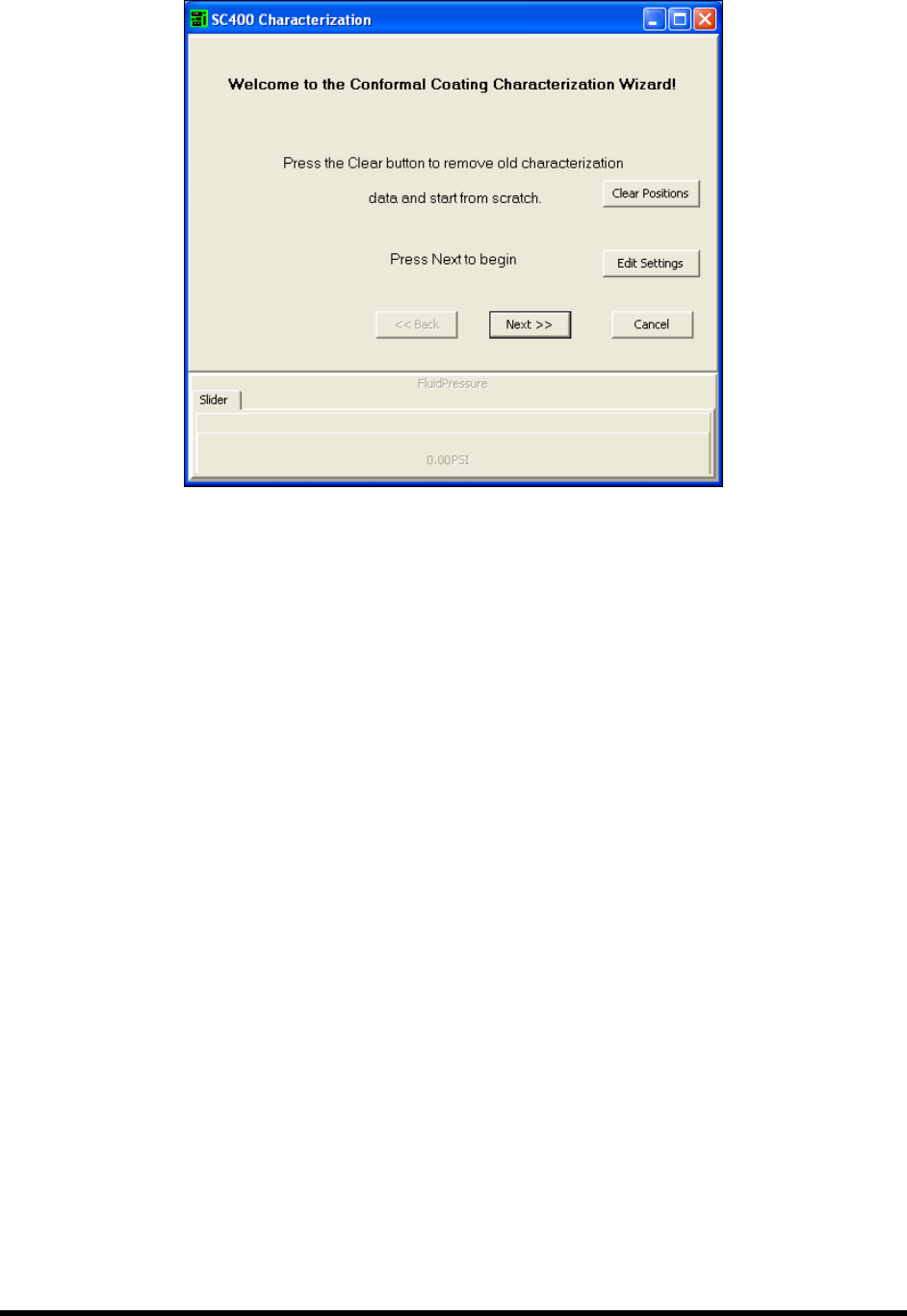
The Conformal Coating Characterization Wizard dialog box shown in Figure 6-18 opens:
6-20 Configuration and Characterization
Figure 6-18 ECXP Characterization Wizard Dialog Box
3. Click Clear Positions and then click OK to confirm.
If you have performed a characterization before, the old test area coordinates are used
unless you clear them.
4. Click
Next.
5. Click
Yes when prompted to teach the substrate height.
6. Teach the substrate height.
a. Place a characterization sheet (Figure 6-19) in the workcell.
b. Lower the tool tip to the substrate and click
Teach Z
c. Click
OK
7. Enter the dispense height.
The following variables should be considered:
- Height of tallest component to be coated
- Width of coating stripe
- Coating material flow rate and viscosity
- Coating stripe overlap
8. Enter the desired rotate position and click
Next (for applicators equipped with rotate and
cross-cut nozzles).
9. Enter the desired dispense speed and click
Next.