SL940-Install-Ops-Maintenance-7210918_B.pdf - 第107页
Operation 5- 27 5.18.2 Edit Scre en To run a pr ogra m from th e Edit Scr een: 1. Load the program you want to run as described in 5.17 Loading a Pro gram . 2. Load a new product (board or carrier) into the wor k are a .…
5-26 Operation
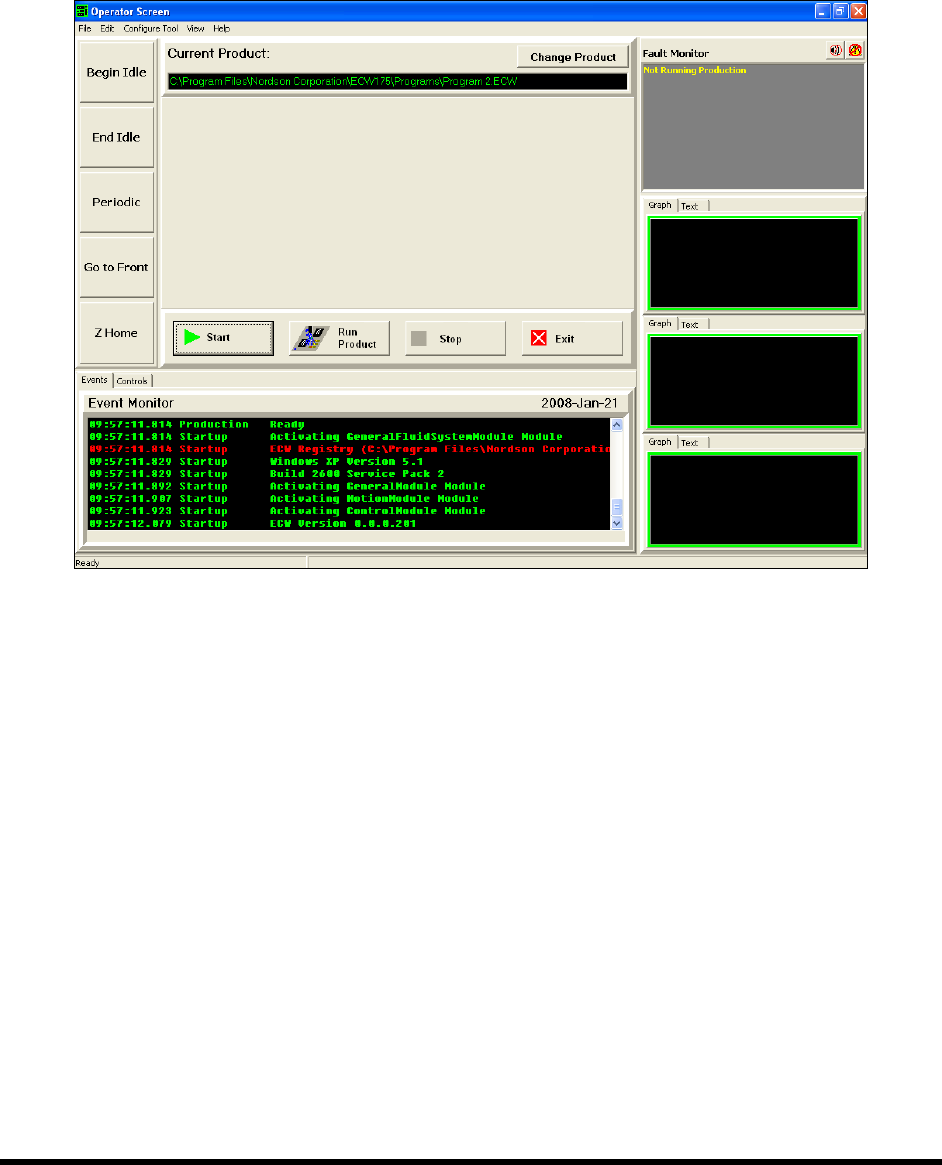
To run a program from the Operator Screen (SL-941E):
1. Load the program you want to run as described in 5.17 Loading a Program.
2. Load a new product (board or carrier) into the fixture.
3. Click on the
Start button and then on the Run Product button.
Figure 5-19 Running a Program - Operator Screen (SL-941E)
Operation 5-27
5.18.2 Edit Screen
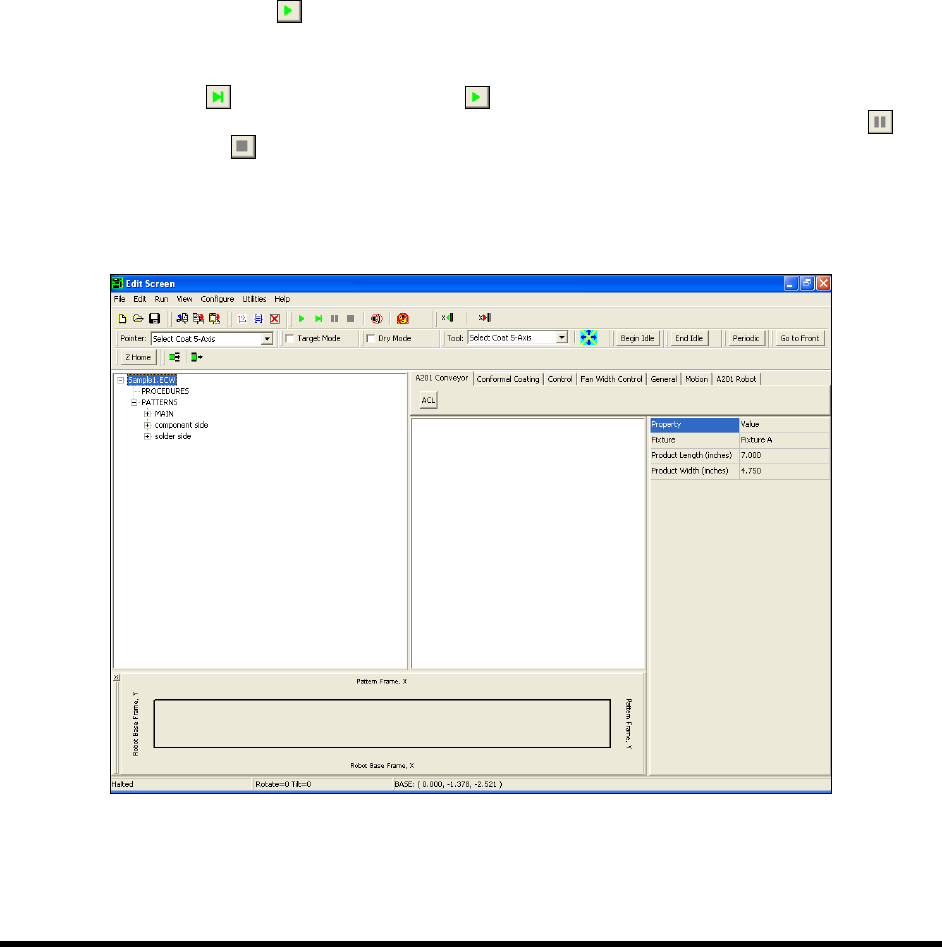
To run a program from the Edit Screen:
1. Load the program you want to run as described in 5.17 Loading a Program.
2. Load a new product (board or carrier) into the work area.
When a program is run from the Edit Mode, the system does not check to see if the board
is in the appropriate position. Running from the Edit Mode is generally used for program
testing. Extreme care should be exercised.
3. Start the run in one of the following ways:
Press the
[F9] key
From the menu bar, click on
Run > Run
Click the
Run button on the toolbar.
NOTES When running your program from the Edit Screen, you have the option to click the
Step
button instead of the Run button to step through the loaded program.
Each click on the button performs one instruction. You may also click on Pause
or Stop
anytime during program execution.
The procedures above run the entire program. Press the
[F6] key or select Run > Run
Pattern/Procedure
from the menu bar to run an individual pattern or procedure.
Figure 5-20 Running a Program - Edit Screen

5-28 Operation
5.19 Production Statistics
5.19.1 Database Utility
The ECXP Database Utility lets you export production data to ASCII text tables. The tables can then be
imported into database or spreadsheet programs for further analysis. By default, ten days of data are
stored in the database.
NOTE Old data is purged when ECXP starts. If the database files become very large, database
maintenance can delay ECXP startup.
The following logging parameters are available:
• Bar Code
• Cycle Time
• Time Stamp
• Laser Fan Width Control
• Flow Volume Monitor
• Heater Temperature
• Fluid Temperature
• Main Air Pressure
• Fluid Pressure
• Air Assist Pressure
To export production data:
1. Click on
Utilities > Database > Export Table in ASCII format.
2. Click on the desired table in the lower window of the dialog box.
To select more than one table, hold down the [Shift] key while clicking on the
additional tables.
3. Click
OK.
The Save As dialog box appears.
4. Select a destination for the table to be exported and give it a unique filename.
5. Click OK to export the table.
If you selected more than one table, the Save As dialog box will reappear after the first
table has been saved. You will be prompted to select a destination and enter a filename
for the next table.