SL940-Install-Ops-Maintenance-7210918_B.pdf - 第66页
4-6 Powe r - up a nd Tes ti ng 4.8 C amera States An optional Dal sa -C oreco Genie M640 dig ital 640 x 480 pix el camera com municates bi- dire ctiona lly to th e laptop c omputer vi a Gi gabit Eth ernet. A ft er the Ge…
Power-up and Testing 4-5
4.7 Powering On the System
To power on the coating system:
1. Verify that the main power cord is connected to the main power inlet and the facility
power source (Figure 4-1).
2. Verify that the facility air hose is connected to the main air inlet (Figure 4-1).
3. Verify that the facility exhaust ventilation system ductwork is connected to the Exhaust Vent
Duct (Figure 4-1).
4. Turn the main circuit breaker to the
ON (I) position (Figure 4-1).
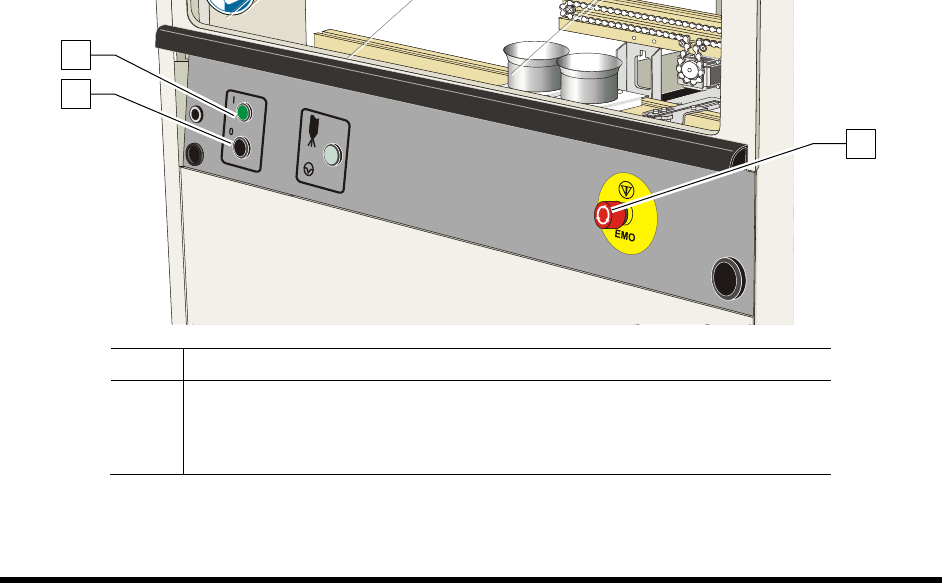
5. Check the EMO buttons to see if they have been activated. If one has been activated,
deactivate it by turning the red knob clockwise until the knob pops out (Figure 4-2).
6. Make sure the interlock signal is not interrupted. Close the coating system hood if applicable.
7. Verify the spill pan in the lower front cabinet is all the way in (Figure 1-7).
8. Turn the laptop computer power button
ON (I).
9. Press the
ON (l) button on the front panel (Figure 4-2).
NOTE During power up, the green start button on the front panel will blink. The coating system
will turn on after an approximate 60-second vent air time delay to ventilate any solvents
in the dispense area. When the system is ready, the green start button will display a solid
light and the light beacon will be green,
The coating system should be in a powered-up state.
The system computer should begin the boot up sequence.
Item Description
1 Start Button
2 Stop Button
3 EMO
Figure 4-2 Front Panel Buttons
1
2
3
4-6 Power-up and Testing
4.8 Camera States
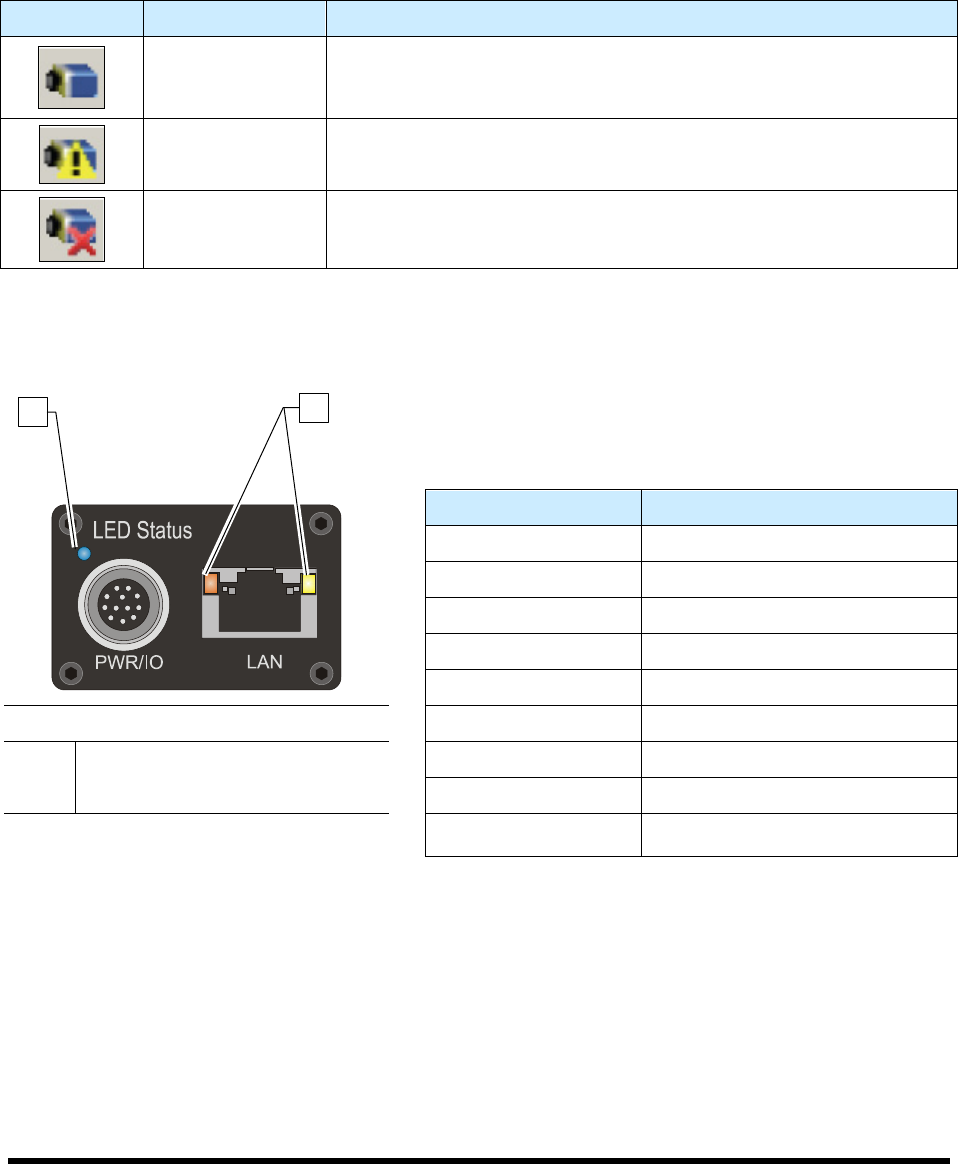
An optional Dalsa-Coreco Genie M640 digital 640 x 480 pixel camera communicates bi-directionally to
the laptop computer via Gigabit Ethernet. After the Genie software package installation, the GigE Server
icon is visible in the desktop taskbar tray area. The icons and descriptions are shown in Table 4-1.
Table 4-1 Genie Camera States
Icon State Description
Device Available
The GigE server tray icon when the Genie device is found. It will
take a few seconds for the GigE Server to refresh its state after the
Genie has obtained an IP address.
Device IP Error
The GigE server tray icon shows a warning when a device is
connected but there is some type of IP error.
Device Not
Available
A red X will remain over the GigE server tray icon when the Genie
device is not found. This indicates a major network issue.
The Genie has one multicolor LED to provide a simple visible indication of camera state. Additionally the
RJ45 has two LEDs for network status conditions (Figure 4-3). LED Status indicators are described in
Table 4-2.
Table 4-2 Camera Status Indicators
LED Status Description
LED's are OFF No Power to Camera
Steady Red Camera Not Initialized
Slow Flashing Red Camera Initialization Problem
Fast Flashing Red Camera Overheating
Steady Blue IP Address Assigned
Item Description
Slow Flashing Blue Waiting for an IP Address
1 Camera Status LED Fast Flashing Blue Ethernet Cable Disconnected
2 Network Status LED Steady Green Application Linked to the Camera
Figure 4-3 Camera LED's (Rear View)
Slow Flashing Green Trigger Acquisition in Progress
1
2
Power-up and Testing 4-7
4.9 Starting Easy Coat for Windows (ECXP)
To start/exit ECXP:
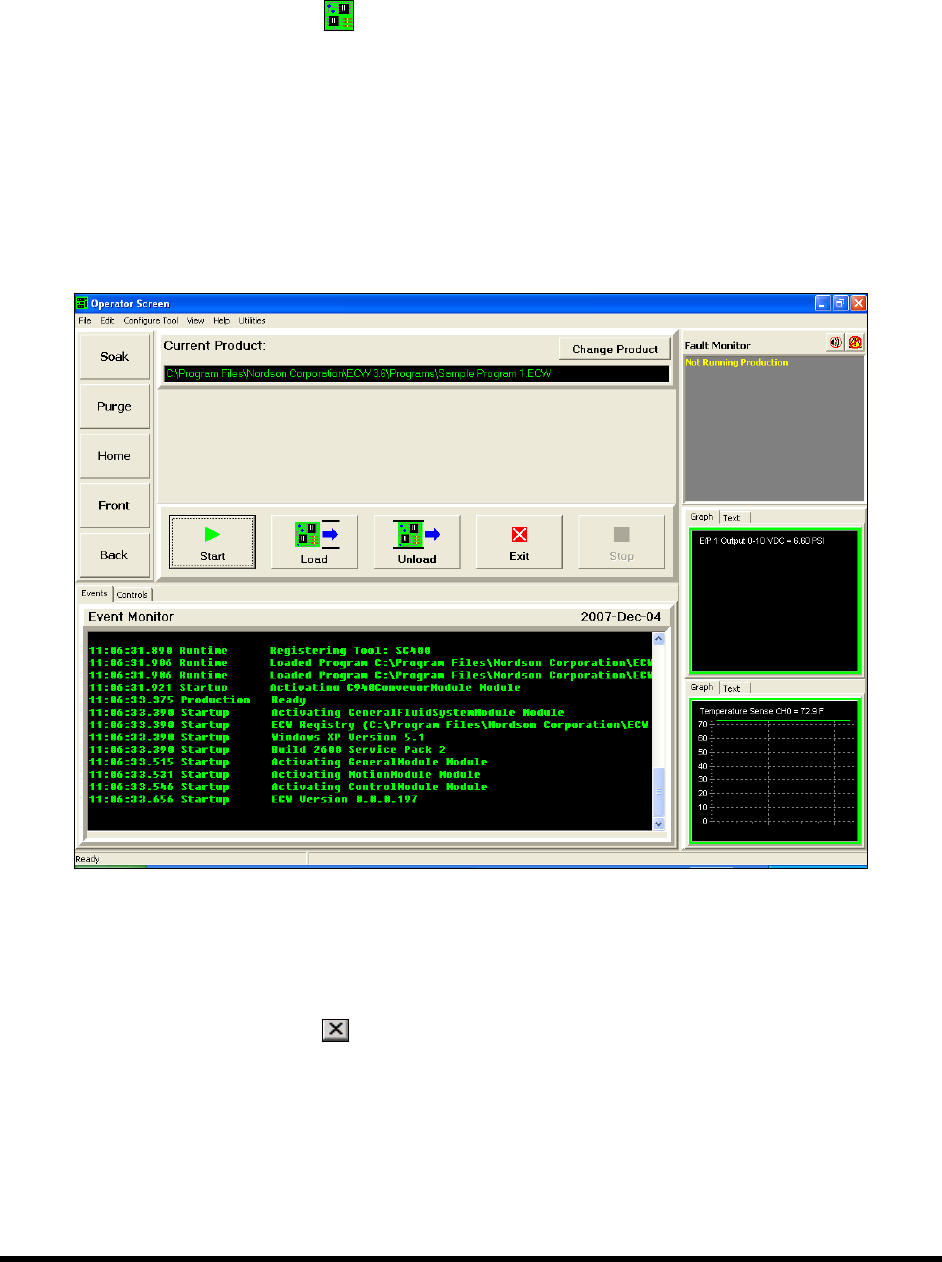
1. Double click the ECXP
icon on the Windows desktop.
As an alternative, you may click on the Windows
Start menu and select
Programs > ECXP to start the ECXP software.
The Dispenser will find Home in the Z-Axis, X-Axis, and Y-Axis, respectively.
The ECXP Operator Screen shown in Figure 4-4 will open.
NOTE The Operator Screen will vary slightly depending on system configuration.
Figure 4-4 Starting ECXP
NOTE If ECXP does not start, or you receive error messages during start-up, please contact
Asymtek Technical Support.
2. To exit ECXP, click on
or select File > Exit from the Operator Screen menu bar.
NOTE Refer to Section 5 - Operation for instructions on loading and running ECXP programs.