编带机说明书-含图纸ttm402.pdf - 第119页
D292105.16c.fm Configure Inspection Chapter 5: Setup 5- 21 Adjust the yellow Selection Box so it surrounds the selected mark. In the Fine T une Outline section, click the Remove Outline bu tton. Step 2: Vision Setup CONF…
5-20 TM-403 User’s Guide
Configure Inspection D292105.16c.fm
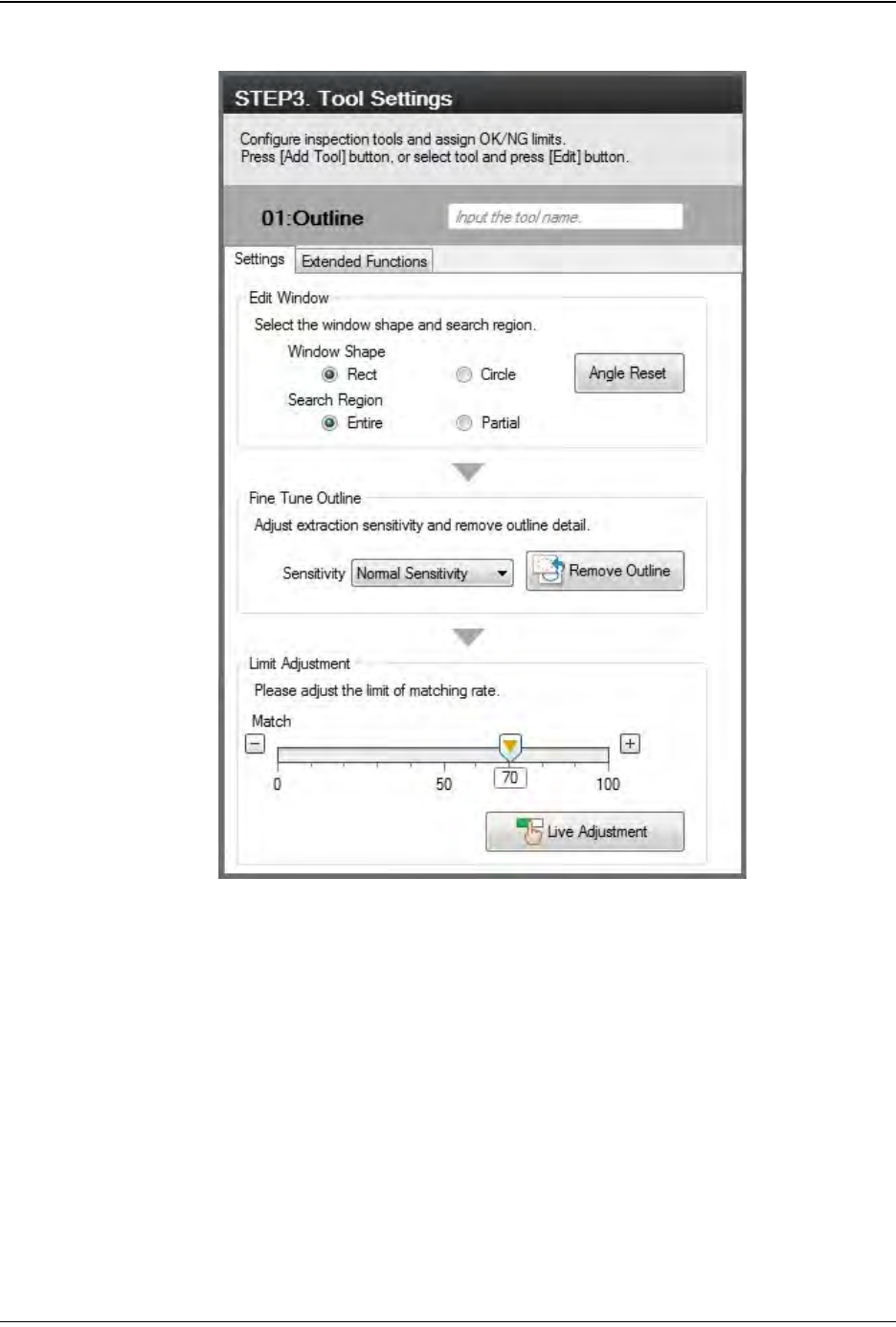
The Tool Settings Options will now appear as below.
Step 2:
Vision
Setup
CONFIGURE
COMPUTER
D292105.16c.fm Configure Inspection
Chapter 5: Setup 5- 21
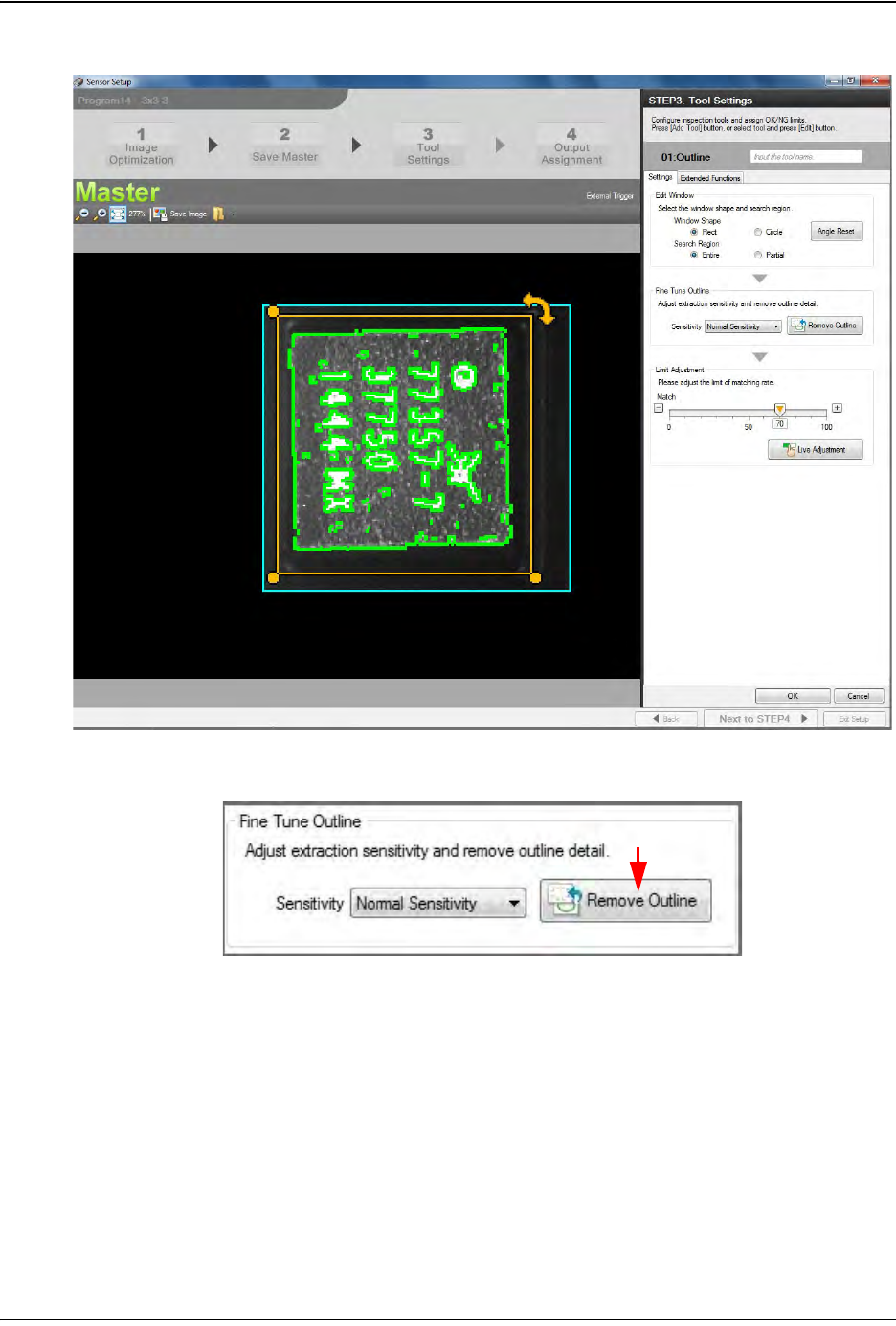
Adjust the yellow Selection Box so it surrounds the selected mark.
In the Fine Tune Outline section, click the Remove Outline button.
Step 2:
Vision
Setup
CONFIGURE
COMPUTER
5-22 TM-403 User’s Guide
Configure Inspection D292105.16c.fm
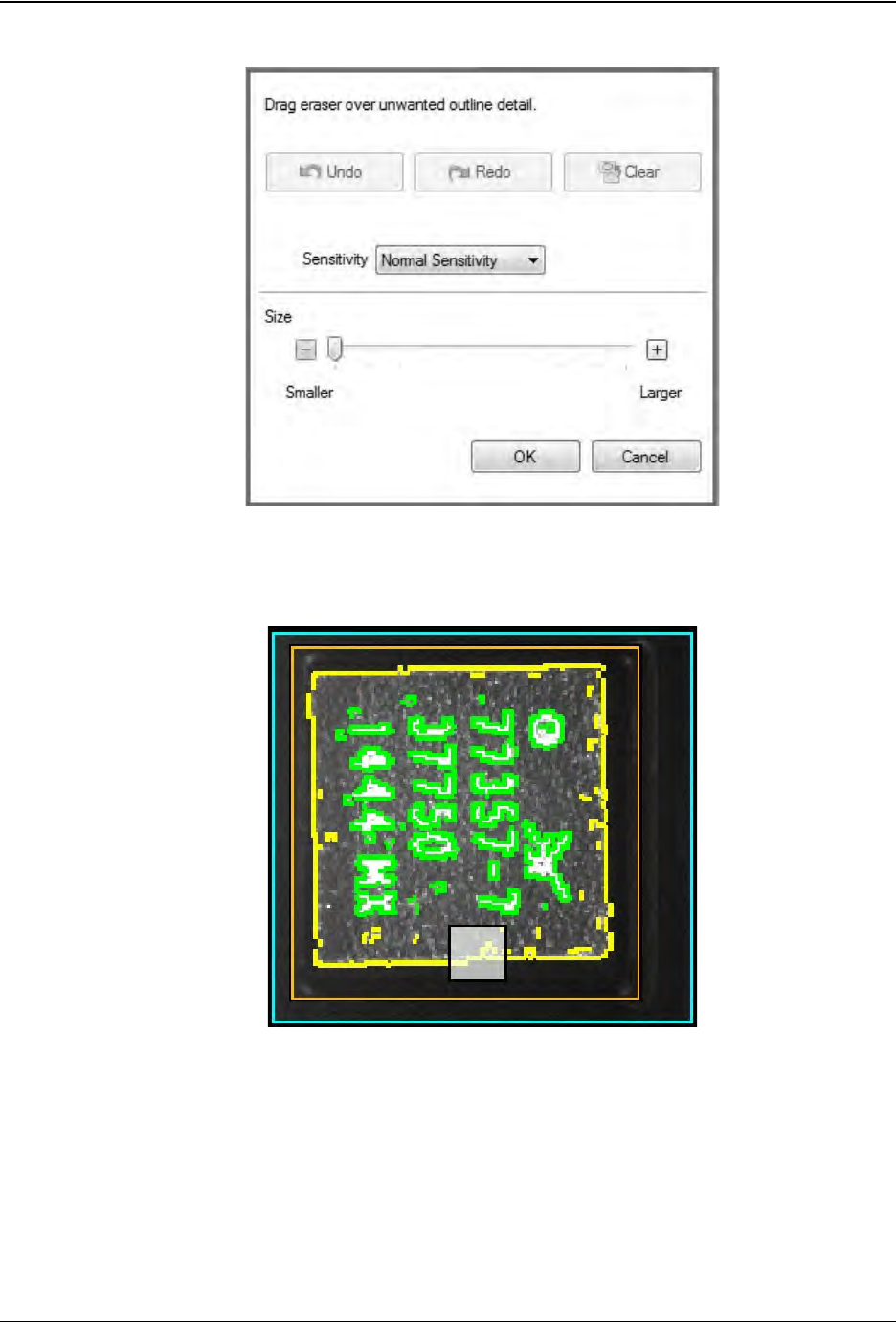
The Eraser Settings window will open.
The Eraser appears as a white square on the image. Adjust eraser size as needed,
then click and drag it over any unwanted data that is outlined in green on the
image.
Reduce Eraser size to remove any smaller green spots of unnecessary data. Click
OK to finalize edit.
Step 2:
Vision
Setup
CONFIGURE
COMPUTER