编带机说明书-含图纸ttm402.pdf - 第68页
3-26 TM-403 User’s Guide Bowl Tab D292105.6a.fm 2. Bowl Screen 2 allows the user to set timers and delays.. A. Press any tab in the T ab Menu to open that t ab window . B. Bowl On Delay is used to set the length of time …
D292105.6a.fm Bowl Tab
Chapter 3: Human Machine Interface 3-25
Bowl Tab
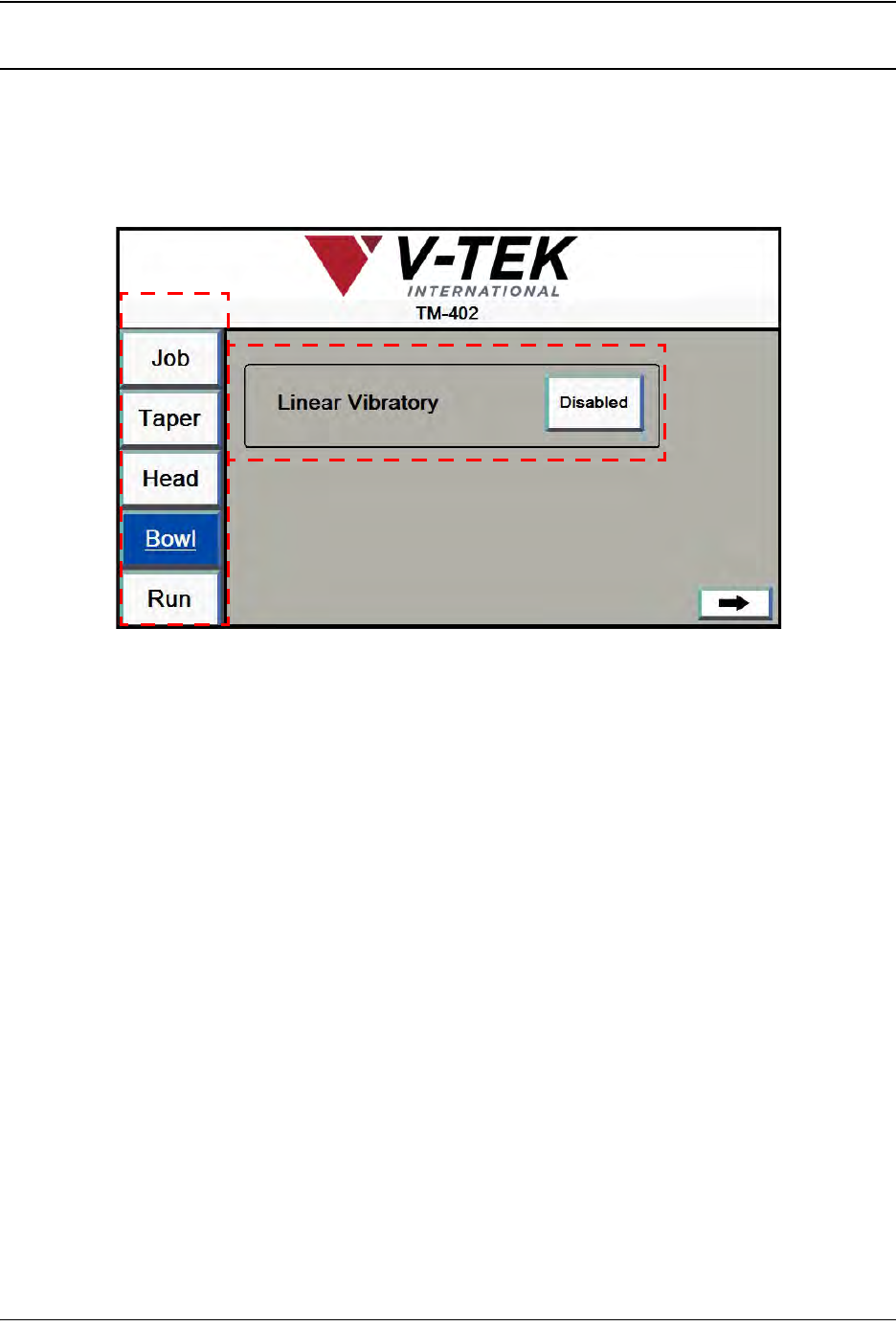
The Bowl Setup Tabs allows the user to configure vacuum and vibratory settings for the Bowl
Feeder and Linear Track.
1. Bowl Screen 1 allows the user to configure Linear Track and Nest settings as desired..
A. Press any tab in the Tab Menu to open that tab window.
B. The Linear Vibratory button turns the Linear Track Vibratory to Enabled or Dis-
abled to fill the Linear Track.
C. The Arrow button advances the user to the next Bowl Tab screen.
A
B
Bowl Screen 1
C
3-26 TM-403 User’s Guide
Bowl Tab D292105.6a.fm
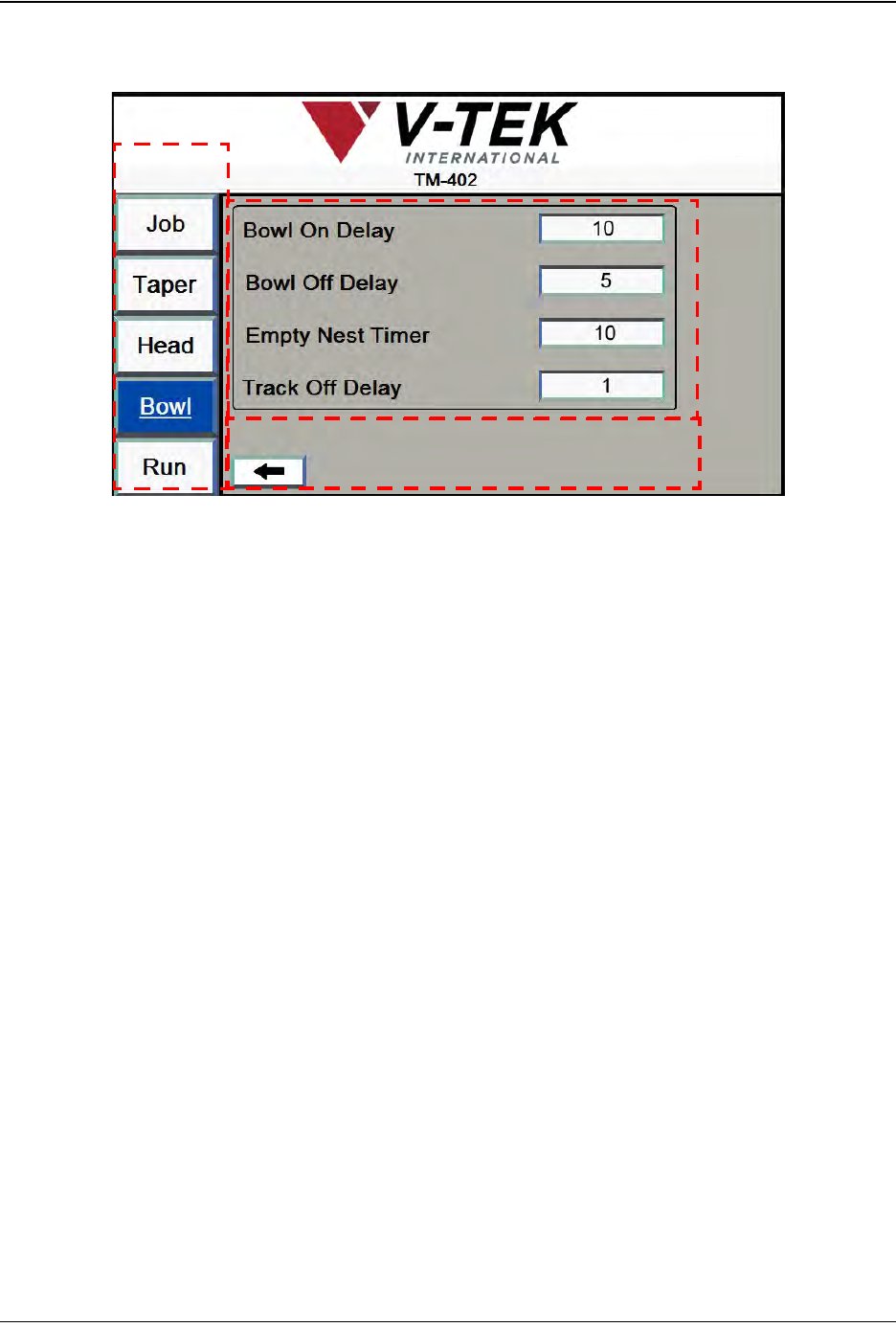
2. Bowl Screen 2 allows the user to set timers and delays..
A. Press any tab in the Tab Menu to open that tab window.
B. Bowl On Delay is used to set the length of time in seconds between when the
Track Full Sensor detects that there are no parts in the track and when the bowl is
turned on to feed parts. The minimum recommended setting for Bowl On Delay is
one second.
Bowl Off Delay is used to set the length of time in seconds between when the
Track Full Sensor first detects a part in the nest and when the bowl is automati-
cally turned off.
The Linear Track’s Nest has a sensor which detects when parts are present. The
Empty Nest Timer setting is the time in milliseconds the Empty Nest Timer
should wait before it beeps to indicate parts are not loading in the nest.
Track Off Delay is the time in seconds that the vibratory will continue to vibrate
the track after the machine is stopped.
Note: The TM-402 will use these settings for the current job. To save Bowl Feeder Set-
tings for future jobs, go to the Job Tab, select a job name and Save.
A
B
C
Bowl Screen 2
D292105.6a.fm Run Tab
Chapter 3: Human Machine Interface 3-27
Run Tab
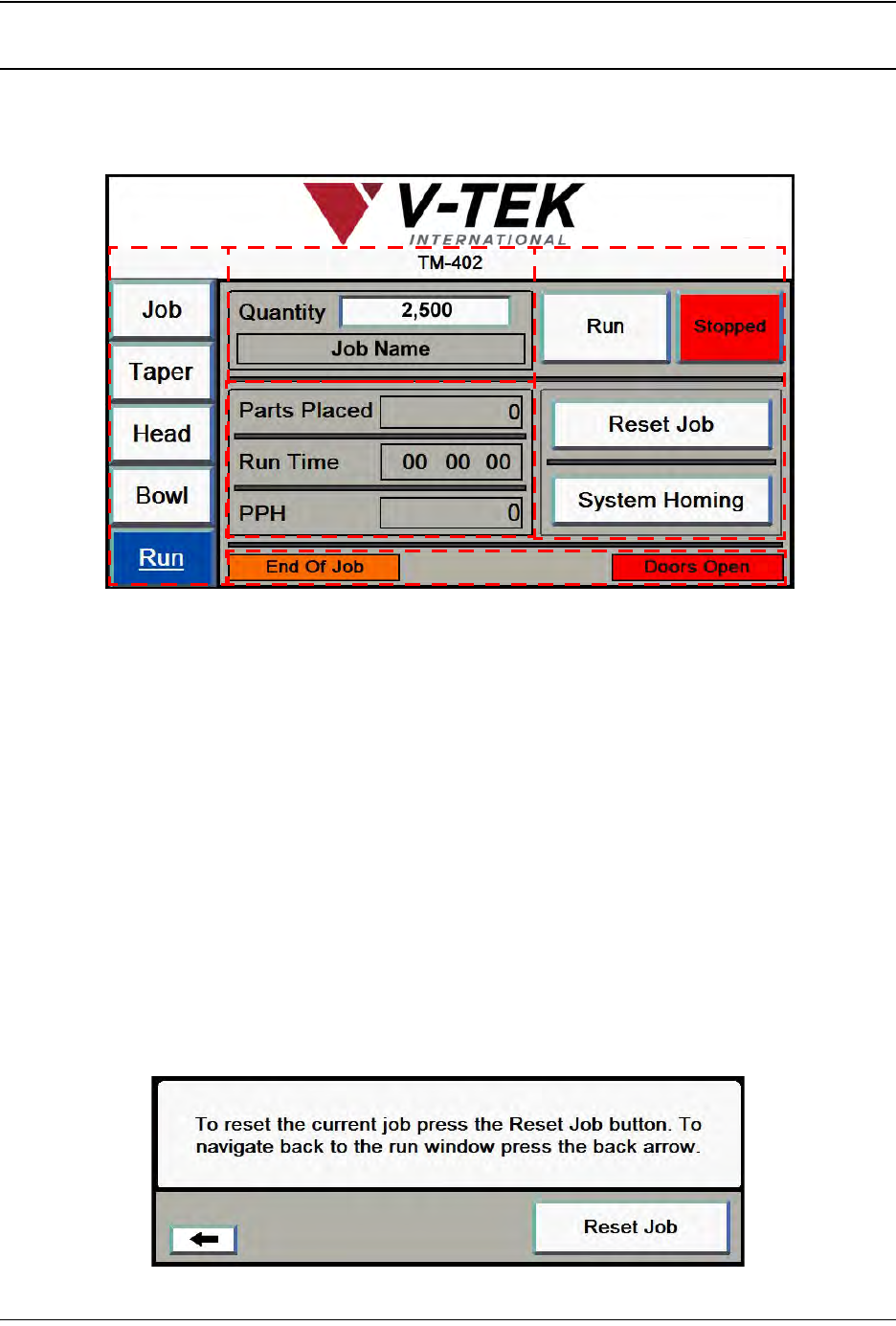
When Run is selected from the Tab Menu, the Run Tab opens. It includes job information, cur-
rent job statistics, Status messages and Run control buttons. The Run Screen with all status
messages displayed appears below.
A. Press any tab in the Tab Menu to open that tab window.
B. The Job Information section has two fields: Quantity and Job Description. This
information was entered in the Job Wizard during job setup. The Job Description
field is greyed out, indicating it cannot be altered in this tab. To edit the Quantity
field, press anywhere inside the field to open a keypad for data entry.
C. There are four control buttons on the Run Tab: Run/Running, Stop/Stopped,
Reset Job, and System Homing.
• The Run and Stop buttons start and stop job processing. They change color to
indicate they are active. In the Run Tab above, the red Stopped button indi-
cates the current job has been stopped.
• The Reset Job button resets all job statistics to zero. This is useful for running
multiple reels of the same job.
When Reset Job is pressed, the following message appears.
A
B
D
C
E