编带机说明书-含图纸ttm402.pdf - 第47页
D292105.6a.fm Jo b Tab Chapter 3: Human Machine Interface 3-5 As the homing sequence is complet ed, the bar gradually turns from black to green . A Homing Succeeded! message appears at the en d of the sequence. If a prob…
3-4 TM-403 User’s Guide
Job Tab D292105.6a.fm
Job Tab
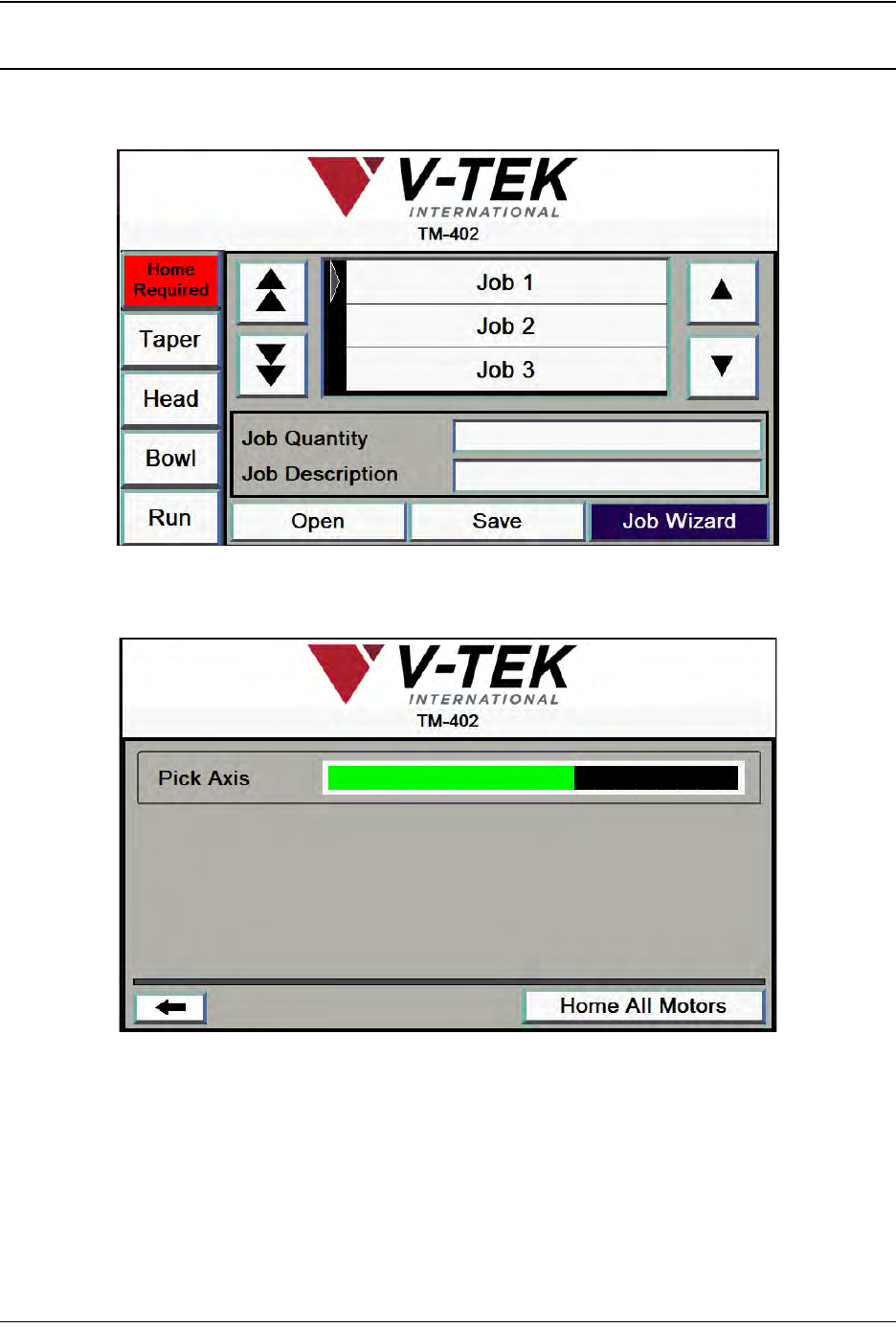
When the TM-402 is initially powered up, the HMI will open to the Job Tab with a red Home
Required button at the top of the Tab Menu and the other tab buttons grayed out.
Homing motors should be done following every system power up or emergency stop. Press
Home Required to open the Homing Status window.
Press the Home All Motors button to begin the homing sequence. Homing progress is displayed
in the Pick Axis Motor Status Bar.
D292105.6a.fm Job Tab
Chapter 3: Human Machine Interface 3-5
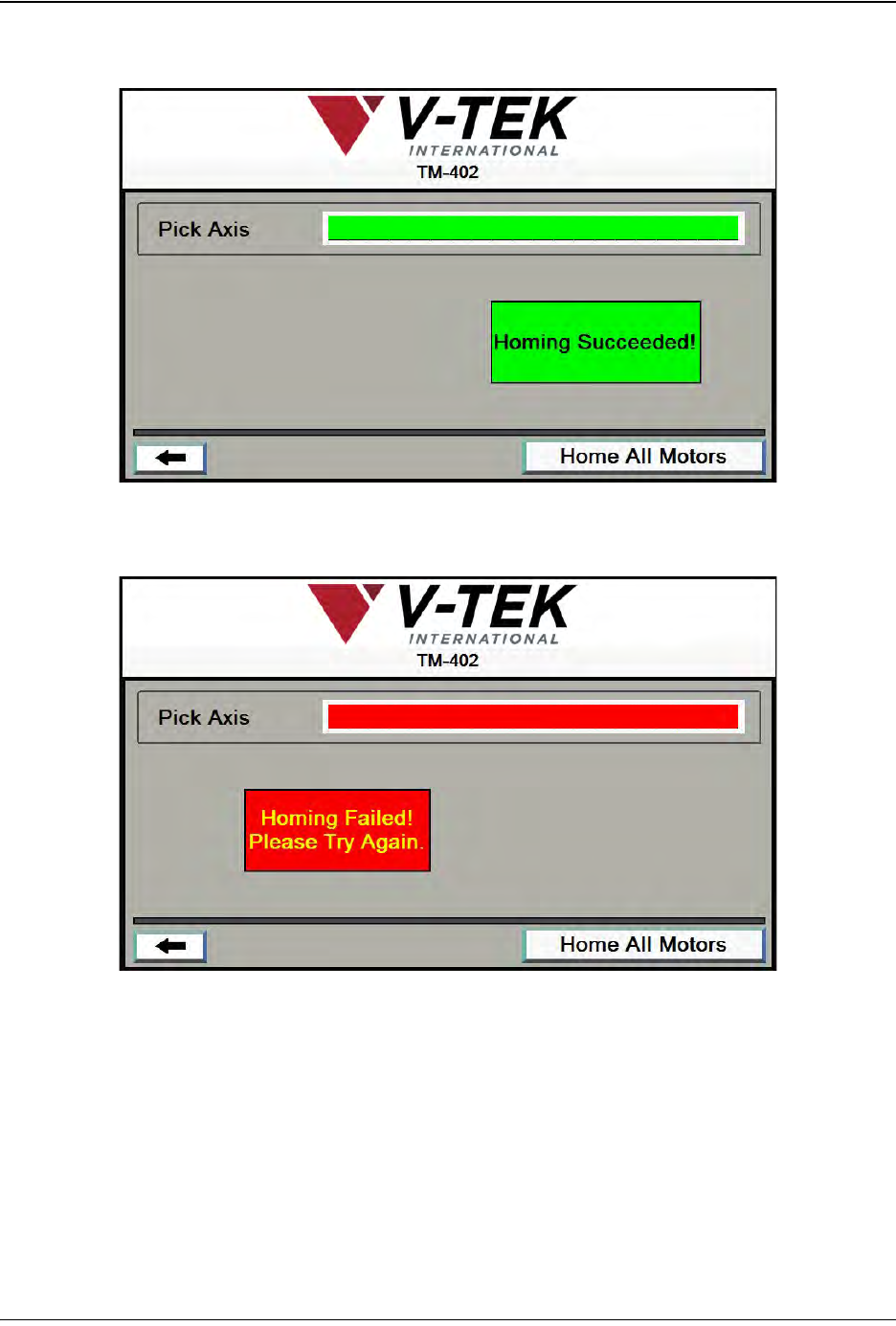
As the homing sequence is completed, the bar gradually turns from black to green. A Homing
Succeeded! message appears at the end of the sequence.
If a problem arises during homing of the motor, the status bar will turn red and a Homing Failed
message will appear.
3-6 TM-403 User’s Guide
Job Tab D292105.6a.fm
Pressing the Left Arrow button in the Homing Screen will open the Run Tab.
Select the Job Tab from the Tab Menu to navigate back to the Job Tab.
Job Tab Overview
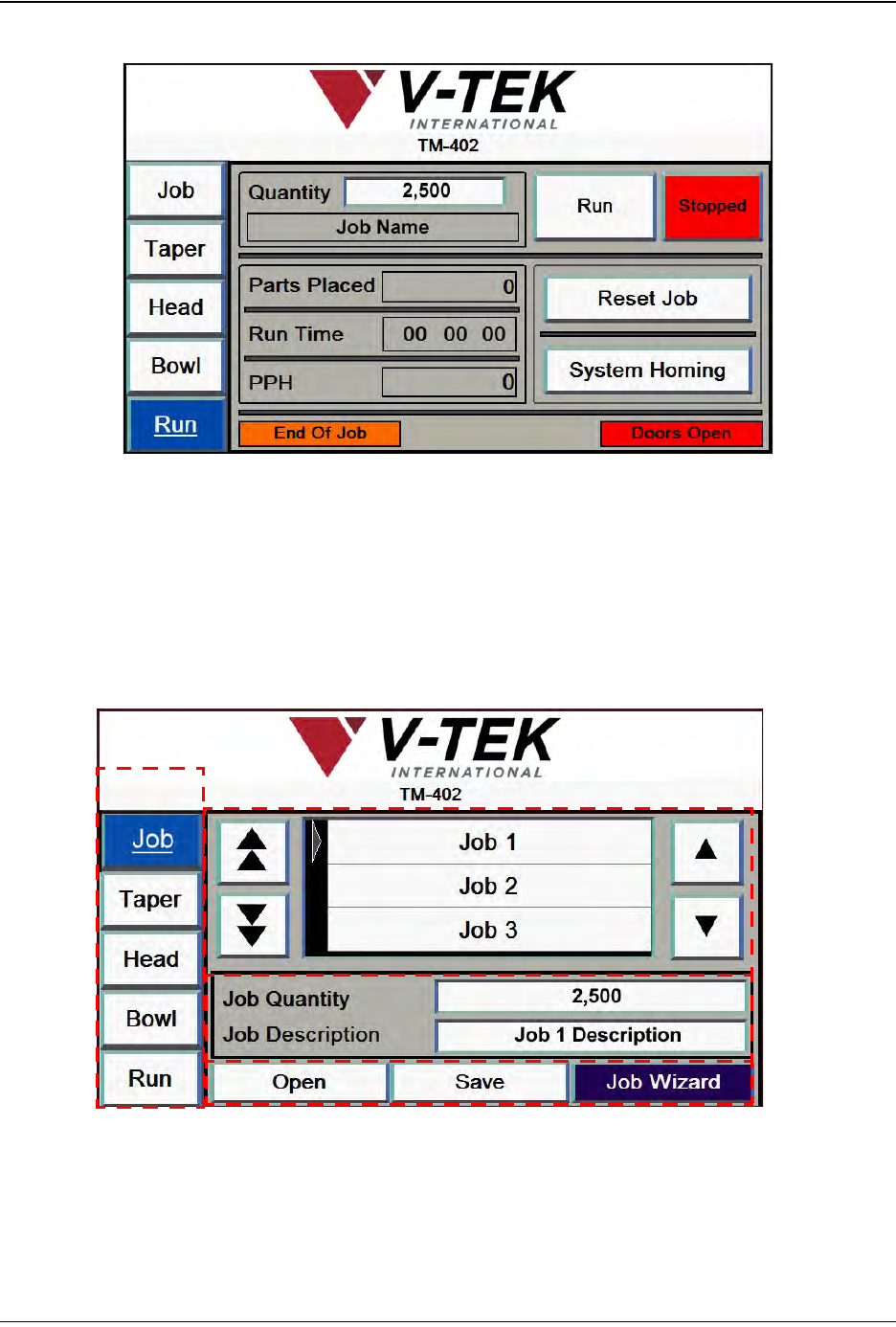
The Job Tab allows the user to select a pre-programmed job, change job information and move
to the other tab screens. It also features an easy-to-use Job Wizard which leads the user through
the job set-up process. The Job Tab is pictured below.
A. Press any tab in the Tab Menu to open that tab window.
B. The Job Library holds up to fifty saved jobs (Job 1 through Job 50). The Up and
Down Arrows buttons to the right of the Job Library are used to move through the
job list one job at a time. The Page Up and Page Down Arrows buttons to the left
A
B
C
D