00194440-10_SM_X-Series_Customer_en.pdf - 第360页
Settings Other Settings 5.6.7 Installing the CAN Card Driver 360 Service Manua l SIPLACE X Series ► Select the top opt ion (4) and click on the "Next" (5) button. ► Click on the "Next" (6) button. ► C…
Settings
5.6.7 Installing the CAN Card Driver Other Settings
Service Manual SIPLACE X Series 359
5.6.7.2
5.6.7.2 Installing the New Driver
Installing the New Driver
► Log on as administrator.
► Deinstall the old driver. To do this, open the Control panel, select "Software" and click on the entry
“SIE MultiThread API SIECA 132 Real PowerPCI” - deinstall this.
► Reboot your PC and log on again as administrator.
When you log on, the operating system shows that new hardware has been installed. Terminate the driv-
er installation with the help of the Hardware Wizard. Proceed as follows instead:
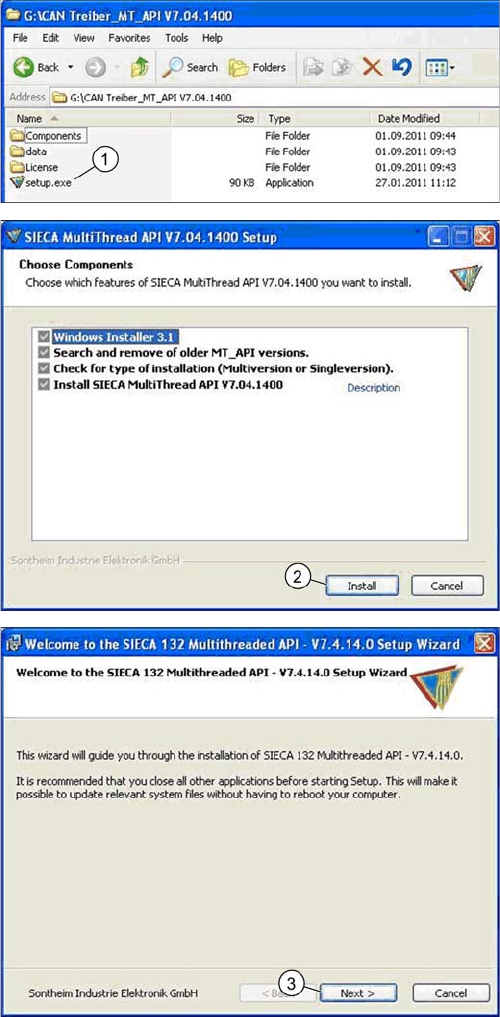
► Copy and extract the "CAN driver_MT_API V7.04.1400" to a data carrier. You will find the driver in
the SW download center.
► Now start the Setup.exe on the station computer or machine controller for your machine.
► Acknowledge the following installation steps.
► Double click on the Setup.exe (1) file.
► Click on the "Install" (2) button.
► Click on the "Next" (3) button.
Settings
Other Settings 5.6.7 Installing the CAN Card Driver
360 Service Manual SIPLACE X Series
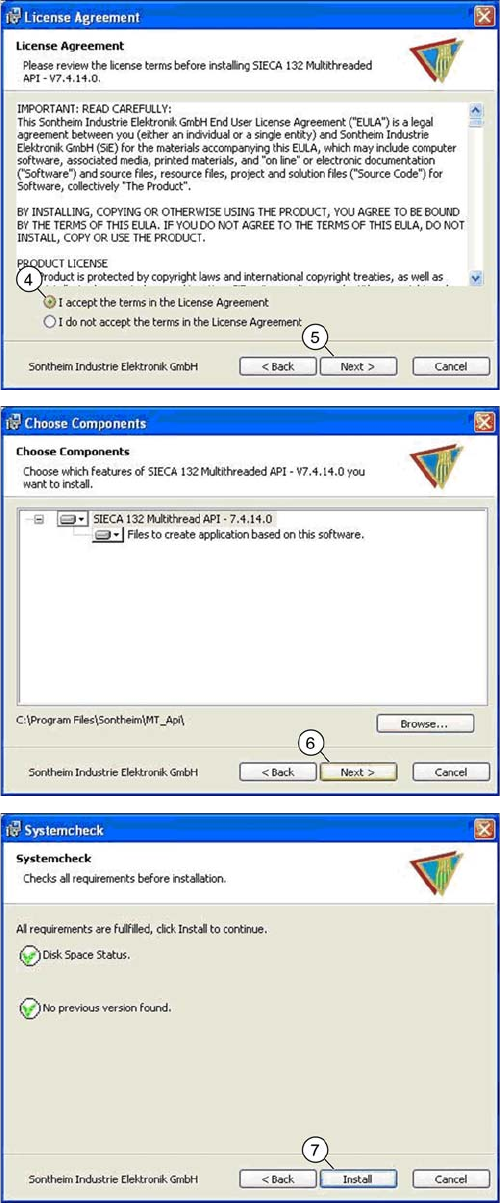
► Select the top option (4) and click on the "Next" (5)
button.
► Click on the "Next" (6) button.
► Click on the "Install" (7) button.
Settings
5.6.7 Installing the CAN Card Driver Other Settings
Service Manual SIPLACE X Series 361
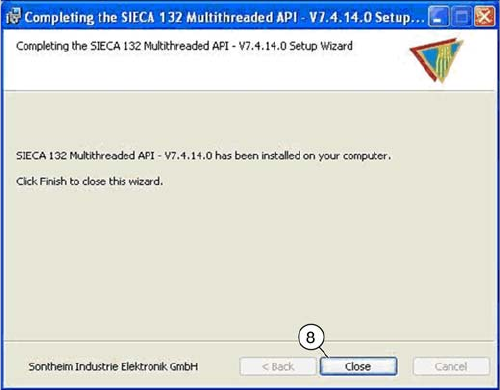
► Reboot your machine and check the operating system to make sure that the CAN driver has been
correctly installed or that the firmware and serial number are recognized correctly.
► Once the installation has finished, click on the "Close"
(8) button to close the installation wizard.