YSP20_Users_E.pdf - 第112页
4-20 4 aily operation 8. Rolling operation In rolling operation, the squeegee head moves back and forth repeatedly in order to roll and agitate solder on the mask until it becomes suitable for printing. Rolling operati…
4-19
4
aily operation
7.2 Mask frame dimensions and mask standard position
n
Mask frame dimensions and mask standard position
Recommended
specifications
Compatible
mask frame size
(mm)
Mask standard position Standard position offset
Setting X direction
Y direction
A: From outside of mask
frame (mm)
B: From center of mask
(mm)
X Y
YSP20
recommended
specifications
L750 × W750
Center
Center
Center 0 0
Front A 145 B 230 0 0
L736 × W736
Center
Center
Center 0 0
Front A 138 B 230 0 0
L650 × W550
Center
Center
Center 0 0
Front A 150 B 125 0 0
Minami Kogaku
recommended
specifications
L750 × W650
Center
Center
Center 0 0
Front A 150 B 175 0 0
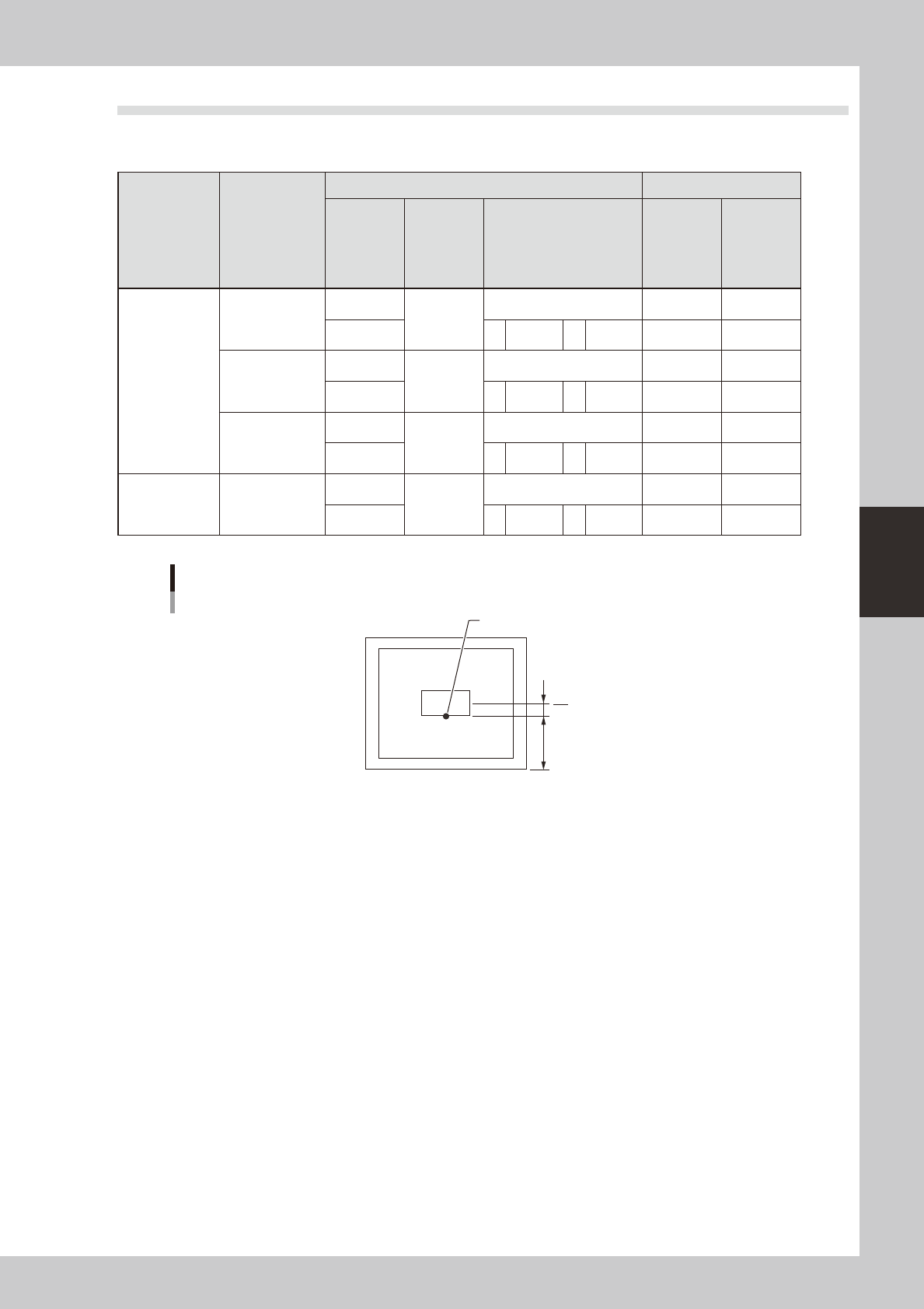
When mask standard position is “Front”
Mask standard position: “Front”
Mask center
A
B
Standard position
63421-N3-00
4-20
4
aily operation
8. Rolling operation
In rolling operation, the squeegee head moves back and forth repeatedly in order to roll and agitate solder
on the mask until it becomes suitable for printing. Rolling operation is recommended in cases where you first
print after supplying solder on the mask or when solder has been left on the mask for a long time while not in
operation.
n
NOTE
The board surface becomes soiled during rolling operation, so we recommend covering the board surface with a
transparent sheet (available as option). After rolling operation, clean the backside of the mask by automatic or
manual cleaning.
1
Supply solder.
1. Press the [SW Prod. Position] button on the Setup screen.
n
NOTE
When both lanes are used for production, the dialog box for selecting the lane number appears, so select the lane.
The lane currently used in production is grayed out.
2. Select “Solder Setup” and press the [OK] button.
When the DOOR LOCK lamp turns off, open the safety cover and supply solder on the mask.
c
immediately in case of emergency.
2
Press the [READY] button.
Close the safety cover and press the [READY] button.
3
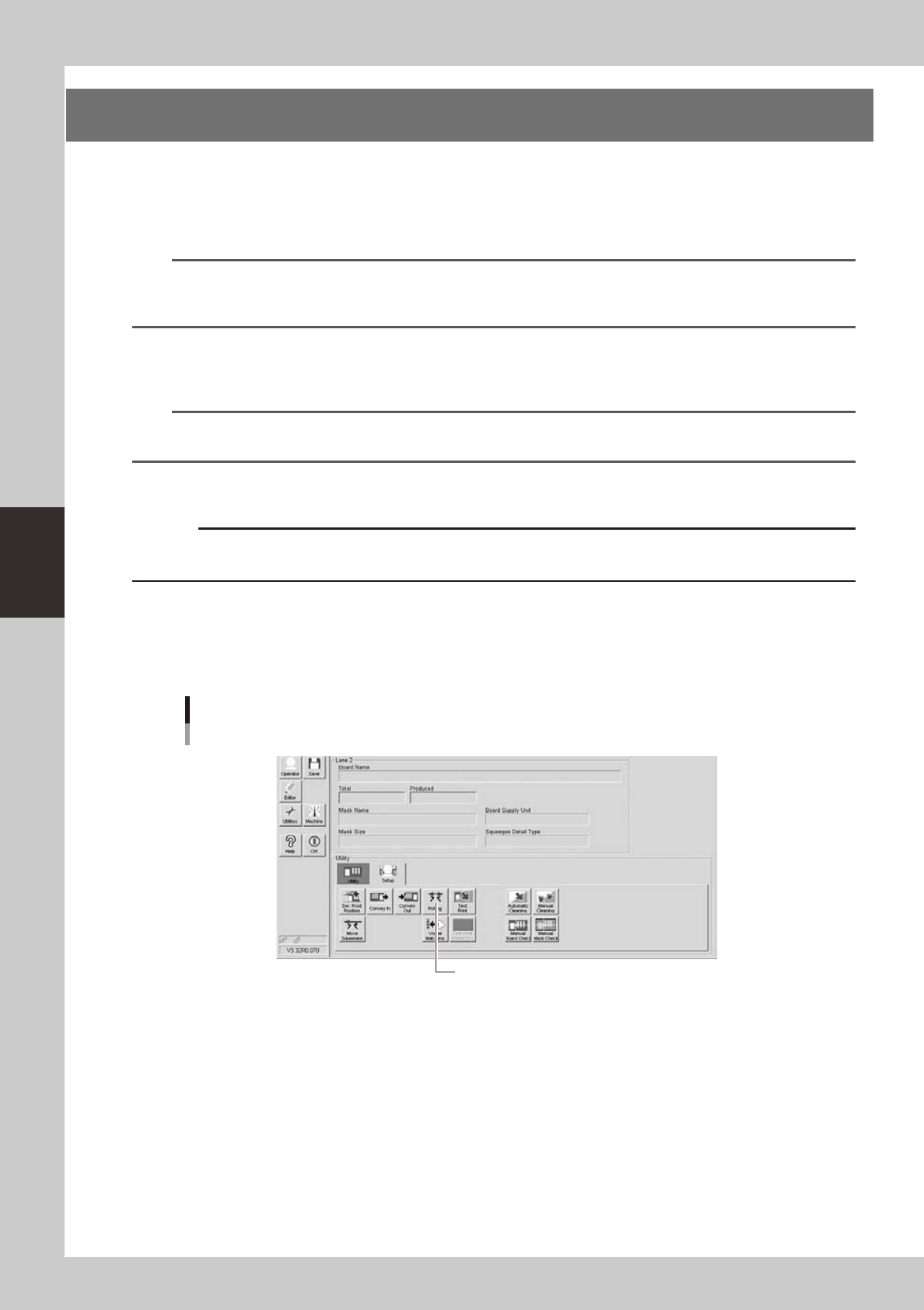
Press the [Rolling] button on the [Setup] tab of the Setup screen.
[Rolling] button
[Rolling] button
64410-N3-10
4-21
4
aily operation
4
Follow the message on the screen to load a board on the conveyor.
This step is skipped when a board has already been clamped on the conveyor.
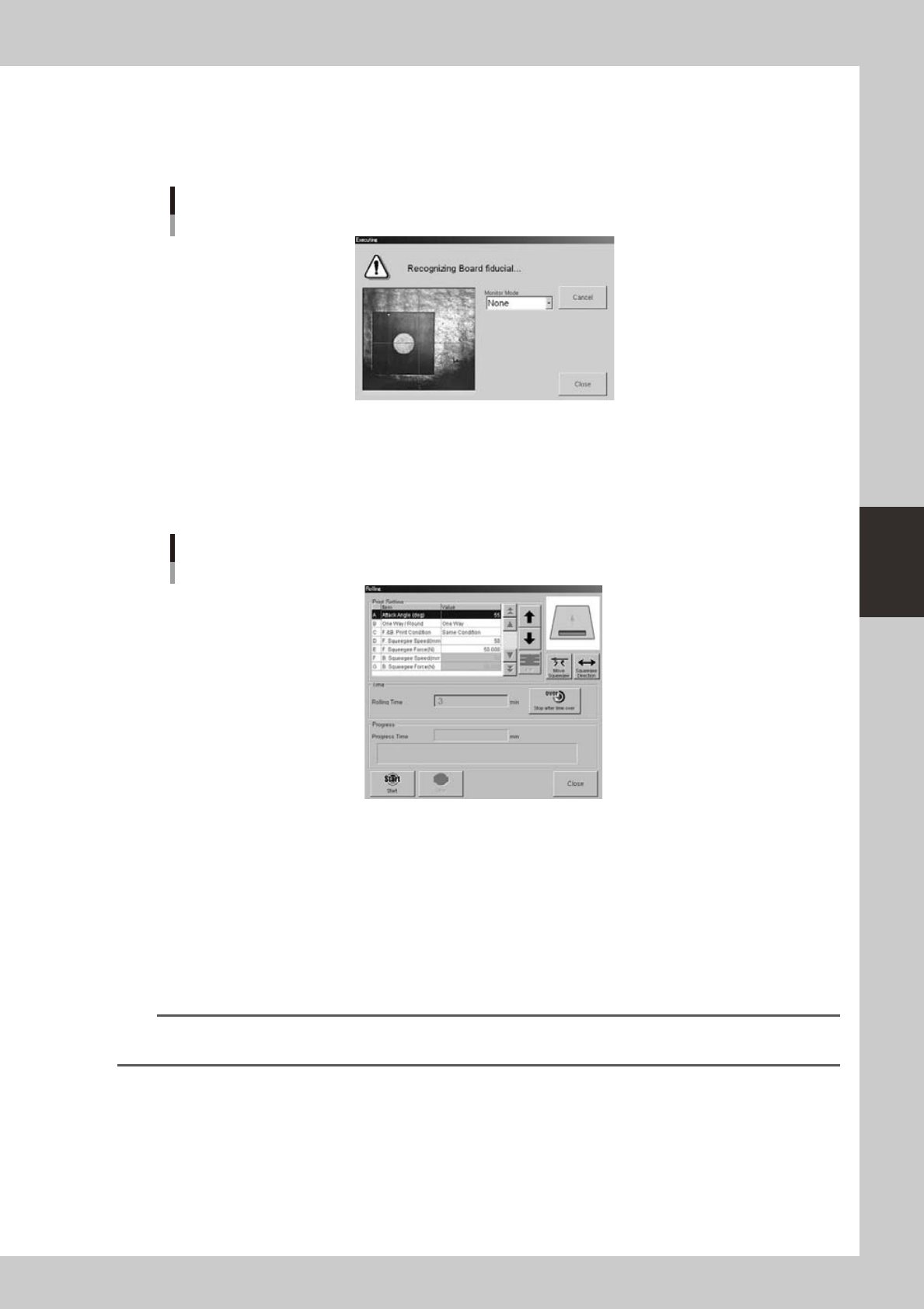
After the board is clamped, the board fiducial mark will be automatically recognized with the vision
camera. (This mark recognition will be skipped if not using the fiducial mark function.)
Fiducial mark recognition screen
64411-N3-00
5
Check that the Rolling dialog box appears.
After mark recognition is complete, the mark recognition screen automatically closes. The conveyor
table then moves to the printing position and is fixed, and the Rolling dialog box appears as shown
below.
Rolling dialog box
64312-N3-00
6
Check the squeegee print direction.
Use the [Squeegee Direction] button as needed to change the print direction according to the position
where solder was supplied.
7
Start rolling operation.
1. Press the [Stop after time over] button and enter the rolling time.
2. Press the [Start] button.
Rolling operation starts and will automatically stop when the time you set is reached.
n
NOTE
Check the scraped state of the solder on the mask during rolling operation, and if necessary, adjust the settings as in
the next step.