YSP20_Users_E.pdf - 第221页
7-17 7 ther functions 3. Backup pin arrangement When you press the [Backup Pin Pos.] button on the [Print]-[Board] tab screen, the "Backup Pin" dialog box appears. On the graphic view in this dialog box, you …
7-16
7
ther functions
t
Perform the vision test.
Press the [Test] button and check to see if the pattern is correctly recognized. Repeat this test several
times. When no error occurs, the pattern data is appropriate.
If an error occurs, check whether "Search Area" on the [Vision] tab is appropriate. If the search area is
too large so that other marks are located within the search area, then reduce the search area.
Conversely, if the search area is too small, then enlarge the search area.
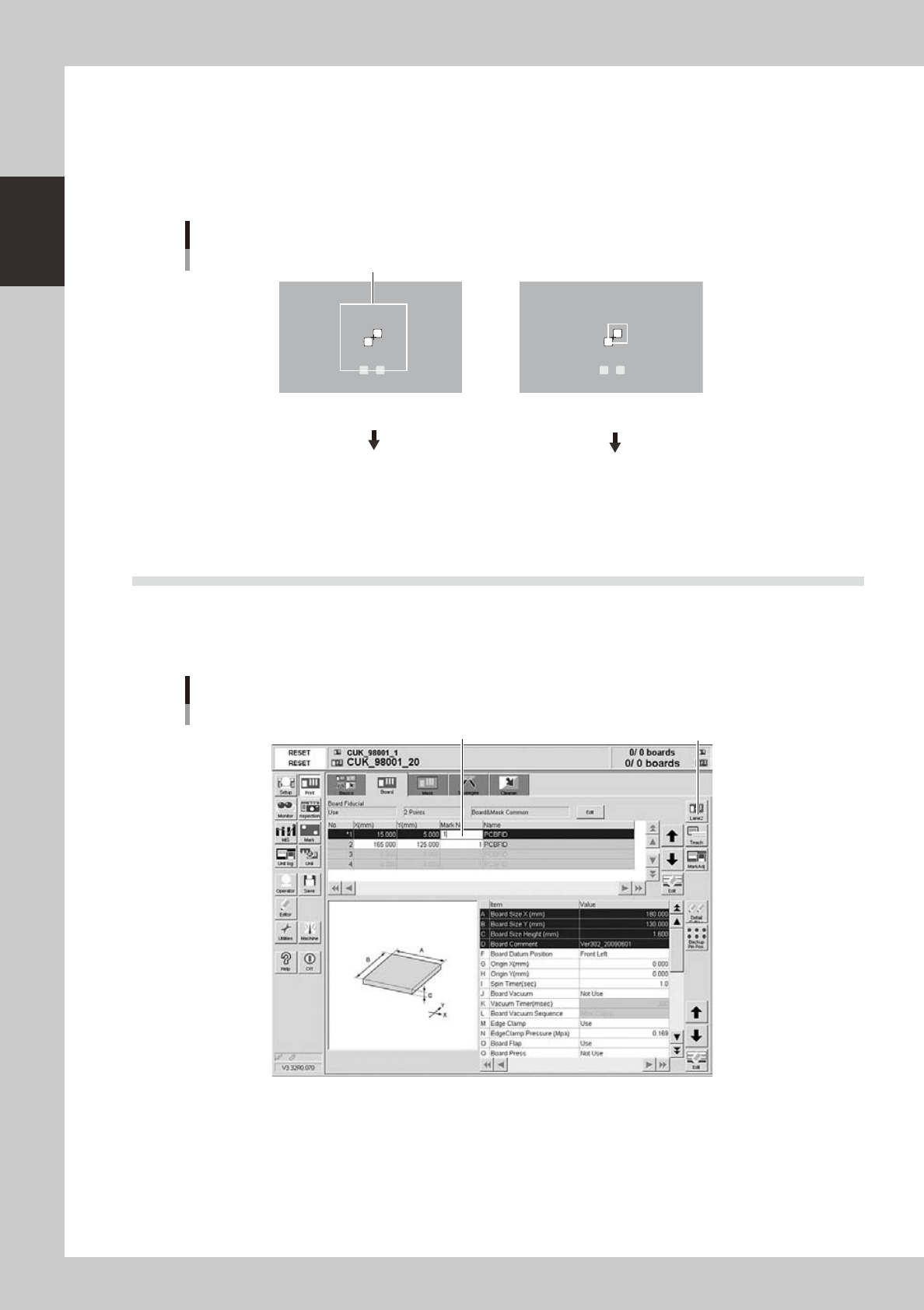
Search area adjustment
Search area
Search area is too large, so
other marks are recognized.
Reduce the search area
Search area is too small,
so the target pattern is not
inside the search area.
Enlarge the search area.
63706-N3-00
y
Press the [OK] button to save the data.
The Mark Adjust screen closes and returns to the Mark screen.
2.2 Using the pattern matching
Pattern matching can be used in the same way as the fiducial marks. In this case, specify the pattern mark No.
in the data list on the [Print]-[Board] tab or [Print]-[Mask] tab. (The figure below shows an example when using
pattern matching as board fiducial marks.
Example of using pattern matching
Specify the mark No. registered as pattern.
[Lane] button
64714-N3-10
7-17
7
ther functions
3. Backup pin arrangement
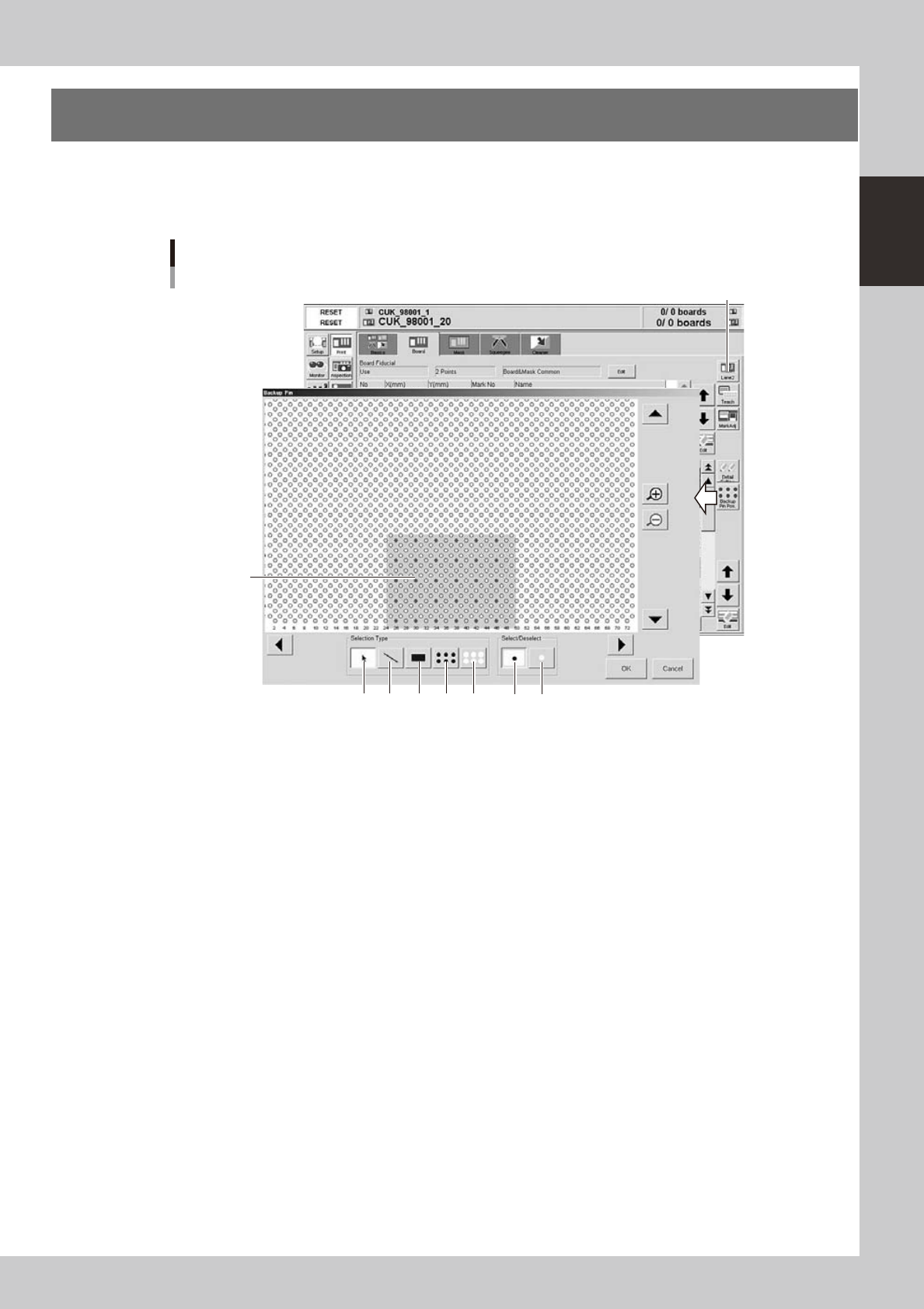
When you press the [Backup Pin Pos.] button on the [Print]-[Board] tab screen, the "Backup Pin" dialog box
appears. On the graphic view in this dialog box, you can register the backup pin arrangement according to
the board size.
"Backup Pin" dialog box
Shaded area
shows board
size.
23 4 5 6 7 1
[Lane] button
64715-N3-10
1: [Select] button
Press this button when selecting pins on the graphic view.
2: [Deselect] button
Press this button when canceling the pin selection made on the graphic view.
3: [Pointer] button
By pressing this button with the [Select] button depressed, you can select pins by clicking or dragging the mouse.
By pressing this button with the [Deselect] button depressed, you can cancel the pin selection by clicking or dragging the
mouse.
4: [Draw Line] button
By pressing this button with the [Select] button depressed, you can select pins by drawing a line (dragging the mouse).
By pressing this button with the [Deselect] button depressed, you can cancel the pin selection by drawing a line (dragging
the mouse).
5: [Draw Rectangle] button
By pressing this button with the [Select] button depressed, you can select pins by drawing a rectangle (dragging the
mouse).
By pressing this button with the [Deselect] button depressed, you can cancel the pin selection by drawing a rectangle
(dragging the mouse).
6: [Select All Pins] button
Click this button to select all pins on the graphic view.
7: [Deselect All Pins] button
Click this button to cancel all pins you selected on the graphic view.
7-18
7
ther functions
4. Manual operation
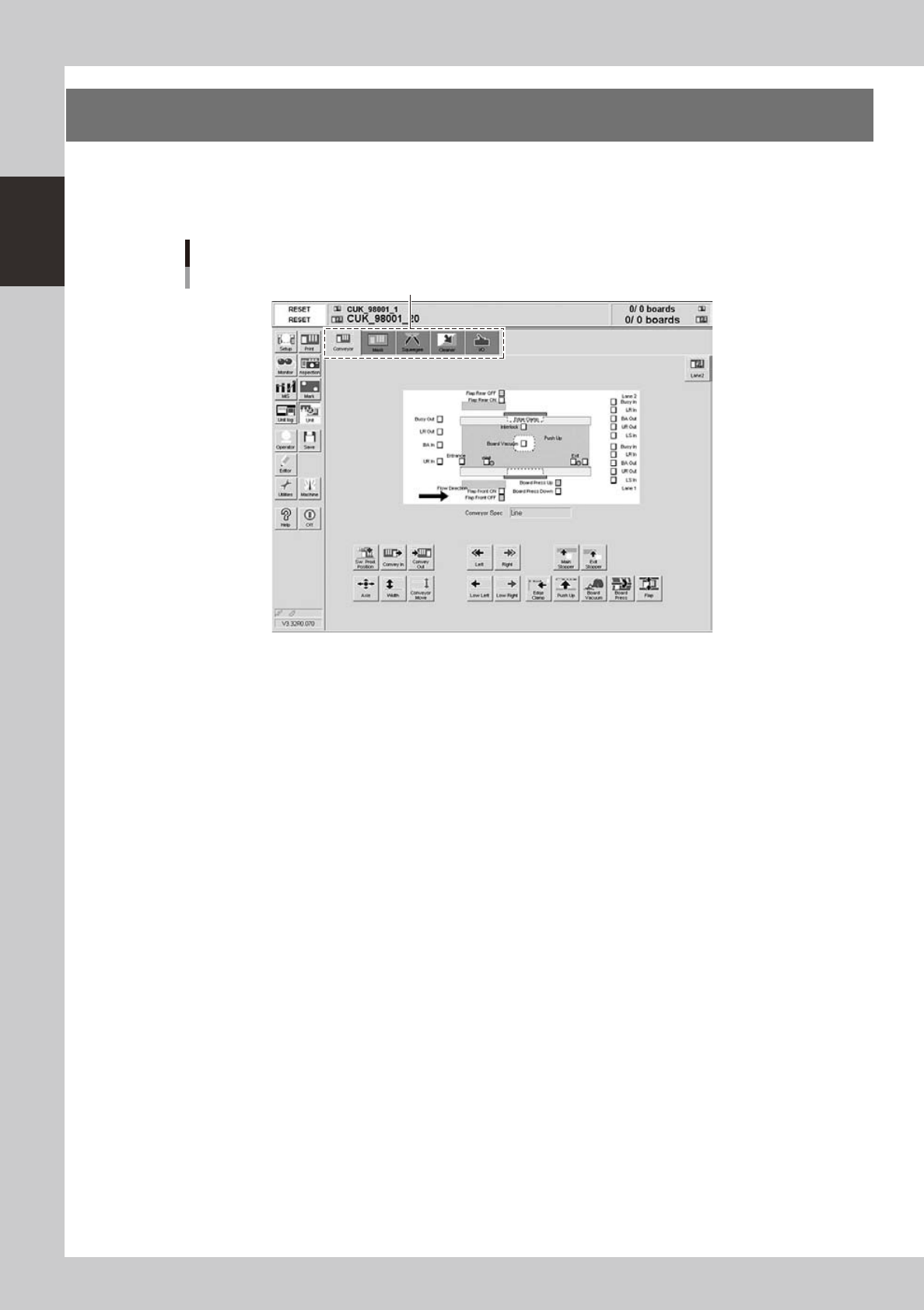
When you press the [Unit] button, the following screen appears. This screen is divided by several tabs such
as [Conveyor], [Mask], [Squeegee] and [Cleaner] to allow manually operating the servo-controlled units. You
can also check the status of each sensor and I/O signal on the [I/O] tab screen.
Unit screen
Selection tab
64716-N3-10