YSP20_Users_E.pdf - 第196页
6-21 6 anaging the data 3.4 Specifying the destination to save the production histor y data T he production history data is stored in the specified files in a local drive each time the mac hine is turned off or the boa…
6-20
6
anaging the data
Downstream Standby Time
Total standby time (seconds) required by the downstream machine during
production (including cases where the machine was waiting for the preceding
board on the exit conveyor to be carried out while a board was set in printing
position).
Working Ratio
This is given as follows:
(Cumulative printing time + cumulative board transfer time) ÷ [(production
completion time - setup completion time) - cumulative standby time] × 100 =
working ratio (%)
Cumulative printing time:
Total time that the squeegee head is moving to print solder (including mark
recognition time)
Cumulative board transfer time:
Total board transfer time (loading/unloading)
Cumulative standby time:
Total standby time of the machine required by the upstream or downstream
machine (The squeegee head is not moving even when the green signal
lamp is on.)
Production completion time:
Time when changed to next production board or time that power was turned
off
Setup completion time:
Time that the [START] button was pressed and operation started
Mask MarkRec Count Time required to recognize the mask fiducial marks in each program lot.
Cleaning Count Number of cleaning operations that were performed in each program lot.
Inspection Count
Total number of boards that underwent solder-print inspection in each program
lot. (Available when solder-print inspection is used.)
Inspection View Count
Number of field-of-views used for automatic board or mask inspection. (Available
when solder-print inspection is used.)
Inspection Object Count
Number of points to be checked during automatic board or mask inspection.
(Available when solder-print inspection is used.)
Board Inspection NG count
Number of failed solder-print inspections. (Available when solder-print inspection
is used.)
Board Distortion Check NG Count Number of "warped" boards that were detected.
Board Remove Count Number of boards that were removed in each program lot.
Board Reentry Count Number of boards that were loaded in each program lot.
Feedback Print Count Number of boards that underwent feedback print in each program lot.
Feedback Cleaning Count Number of boards that underwent feedback cleaning in each program lot.
6-21
6
anaging the data
3.4 Specifying the destination to save the production history data
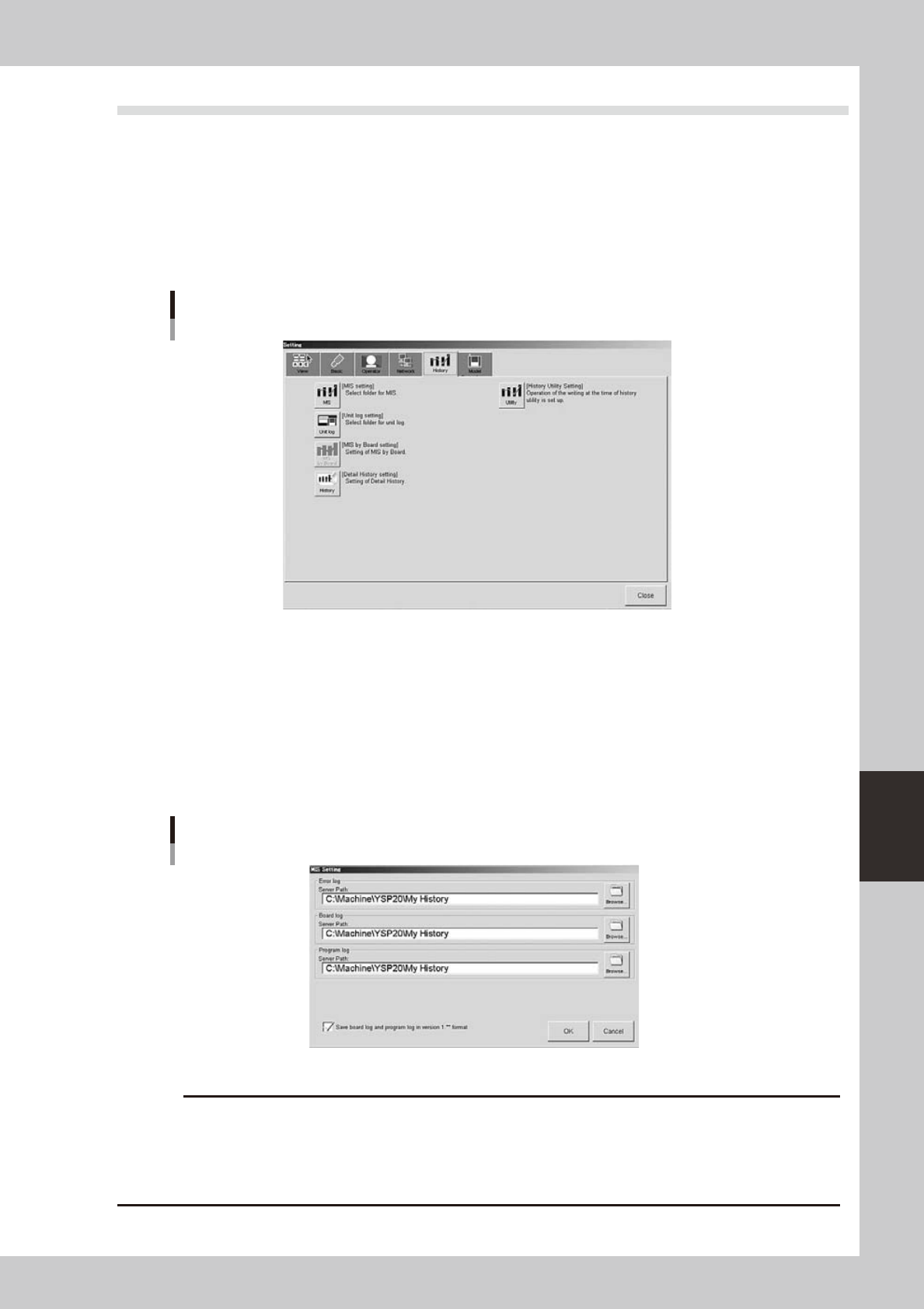
The production history data is stored in the specified files in a local drive each time the machine is turned off
or the board data is switched. You can also make settings to automatically output and save the production
history data at a specified time.
1
Press the [Software Setting] button on the [Utility] tab of the Setup screen.
The "Setting" dialog box opens.
2
Select the [History] tab.
"Setting" dialog box
[History] tab
64612-N3-00
3
Press the [MIS] button.
The "MIS Setting" dialog box appears.
4
Check or specify the path to each folder where the production history data will be
stored.
Enter the path or use the [Browse] button to specify the destination folder. You can set the destination
folder separately for "Error log", "Board log" and "Program log". After finished setting, press the [OK]
button.
"MIS Setting" dialog box
64613-N3-00
c
data or causing the machine to fail to start.
6-22
6
anaging the data
5
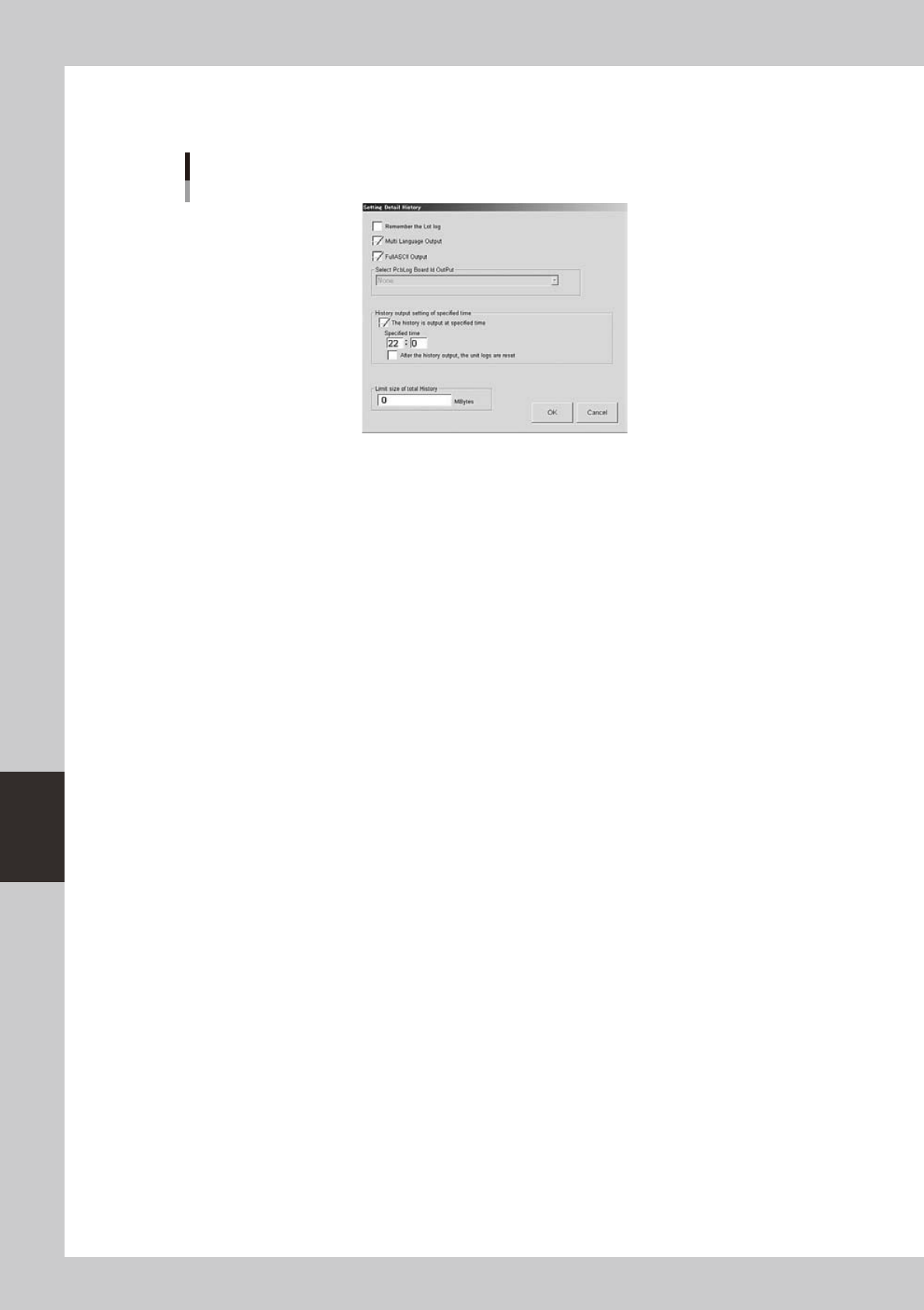
Press the [History] button in the "Setting" dialog box.
The "Setting Detail History" dialog box then appears.
"Setting Detail History" dialog box
64614-N3-00
6
Select the check boxes as needed.
• "Remember the lot log" check box
When this check box is selected, the board data that was in use when the machine power was
turned off will be loaded again the next time the power is turned on, in order to take over its
production history data.
• "Multi Language Output" check box
When this check box is selected, the production history data can be saved or loaded in multi-
language mode.
• "FullASCII Output" check box
When this check box is selected, characters not applicable to this machine (illegal characters) are
converted automatically in the file read process.
Illegal characters (example): !#$%&@*<>?/, etc.
• "History output setting of specified time" check box
Select this check box when you want to specify the time to output the production history data.
After selecting this check box, enter the time in military time (24-hour clock format) in the “Specified
time” box. By making this setting, the machine automatically outputs and saves the production
history data at the specified time every day.
When the “After the history output, the unit logs are reset” check box is selected, the “Unit log” data
will be reset after the production history data is output.
• "Limit size of total history" box
When you want to set a limit on the total amount of production history data to be saved, enter it
here. An alarm will occur when the free space of the destination approaches the limit size specified
here. No limit will be placed when set to "0".