YSP20_Users_E.pdf - 第183页
6-8 6 anaging the data 1.3 W orking with a USB memor y device 1.3.1 Manipulating the files in the USB memor y device T he following description shows how to rename or delete the folders stored in the USB memory device.…

6-7
6
anaging the data
4
Open the system backup menu.
Press the [System Backup] button on the [Utility] tab of the Setup screen. The "System backup" dialog
box appears.
5
Start making a backup.
• Media
If no folder is selected, a dialog box for selecting a folder appears. Select the folder to save the
backup data.
• Network
Select the path to the location where to save the backup data.
6-8
6
anaging the data
1.3 Working with a USB memory device
1.3.1 Manipulating the files in the USB memory device
The following description shows how to rename or delete the folders stored in the USB memory device.
Open the "Media Select" dialog box by pressing the [Media] button.
TIP
The [Media] button is available in the "Board data select" dialog box, "Board data save" dialog box, and the Board
Explorer window.
n
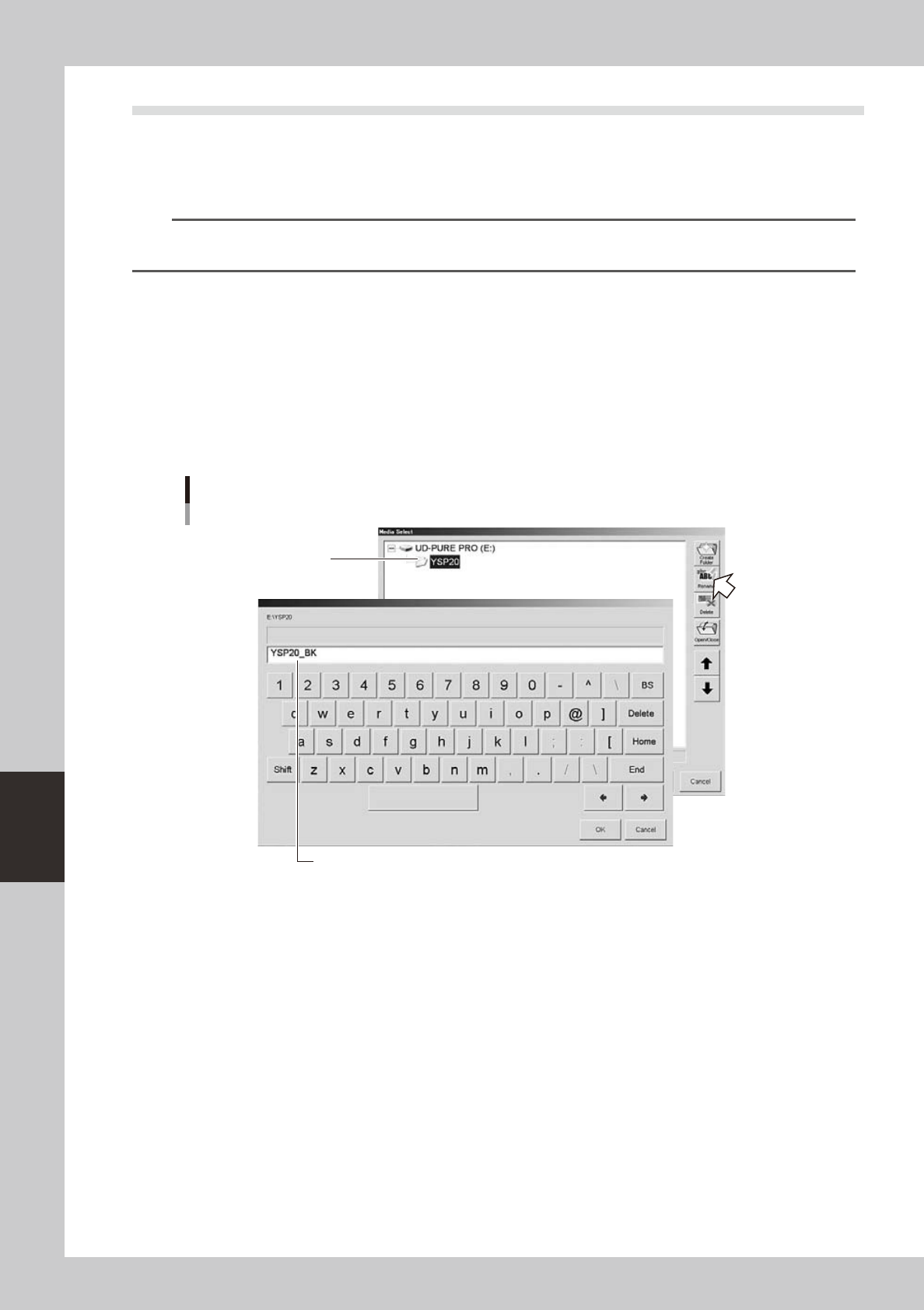
To rename the folder:
1
Press the [Media] button.
2
Select a folder.
Select a folder you want to rename and press the [Rename] button.
3
Enter a name.
The keyboard dialog box appears. Enter a new name and press the [OK] button.
Enter a new folder name.
Select the folder.
Renaming the folder
64625-N3-10
6-9
6
anaging the data
n
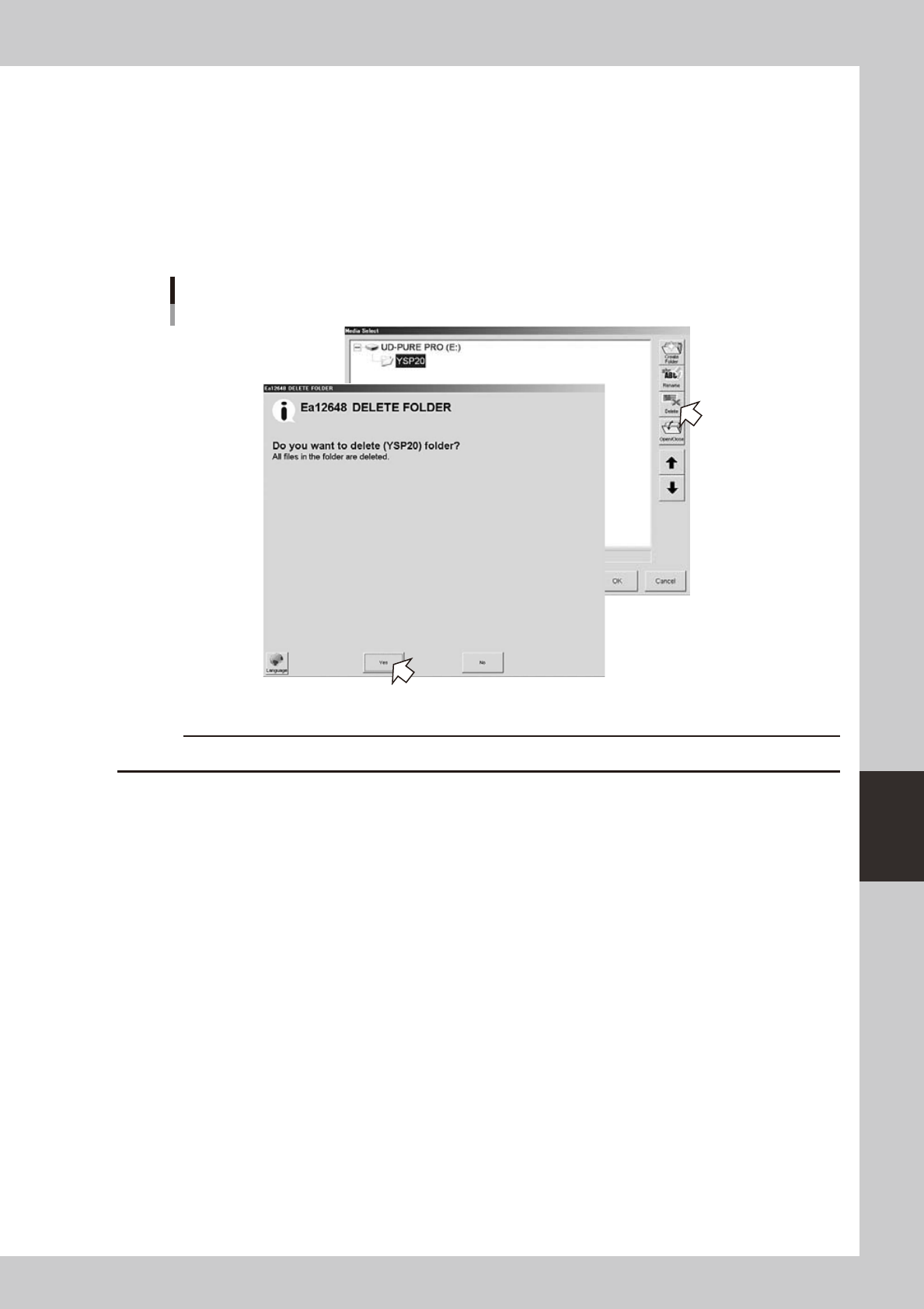
To delete the folder:
1
Press the [Media] button.
2
Select a folder.
Select a folder you want to delete and press the [Delete] button.
3
Check the message that appears on the screen.
The Delete Confirmation dialog box appears. Check the contents and press the [Yes] button.
Deleting the folder
64626-N3-10
c