YSP20_Users_E.pdf - 第186页
6-11 6 anaging the data n Using the "Indicator" n NOTE Use the mouse or trackball to per for m this operation. 1 Using the mouse, or the trackball, double-click the USB memor y device icon sho wn in the indic…
6-10
6
anaging the data
1.3.2 Removing the USB memory device
There are two ways to remove the USB memory device: one is by using the "Media Select" dialog box and the
other is by using the indicator on the operation screen.
c
while data is being saved or loaded.
n
Using the "Media Select" dialog box
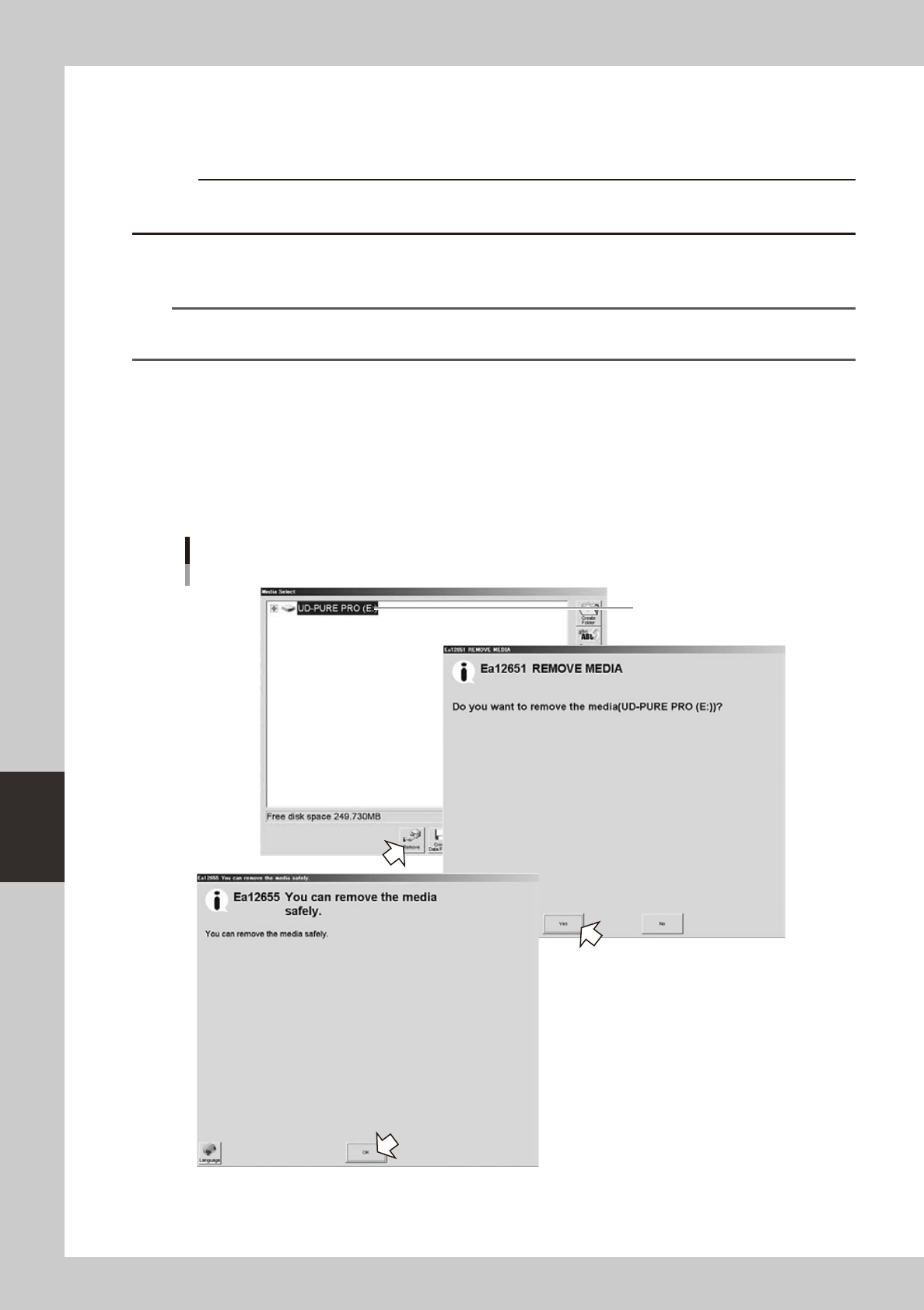
Press the [Media] button to open the "Media Select" dialog box.
TIP
The [Media] button is available in the "Board data select" dialog box, "Board data save" dialog box, and the Board
Explorer window.
1
Press the [Remove] button.
1. Select the media (USB memory device) you want to remove, and press the [Remove] button.
2. When a message appears asking whether to remove the selected media, press the [Yes] button.
2
Remove the USB memory device.
When another message appears indicating the media can be safely removed, remove the USB memory
device from the USB port of the machine.
Select the media
(USB memory device).
Removing the USB memory device
64627-N3-10
6-11
6
anaging the data
n
Using the "Indicator"
n
NOTE
Use the mouse or trackball to perform this operation.
1
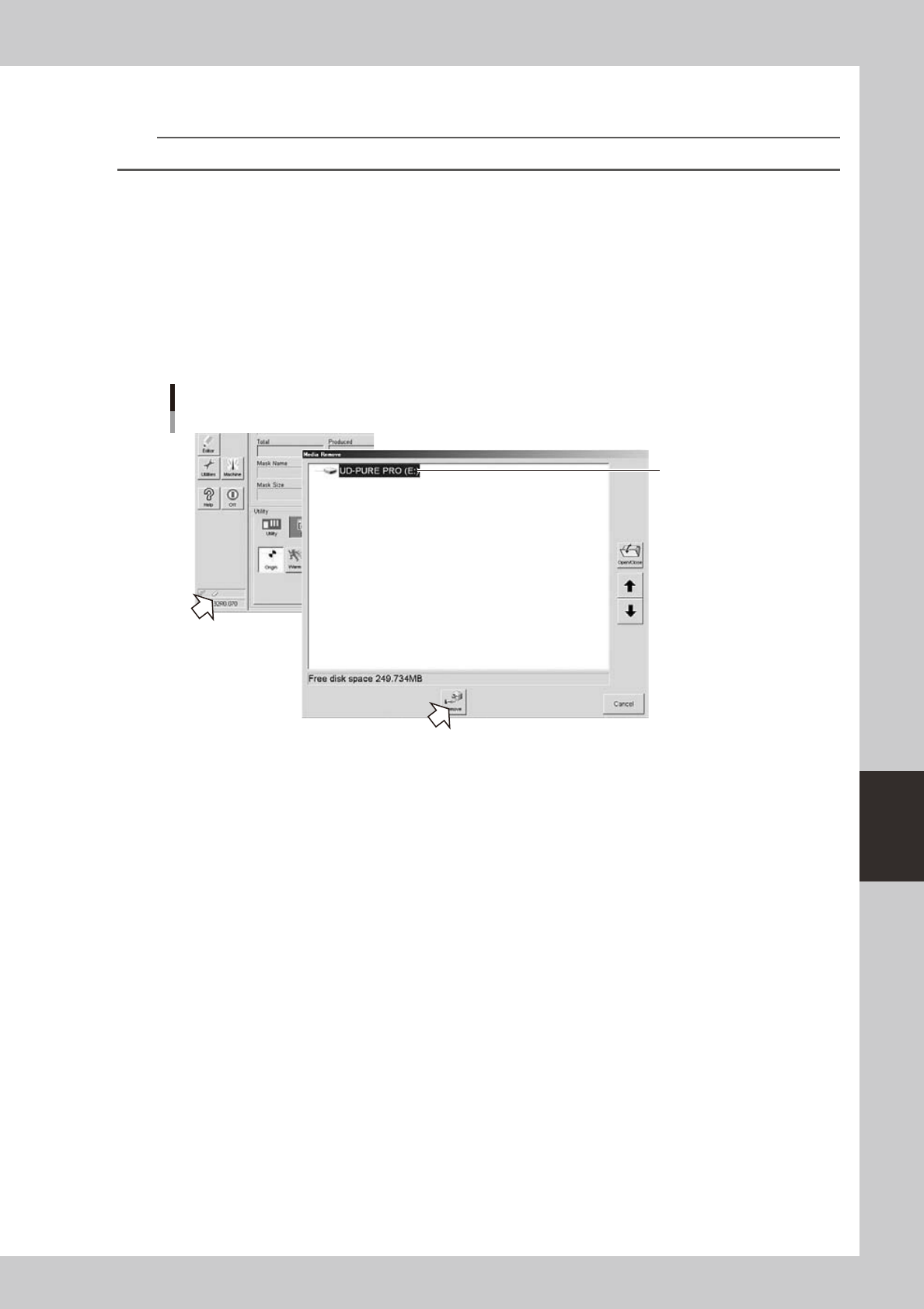
Using the mouse, or the trackball, double-click the USB memory device icon shown
in the indicator.
1. The "Media Remove" dialog box appears. Select the media (USB memory device) you want to
remove, and press the [Remove] button.
2. When a message appears asking whether to remove the selected media, press the [Yes] button.
2
Remove the USB memory device.
When another message appears indicating the media can be safely removed, remove the USB memory
device from the USB port of the machine.
Double-click
this icon with
the mouse or trackball.
Select the media
(USB memory device).
Removing the USB memory device
64628-N3-10
6-12
6
anaging the data
2. Creating the user database
Registering marks in the user database will prove convenient if they are not included in the YAMAHA
database or they are used very frequently.
The user database should be registered in the user area of the database. The user database area can be
from No. 1 to No. 149 for the mark database. The registered data in this area will be retained even if the
software version is upgraded.
2.1 Copying the data into the database
To copy the component or mark data you created into the user database, follow these steps.
1
Select the board data name.
Press the [Board] button on the Setup screen and select the board data.
2
Open the Mark screen.
Press the [Mark] button in the main menu button area.
3
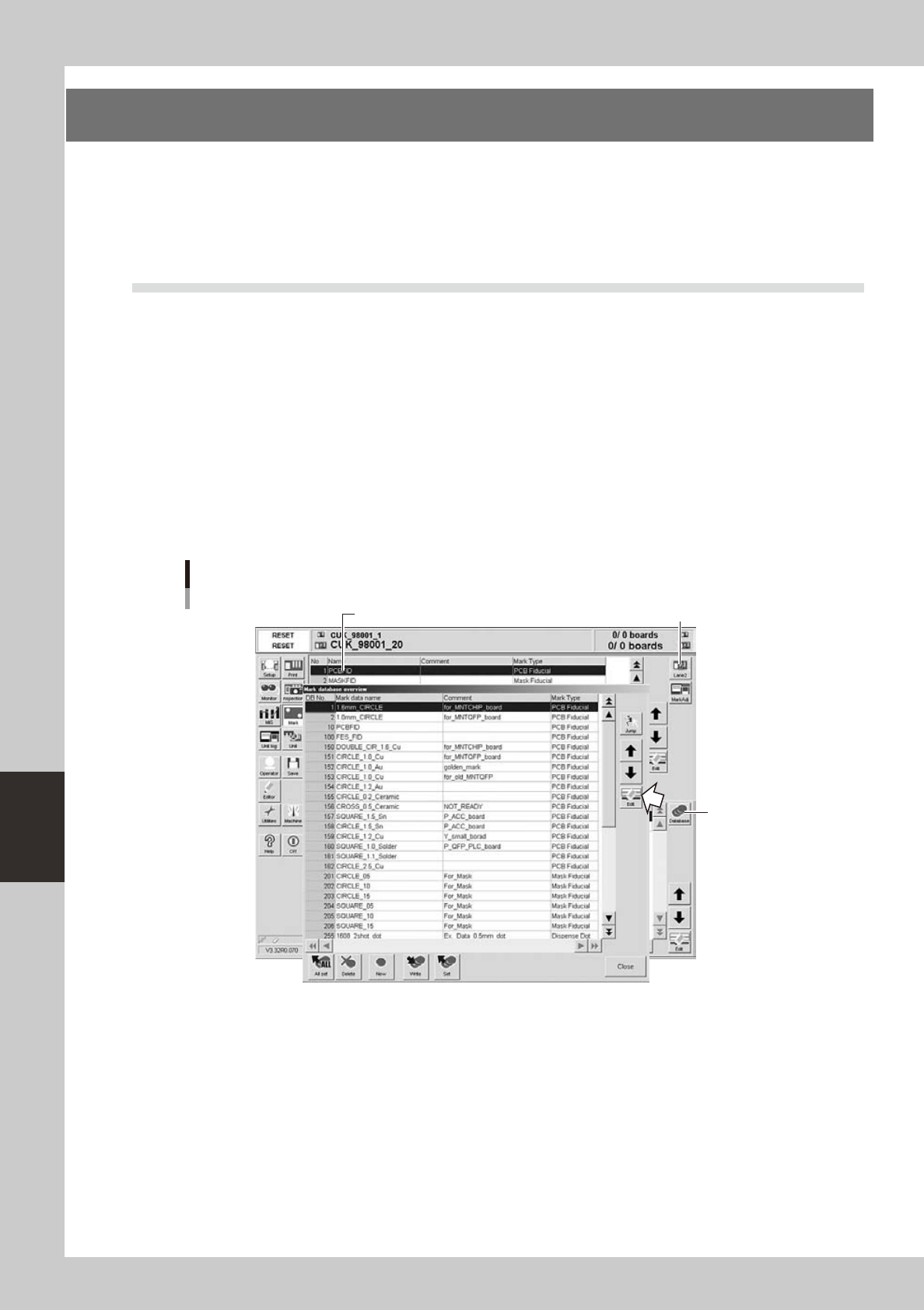
Select the copy source data.
Line up the cursor with the mark data you want to copy from.
4
Open the database list.
Press the [Database] button on the [Basic] tab. The database list appears.
Database list
Copy source
[Database] button
[Lane] button
64605-N3-10