YSP20_Users_E.pdf - 第198页
6-23 6 anaging the data 4. Machine operation histor y The operation logs of various units used in the machine are recorded. T o check these operation logs, press the [Unit log] button on the main menu button area. The …
6-22
6
anaging the data
5
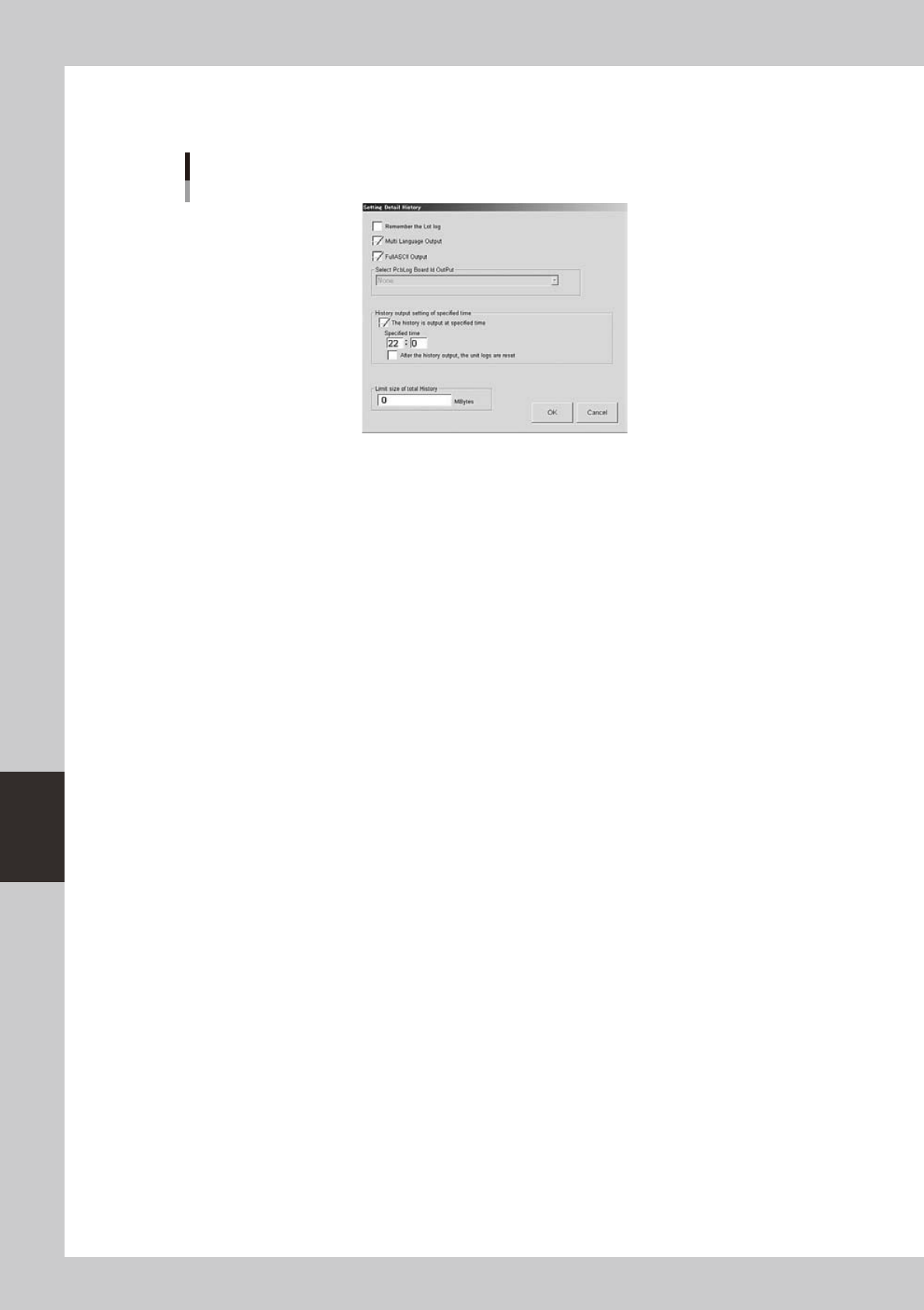
Press the [History] button in the "Setting" dialog box.
The "Setting Detail History" dialog box then appears.
"Setting Detail History" dialog box
64614-N3-00
6
Select the check boxes as needed.
• "Remember the lot log" check box
When this check box is selected, the board data that was in use when the machine power was
turned off will be loaded again the next time the power is turned on, in order to take over its
production history data.
• "Multi Language Output" check box
When this check box is selected, the production history data can be saved or loaded in multi-
language mode.
• "FullASCII Output" check box
When this check box is selected, characters not applicable to this machine (illegal characters) are
converted automatically in the file read process.
Illegal characters (example): !#$%&@*<>?/, etc.
• "History output setting of specified time" check box
Select this check box when you want to specify the time to output the production history data.
After selecting this check box, enter the time in military time (24-hour clock format) in the “Specified
time” box. By making this setting, the machine automatically outputs and saves the production
history data at the specified time every day.
When the “After the history output, the unit logs are reset” check box is selected, the “Unit log” data
will be reset after the production history data is output.
• "Limit size of total history" box
When you want to set a limit on the total amount of production history data to be saved, enter it
here. An alarm will occur when the free space of the destination approaches the limit size specified
here. No limit will be placed when set to "0".
6-23
6
anaging the data
4. Machine operation history
The operation logs of various units used in the machine are recorded. To check these operation logs, press
the [Unit log] button on the main menu button area. The operation logs relating to the conveyor, squeegee,
mask and cleaning unit are displayed by selecting the corresponding tab.
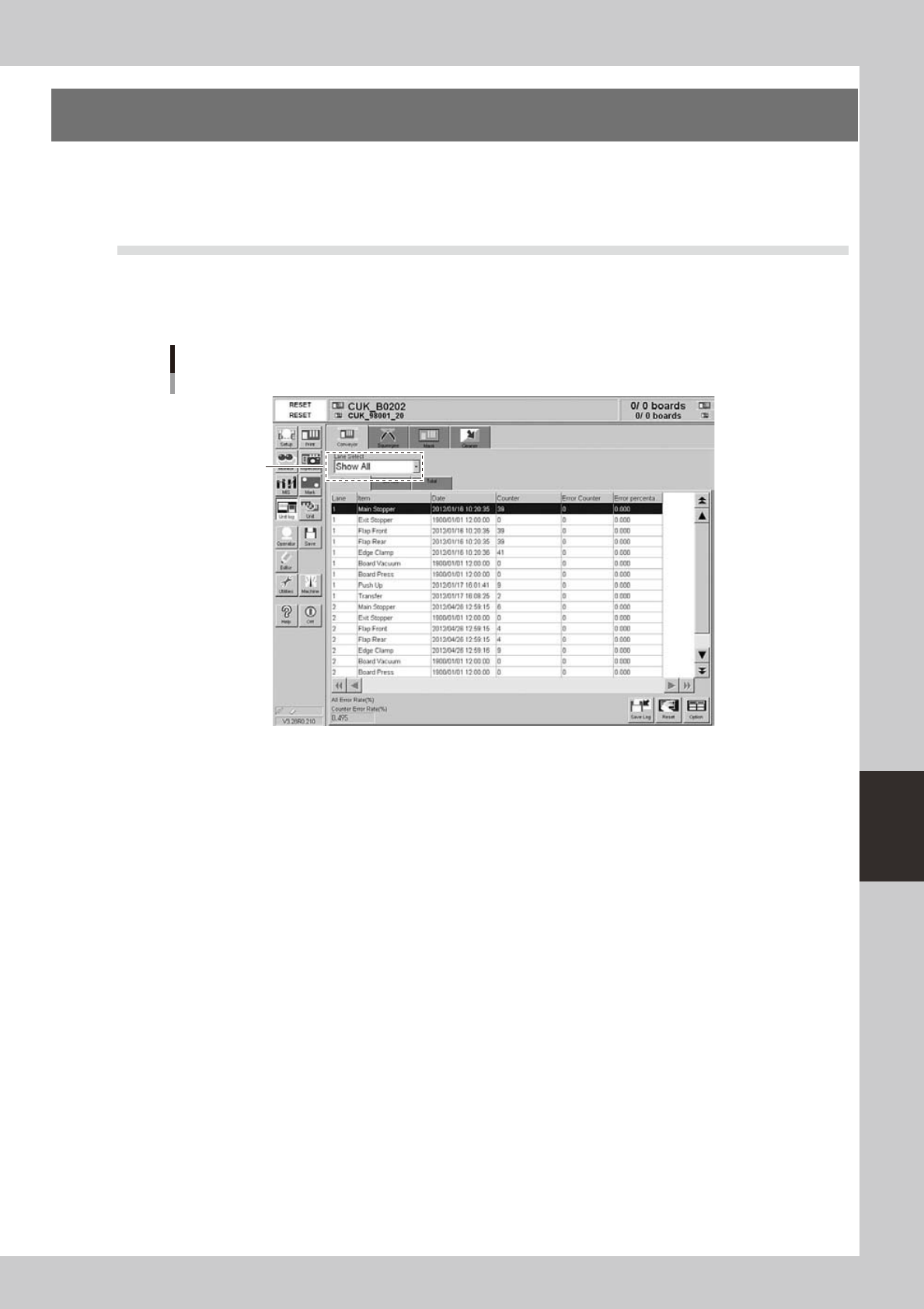
4.1 Unit log: Conveyor
Selecting the [Conveyor] tab shows a list of operation records of each conveyor unit (main stopper, exit
stopper, flaps (front and rear), edge clamp, board vacuum gripper, board press, push-up unit and board transfer
unit).
[Unit log]-[Conveyor] tab
Select the lane.
64615-N3-00
The operation logs are grouped and displayed according to the [Operator], [Service] and [Total] subtabs. Each
item in the grid display and the lower left box show the following information.
Date
Date and time when operation was started.
Counter
Number of times that the unit has been operated.
Error Counter
Number of operation errors that occurred with each item.
Error percent
Number of operation errors divided by number of operations
×
100 (%).
Counter error rate
The "Counter error rate" box shows the total number of operation errors recorded on the tab divided by the total number
of operations
×
100 (%).
6-24
6
anaging the data
The buttons at the lower right of the tab have the following functions.
[Save Log] button
Saves the operation logs displayed on the tab.
[Clear] button
Clears the operation logs in the selected row or all the operation logs displayed on the tab. This button is not available on
the [Total] subtab, so the operation logs on the [Total] subtab cannot be reset.
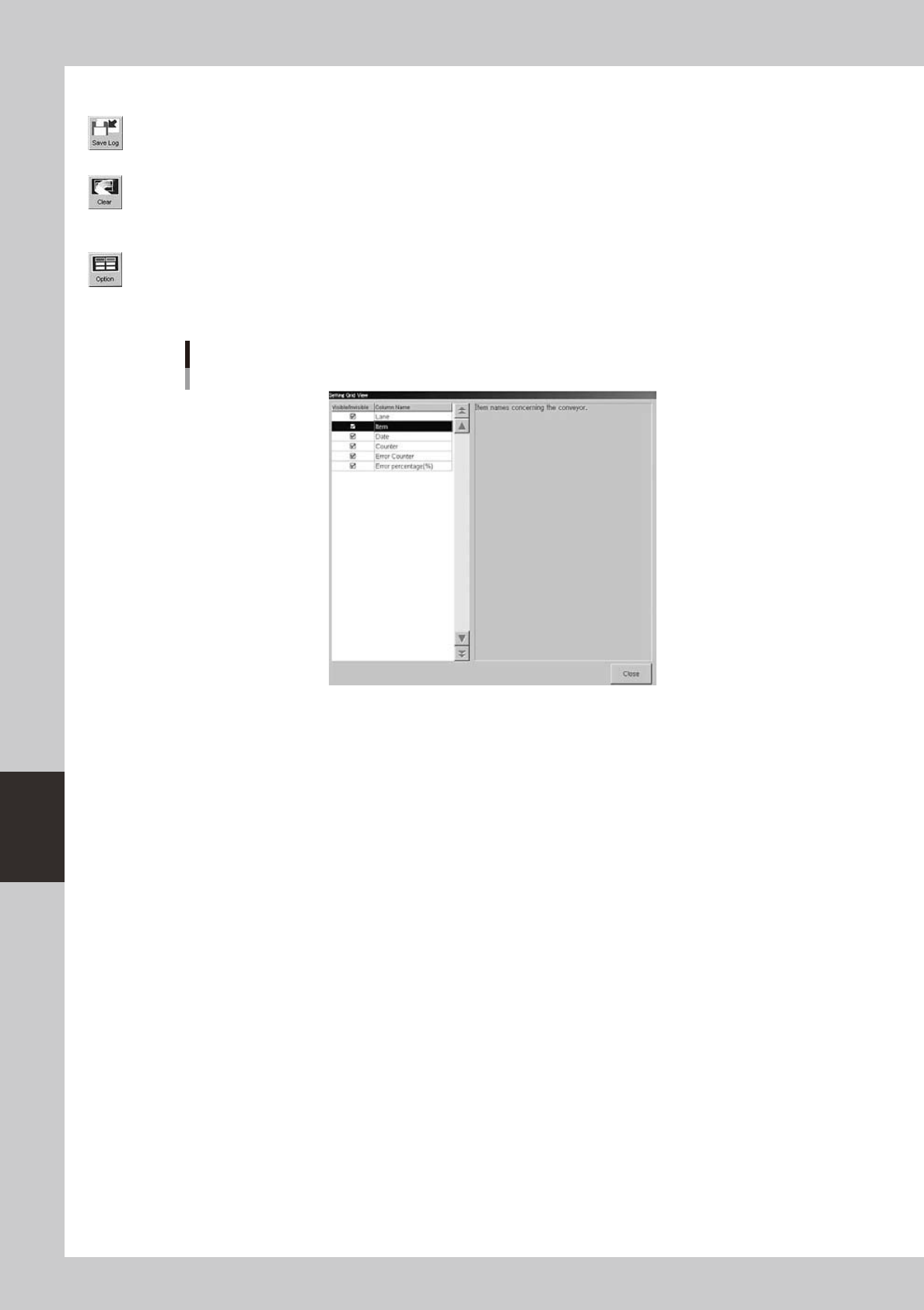
[Option] button
Pressing this button opens the dialog box to show or hide each production log parameter. Place a checkmark on the
parameter you want to display on the tab.
Dialog box for selecting display items
64616-N3-00