YSP20_Users_E.pdf - 第159页
5-33 5 Creating and setting the data 7.3 Shape parameters In the list on the [Mark]-[Shape] tab, set the following parameters relating to mark shape. Shape parameters [Lane] button 64531-N3-10 Shape T ype T he "Shap…
5-32
5
Creating and setting the data
7.2 Basic parameters
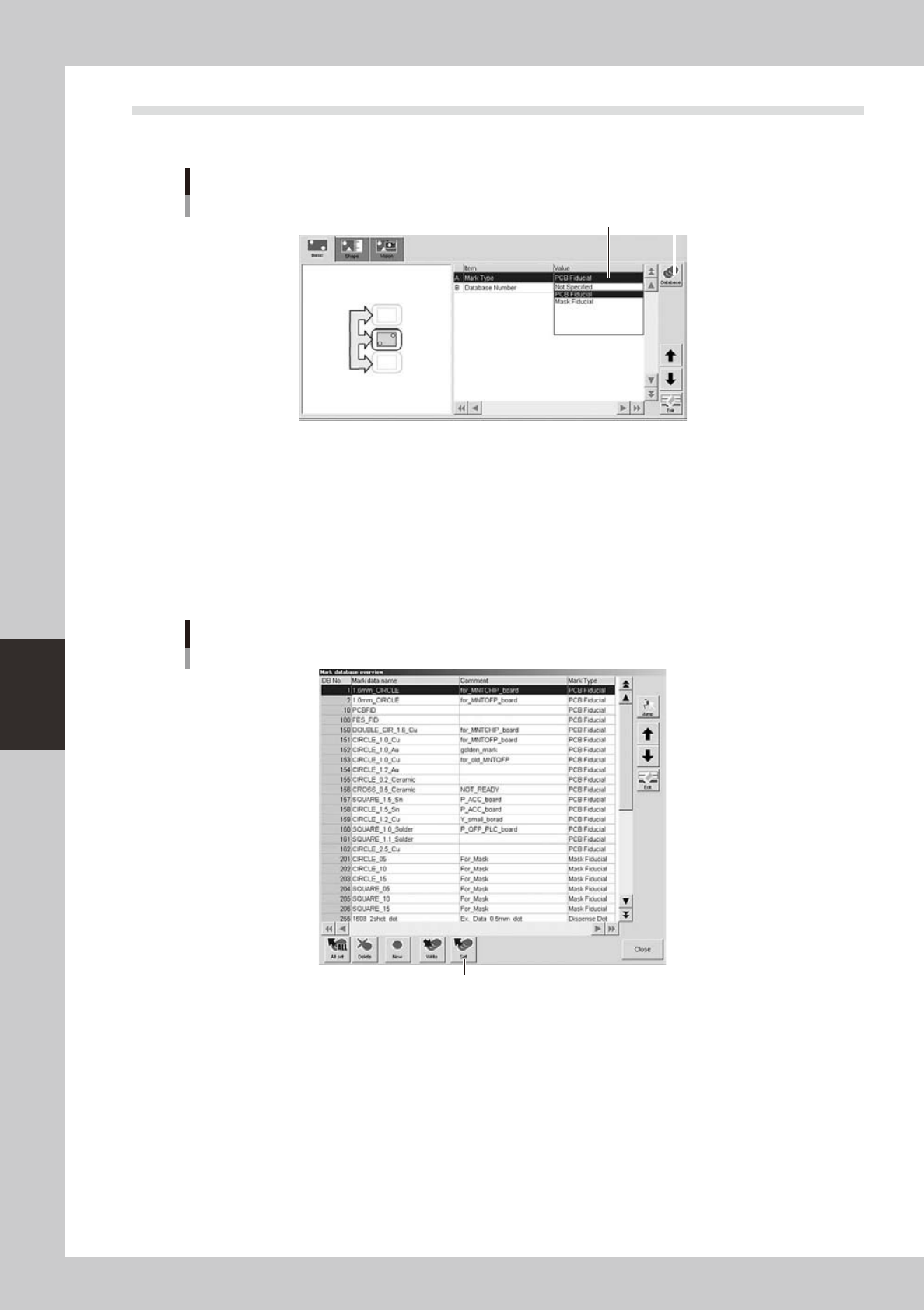
In the list on the [Basic] tab, set the "Mark Type" parameter.
Basic parameters
1 2
64529-N3-10
1: Mark Type
Select the mark type from the drop-down list. Select "PCB Fiducial" when creating a board fiducial mark, and select
"Mask Fiducial" when creating a mask fiducial mark.
2: Database Number
When you want to copy the parameter values from the database, press the [Database] button to open the database list.
Then select the copy source data and press the [Set] button to make a copy. The database No. of the copy source is
displayed in "Database Number" field.
Database list
[Set] button
[Set] button
64530-N3-10
5-33
5
Creating and setting the data
7.3 Shape parameters
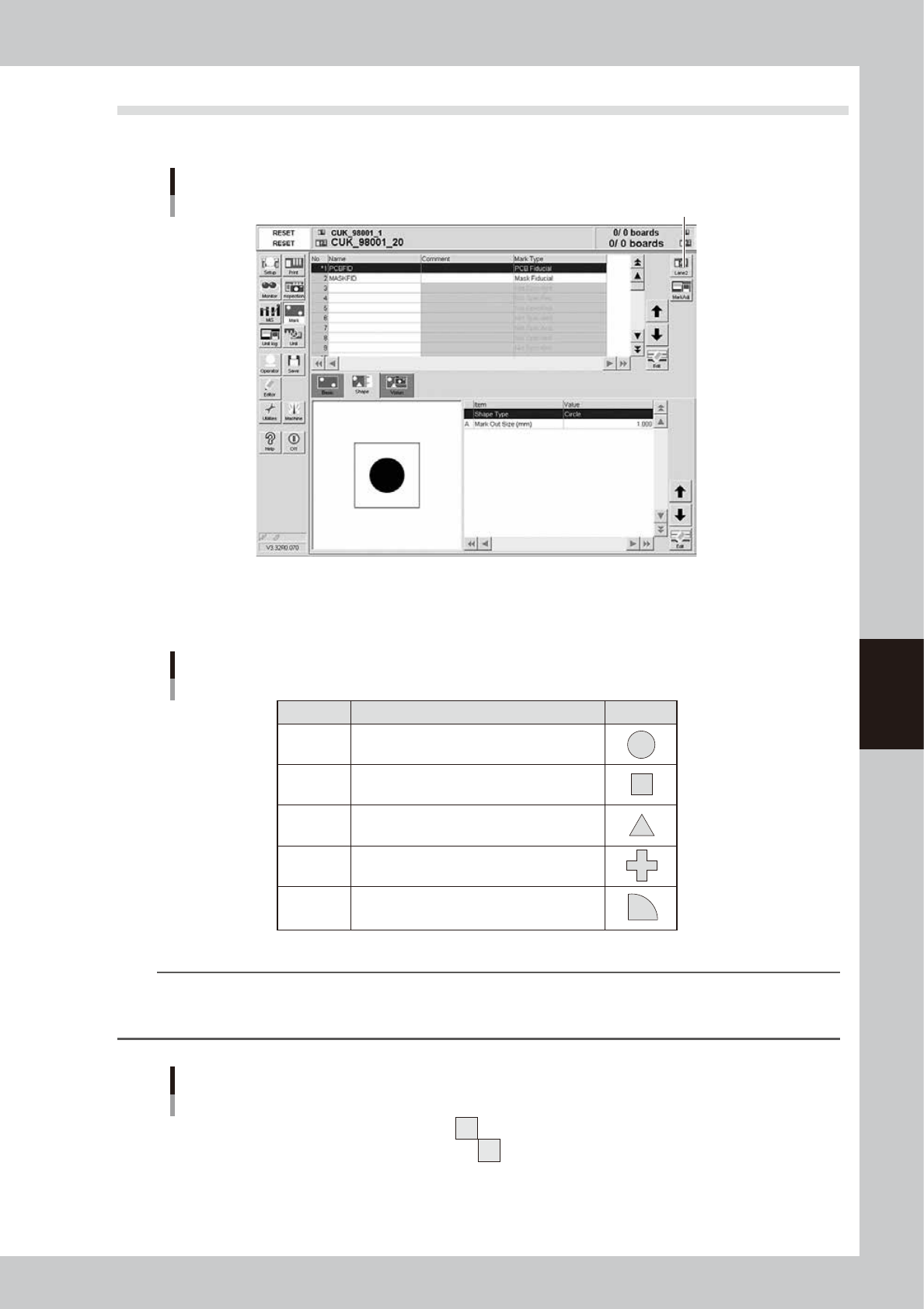
In the list on the [Mark]-[Shape] tab, set the following parameters relating to mark shape.
Shape parameters
[Lane] button
64531-N3-10
Shape Type
The "Shape Type" can be selected from the following 5 types.
Shape Type settings
Setting Description
Example
Circle
Square
Triangle
Sp. Shape
Corner
Select to detect a circular mark.
Select to detect a square mark.
Select to detect an equilateral triangular mark.
Select to detect a special mark other than above.
Select to detect a corner of a pattern as a mark.
63519-N3-00
TIP
If using a special mark composed of two or more objects, set the Algorithm parameter (described later) to "Pattern".
In this case, the "Shape" parameter is ignored during mark recognition so you can set this parameter to any type. (For
more details, see "2.Pattern matching" in Chapter 7.
Example of special mark
63520-N3-00
5-34
5
Creating and setting the data
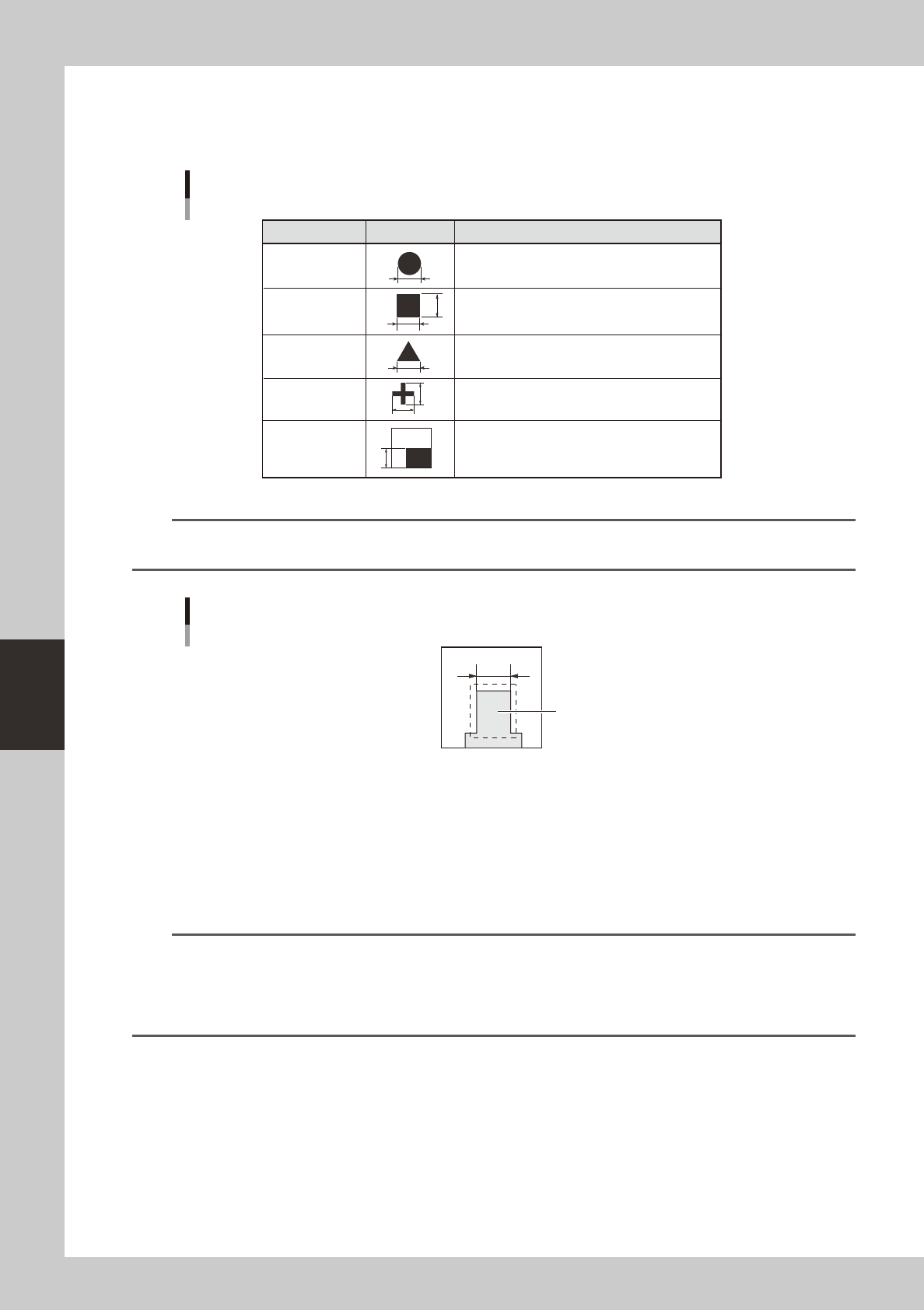
A, B: Mark Out Size
Referring to the table below, enter the correct value in the mark size. The "Mark Size X" is displayed when "Mark Type"
on the [Basic] tab is set to "Sp. Shape".
X
X
Y
Y
Mark Out Size settings
Example
Mark Out Size setting Shape Type
Circle
Square
Triangle
Sp. Shape
Corner
Enter the diameter.
Enter the length of each side.
Enter the length of one side.
Enter the X length for the MarkOutSize X, and the Y
length for the MarkOutSize Y.
Enter the length of the shorter side displayed within the
search area.
63521-N3-00
TIP
If using a special mark with two or more edges as shown below, enter the size of the shortest side in the rectangular
area to be detected.
Mark Out Size setting for special mark
Rectangular area to be detected
63422-L3-00
C: Mark Area
Enter the area of the mark in units of square millimeters. This parameter is displayed only when "Shape Type" on the
[Shape] tab is set to "Sp. Shape".
D: Outline
Enter the perimeter length of the mark in units of millimeters.
This parameter is displayed only when "Shape Type" on the [Shape] tab is set to "Sp. Shape".
n
NOTE
A recognition error may occur due to environmental conditions such as illumination. In such cases, enter a larger
value than previously used for
"Tolerance" of the Vision parameters, or set the tolerance to 100%, then perform the
vision test in the Mark Adjust mode and enter the obtained data on the area and perimeter. (The mark area and
perimeter values are displayed after the vision test is complete.) Return the tolerance to the original value after the
data is obtained.