YSP20_Users_E.pdf - 第178页
6-3 6 anaging the data 5 Line up the cursor with the board data to be backed up. Y ou can select multiple boar d data by selecting them while holding down the [Ctrl] key or [Shift] key. When you want to select all boar…
6-2
6
anaging the data
3
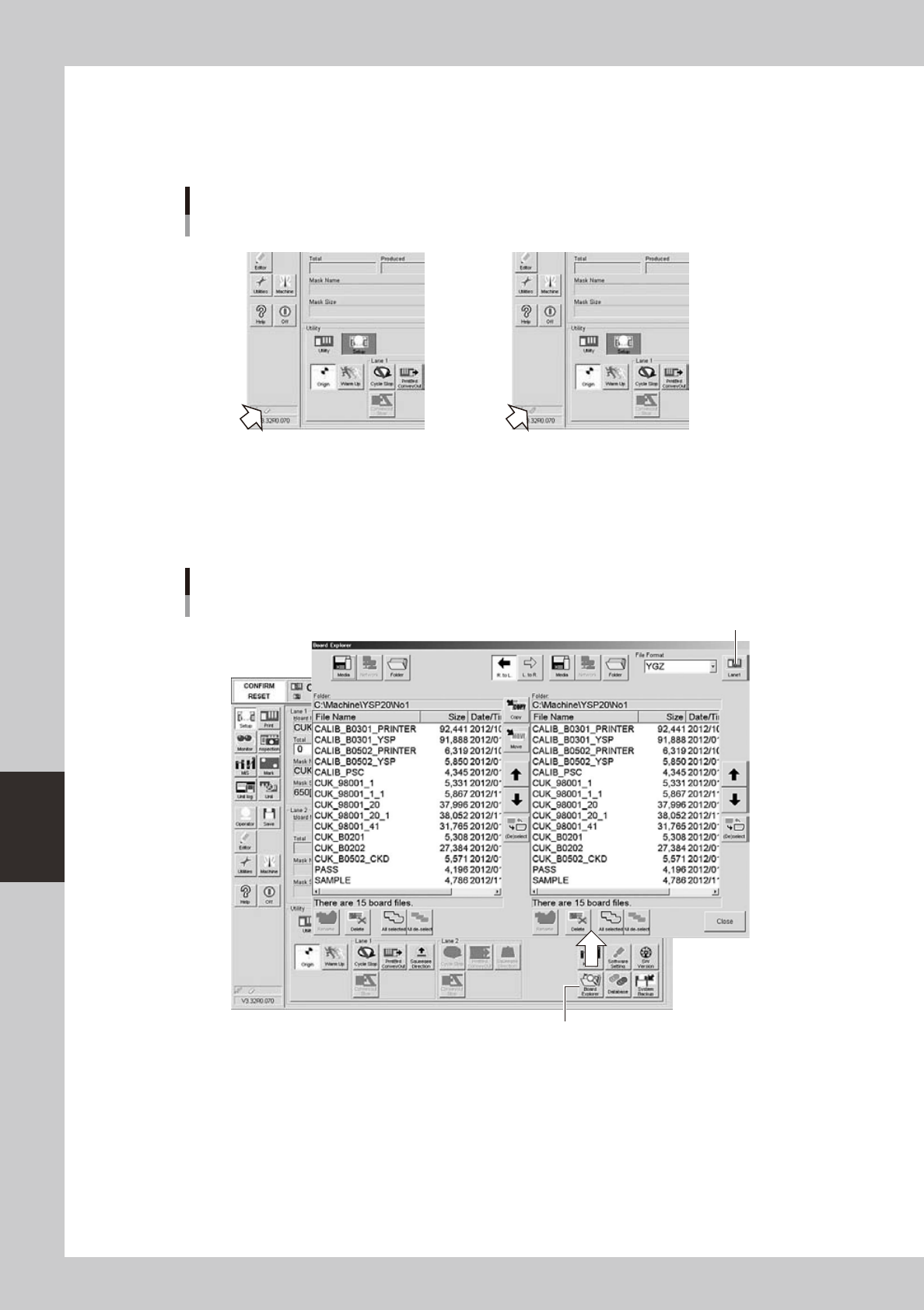
Check the USB memory device connection.
Check the indicator on the lower left of the operation display.
The connection is complete when the USB memory device icon appears red.
The connection is incomplete if the USB memory device icon is grayed out.
Checking the USB memory device connection
Not connectedConnected
Icon appears "red". Icon is grayed out.
64623-N3-10
4
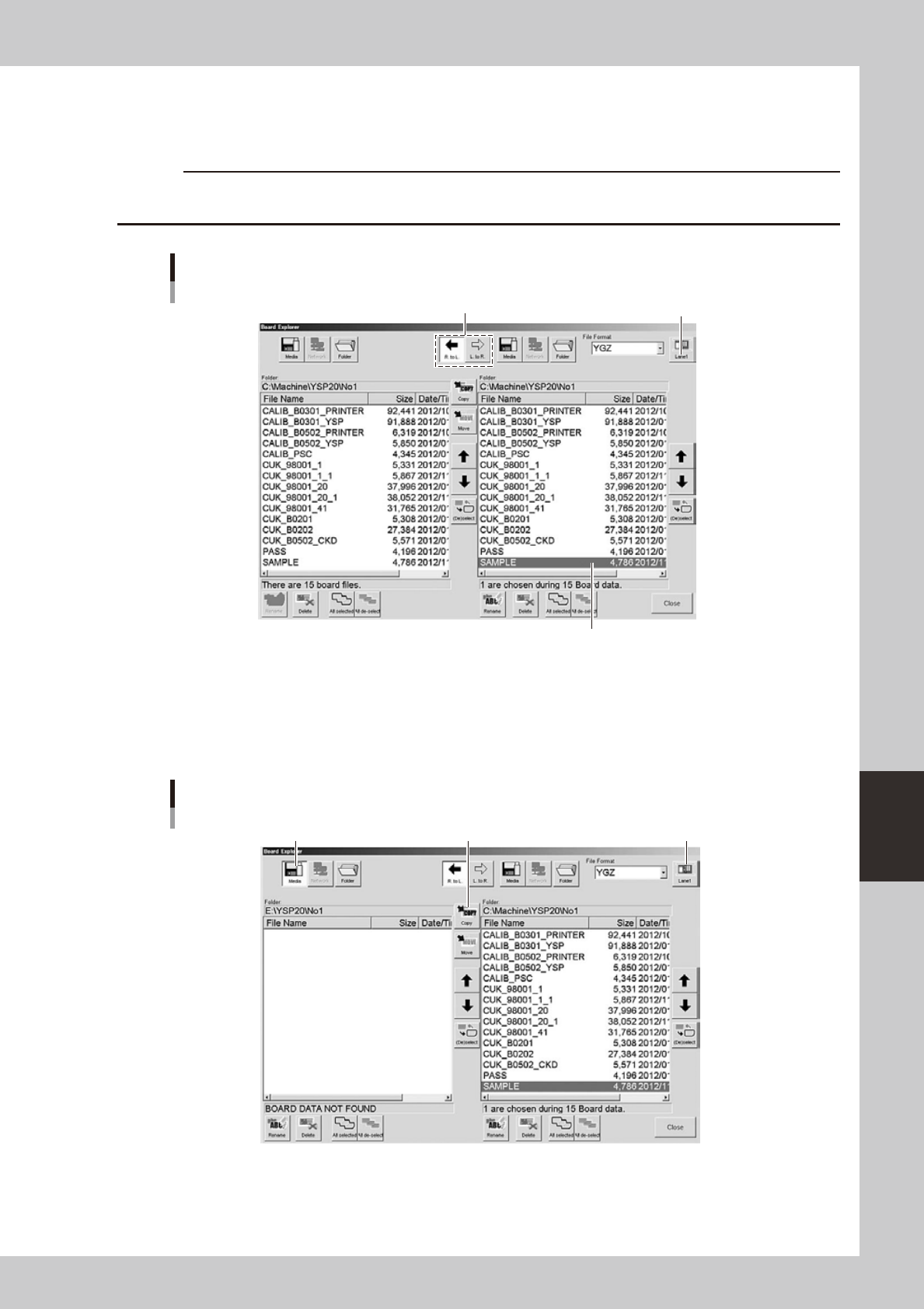
Press the [Board Explorer] button on the [Utility] tab of the Setup screen.
The Board Explorer dialog box appears and shows the lists of board data stored in the machine. (The
right-hand and left-hand lists will show the same contents when the Board Explorer first opens.)
Board Explorer dialog box
[Board Explorer] button
[Lane] button
64601-N3-10
6-3
6
anaging the data
5
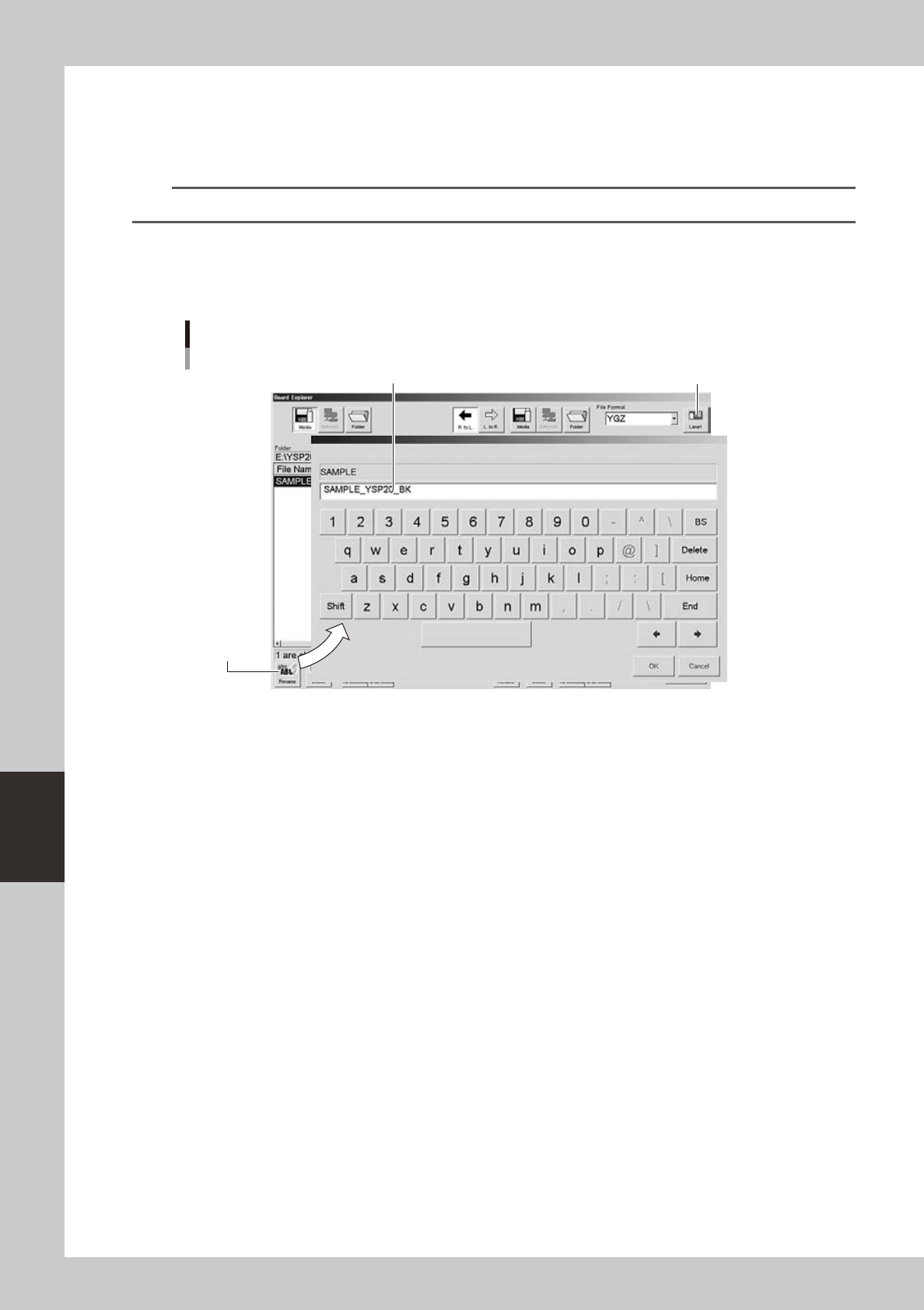
Line up the cursor with the board data to be backed up.
You can select multiple board data by selecting them while holding down the [Ctrl] key or [Shift] key.
When you want to select all board data in the list, press the [All selected] button.
c
Selecting the board data
Select the board data from the list.
Copy direction
[Lane] button
64602-N3-00
6
Designate the copy destination.
Press the [Media] button on the left when copying from right to left, or press the [Media] button on the
right when copying from left to right. The contents of the USB memory device are displayed. (You can
delete unnecessary files with the [Delete] button.)
Copying from right to left
[Media] button [Copy] button [Lane] button
64603-N3-10
6-4
6
anaging the data
7
Make a backup copy.
1. Press the [Copy] button.
A confirmation dialog box appears.
2. Press the [Yes] button to make a copy.
TIP
If you press the [Move] button, the selected data stored in the machine is transferred to the USB memory device.
8
Rename the board data as needed.
To change the board data name so that you can easily identify it as backup data, press the [Rename]
button. When the keyboard dialog box appears, enter a new name and press the [OK] button.
Renaming the board data
Enter a new name for backup data
[Rename] button
[Lane] button
64604-N3-10
9
Press the [Close] button to close the Board Explorer.