YSP20_Users_E.pdf - 第175页
Chapter 6 Managing the data T his chapter explains how to back up board data and make a user database, as well as how to view and sa ve the production and machine operation logs. Contents 1 …
5-48
5
Creating and setting the data
Mask Offset R
Printed solder
Land pattern
Q
63530-N3-00
Printed state Offset entry
When shifted counterclockwise Enter a plus error (
q
) in Offset R.
When shifted clockwise Enter a minus error (-
q
) in Offset R.
7
Repeat the above procedure until an optimum printed result is obtained.
8
Clean the mask.
When the test print is complete, clean the mask.
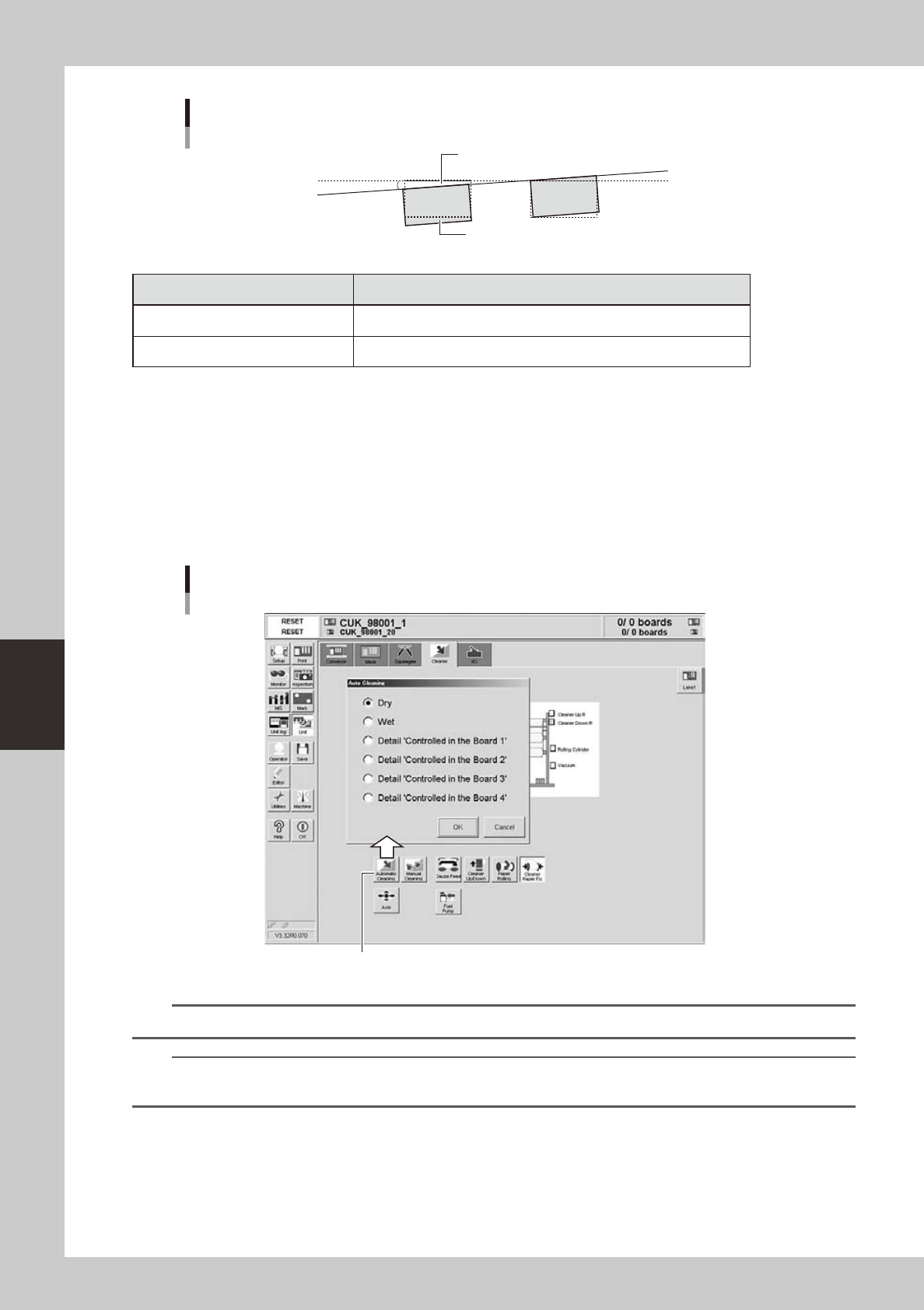
1. Open the [Unit]-[Cleaner] tab and press the [Auto Cleaning] button.
A dialog box appears asking you to select the cleaning method.
2. Select the cleaning method ("Dry" or "Wet" or “Detail …1 to 4”) and press the OK button.
The cleaning unit begins moving to clean the backside of the mask automatically.
[Auto Cleaning] button
[Auto Cleaning] button
64555-N3-00
TIP
For information on the “Detail …1” to “Detail …4” settings, see "6. Cleaner data setting" in this chapter.
TIP
When you want to perform manual cleaning, press the [Manual Cleaning] button and follow the message that
appears.

Chapter 6 Managing the data
This chapter explains how to back up board data and make a user database, as well as how to view and save the production
and machine operation logs.
Contents
1
1
5
8
1.3.1 Manipulating the files in the USB memory device 6-8
1.3.2 Removing the USB memory device 6-10
2. Creating the user database 6-12
2.1 Copying the data into the database 6-12
3. Production history 6-14
4
6
8
3.4
Specifying the destination to save the production history data
6-21
3
3
5
5
6
4.5
Specifying the destination to save the operation history data
6-27
6-1
6
anaging the data
1. Data backup
Production board data and system data can be backed up. This section explains how to make a backup of
these data.
1.1 Making a backup of board data
A backup copy of board data can be stored on a USB memory device or on a network drive (including off-line
software). The YSP has a USB port as a standard feature to allow data backup using the USB memory device
that comes with the machine. This section describes how to back up the board data onto a USB memory device
using the Board Explorer.
c
c
c
TIP
You may use the [Save] button in the main menu button area to save board data to a USB memory device.
1
Insert a USB memory into the USB port.
Insert a specified USB memory device into the USB port of the machine.
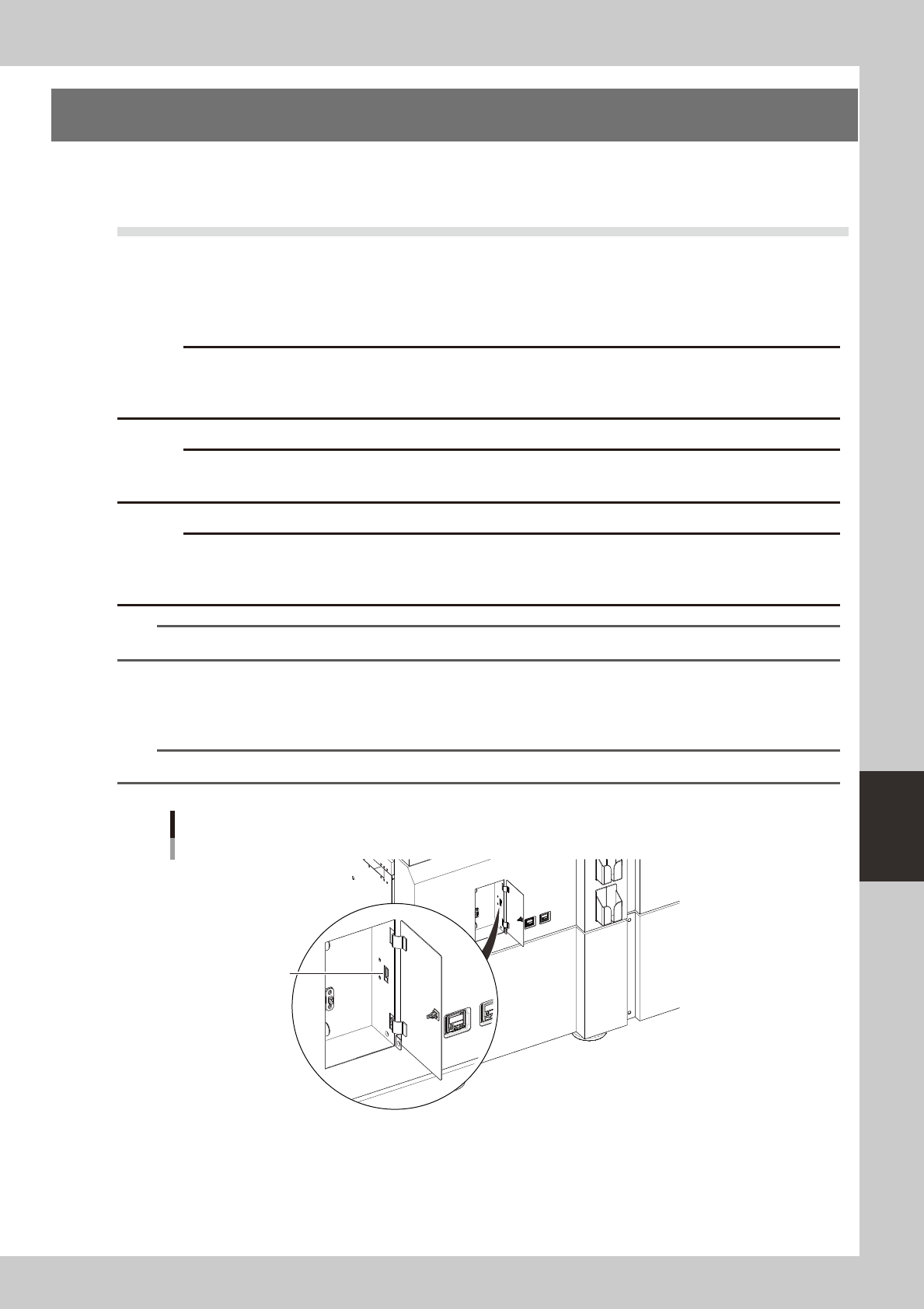
The USB port is located behind the left panel on the rear of the machine.
TIP
On left-to-right flow machines, the USB port is located on the front left of the machine.
USB port
USB port
Right-to-left flow
63501-N3-00
2
Close the media access door.
Before operating the USB drive, always close the media access door.