YSP20_Users_E.pdf - 第206页
7-2 7 ther functions 1.2 T each screen Pressing a [T each] button opens the T each screen as sho wn below . The function of eac h button on this screen is described below . T each screen Example of board fiducial 2 3 4…
7-1
7
ther functions
1. Teach and trace
1.1 [Teach] button
The teaching function is used to teach the machine position such as XY coordinate values using a teaching unit
such as a vision camera. To perform teaching, use the [Teach] button to open the Teach screen. There are five
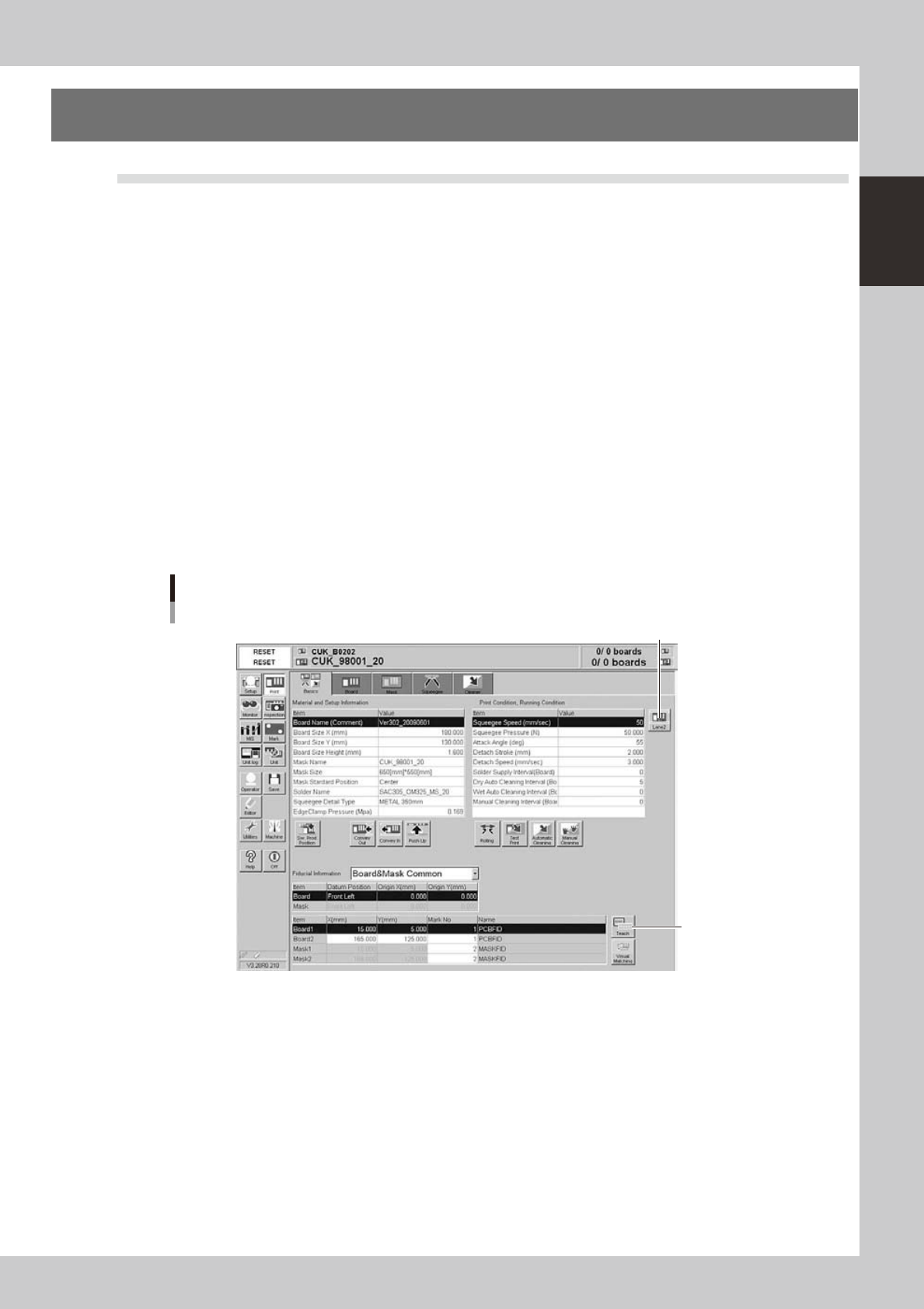
[Teach] buttons at the following locations. Select a [Teach] button suitable for your purpose.
1. [Print]-[Basics] tab:
Press this [Teach] button to perform teaching on the board coordinates.
2. [Print]-[Board] tab:
Press this [Teach] button to perform teaching on the board coordinates.
3. Board inspection coordinate dialog box:
This dialog box appears when the [Detail Condition] button on the [Print]-[Board] tab screen is pressed.
Use the [Teach] button in this dialog box to teach the machine a board inspection position or move the machine to a
specified position.
4. [Print]-[Mask] tab:
Press this [Teach] button to teach the machine the mask coordinates.
5. Mask inspection coordinate dialog box:
This dialog box appears when the [Detail] button on the [Print]-[Mask] tab is pressed. Use the [Teach] button in this
dialog box to teach the machine a mask inspection position or move the machine to a specified position.
[Teach] button
Example of [Basics] tab
[Teach] button
[Lane] button
64701-N3-00
7-2
7
ther functions
1.2 Teach screen
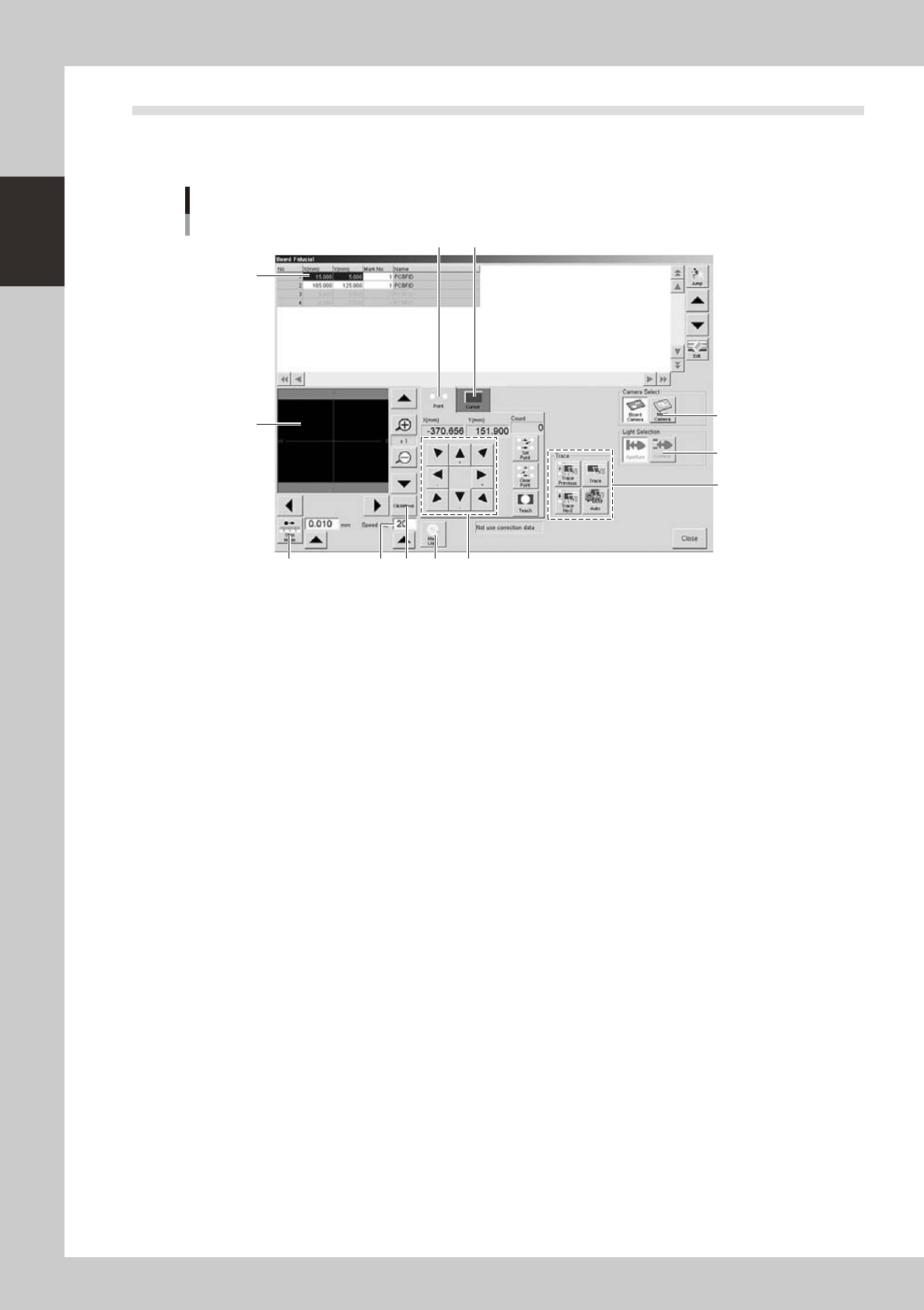
Pressing a [Teach] button opens the Teach screen as shown below. The function of each button on this screen is
described below.
Teach screen
Example of board fiducial
2
3 4
10
65
87 9
12
11
1
64702-N3-10
1: Data list
Shows the data to perform teaching. Items displayed here differ depending on which of the [Teach] buttons is pressed.
2: Vision monitor
Shows an image of the object being viewed by the vision camera during teaching.
The image can be enlarged from 1 to 16 fold by pressing the enlarge [+] button, or reduced to 1/16 by pressing the
reduce [-] button.
The arrow buttons at the right top and bottom of the screen are used to move the image vertically. The buttons at the
bottom left and right of the screen are used to move the image horizontally.
3: [Step Mode] button
When this button is pressed, you can move the teaching unit in step mode (inching mode). Select the inching stroke
(movement amount) by using the [Up Arrow] button or entering the desired value in the box.
4: Speed
Select the axis movement speed by using the [Up Arrow] button or entering the desired speed in the box.
5: [Point] tab
Select the [Point] tab to perform point teaching. See "1.3 Point teaching" in this chapter for details.
6: [Cursor] tab
Select the [Cursor] tab to perform cursor teaching. See "1.4 Cursor teaching" in this chapter for details.
7: [Click Move] button
When this button is pressed and the mouse pointer is placed within the vision monitor, the mouse pointer changes to a
cross pointer. Place the cross pointer at the position you want to teach and press the left mouse button. The camera will
move to the teaching position to display it in the center of the vision monitor. This method makes it easier to specify the
teaching point without using the axis movement buttons.
8: [Light] button
Pressing this button opens the light level adjustment screen. Adjust the light level for the clearest view of the object on
the vision monitor.
9: [Axis movement] button
Moves the teaching unit in the direction of arrow. Keep pressing the arrow button to make a continuous movement.

7-3
7
ther functions
10: [Trace] button
Pressing this button moves the teaching unit to the currently selected data position. (See "1.5 Trace" in this chapter.)
11: [Board Camera], [Mask Camera] button
Camera selection buttons. These buttons are used to select the board camera or mask camera.
12: [Aperture], [Surface] button
These buttons can be used when the [Mask Camera] button is selected in the “Camera Select” area.
Use the [Aperture] button to check the clogging status of the mask apertures. Conversely, use the [Surface] button to
check the solder sticking to the backside of the mask.