YSP20_Users_E.pdf - 第184页
6-9 6 anaging the data n T o delete the folder: 1 Pr ess the [Media] button. 2 Select a folder . Select a folder you want to delete and press the [Delete] button. 3 Check the message that appears on the screen. The Del…
6-8
6
anaging the data
1.3 Working with a USB memory device
1.3.1 Manipulating the files in the USB memory device
The following description shows how to rename or delete the folders stored in the USB memory device.
Open the "Media Select" dialog box by pressing the [Media] button.
TIP
The [Media] button is available in the "Board data select" dialog box, "Board data save" dialog box, and the Board
Explorer window.
n
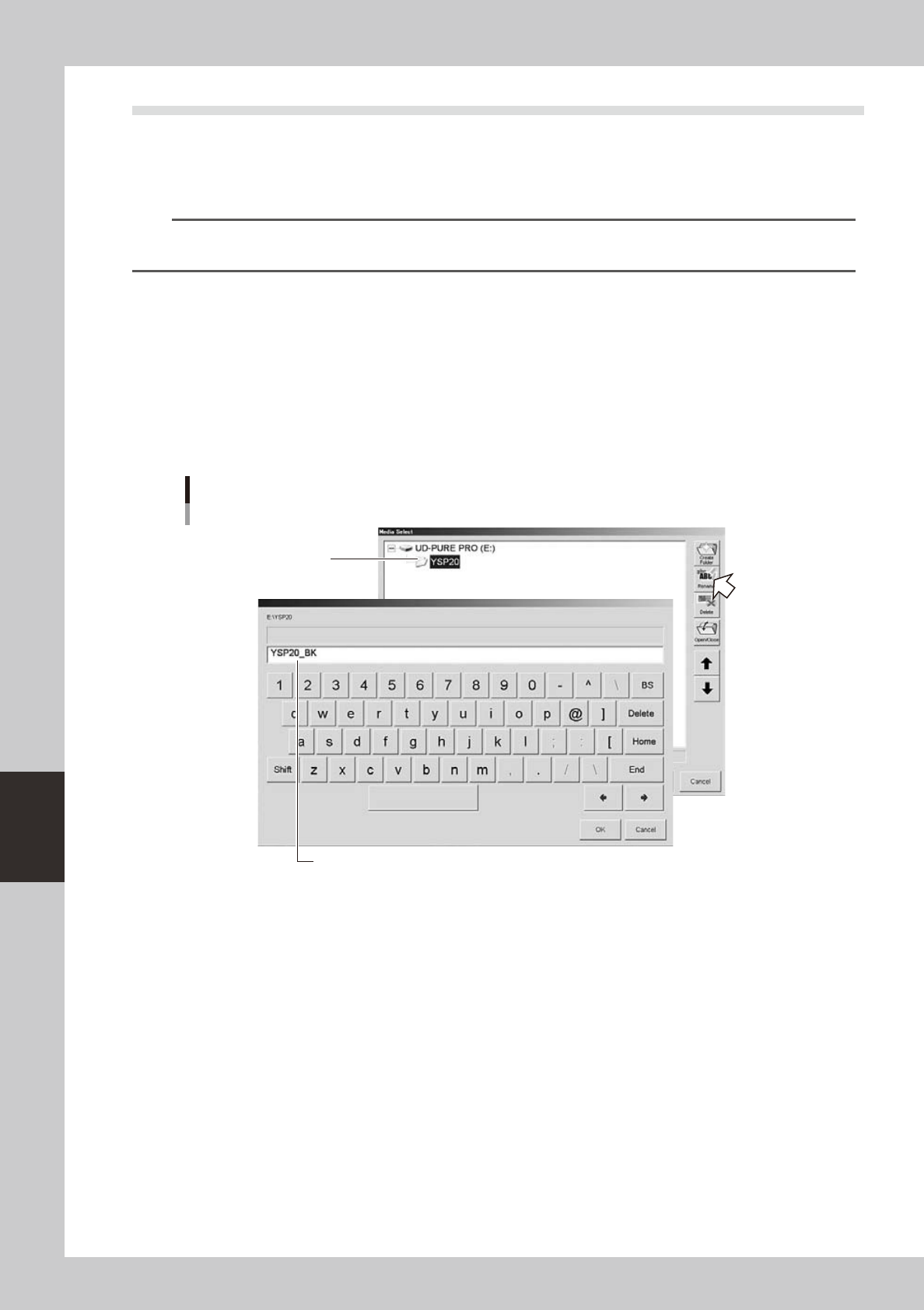
To rename the folder:
1
Press the [Media] button.
2
Select a folder.
Select a folder you want to rename and press the [Rename] button.
3
Enter a name.
The keyboard dialog box appears. Enter a new name and press the [OK] button.
Enter a new folder name.
Select the folder.
Renaming the folder
64625-N3-10
6-9
6
anaging the data
n
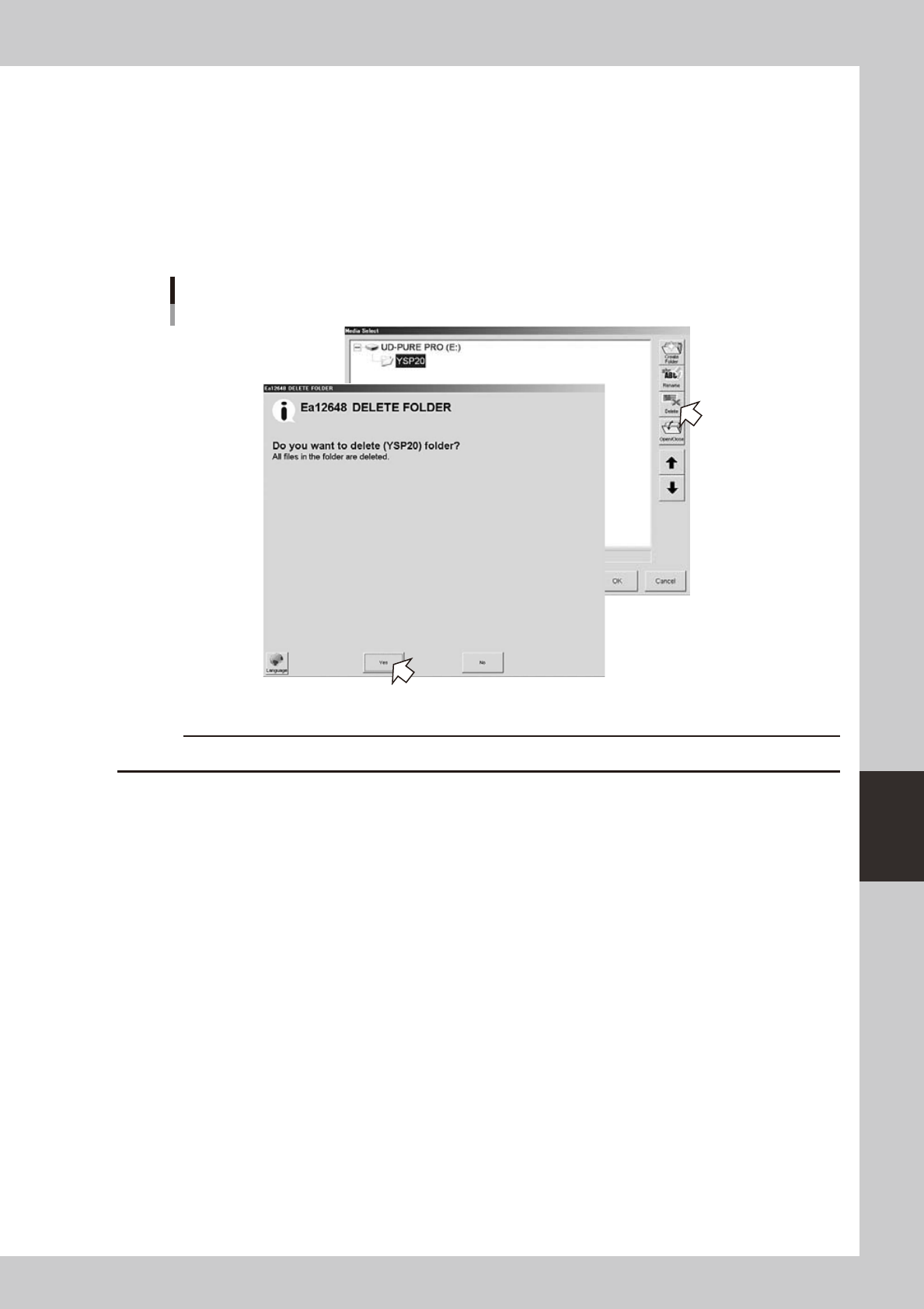
To delete the folder:
1
Press the [Media] button.
2
Select a folder.
Select a folder you want to delete and press the [Delete] button.
3
Check the message that appears on the screen.
The Delete Confirmation dialog box appears. Check the contents and press the [Yes] button.
Deleting the folder
64626-N3-10
c
6-10
6
anaging the data
1.3.2 Removing the USB memory device
There are two ways to remove the USB memory device: one is by using the "Media Select" dialog box and the
other is by using the indicator on the operation screen.
c
while data is being saved or loaded.
n
Using the "Media Select" dialog box
Press the [Media] button to open the "Media Select" dialog box.
TIP
The [Media] button is available in the "Board data select" dialog box, "Board data save" dialog box, and the Board
Explorer window.
1
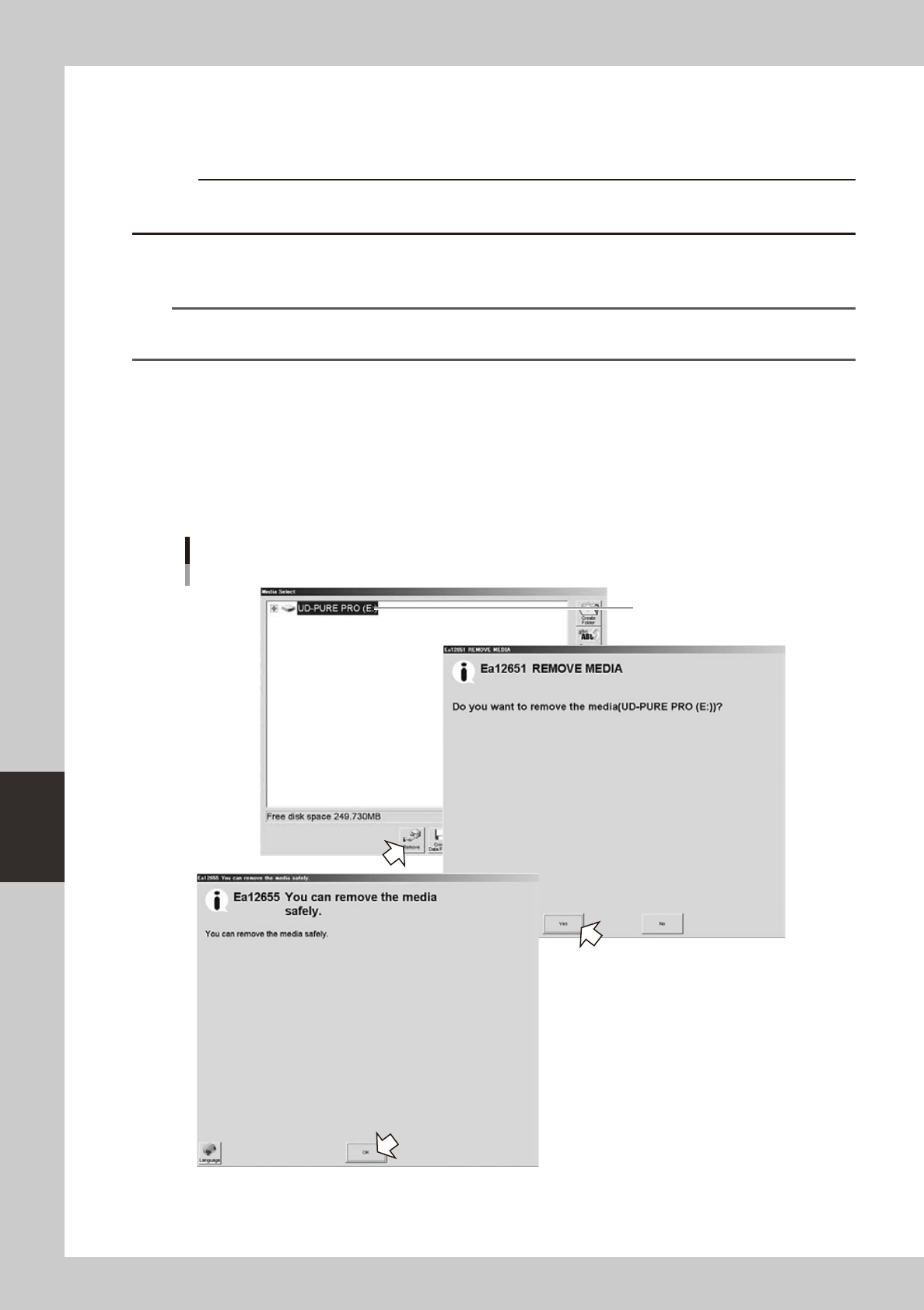
Press the [Remove] button.
1. Select the media (USB memory device) you want to remove, and press the [Remove] button.
2. When a message appears asking whether to remove the selected media, press the [Yes] button.
2
Remove the USB memory device.
When another message appears indicating the media can be safely removed, remove the USB memory
device from the USB port of the machine.
Select the media
(USB memory device).
Removing the USB memory device
64627-N3-10