YSP20_Users_E.pdf - 第171页
5-45 5 Creating and setting the data 3 Check that test print begins. After mark recognition is complete, the con veyor table moves to printing position and is fixed, and the squeegee head automatically begins moving to m…
5-44
5
Creating and setting the data
9. Making a test print
When visual alignment on the created data has been made, make a test print before starting board
production, to check the printing conditions and accuracy and make necessary adjustments. In test print, we
recommend covering the board with a transparent sheet (option) to protect the board just as with the rolling
operation.
n
Note
When printing with newly created board data, always make a test print before starting production to check the
printing conditions and accuracy. Even when printing with board data you have used, we recommend making a test
print before beginning daily work.
1
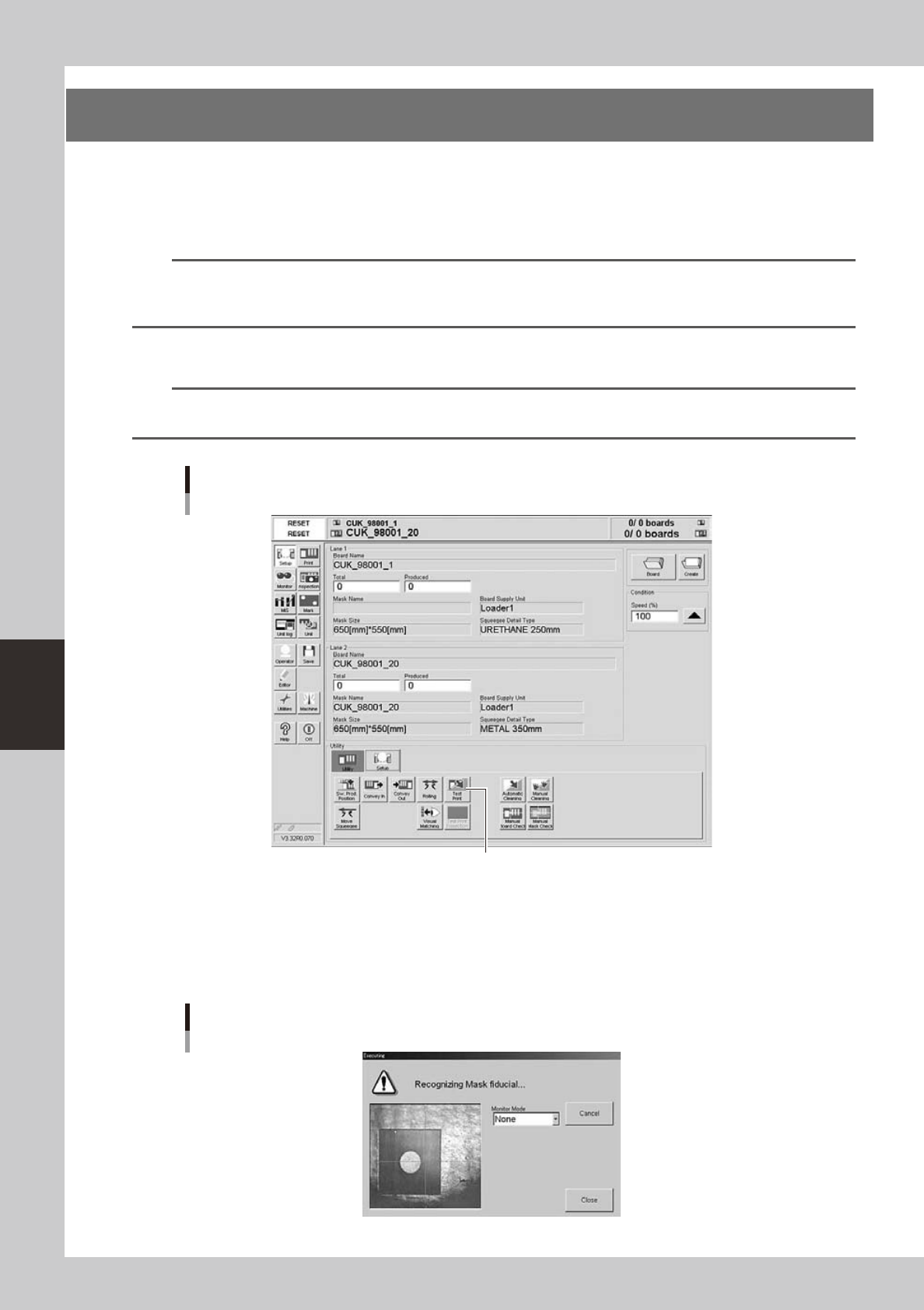
Press the [Test Print] button on the Setup screen.
n
Note
When both lanes are used for production, the dialog box for selecting the lane number appears, so select the lane.
The lane currently used in production is grayed out.
[Test Print] button
[Test Print] button
64547-N3-10
2
Follow the message on the screen to load a board on the conveyor.
This step is skipped when a board has already been clamped on the conveyor.
After the board is clamped, the board fiducial mark will be automatically recognized with the vision
camera. (This mark recognition is skipped if not using the fiducial mark function.)
Fiducial mark recognition screen
64548-N3-00
5-45
5
Creating and setting the data
3
Check that test print begins.
After mark recognition is complete, the conveyor table moves to printing position and is fixed, and the
squeegee head automatically begins moving to make a test print.
4
When the test print is complete, unload the board
Follow the message on the screen to unload the board.
n
NOTE
When you are going to make visual check of the test print state on the operation display, leave the board clamped
on the conveyor and advance to the next step.
5
Check the printed state.
e
l
When the board was unloaded from the machine in the preceding step, open the setup cover, take
the board out of the conveyor, and visually check the printed state.
l
Make a visual check on the operation display as explained below.
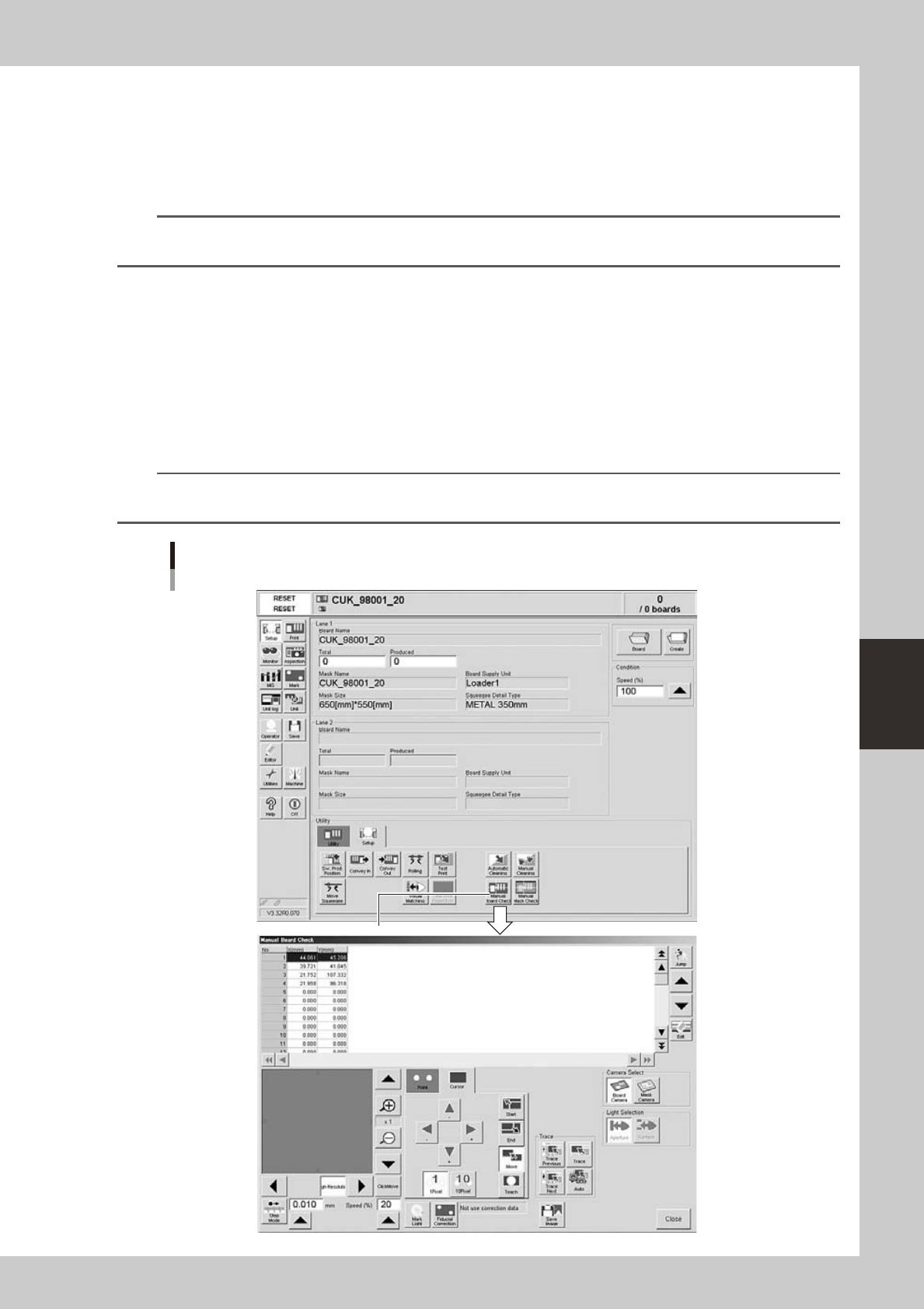
1. Open the [Setup] tab on the Setup screen and press the [Manual Board Check] button.
The manual board check screen appears.
n
NOTE
When both lanes are used for production, the dialog box for selecting the lane number appears, so select the lane.
The lane currently used in production is grayed out.
[Manual Board Check] button
[Manual Board Check] button
64549-N3-10
5-46
5
Creating and setting the data
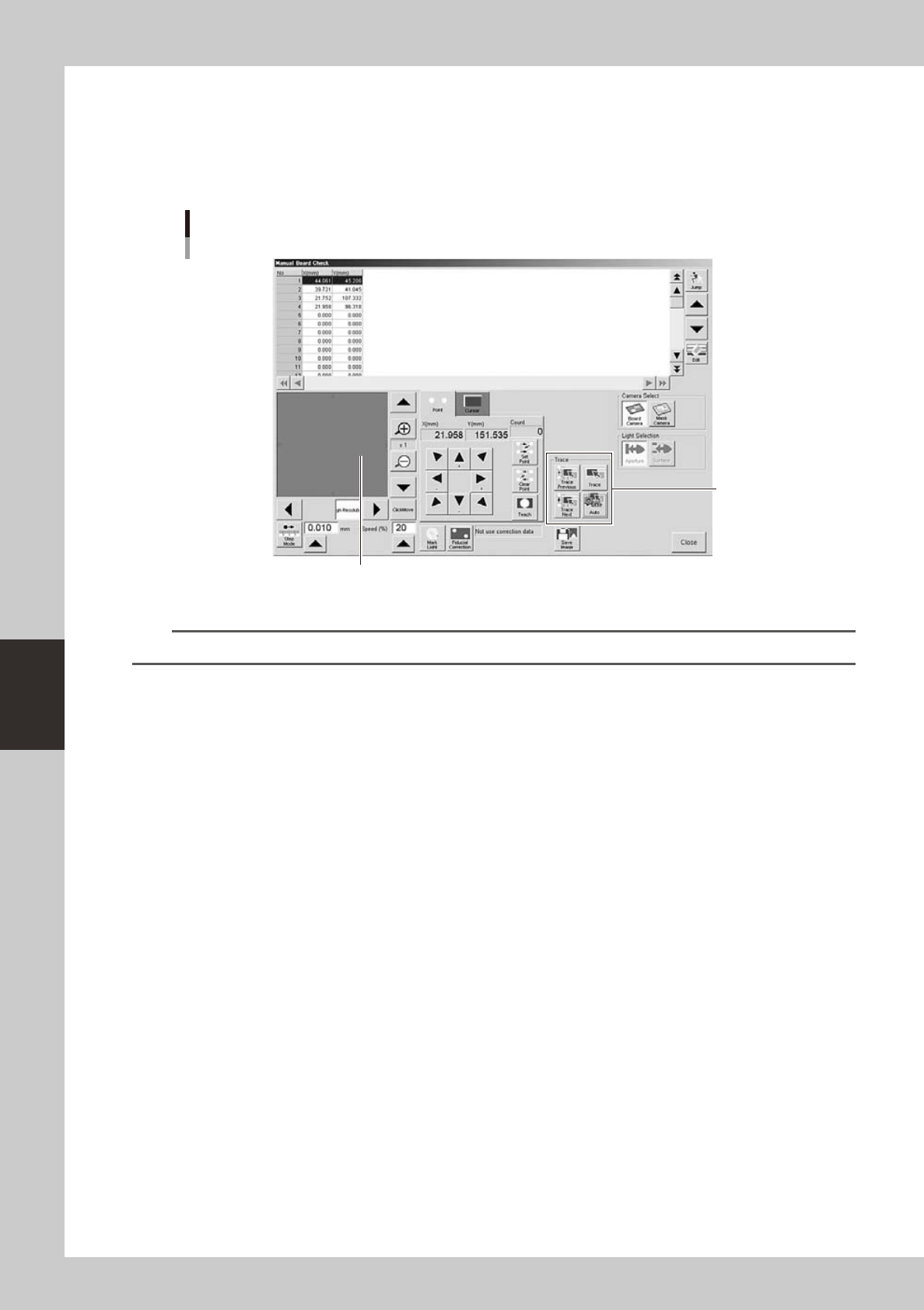
2. On the manual board check screen, select the coordinate from which you want to start checks.
3. Press the [Trace] button to start visual checks.
The printed state at the selected coordinate is displayed on the vision display. Check the position
and area of the printed solder versus the land pattern. Using the [Auto] button allows continuous
trace of the inspection coordinates that were set.
Manual board check screen
[Trace] button
Printed state is displayed.
64550-N3-10
n
NOTE
When using the trace function to make visual checks, the inspection coordinates must be entered beforehand.
l
Solder scraping trouble or missing solder trouble
Check the settings for printing motion. See Chapter 3, "Printing Guide", for how to set the "Squeegee pressure" and
"Squeegee speed" parameters.
Printing position deviations are described in the next step.