TR7500_Series_Software_v29_En.pdf - 第100页
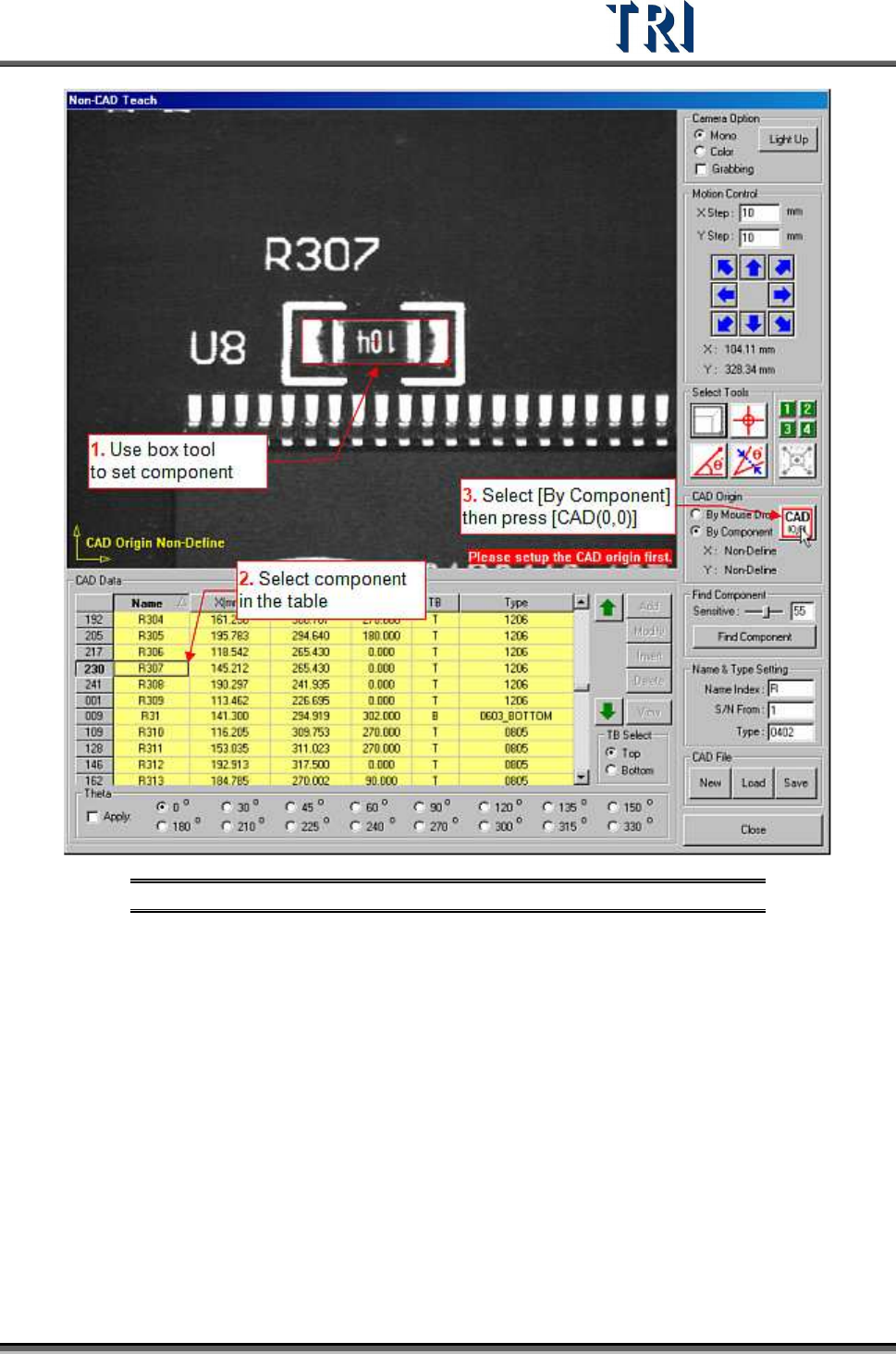
Test Research Inc. 78 TR7500 Series User Guide – Software v.2.9.0 Figure 135 : Non-CAD Teach Procedure 2
Test Research Inc.
TR7500 Series User Guide –Software v.2.9.0 77
Figure 134: Non-CAD Teach Procedure 1
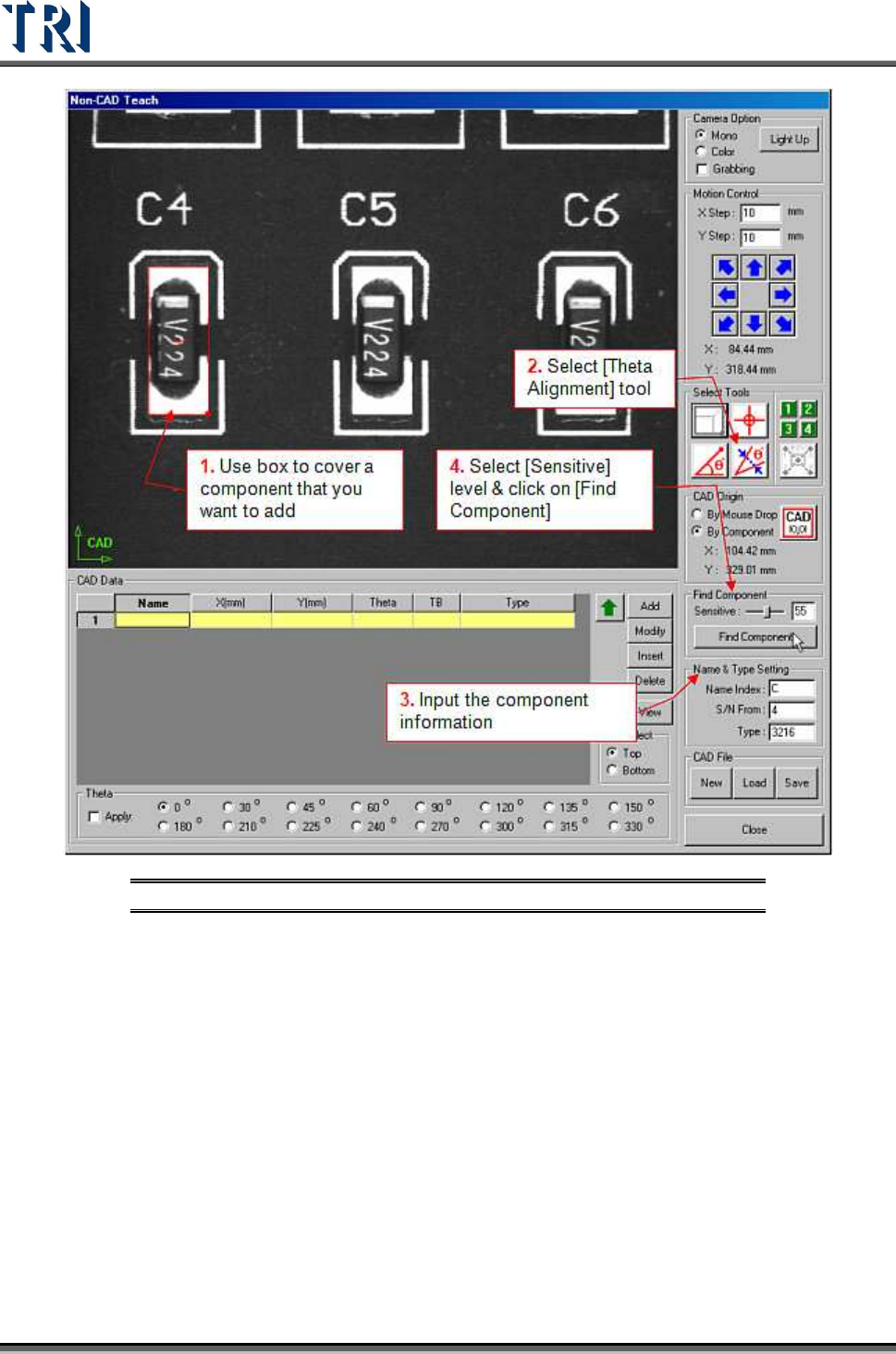
(5) [Find Component] - Use this function to create components which are similar to a
standard image.
Test Research Inc.
78 TR7500 Series User Guide –Software v.2.9.0
Figure 135: Non-CAD Teach Procedure 2
Test Research Inc.
TR7500 Series User Guide –Software v.2.9.0 79
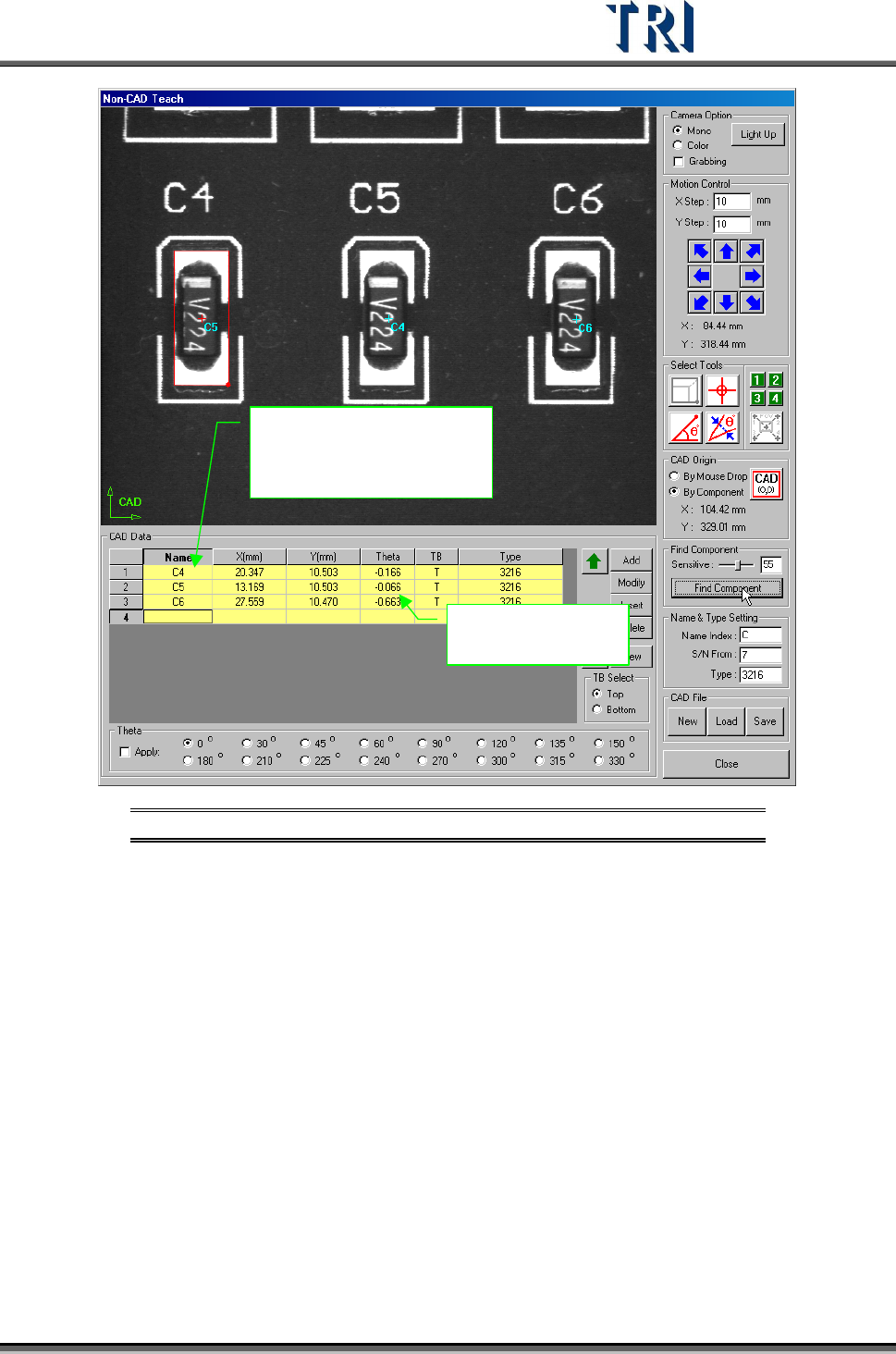
Result:
The component,
that has enough similarity,
will be set.
You can modify
the name or angle.
Figure 136: Non-CAD Teach Procedure 3
(6) [Name & Type Setting] - Set [Name Index], [S/N From] and [Type] here for a new
component.
(7) [CAD File] - Use [New], [Load] or [Save] an AOI file. [New] creates a new AOI file and
the current setting will be cleared. [Load] opens a saved AOI file. [Save] means to save
the current AOI file to a specific path.
(8) [CAD Data] - The component data will be listed in the field. Edit the CAD data here.
[Add] - Press the button and the system will create a component into CAD file
according to [Name&Type Setting], [TB Select], [Theta] and the selecting tool.
[Modify] - Select a component first and press [Modify] then the system will change
the data according to [Name&Type Setting], [TB Select], [Theta] and the selecting
tool.
[Insert] - Select a position to insert component data in the component list first and
press the button to add a component according to [Name&Type Setting], [TB
Select], [Theta] and the selecting tool..