TR7500_Series_Software_v29_En.pdf - 第245页
Test Research Inc. TR7500 Series User Guide – Software v.2.9.0 223 Set pass level . [Void W indow ] Choose [Void W indow] and [Rear Camera] to adjust [Voi d] window s t o the bright area. Set the algorithm as [Da…
Test Research Inc.
222 TR7500 Series User Guide –Software v.2.9.0
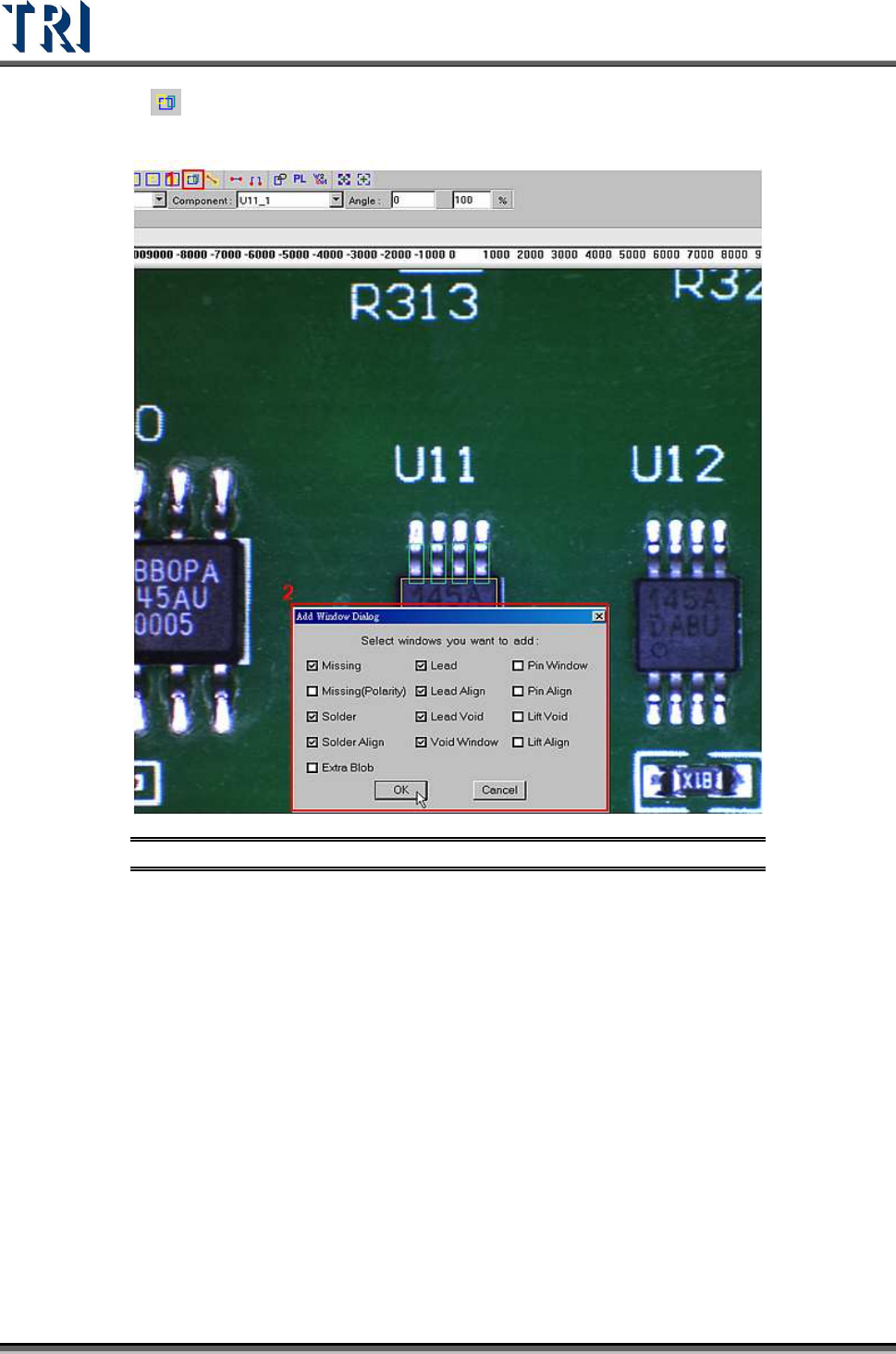
(5) Click on [Add all] to add inspection windows, including [Missing (Polarity)], [Solder],
[Solder Align], [Lead], [Lead Align], and [Lead Void].
Figure 373: Add Inspection Windows
(6) Resize and set parameters for every kind of inspection window.
[Lead]
Select lead and top camera then drag mouse to highlight the lead box.
Set parameters in the [Property] dialog.
[Lead Void]
Select lead void then drag mouse to highlight the lead void box.
Resize the lead void box.
Set parameters in the [Property] dialog.
[Solder]
Select solder and rear camera then drag mouse to highlight the solder box.
Resize the solder box.
Set parameters such as test and lighting in the [Property] dialog.

Test Research Inc.
TR7500 Series User Guide –Software v.2.9.0 223
Set pass level.
[Void Window]
Choose [Void Window] and [Rear Camera] to adjust [Void] windows to the
bright area.
Set the algorithm as [Dark].
[Align Window]
Move all [Align] boxes to correct position.
[Missing]
Set camera as top or other angle camera in the [Property] dialog.
Select missing and camera then highlight the [Missing] box.
Resize the solder box.
Add standard image.
[Extra Blob]
Add new [Extra Blob] at left or right camera.
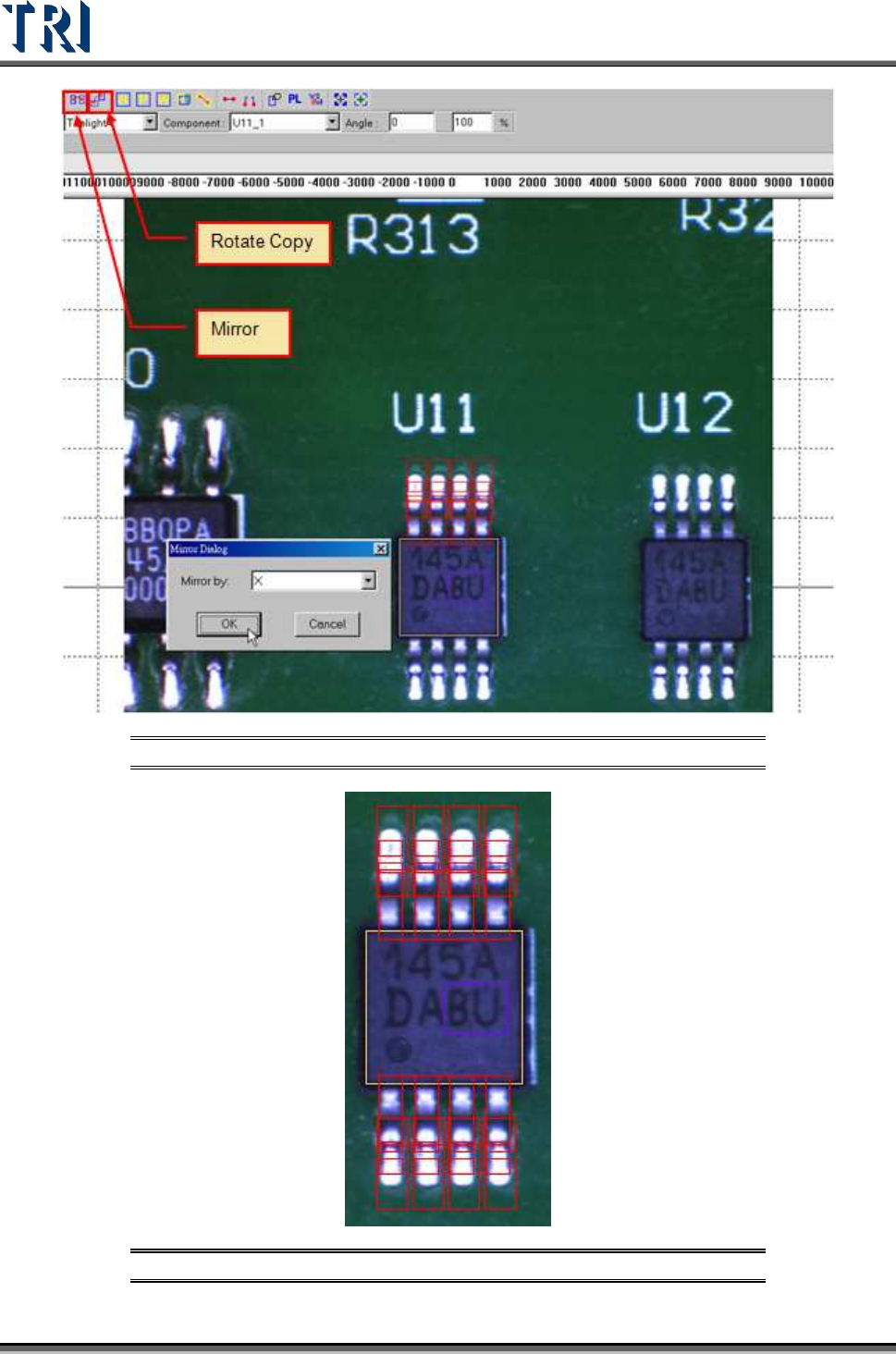
(7) Mirror or rotate copy to other side.
Select all windows to be mirrored then click on [Mirror] button.
Select direction.
Test Research Inc.
224 TR7500 Series User Guide –Software v.2.9.0
Figure 374: Choose [Rotate Copy] or [Mirror]
Figure 375: Results of [Mirror} Command