TR7500_Series_Software_v29_En.pdf - 第226页
Test Research Inc. 204 TR7500 Series User Guid e –Softwa re v.2.9.0 [Ch ange Defect] – Cha nges the defect f ormula name. Figure 344 : Confirm [Chan ge Defect] [Vi ew] – Displays the inspection box for the de f ect f…
Test Research Inc.
TR7500 Series User Guide –Software v.2.9.0 203
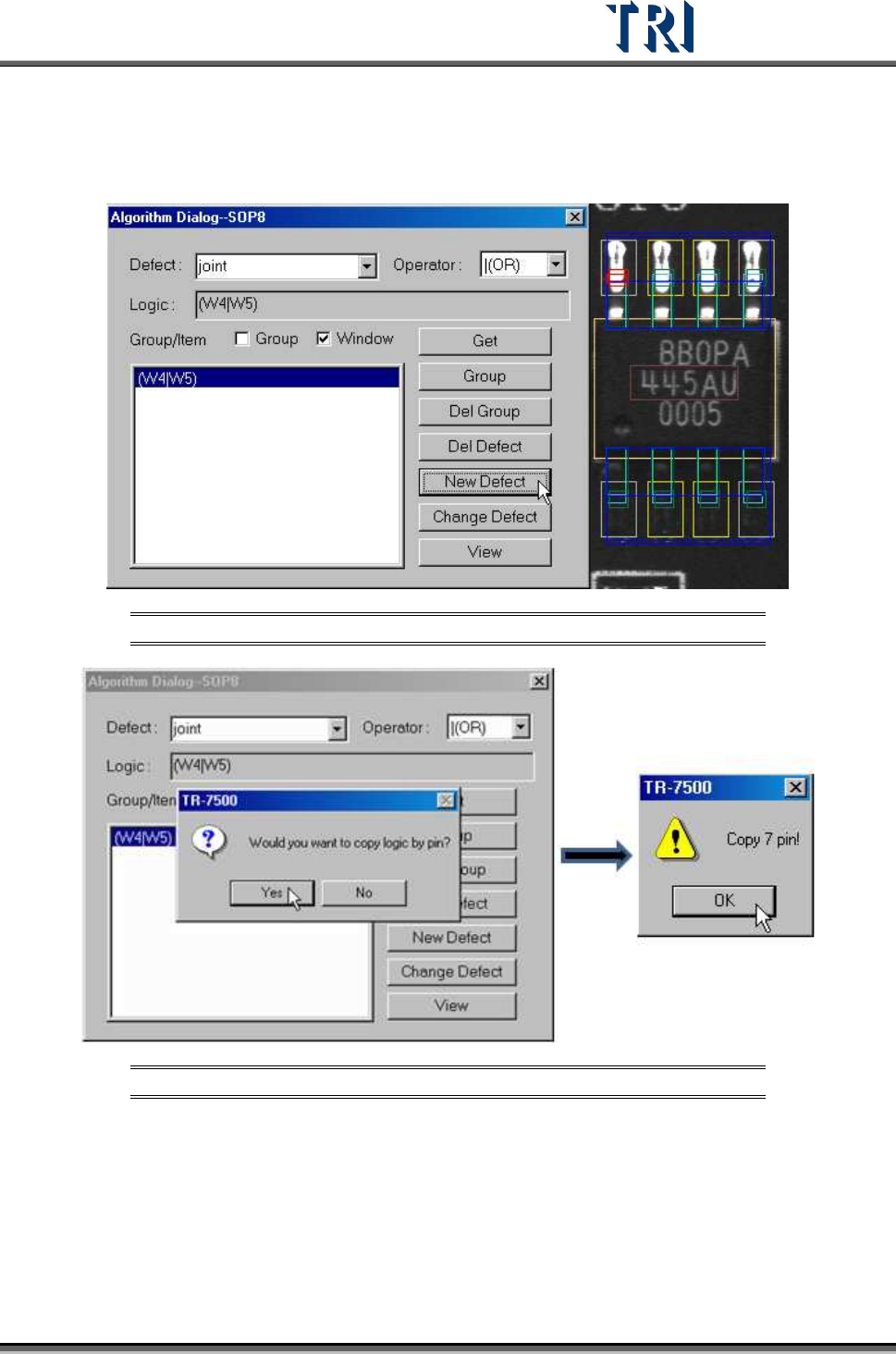
If the windows are set on an IC lead, the system will ask if you want to copy the setting to
other mapping windows on other leads.
Figure 342: Windows Set on an IC Lead
Figure 343: Confirm Copy Logic by Pin & Results Message
Test Research Inc.
204 TR7500 Series User Guide –Software v.2.9.0
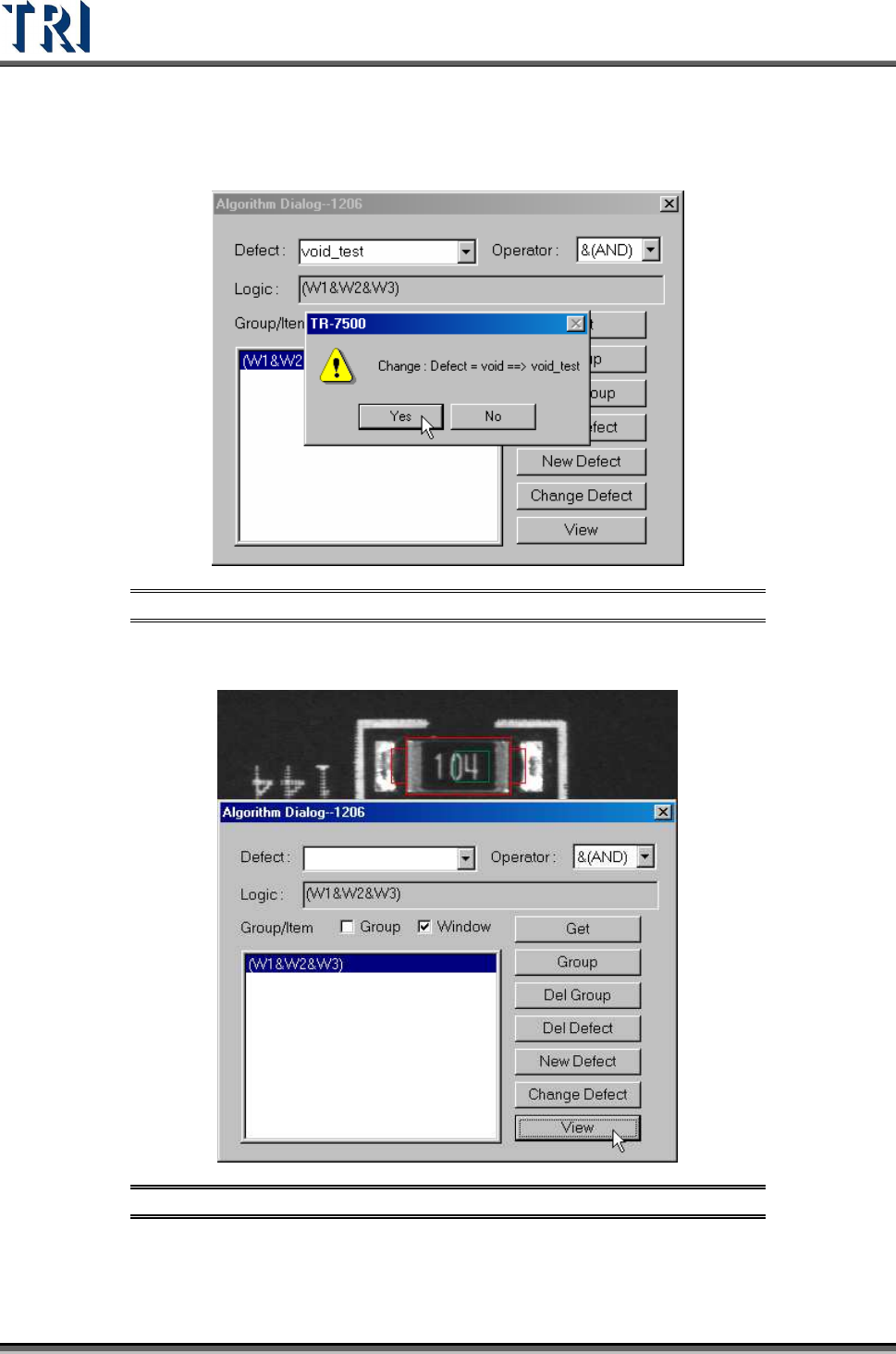
[Change Defect] – Changes the defect formula name.
Figure 344: Confirm [Change Defect]
[View] – Displays the inspection box for the defect formula.
Figure 345: View Inspection Box
Test Research Inc.
TR7500 Series User Guide –Software v.2.9.0 205
8.7.2 Algorithm Dialog: Procedure for Setting Logic
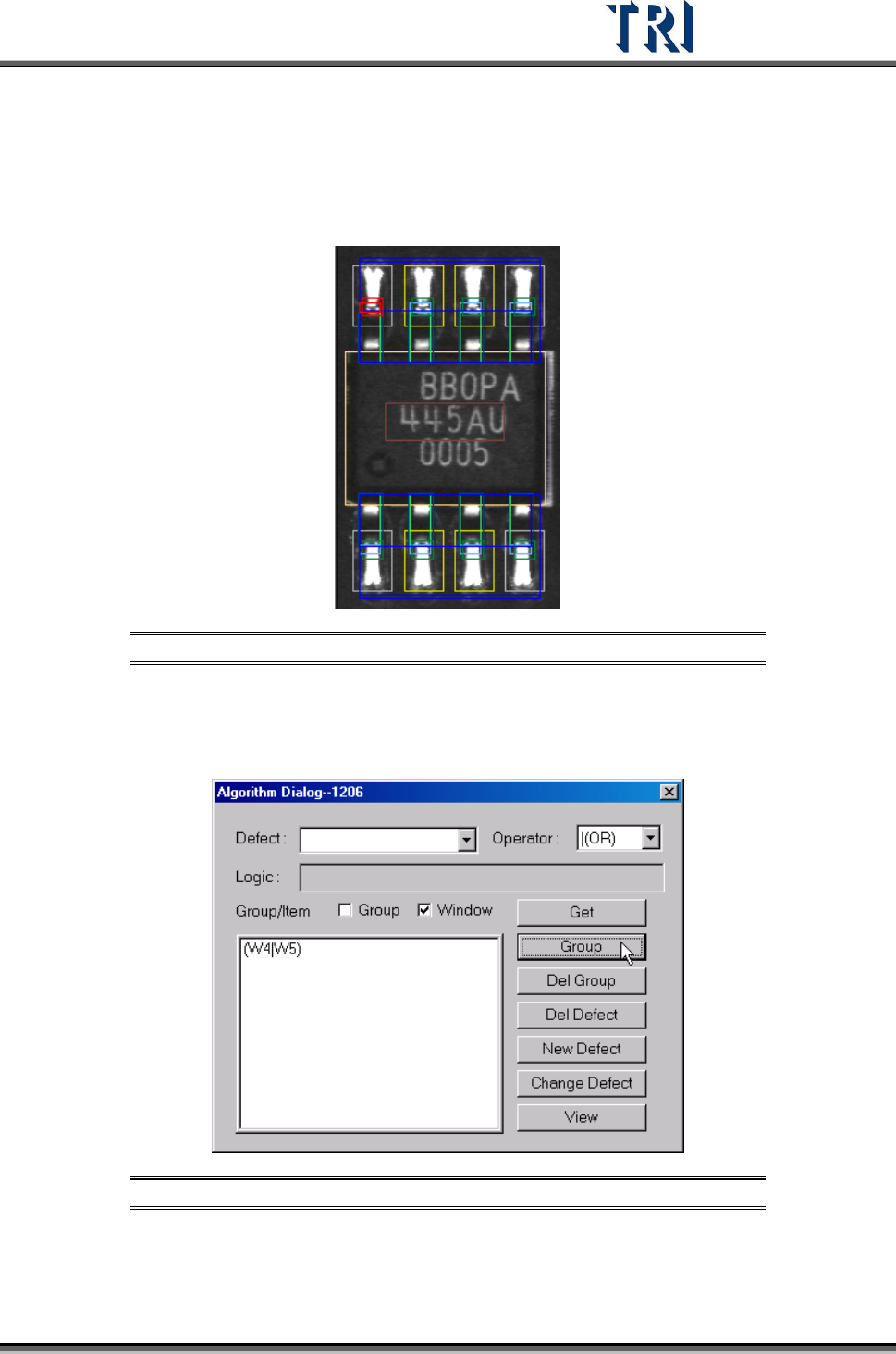
Step1. Select the inspection boxes for setting logic. (Press [Ctrl] on the
keyboard and click on the boxes to select them.)
Figure 346: Select Inspection Boxes
Step2. After selecting an [Operator], check the [Window] box and press [Group].
The inspection boxes will be composed by the specified [Operator] and
be listed in the window below.
Figure 347: Click on [Group] to Display Inspection Boxes
Step3. Double click on the formula that is listed in the window and the formula
will be copied to [Logic] field.