TR7500_Series_Software_v29_En.pdf - 第65页
Test Research Inc. TR7500 Series User Guide – Software v.2.9.0 43 Figure 75: Fine Tuning Fun ctions 6. Press [Insp.] to check th e result of tuning . Figure 76: Press Insp to View R esults 7. After all FOVs are tuned w e…
Test Research Inc.
42 TR7500 Series User Guide –Software v.2.9.0
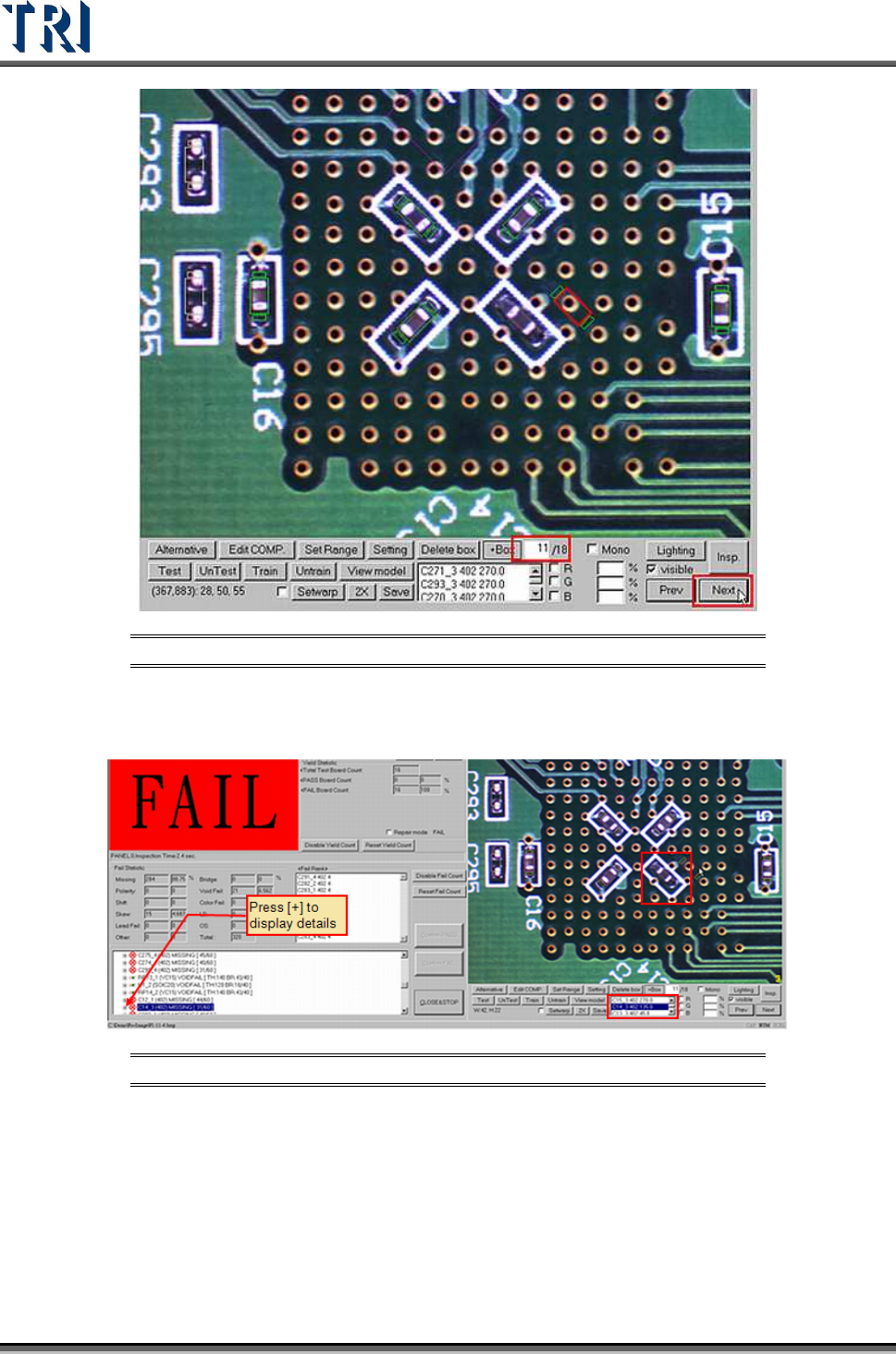
Figure 73: Review Failed Images by Number
4. Clicking on the failed component in the image or in the component list, the defect tree
will highlight the failed details of the component. Confirm the failed boxes here.
Figure 74: Confirm Failed Components
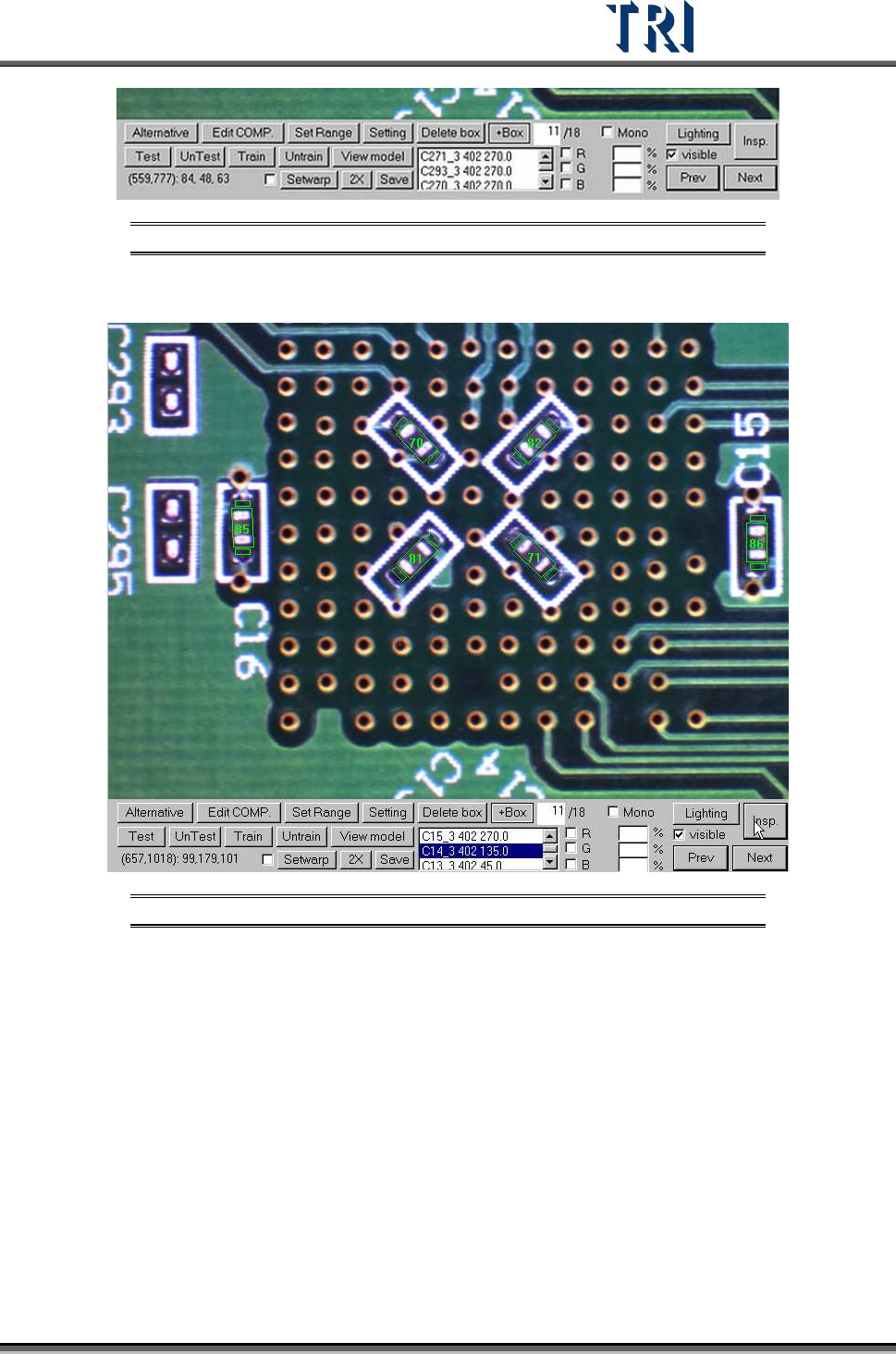
5. Use the functions to do fine tuning.
Test Research Inc.
TR7500 Series User Guide –Software v.2.9.0 43
Figure 75: Fine Tuning Functions
6. Press [Insp.] to check the result of tuning.
Figure 76: Press Insp to View Results
7. After all FOVs are tuned well, press [Save prj.] to save the changed project.
8. Press [Close &Stop] to close the result dialog.
9. Choose [Operation/Confirm Mode] and press [Inspect] to inspect whole board by real
time images. Tune the failed images.
10. Do the above actions for several different golden boards as the case may be until the
project is stable.
11. Start to inspect.
Test Research Inc.
44 TR7500 Series User Guide –Software v.2.9.0
3 M
ENU
B
AR
I
NTRODUCTION
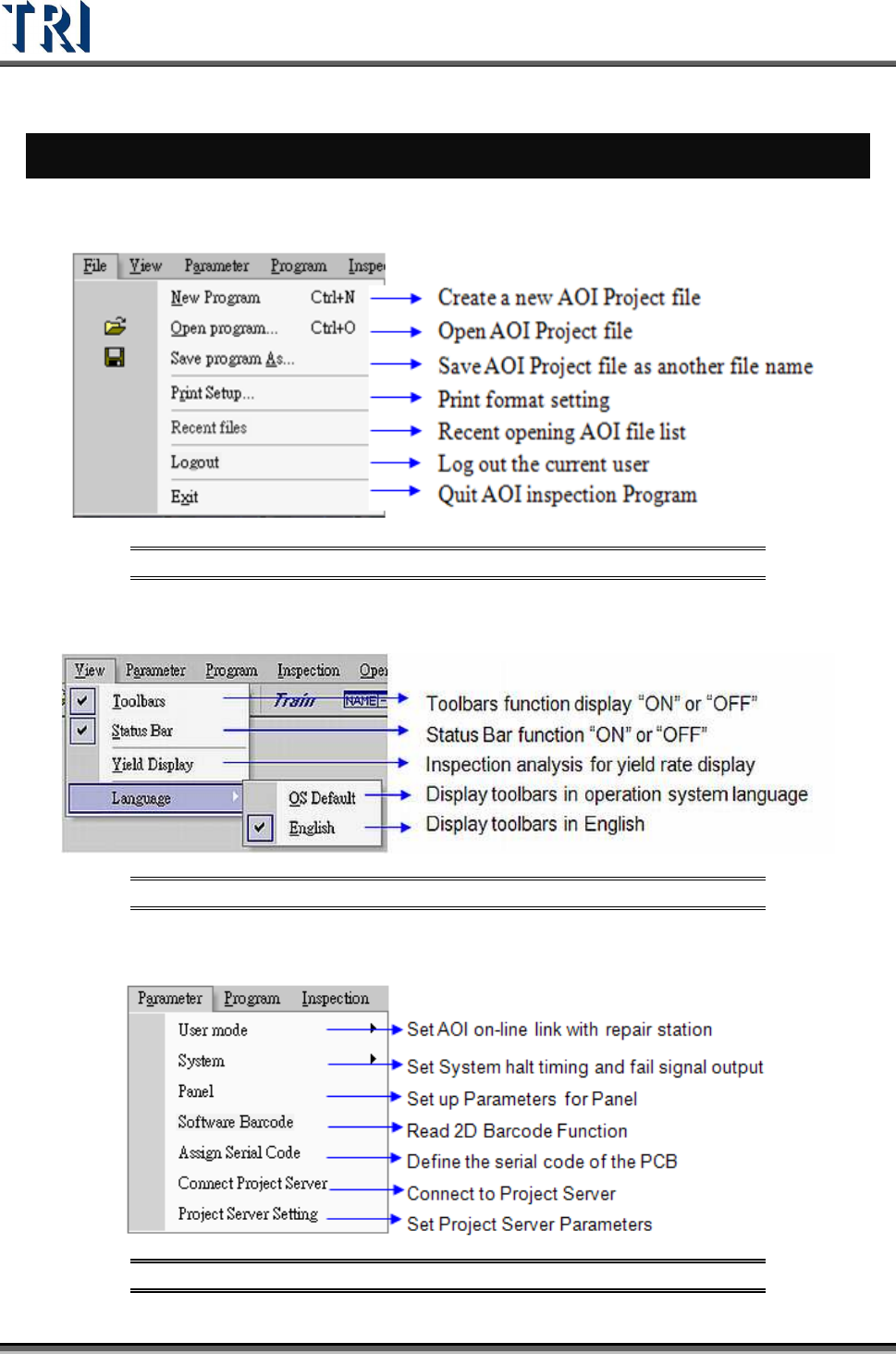
3.1 File Tab
Figure 77: TR7500 Menu Bar – File Tab
3.2 View Tab
Figure 78: TR7500 Menu Bar – View Tab
3.3 Parameter Tab
Figure 79: TR7500 Menu Bar – Parameter Tab