TR7500_Series_Software_v29_En.pdf - 第92页
Test Research Inc. 70 TR7500 Series User Guide – Software v.2.9.0 3.4.8 Non CAD 3.4.8.1 Objective W he n the user doesn’t have the CAD data to inspect, this f unction can get the position o f components’ CAD coordi nates…
Test Research Inc.
TR7500 Series User Guide –Software v.2.9.0 69
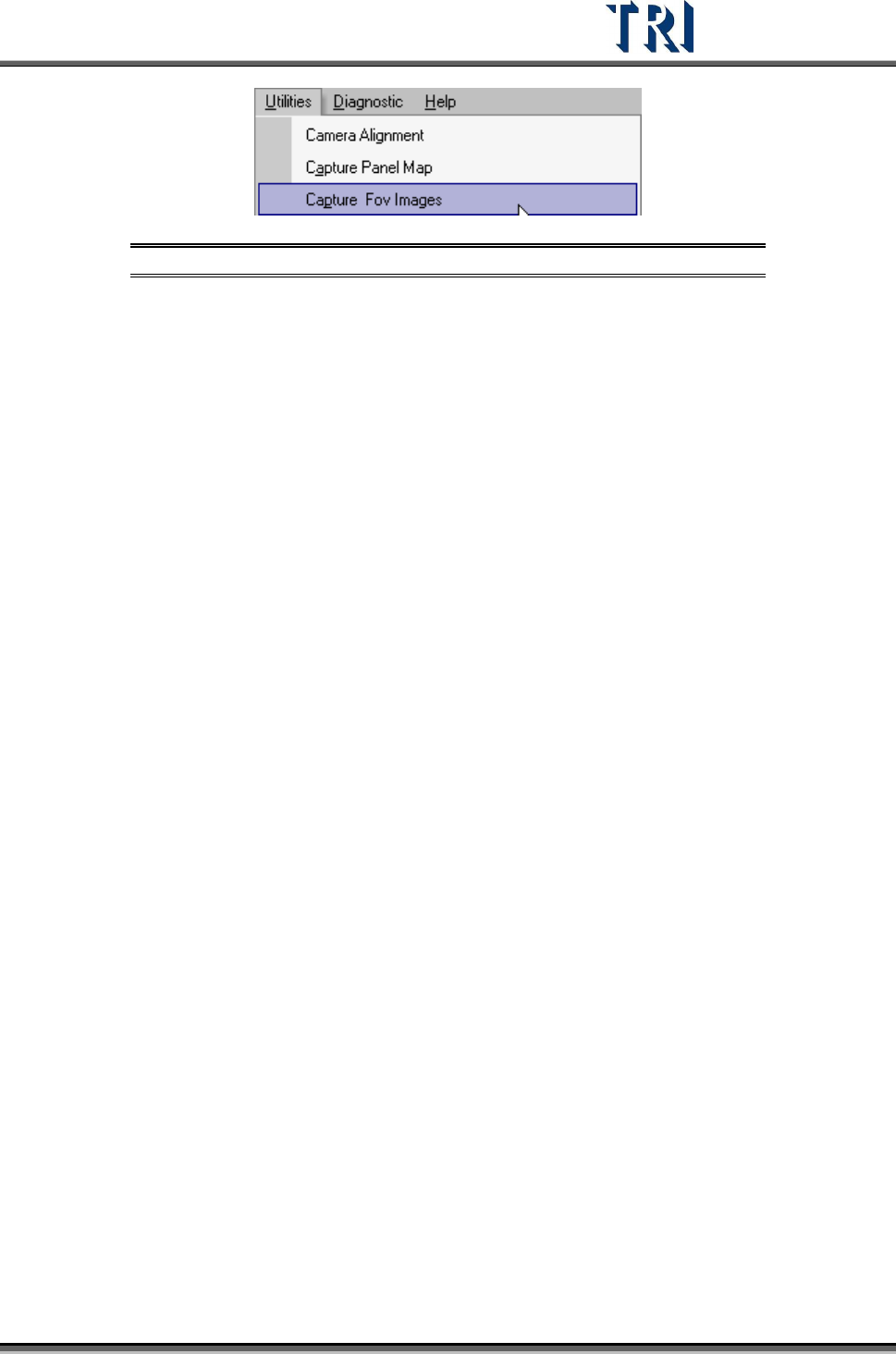
Figure 122: Select Capture FOV Images
6. Reopen [Train] dialog to edit the new FOV.
3.4.6 Remove FOV
This is only enabled in the [Train] dialog.
When [Delete FOV] is selected, it will show the panel map and real time FOV image.
There are two ways to delete an FOV.
Click on the position where you want to delete the FOV on the panel map and
the camera will move to the position to grab image. Confirm the image then
press [Delete]. If it’s a multi-board module the system will delete FOV to the
relative position.
Click near the position on panel map. Press [Prev.] or [Next] to find the FOV to
delete. If it is a multi-board module the system will delete FOVs to the related
positions.
Delete FOV Steps:
1. Press [Program/Delete FOV]
2. Select objective FOV then press [Del]
3. Delete other FOVs
4. After finishing deleting FOVs press [Program/Delete FOV] again.
5. Close [Train] dialog then press [Utilities/Capture FOV Images].
3.4.7 Rotate 180°
This function allows any existing project/board to be rotated 180 degrees without having to
create a completely new program from scratch.
After selecting this option, the new board needs to have the [Fiducial0] mark reset and the
panel map to be recaptured.
Test Research Inc.
70 TR7500 Series User Guide –Software v.2.9.0
3.4.8 Non CAD
3.4.8.1 Objective
When the user doesn’t have the CAD data to inspect, this function can get the position of
components’ CAD coordinates manually.
To start, select [P
ROGRAM
>
N
ON
CAD/T
EACH
]
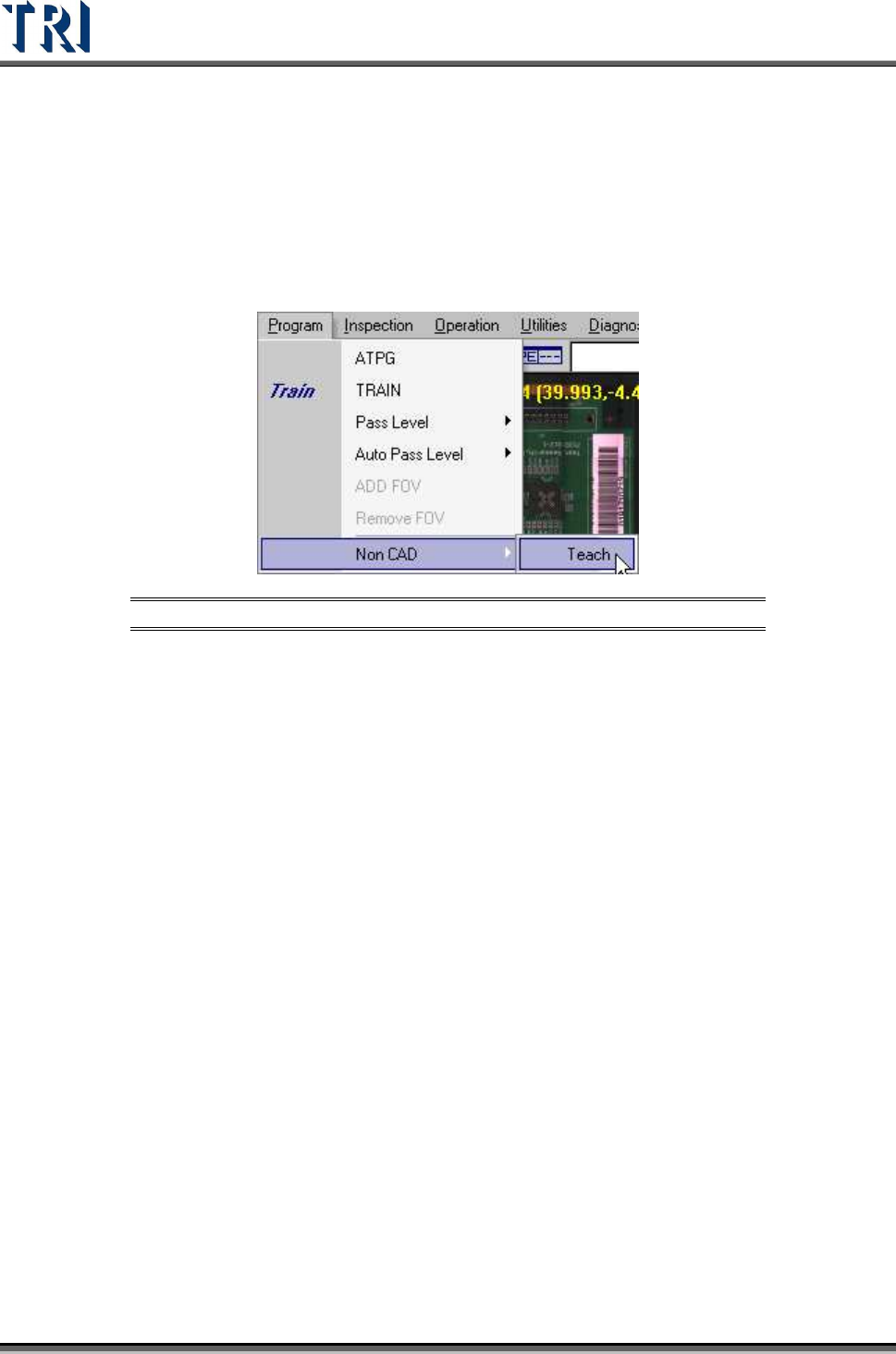
Figure 123: Select Program > Non-CAD > Teach Function
Test Research Inc.
TR7500 Series User Guide –Software v.2.9.0 71
3.4.8.2 Non-CAD Teach Interface Introduction
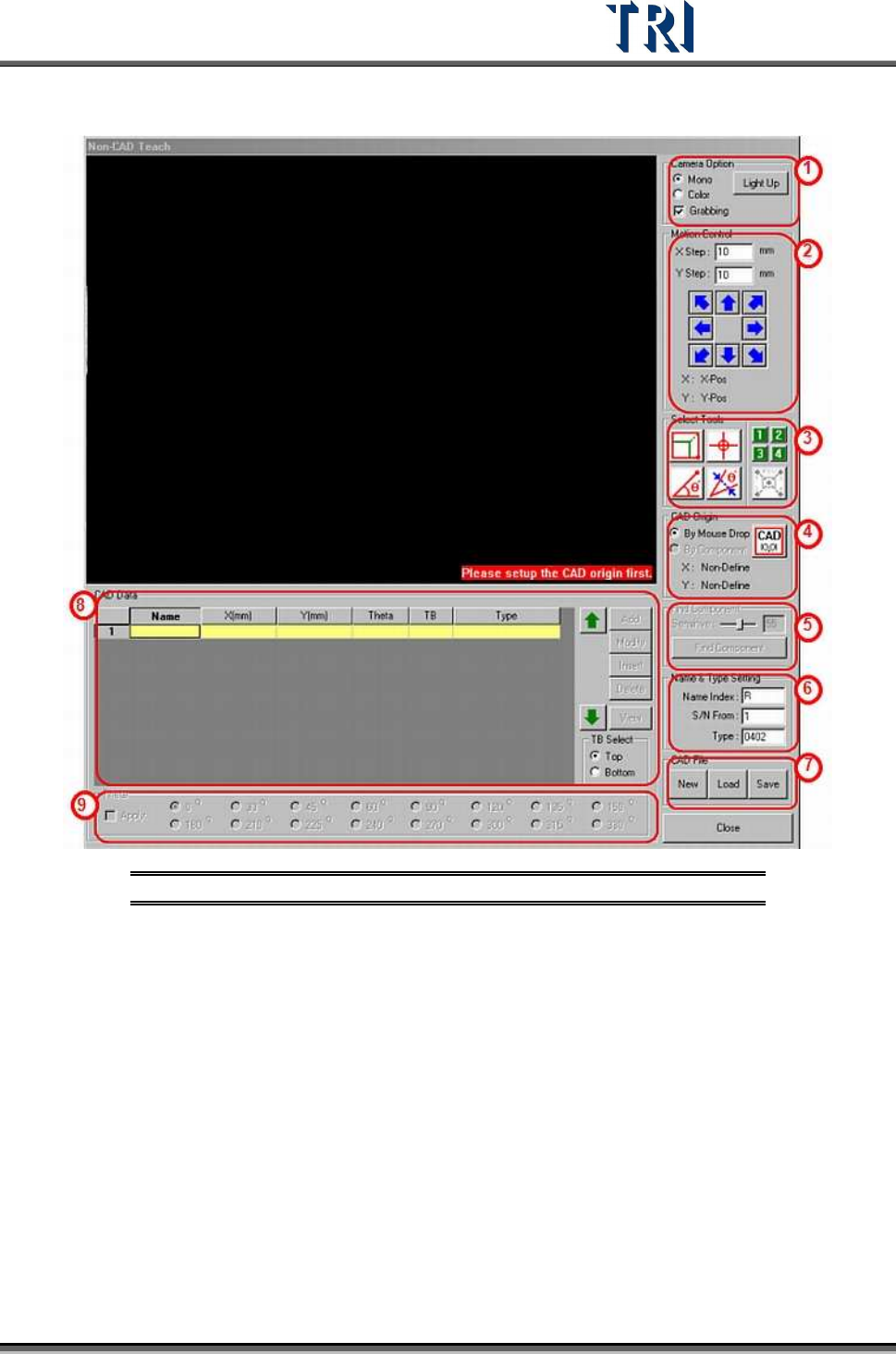
Figure 124: Non-CAD Teach Window & Functions
(1) [Camera Option] - Check [Grabbing] to capture real time image. You can select [Mono]
to see gray image or [Color] to see color image. Press [Light Up] to set the lighting.
(2) [Motion Control] - You can use the function to move camera to specific direction and
distance or right click mouse on the image area to move the camera to specific position.