TR7500_Series_Software_v29_En.pdf - 第79页
Test Research Inc. TR7500 Series User Guide – Software v.2.9.0 57 3.3.6 Multi-Board Figure 102 : Panel Paramet er –Multi-bo ard Tab [Auto Skip Setting] – Setti ng the skip ratio. I f the ratio of failed poi nts for a p…
Test Research Inc.
56 TR7500 Series User Guide –Software v.2.9.0
3.3.5 Handy Barcode Scanner Setting
This requires a USB-to-RS232 adapter cable. The USB connector has to be connected with
the main PC and the RS232 connector has to be connected with the Handy Barcode
Scanner. In addition, there is a power cable to be connected to the scanner.
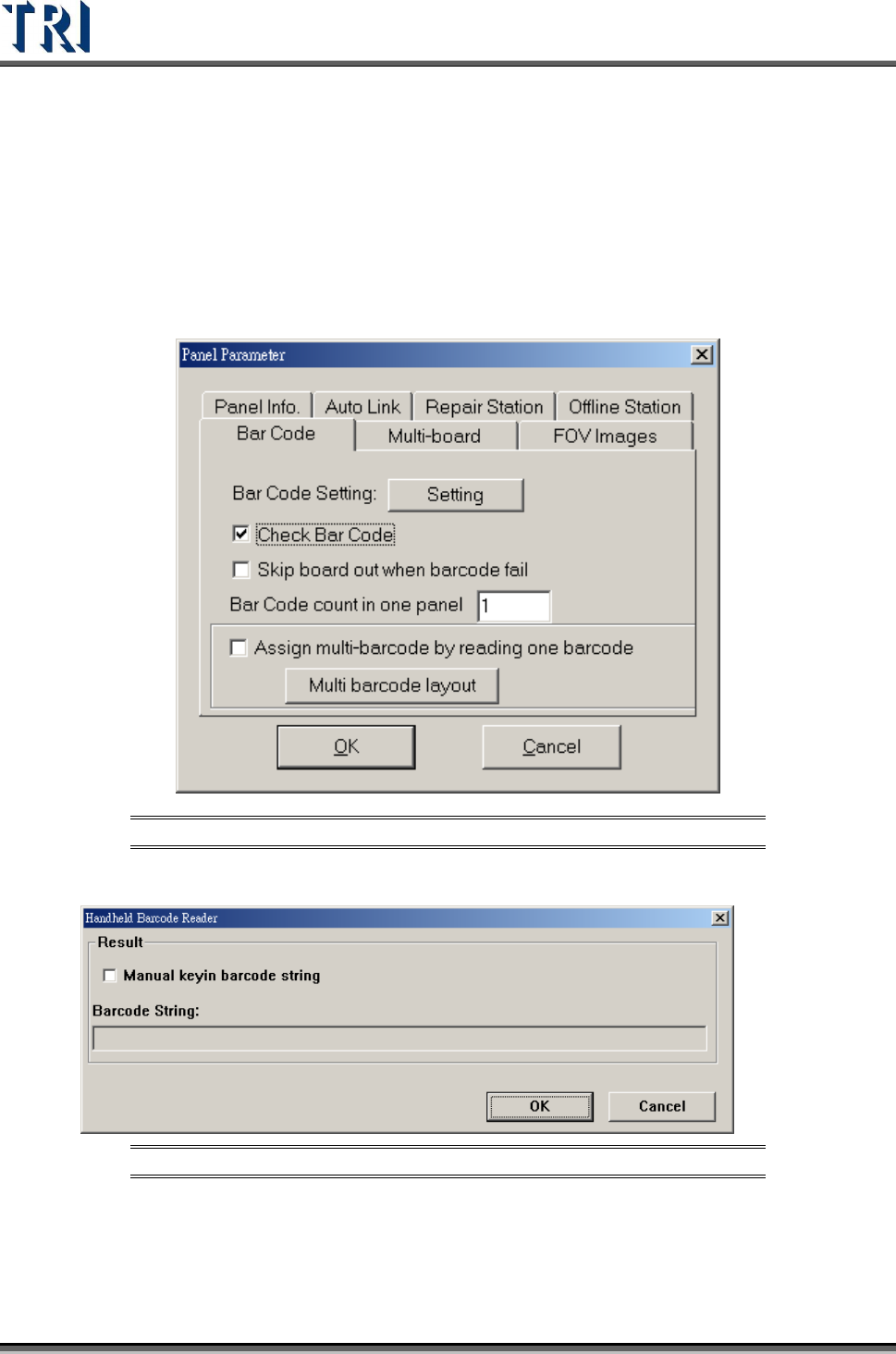
1. Set the COM Port to [COM6].
2. Select [Check Barcode] and input the number of the barcode to be read.
Figure 100: Panel Parameter – Bar Code Tab Check Bar Code
3. When system starts to inspect, the following barcode reading window will be displayed.
Figure 101: Barcode Reader Window
4. If [Manual keyin barcode string] is checked, the user can input the barcode by the
keyboard.
5. When the total number of barcode is more than 1, set the number in [Barcode Number]
field. Then press [Reset] to finish the setting.
Test Research Inc.
TR7500 Series User Guide –Software v.2.9.0 57
3.3.6 Multi-Board
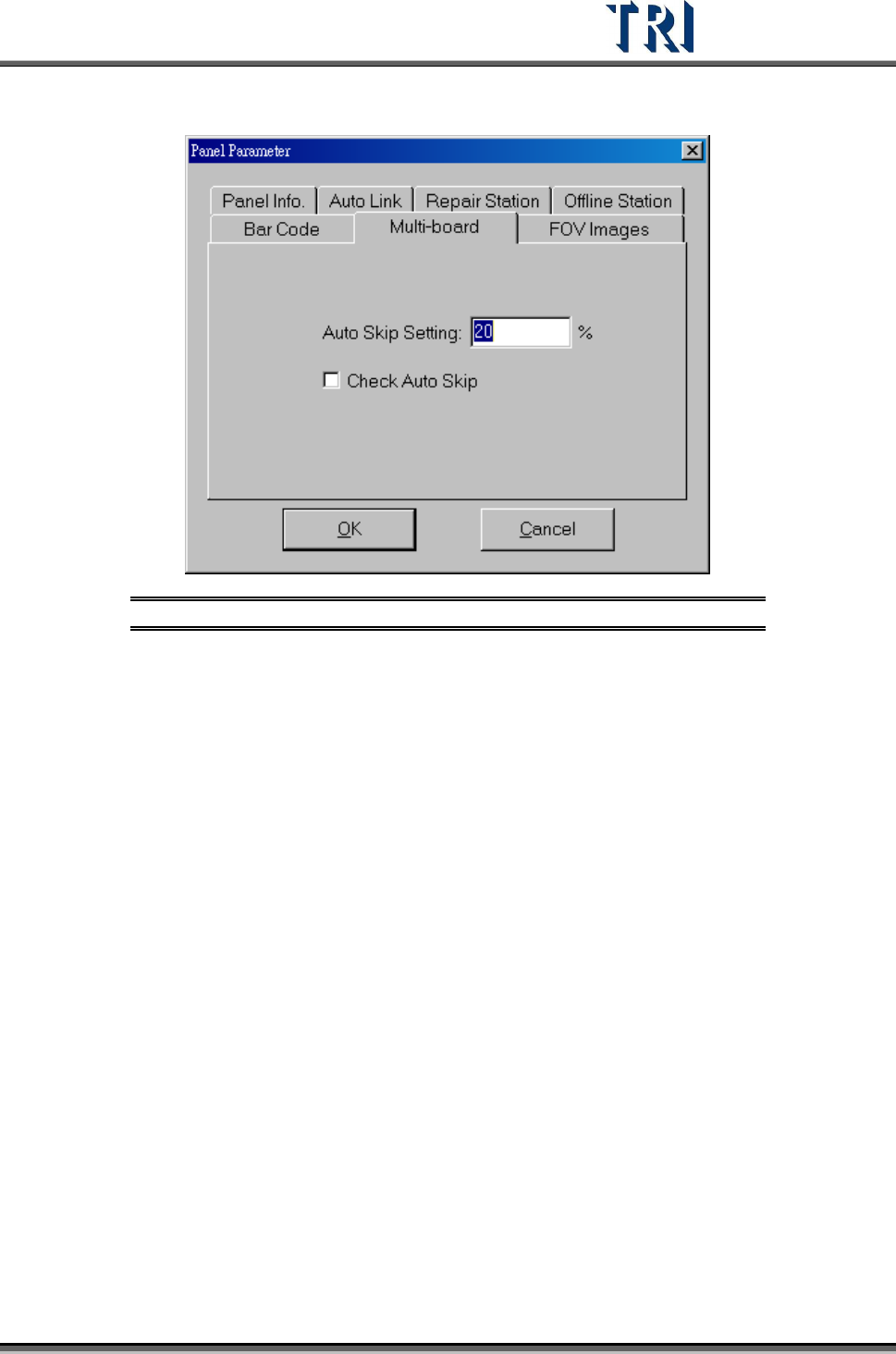
Figure 102: Panel Parameter –Multi-board Tab
[Auto Skip Setting] – Setting the skip ratio. If the ratio of failed points for a panel is
higher than the setting, the panel will be regarded as invalid board. This value
should be set greater in a situation that there are many components and smaller in
a situation that there are few components
[Check Auto Skip] – Enable auto skip function.
Test Research Inc.
58 TR7500 Series User Guide –Software v.2.9.0
3.3.7 Panel Info Tab
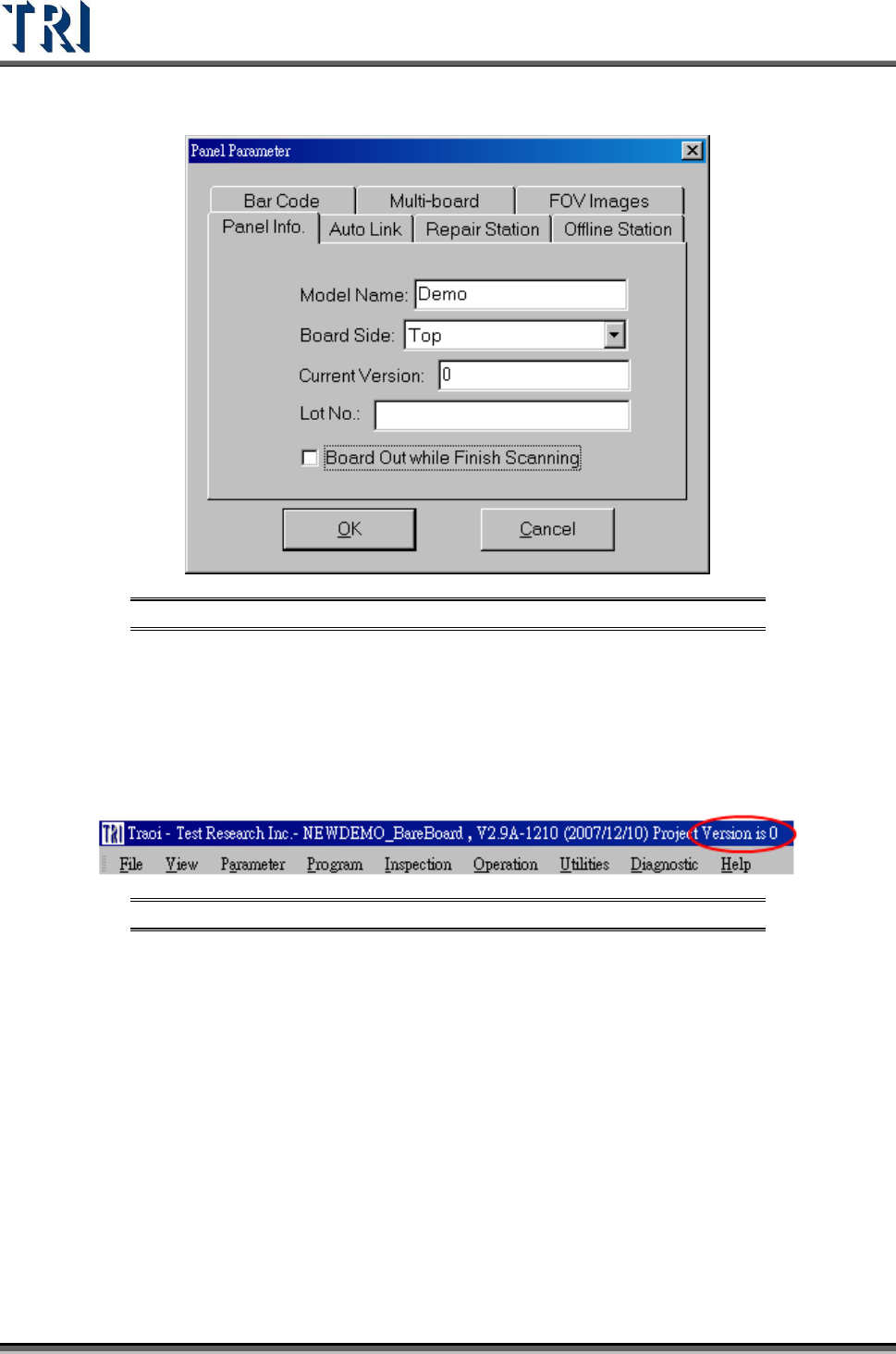
Figure 103: Panel Parameter – Panel Info Tab
[Model Name] – The same as the original AOI file name. When you change the
project name, this isn’t changed.
[Board Side] – Set board to [Top] or [Bottom] side.
[Current Version] – Set current panel used component version. The current version
will appear in the top-right of the window’s title bar.
Figure 104: Project Version in Title Bar
[Lot No.] – Input the lot number of manufacture and it will become a search
condition in repair station.
[Board Out While Finish Scanning] – When the motion is finished, the board will be
sent out immediately.
3.3.8 Auto Link Tab
Set the path here for the auto link with ICT or ATE.