TR7500_Series_Software_v29_En.pdf - 第138页
Test Research Inc. 116 TR7500 Series User Guid e –Softwa re v.2.9.0 Figure 191 : Result of CAD C heck [Polarity Chec k ] – Users can check those in spection box es with polarity f unction. 1. Select [U TILITIES > F …
Test Research Inc.
TR7500 Series User Guide –Software v.2.9.0 115
3.10.29 First Board Check
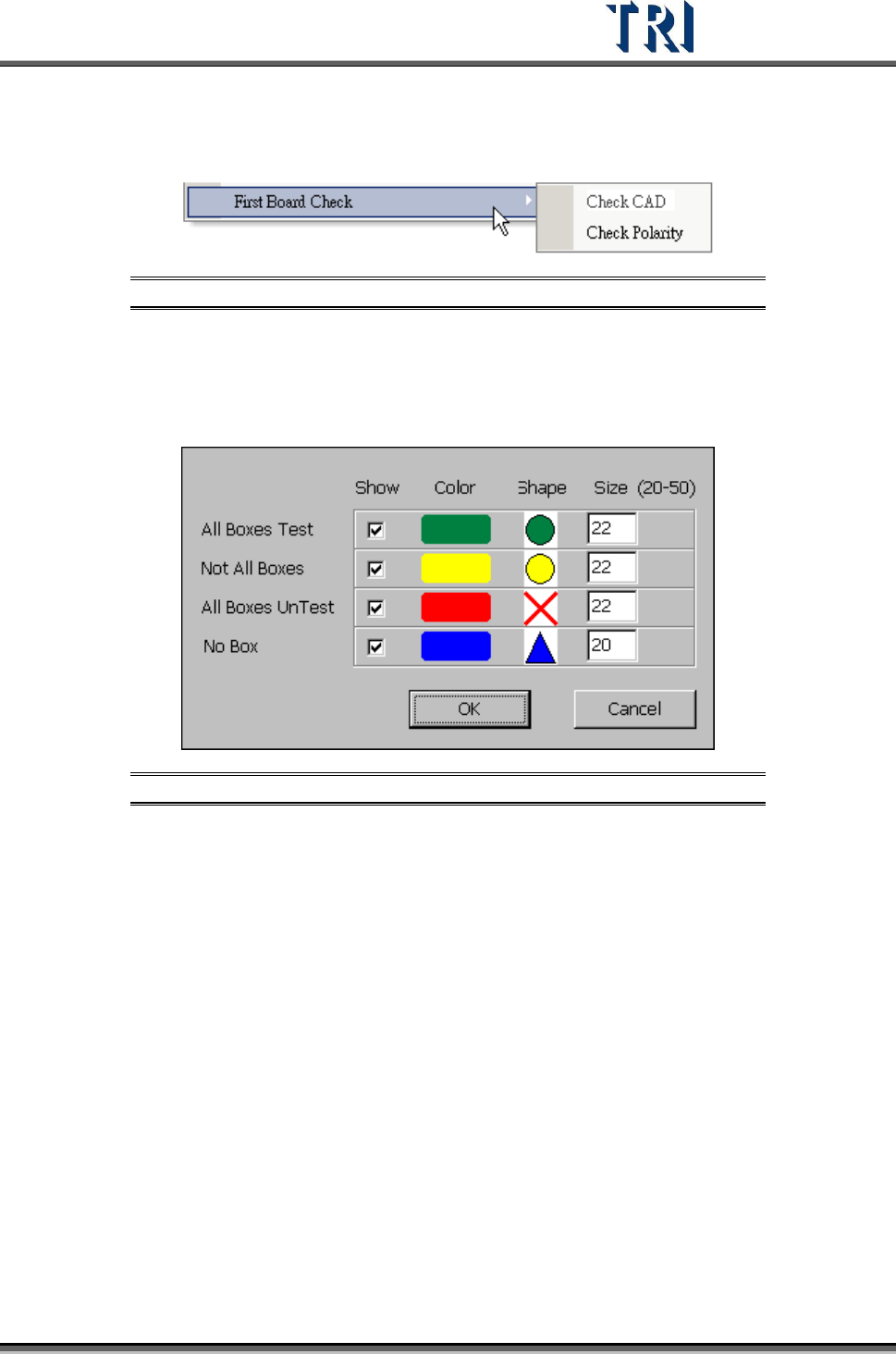
The function is divided into [CAD] and [Polarity] checking.
Figure 189: First Board Check Menu
[Check CAD] – Users can find components without being detected and inspected
1. Select [U
TILITIES
>
F
IRST
B
OARD
C
HECK
>
C
HECK
CAD]
2. Adjust the appearance of mark in color, shape and size
Figure 190: Check CAD Dialog
[All Boxes Test] – Component with all inspection boxes are being tested
[Not All Boxes] – Component with one or more than one inspection boxes are
not being tested
All Boxes UnTest – Component with all inspection boxes are not being tested
No Box – Component with no inspection box
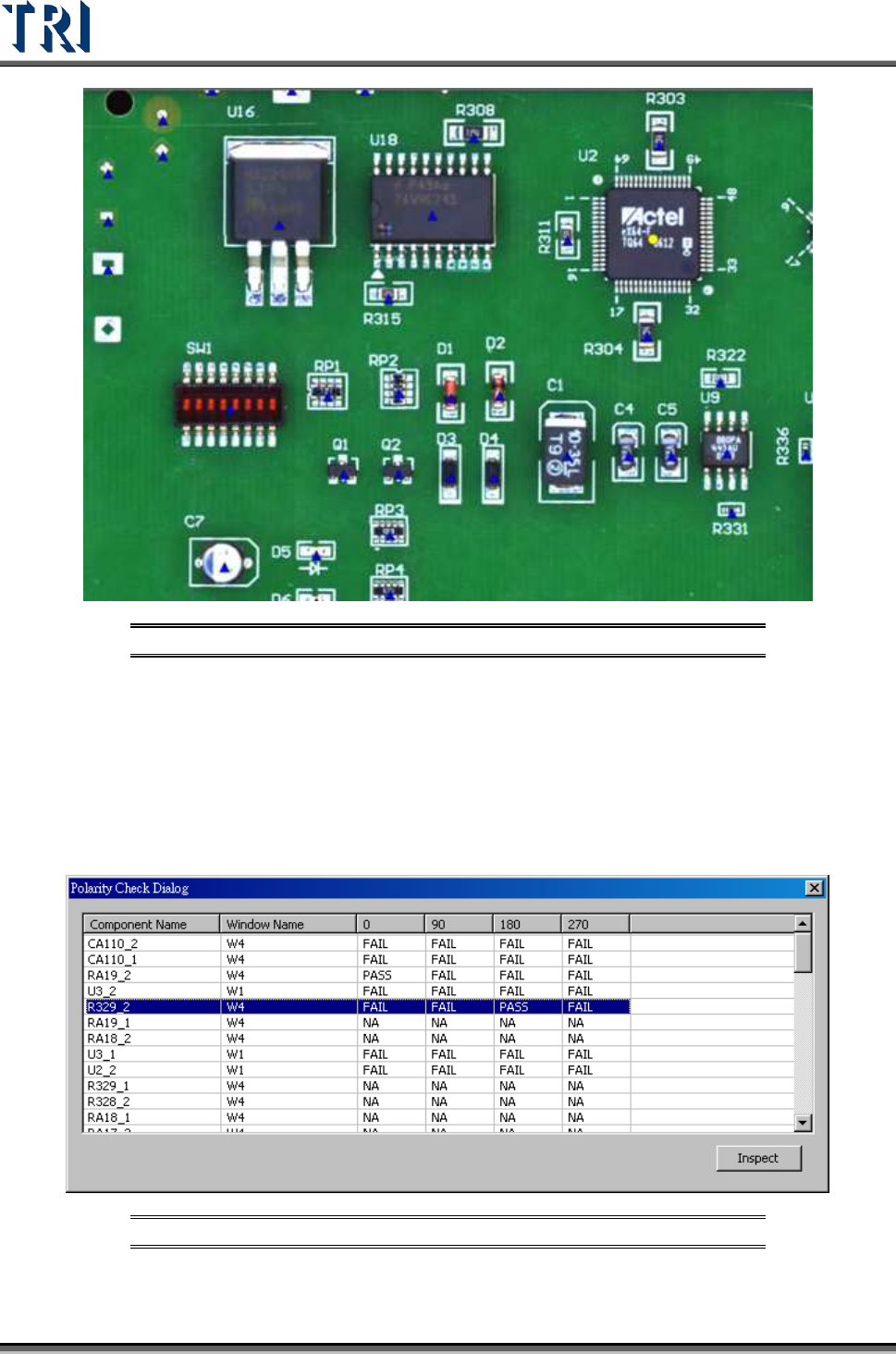
3. System will show the result with panel map as in the following figure.
Test Research Inc.
116 TR7500 Series User Guide –Software v.2.9.0
Figure 191: Result of CAD Check
[Polarity Check] – Users can check those inspection boxes with polarity function.
1. Select [U
TILITIES
>
F
IRST
B
OARD
C
HECK
>
C
HECK
P
OLARITY
].
2. Program will inspect those [MISSING POLARITY] or those fail string assigned
as [POLARITY] in 0, 90, 180, and 270 degrees. It will also capture images if
necessary.
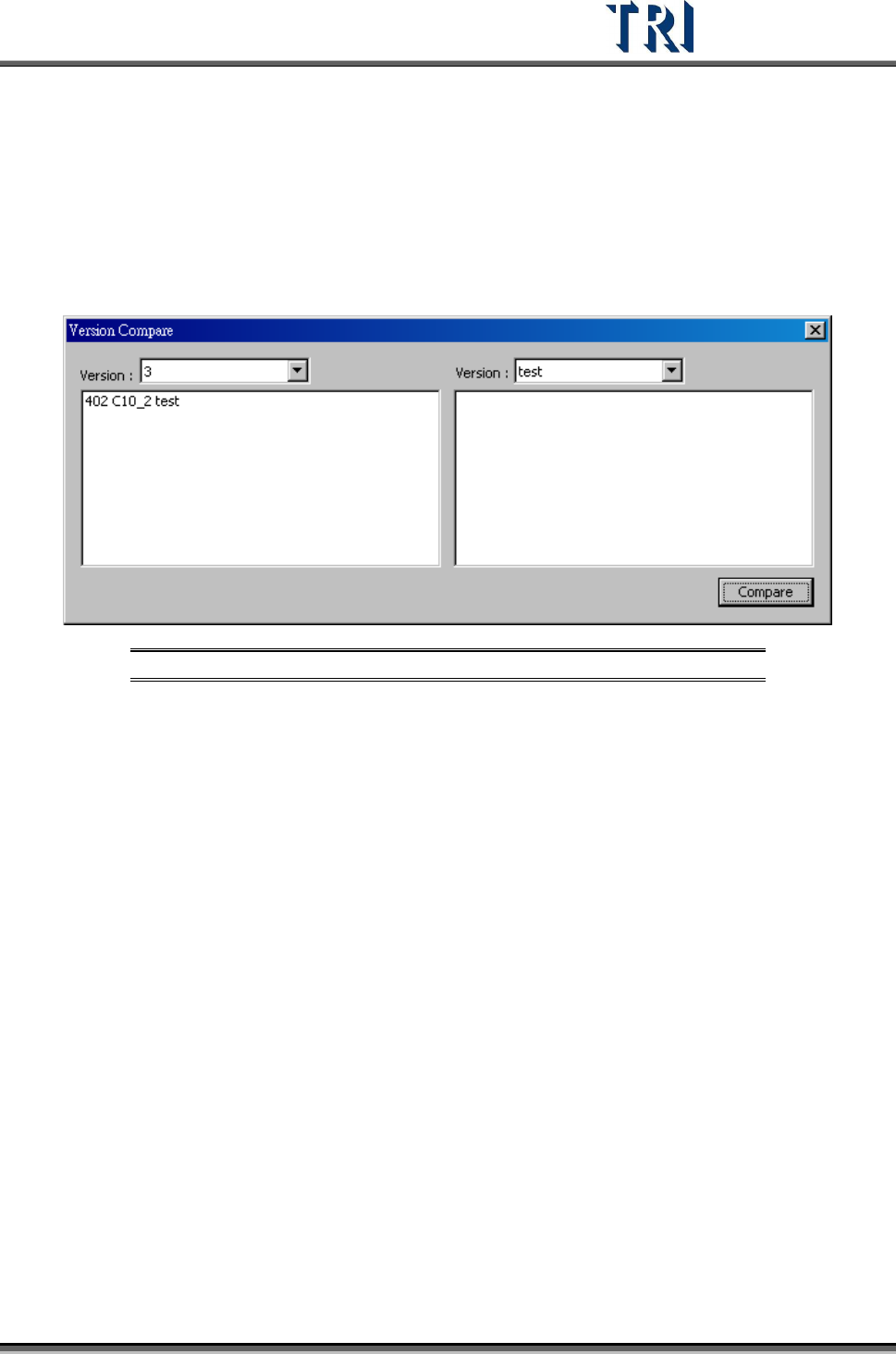
3. The inspection result will be shown as in the following picture.
Figure 192: Polarity Check Result
Rows 0, 90, 180, and 270 will display the result as [PASS] or [FAIL]
Test Research Inc.
TR7500 Series User Guide –Software v.2.9.0 117
NA means not being inspected
Clicking each inspection box will move to the corresponding FOV under [Train]
dialog
Pressing [Inspect] can test the selected inspection box individually.
3.10.30 Version Compare
In a project, use this function to list the difference between different versions.
Figure 193: Version Compare Screen
After selecting the version to compare and pressing [Compare], the window will display the
differences. For example, in the figure above, C10_2 is tested in [Version: 3], but it’s not
tested in [Version: Test].
3.10.31 Offline Tune Mode
Users can use the [Offline Tune Mode] to collect and analyze the multi-panel boards offline
data. Under [Offline Tune Mode], the images will be saved into a file which is named by the
time of scanning. System will automatically collect inspection boxes’ dates during the [Offline
Tune Mode]. Otherwise, the system will show the [Statistics Chart] dialog.
3.10.32 Set Board No to RS
This function is to modify the board number sent to [Repair Station]. Double click on the
board, then a dialog appears to let the user assign the number.