TR7500_Series_Software_v29_En.pdf - 第174页
Test Research Inc. 152 TR7500 Series User Guid e –Softwa re v.2.9.0 6.4 Right-c licking Menu Figure 252 : Multi-Board Ri ght-Clicking Menu Locate - Locate the com ponent. Top/Bottom - Change the side of the boa r d. …
Test Research Inc.
TR7500 Series User Guide –Software v.2.9.0 151
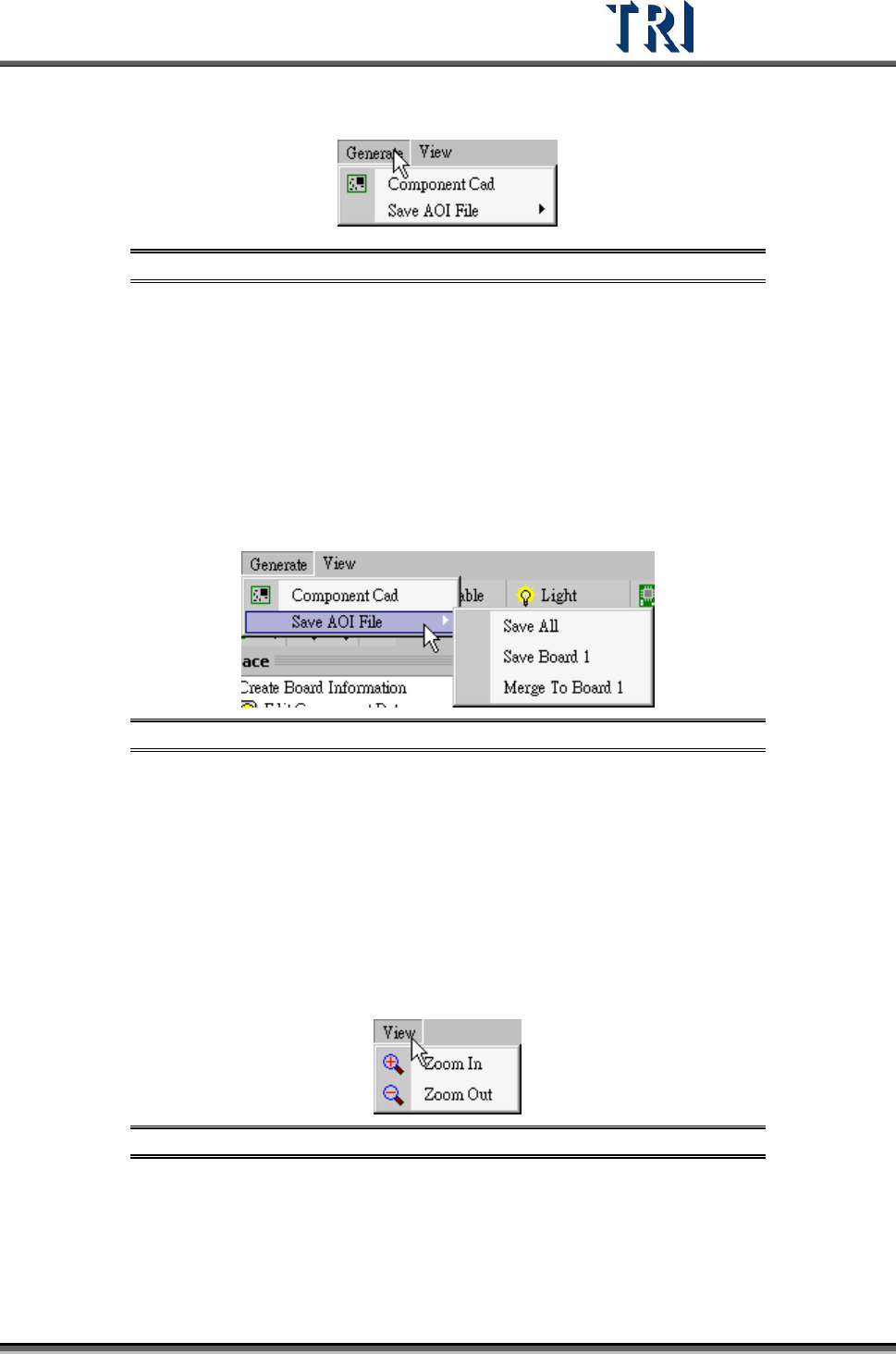
6.2 Generate
Figure 249: Generate
6.2.1 Com ponent Cad
Select this item to generate multi-board data after finishing finding dummy components for
every board. The data also can generate automatically when [Next] is chosen.
6.2.2 Save AOI File
Figure 250: Save AOI File
Save All-Save multi-board CAD data to a new file.
Save Board 1-Only save CAD file of Board.
Merge To Board 1-Save all CAD data to a new file, and change the board number of
all components to 1.
6.3 Veiw
Figure 251: View
Zoom In
Zoom Out
Test Research Inc.
152 TR7500 Series User Guide –Software v.2.9.0
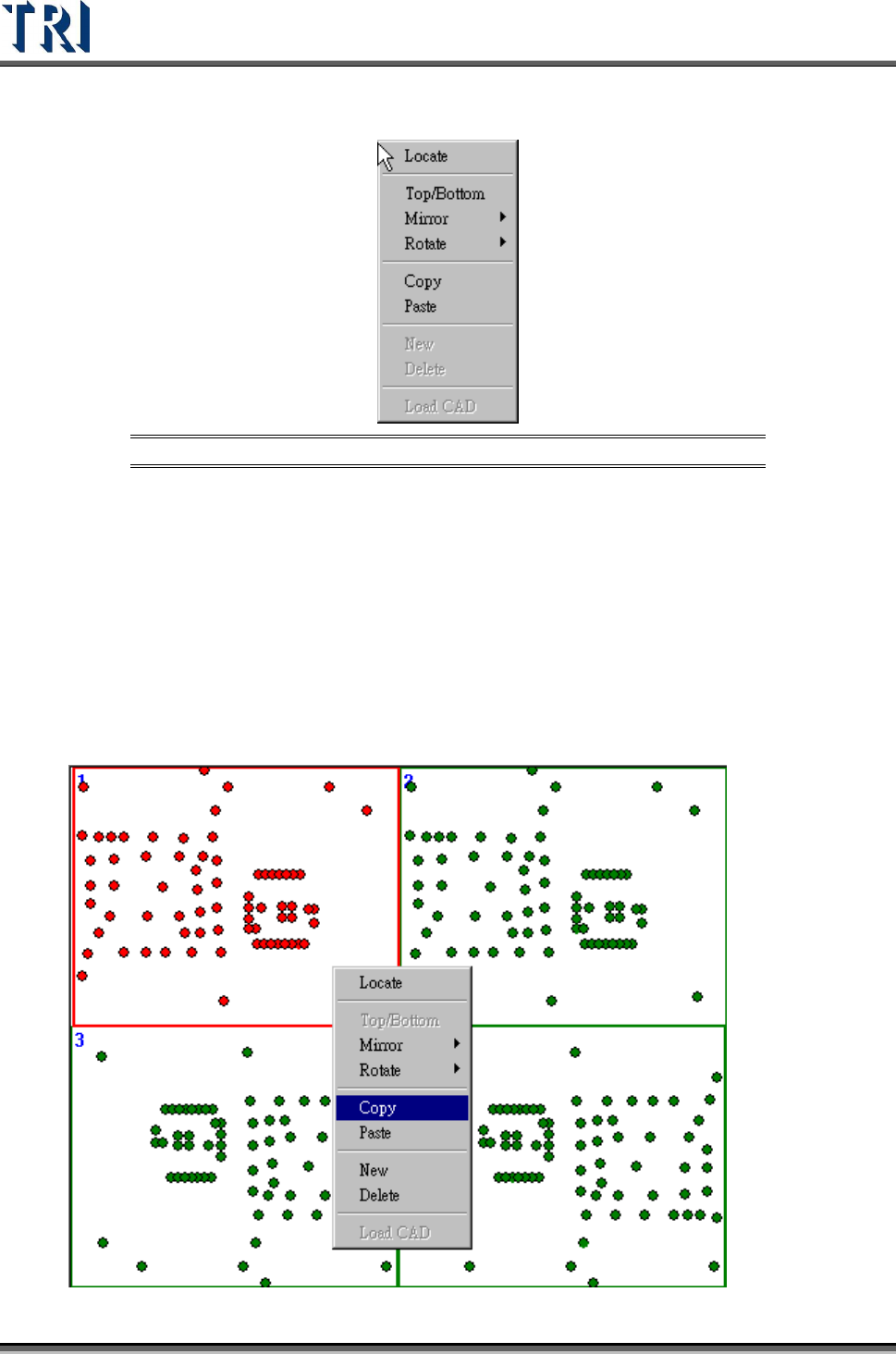
6.4 Right-clicking Menu
Figure 252: Multi-Board Right-Clicking Menu
Locate-Locate the component.
Top/Bottom-Change the side of the board.
Mirror-User can select mirror by left-right or top-bottom. It can’t be used under edit
mod.
Rotate-0, 90, 180 and 270 degree can be selected. Under edit mode, only 180 degree
can be select. In regular multi-board, when select 90 degree or 270 degree, system will
rotate the other multi-board with the same rotate angle.
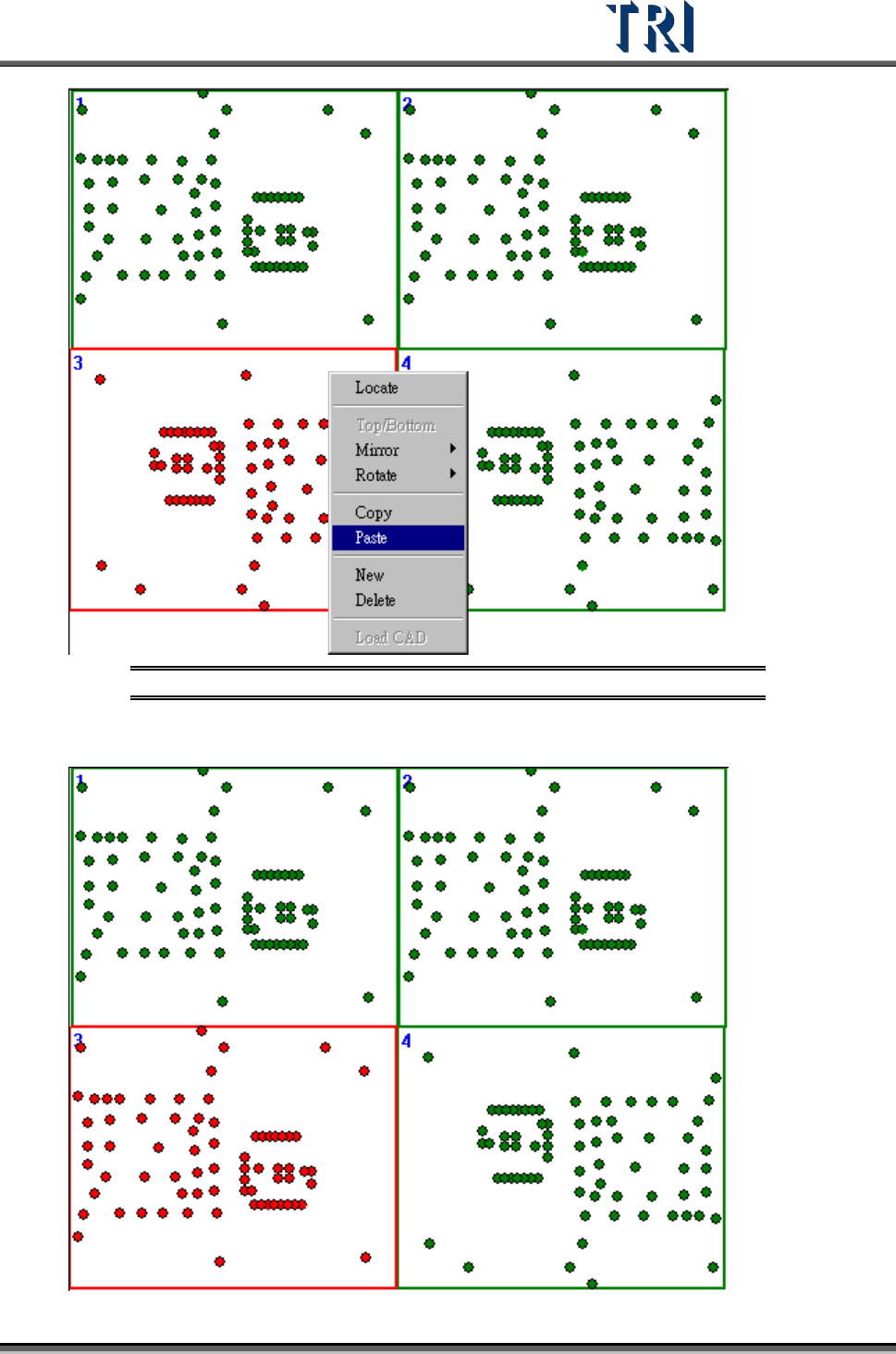
Copy-Copy a layout of a board and paste to the other board.
Paste-Copy a layout of a board and paste to the other board.
Test Research Inc.
TR7500 Series User Guide –Software v.2.9.0 153
Figure 253: Paste CAD