TR7500_Series_Software_v29_En.pdf - 第265页
Test Research Inc. TR7500 Series User Guide – Software v.2.9.0 243 Step2. Find the rotate angle . Step3. Locate the first Bloc k t o get the gap of X direction and Y direction within Block. Step4. Select Bloc k 2 and Blo…
Test Research Inc.
242 TR7500 Series User Guide –Software v.2.9.0
Step1. Open a finished program.
Step2. Enter [ATPG/Generte Multiboard CAD Data].
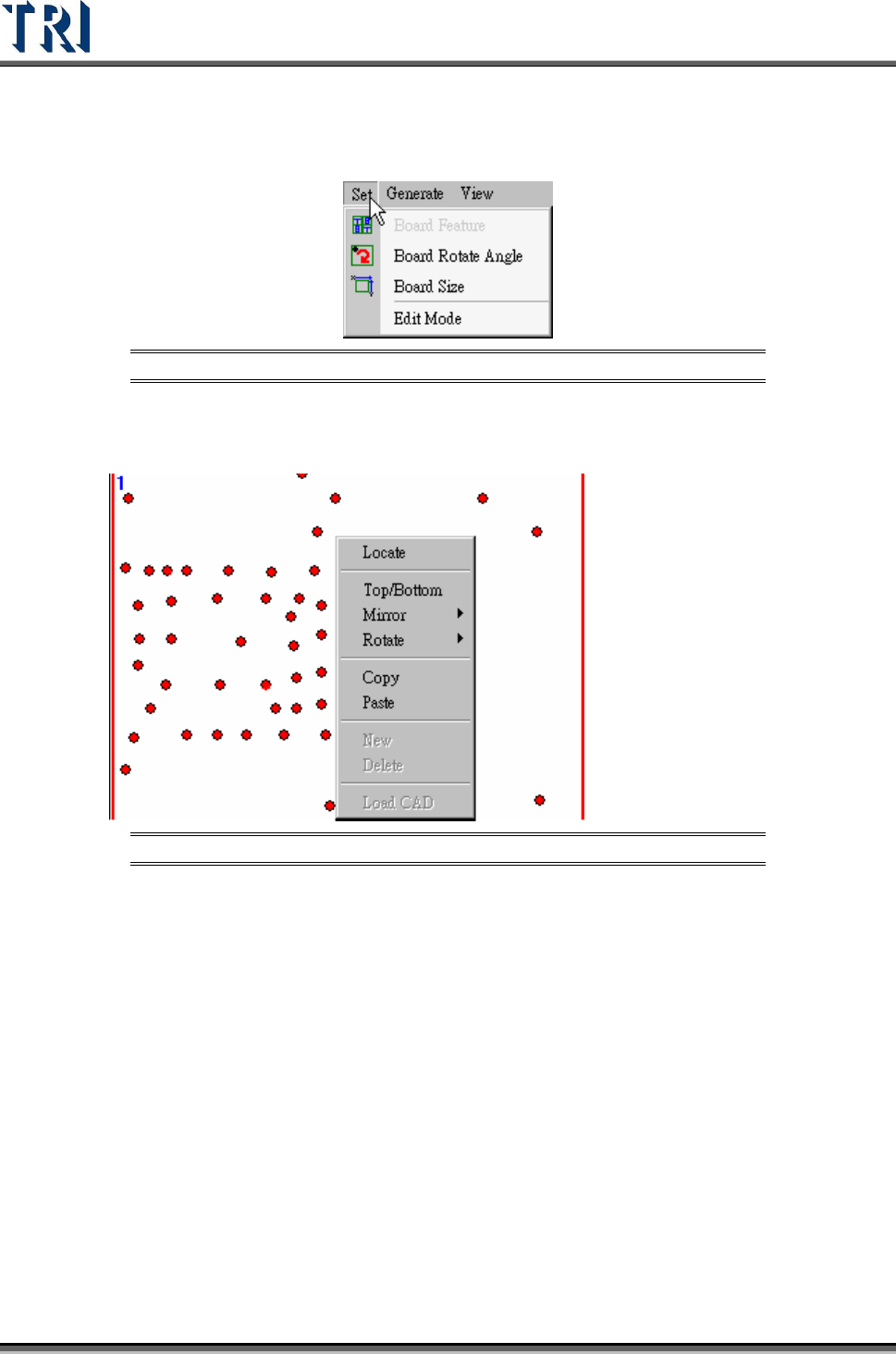
Step3. Select [Set/Edit Mode]
Figure 404: Set
Step4. Right click on the picture and select New or Delete a column or row.
Figure 405: Right-Clicking to New or Delete a Column or Row
Step5. After setting the number and the rotate angle of multi-board, do the following
standard process to program.
(1)
Find rotate angle.
(2)
Set Board 1 Size
(3)
Find Fiducial Mark
(4)
Skip [Merge], press [Next] to do FOV arrangement. Now system will copy the
parameters of Board 1 to the other boards.
(5)
Capture FOV image and Relocate inspection boxes.
(6)
After finishing ATPG, user has to select [Utilities/Capture Panel Map].
10.4 Different Gaps within multi-boards
When the cap between boards are not the same, (for example, many panels are put on a
carrier, user can use this function to create the correct multi-board information.
Step1. Set multi-board layout (MxN)
Test Research Inc.
TR7500 Series User Guide –Software v.2.9.0 243
Step2. Find the rotate angle.
Step3. Locate the first Block to get the gap of X direction and Y direction within Block.
Step4. Select Block 2 and Block 3 by pressing [Shift] key and left clicking on the board.
Locate the board to get the gap between Blocks.
Step5. Press [Next] and do the other standard process in ATPG.
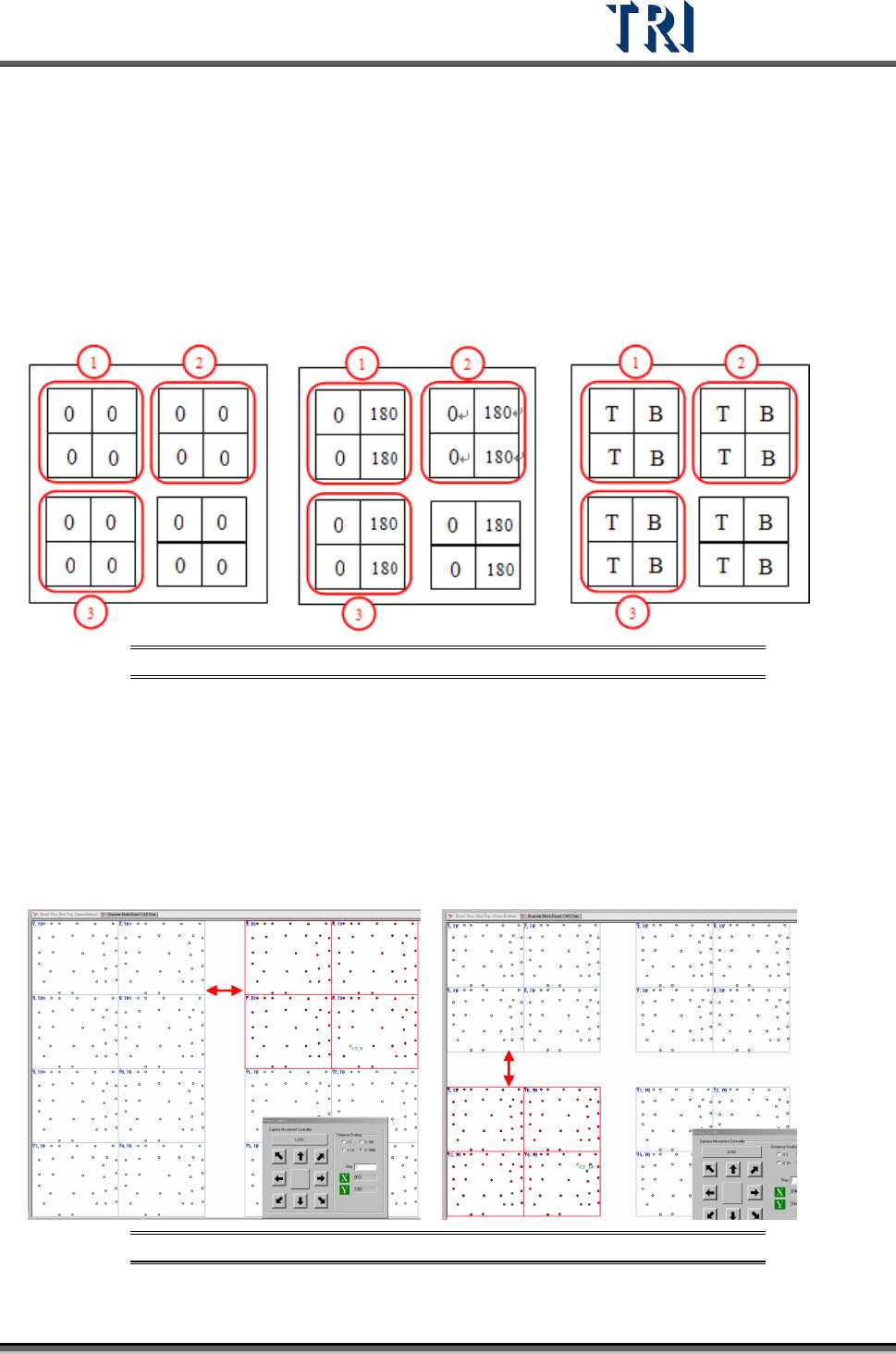
There are three main types for multi-boards, explained below.
Type 1 Type 2 Type3
Figure 406: Types of Panel Layout
Type 1
(1) Locate the Board 6 to get the gap between boards.
(2) Select the multi-boards in Block 2 by [Shift], then locate a component in Block 2 to get
the X direction gap between Blocks.
(3) Select the multi-boards in Block 3 by [Shift], then locate a component in Block 3 to get
the Y direction gap between Blocks.
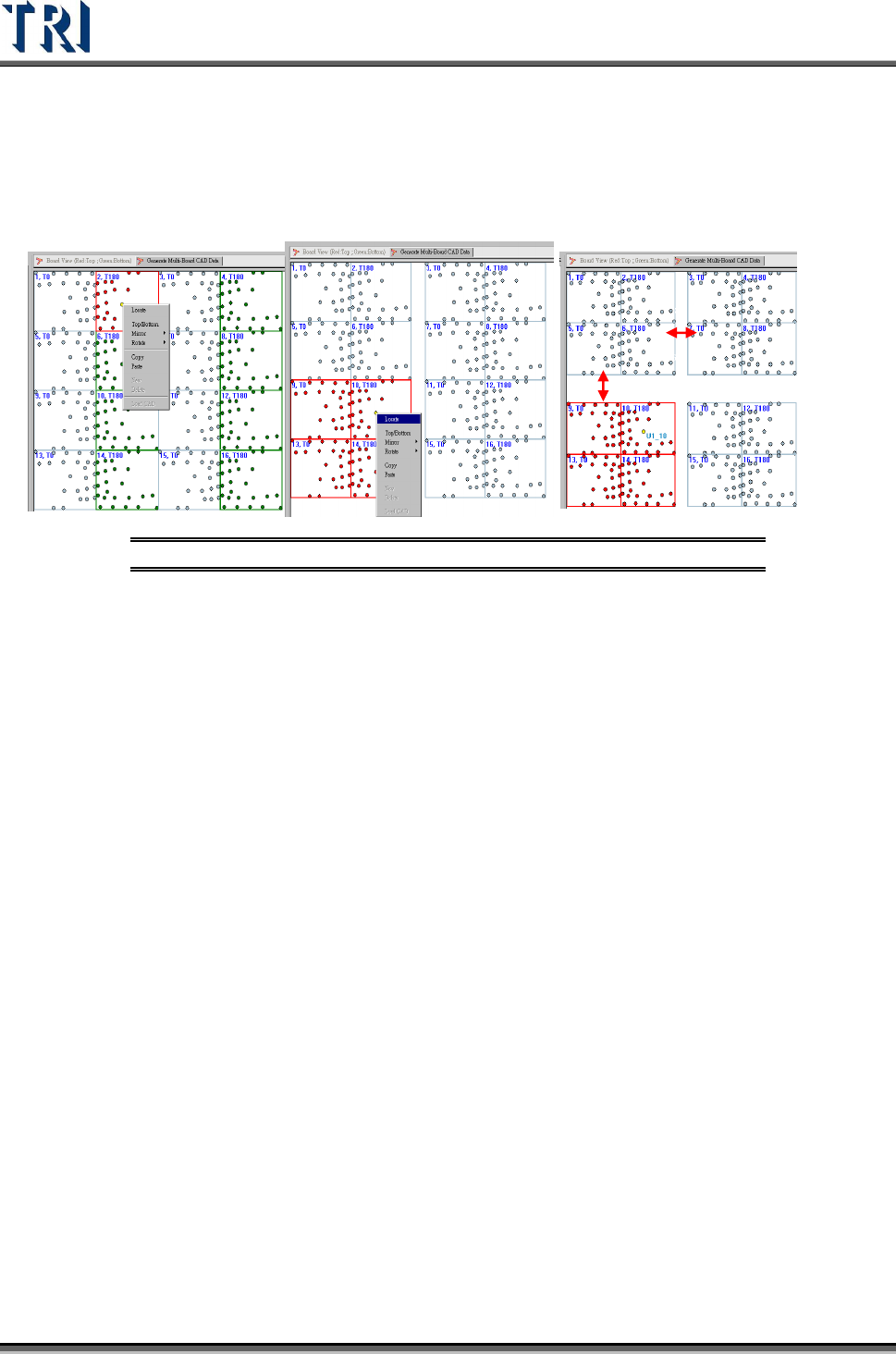
Figure 407:Type 1
X-Gap
Y-Gap
Test Research Inc.
244 TR7500 Series User Guide –Software v.2.9.0
Type 2 and 3
(1) Locate Board 2 and Board 5 to get the X and Y direction gaps.
(2) Select the multi-boards in Block 2 by [Shift], then locate a component in Block 2 to get
the Y direction gap between Blocks.
(3) Select the multi-boards in Block 3 by [Shift], then locate a component in Block 3 to get
the Y direction gap between Blocks.
Figure 408:Type 2 and Type 3