TR7500_Series_Software_v29_En.pdf - 第131页
Test Research Inc. TR7500 Series User Guide – Software v.2.9.0 109 Figure 177 : Bareboard Dia log [Yes] – The system wi ll check all the inspection b oxes by using reverse logic in order to make sure all the box es are…
Test Research Inc.
108 TR7500 Series User Guide –Software v.2.9.0
(3) [Test] – Set the selected box [test]
(4) [Train] – Train the selected inspection box.
(5) [Untest] –Set the selected box [Untest]
(6) [Untrain] – Untrain the selected inspection box.
[OK] – Press this button to modify the inspection box according to the conditions
above.
[Cancel] – Press this button to close the window and not to change parameters.
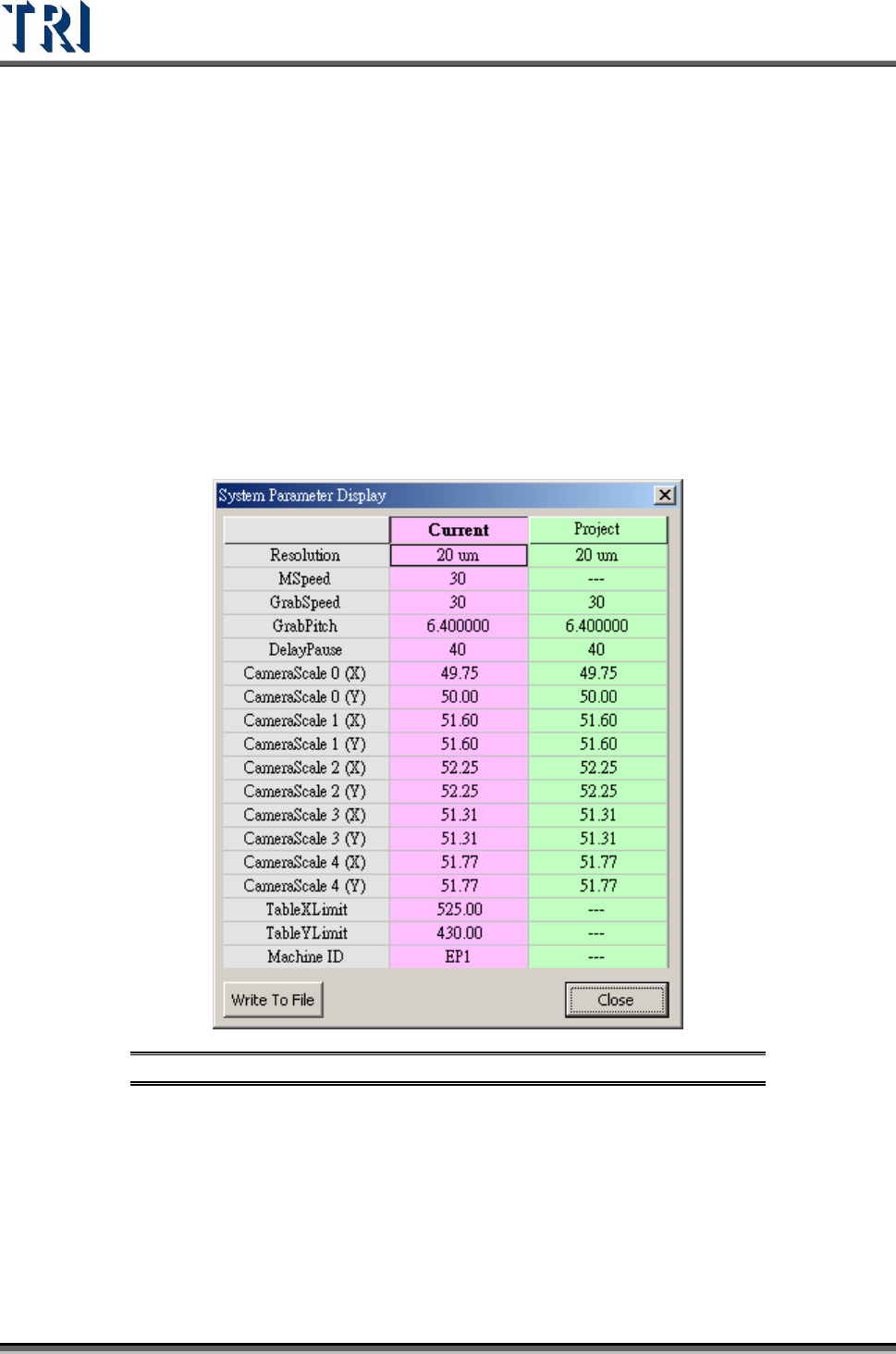
3.10.19 System Parameter Display
Press this item to review the system parameters and project parameters. After pressing
[Write To File], select a path to save the text file for these parameters. To change the
inspection speed for this project, key in “tspeed” and press [Enter] then modify the [Mspeed]
field of [Project] to set the speed. Note: If the speed set is more than the default, the system
may retry and can’t inspect.
Figure 176: System Parameter Display
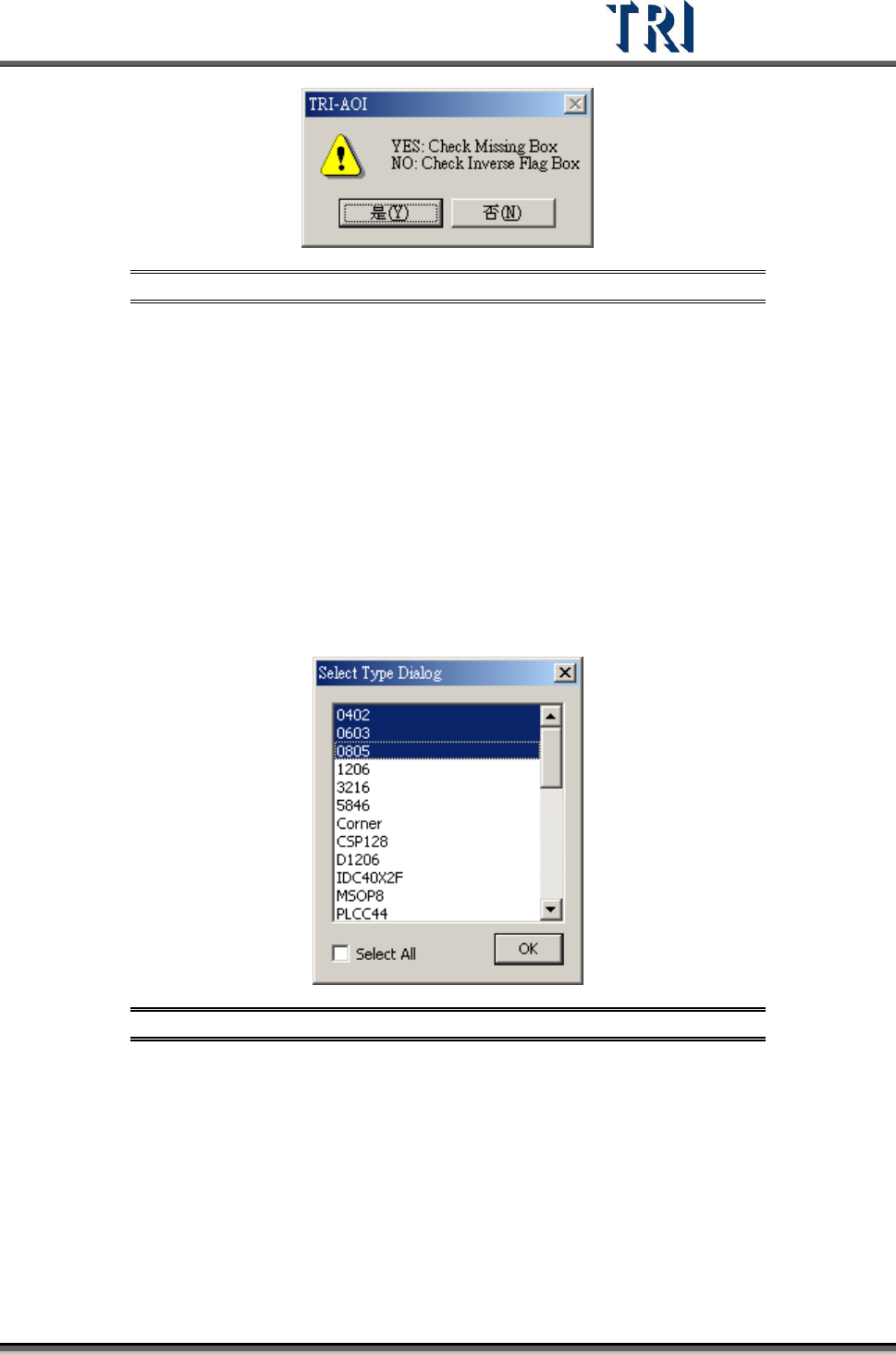
3.10.20 Bare Board
When this item is selected and inspection starts, the system only displays the passing
[Missing] box at the result dialog.
Test Research Inc.
TR7500 Series User Guide –Software v.2.9.0 109
Figure 177: Bareboard Dialog
[Yes] – The system will check all the inspection boxes by using reverse logic in
order to make sure all the boxes are functional
[No] – The system will check all the inspection boxes by using reverse logic
including those already set to [Inverse Logic].
3.10.21 Inspection Type Setting
This function is to display only the specified component(s) when inspecting. All components
on the board are still inspected but this shows the failure of specified components only. You
can start the function to help tuning.
When selecting [Inspection Type Setting], the following window shows. You can select one or
press [Ctrl] and select more components to enable. Then press [OK] to complete the setting.
Figure 178: Select Type Dialog
3.10.22 Auto Loading
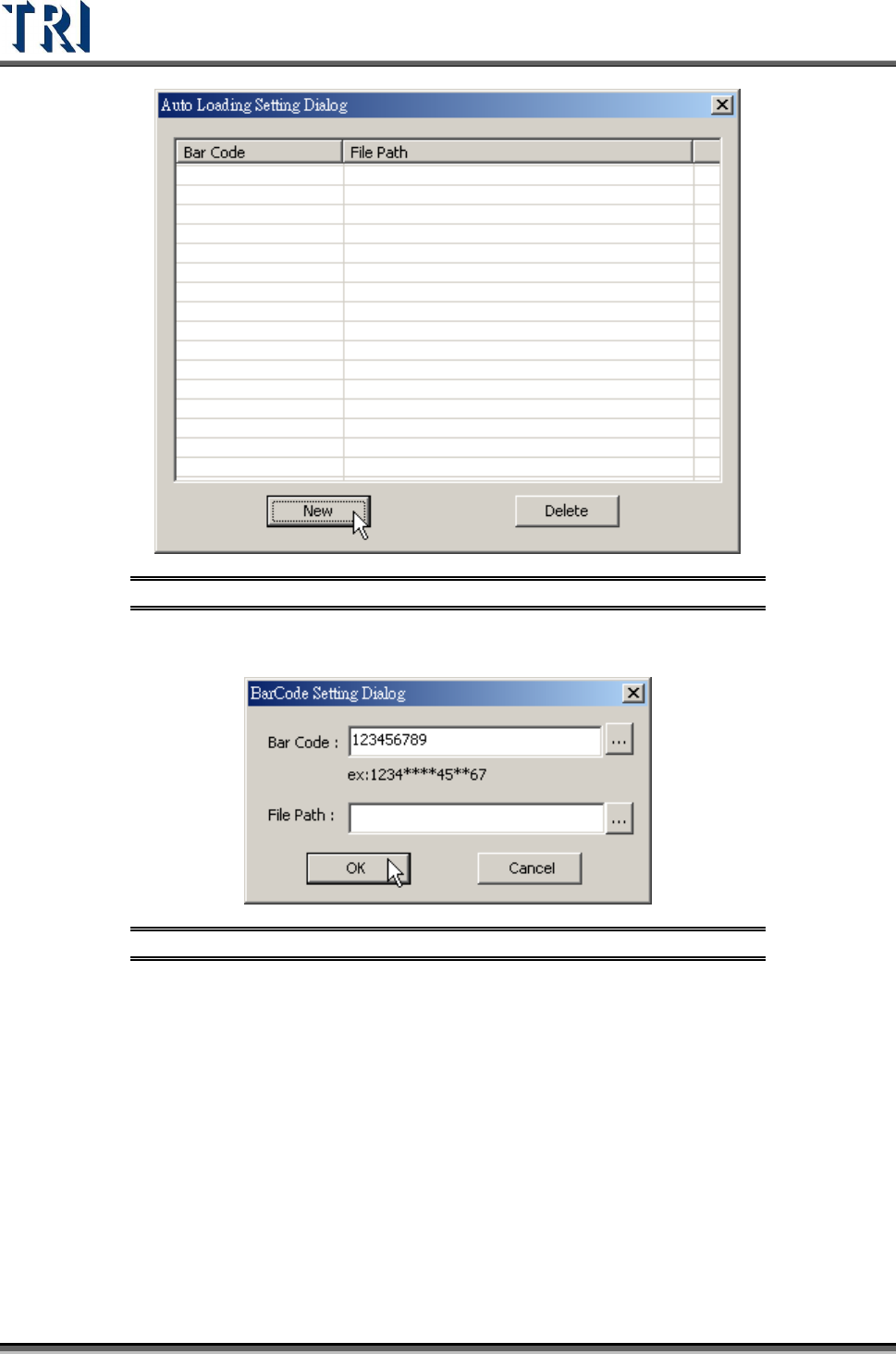
The [Auto-Loading] function allows the system to load a program according to the barcode.
Select [U
TILITY
>
A
UTO
L
OADING
>
E
NABLED
A
UTO
L
OADING
], the window below will be
displayed.
Test Research Inc.
110 TR7500 Series User Guide –Software v.2.9.0
Figure 179: Auto-Loading Setting Dialog
Press [New] to add a new entry.
Figure 180: Auto-Load Barcode Setting Dialog
Input the barcode pattern in the [Barcode] field and specify the program path
according to this specific pattern. [*] means any number.
After [Enabled Auto Loading] is activated, the system will always ask for the barcode
when a user loads a program. If the barcode does not match the saved barcode
pattern, the system will require a file path. Users can use the browse function to
redirect the path of the program file.
3.10.23 User Manager
This function works only if there is a DWORD, [LoginFlag], and the value in registry is [1].