TR7500_Series_Software_v29_En.pdf - 第279页
Test Research Inc. TR7500 Series User Guide – Software v.2.9.0 257 11.6.30 Get Inspection D ata For an untest [M issing] window , users can use thi s function to import alte rnative images with the same type as this w in…
Test Research Inc.
256 TR7500 Series User Guide –Software v.2.9.0
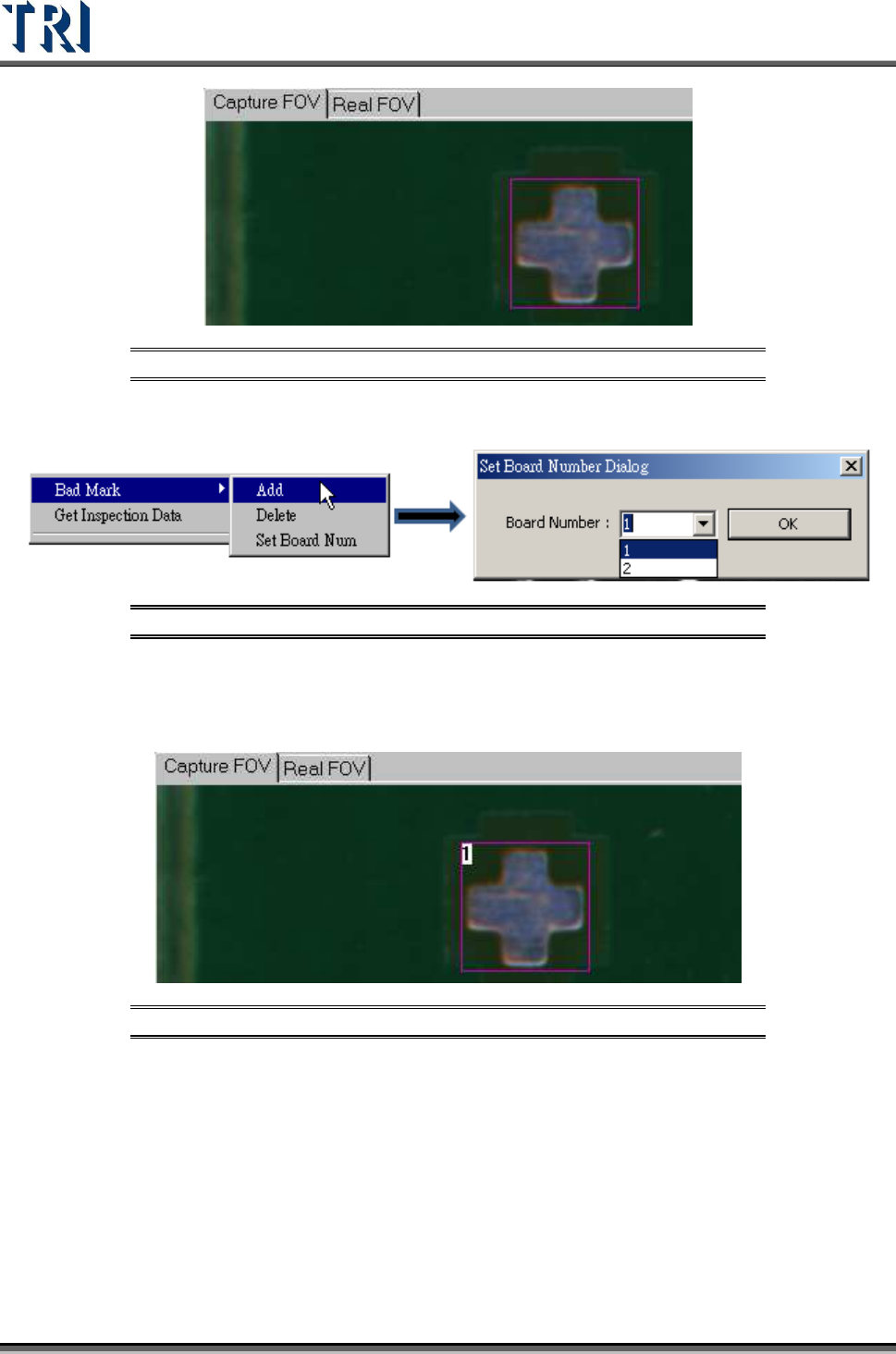
Figure 428: Set Bad Mark - 1
2. Right click mouse to add a [Bad Mark]
Figure 429: Bad Mark Dialog
3. Select the board number
4. The [Bad Mark] will show the board number inside of inspection box
Figure 430: Set Bad Mark - 2
5. Users may change the search range, image, and parameters of a [Bad Mark].
6. Under [Train] window, users may search for a [Bad Mark] by using [Find FOV by
Type/Name] and selecting [Bad Mark] under [Type].
7. Users may change the [Bad Mark] inspection box to inverse logic by right-clicking the
mouse on the inspection box and selecting [Inverse Logic].
Test Research Inc.
TR7500 Series User Guide –Software v.2.9.0 257
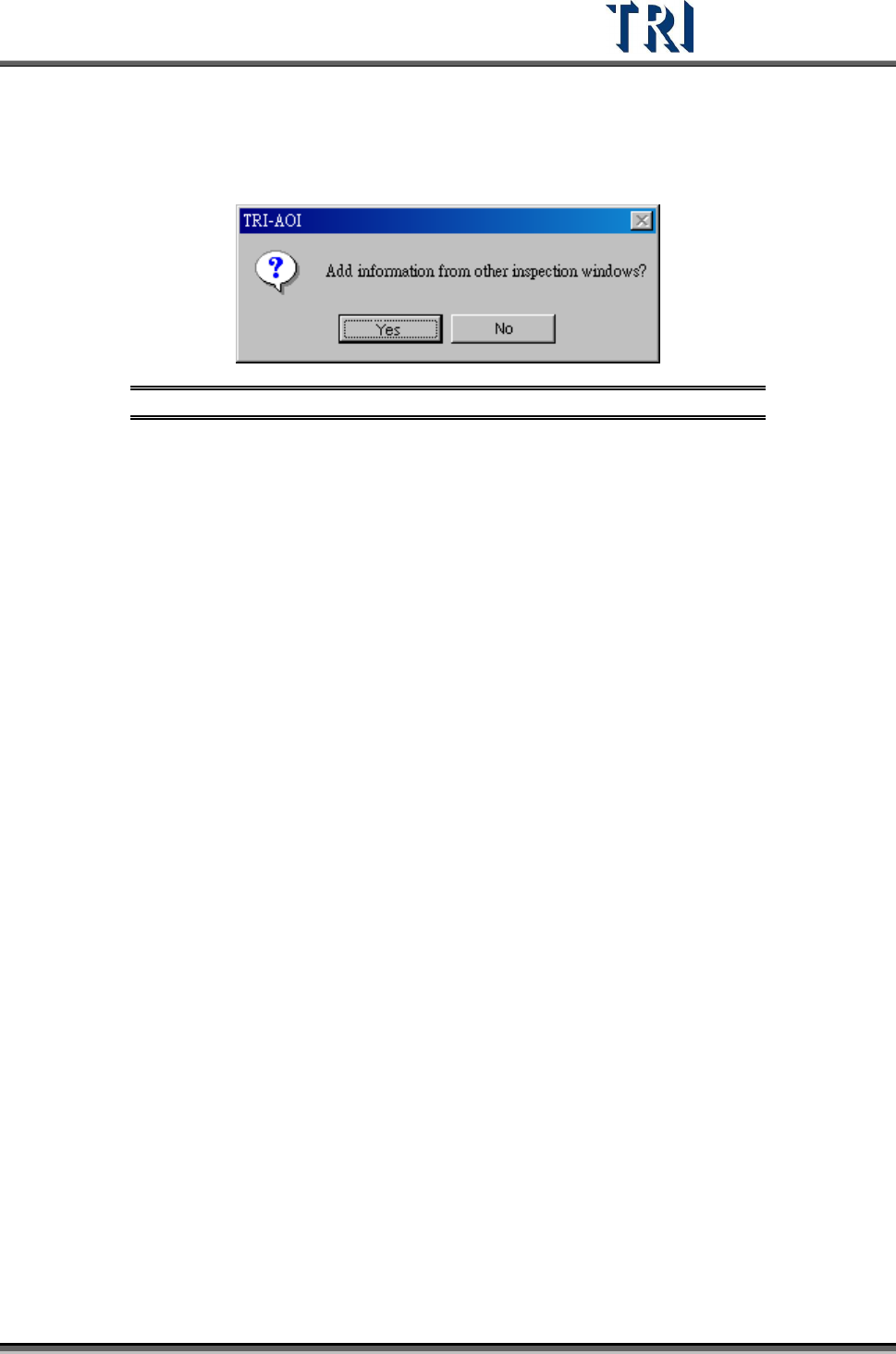
11.6.30 Get Inspection Data
For an untest [Missing] window, users can use this function to import alternative images with
the same type as this window.
Figure 431: Get Inspection Data Dialog
Test Research Inc.
258 TR7500 Series User Guide –Software v.2.9.0
11.7 FOV Image Boxes/Colors
Purple – Multi-function window. Select a [Missing/Missing Polarity] or [Lead] box
and double click on the multi-function window. The multi-function window will be
moved to the selected window.
Orange – Untrained box.
Dark blue – Untested inspection window.
Gray – Untested component.
Red – Selected box. Double-click one box and the system will automatically select
all the inspection boxes that are linked with the selected box.
Light Blue – The inspection boxes in other FOVs.
Light Purple – [Missing/Missing Polarity] or [Lead]
Light Green – Inspection boxes except [Missing/Missing Polarity/Lead].
11.8 Mouse Function in FOV Image
Left-click mouse once on any inspection box to select the box. Clicking twice will
automatically select all the linked inspection boxes of the component.
Press and hold [Alt], and left-click the mouse twice to pick an inspection box, and all the
boxes with the same inspection method will be selected as well.