TR7500_Series_Software_v29_En.pdf - 第146页
Test Research Inc. 124 TR7500 Series User Guid e –Softwa re v.2.9.0 Figure 206 : BOM File Comp onents Set to ‘ Test’ [Version] – Define the current input co m ponent version. [Placement] – Input the placement machine nam…
Test Research Inc.
TR7500 Series User Guide –Software v.2.9.0 123
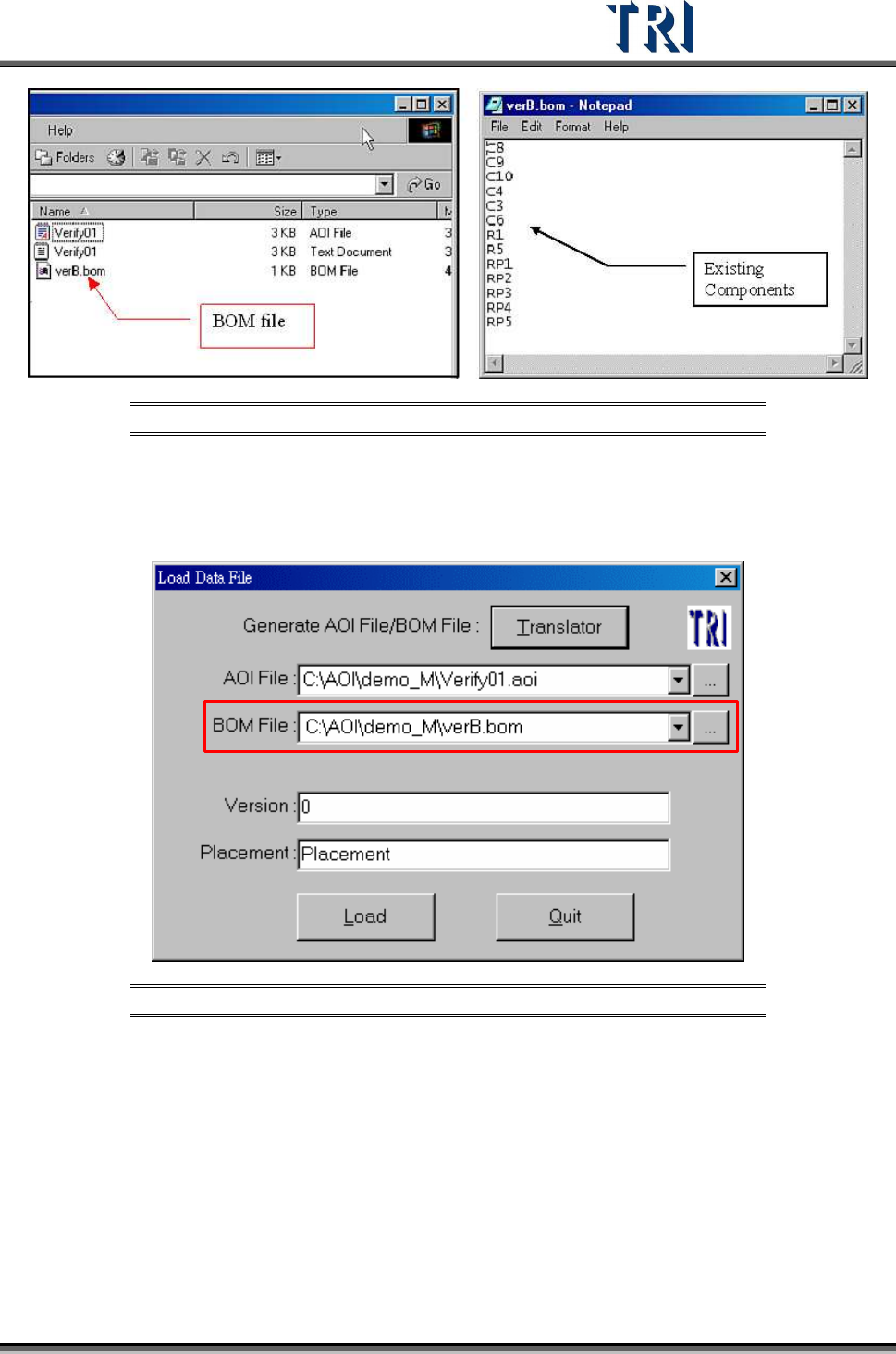
Figure 204: Select BOM File (left) & BOM File Format
b. Translate BOM file.
c. Display the function.
i. Load AOI file with BOM file
Figure 205: Load Data File Dialog
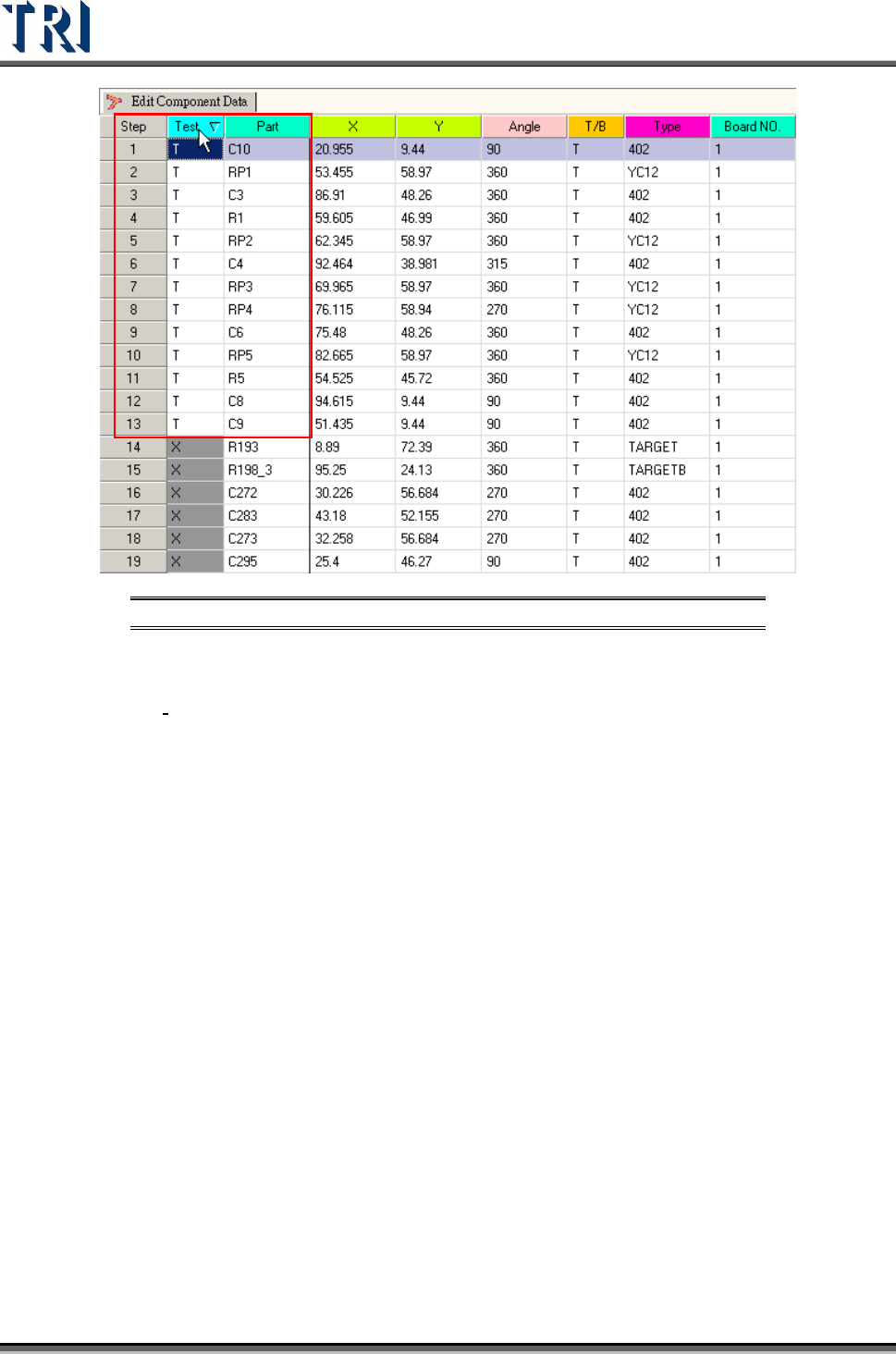
ii. The components from the BOM file are set as “Test” in the Component Data list.
Test Research Inc.
124 TR7500 Series User Guide –Software v.2.9.0
Figure 206: BOM File Components Set to ‘Test’
[Version] – Define the current input component version.
[Placement]
– Input the placement machine name.
[Load] – Load AOI (BOM) data file and enter the next step.
[Quit] – Exit load AOI (BOM) data file.
Test Research Inc.
TR7500 Series User Guide –Software v.2.9.0 125
4.2 File Translator
4.2.1 File Translator Dialog
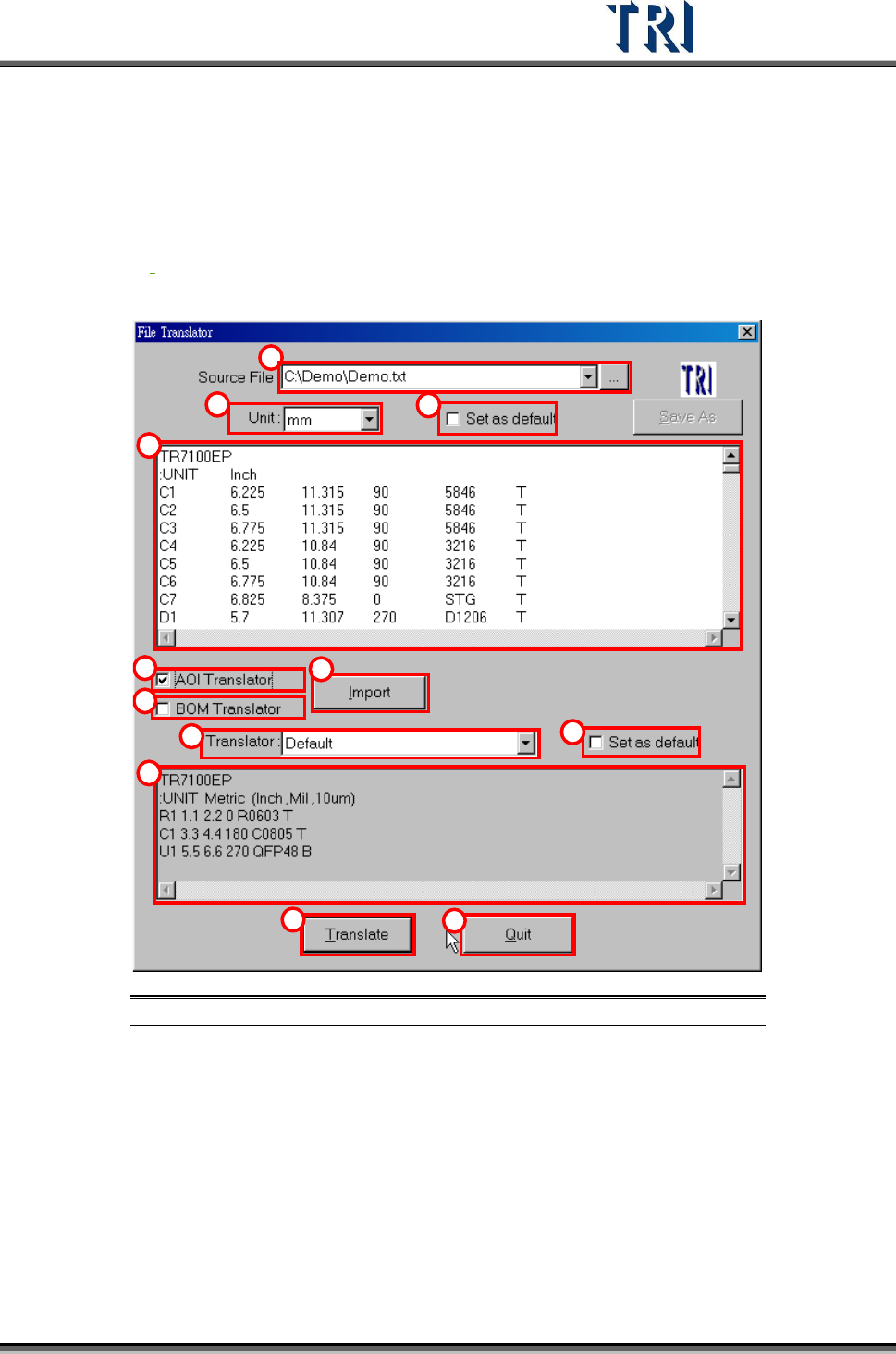
In section 4.1 by clicking on “Translator” in the “Load Data File” dialog, the program will enter
the “File Translator” dialog as follows.
1
2
3
4
5
6
7
8
9
10
11
12
Figure 207: File Translator Window & Functions
(1). [Source File] – Input the path of original CAD file.
(2). [Unit] – Define translate unit. This must be the same as the CAD file.
(3). [Set as Default] – Use current unit setting as default.
(4). [Message Window] – Display the source file contents.
(5). [AOI Translator] – Check to translate CAD to AOI file.