TR7500_Series_Software_v29_En.pdf - 第192页
Test Research Inc. 170 TR7500 Series User Guid e –Softwa re v.2.9.0 Figure 281 : Component Lib rary Dialog
Test Research Inc.
TR7500 Series User Guide –Software v.2.9.0 169
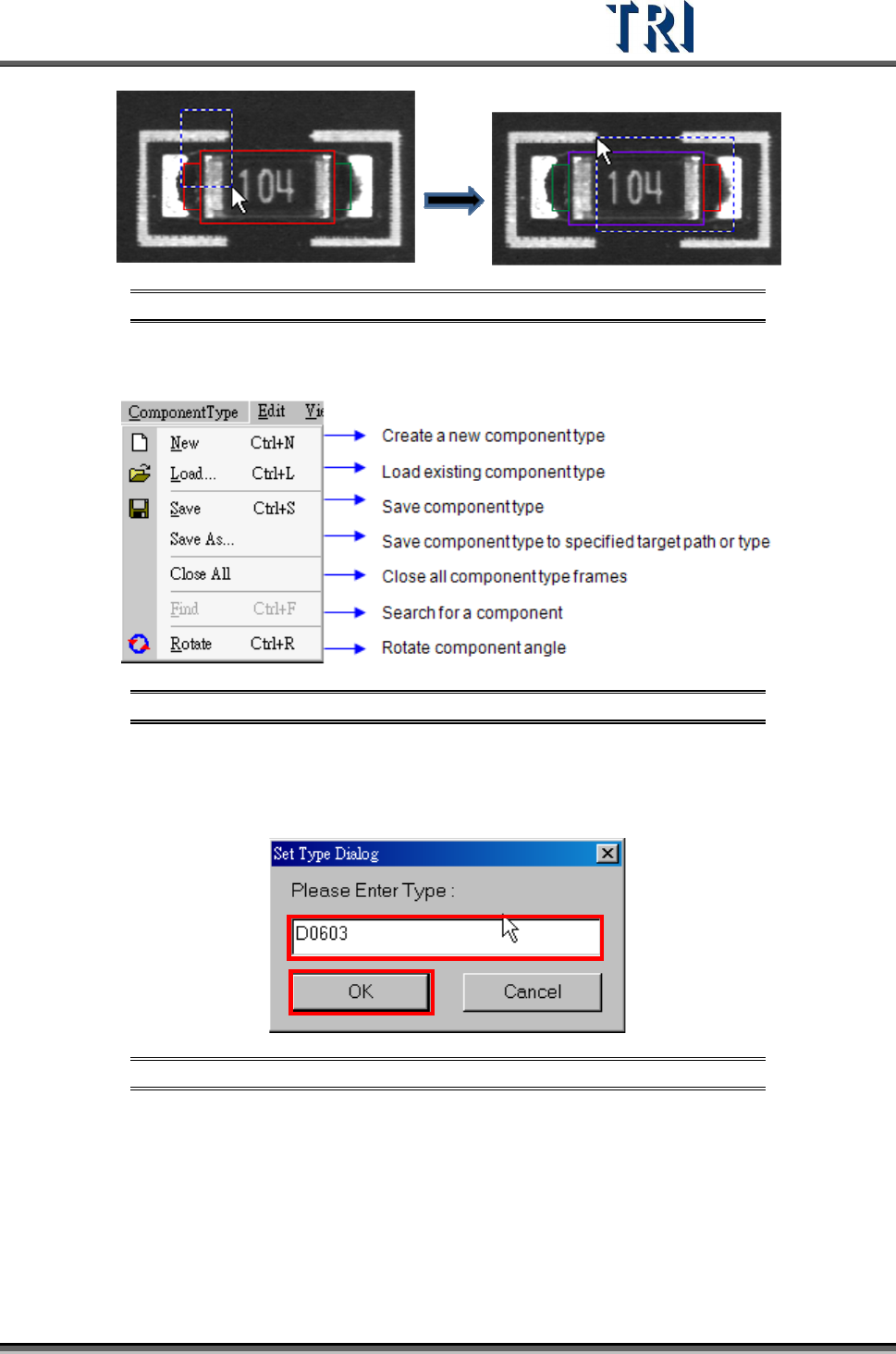
Figure 278: Use Mouse to Select Boxes
8.1 Component Type Command
Figure 279: Component Type Command
8.1.1 New
Use this function to create a new type and edit its library.
Figure 280: Set Component Type Dialog
8.1.2 Load..
Load existing library to the current component from the package library folder. It will load all
information except image.
Test Research Inc.
170 TR7500 Series User Guide –Software v.2.9.0
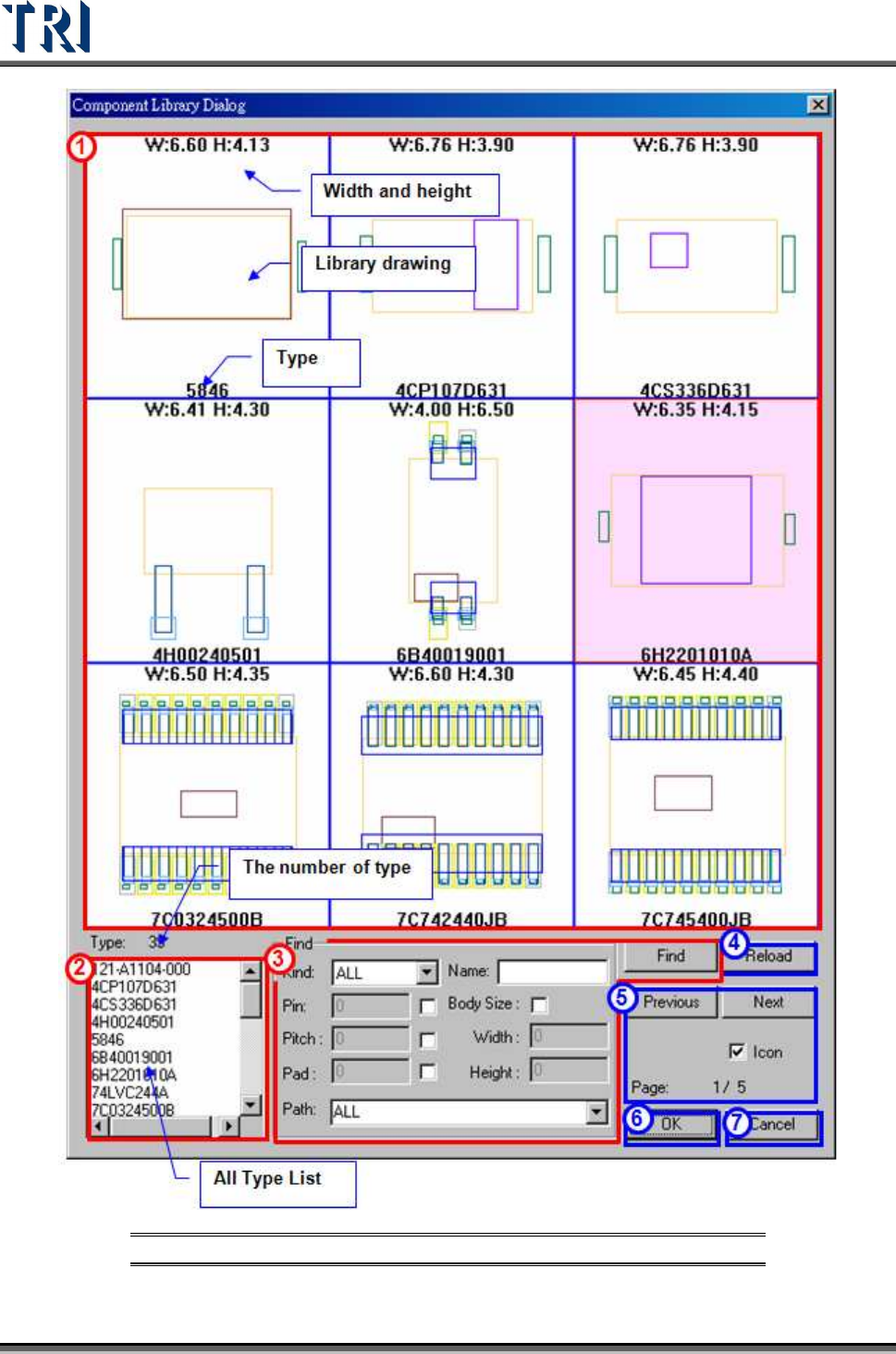
Figure 281: Component Library Dialog
Test Research Inc.
TR7500 Series User Guide –Software v.2.9.0 171
(1). Sketch area– Show information of library including size of body, drawing of
library by type.
(2). [Type] list– List all types in library folder
(3). [Find] area– Input specific conditions, then press [Find] button to search the
library.
[Kind]– System classifies all components into IC, CHIP, Other and so on
automatically.
[Pin]– You can input the number of pins as a condition, and input “-1” to
search library with all pins.
[Name]– You can search library with keying a part of the type name.
[Path]– Input the path of library folder. The default is “C:\AOI\PackageLibrary”.
[Find]– Press to start finding.
(4). [Reload]– Press to refresh the library information.
(5). [Previous, Next]– Press to show the previous and the next library.
(6). [Icon] – Click on this option to view the real component image. The saved real
image will be shown and not the box layout. Refer to the following figure.