TR7500_Series_Software_v29_En.pdf - 第289页
Test Research Inc. TR7500 Series User Guide – Software v.2.9.0 267 [Set to Lib] – Use this fun ction to save the alte r native image back to Package Library and Image Library. Select an ima g e first and press [Se t to…
Test Research Inc.
266 TR7500 Series User Guide –Software v.2.9.0
Figure 446: Remove Image Dialog
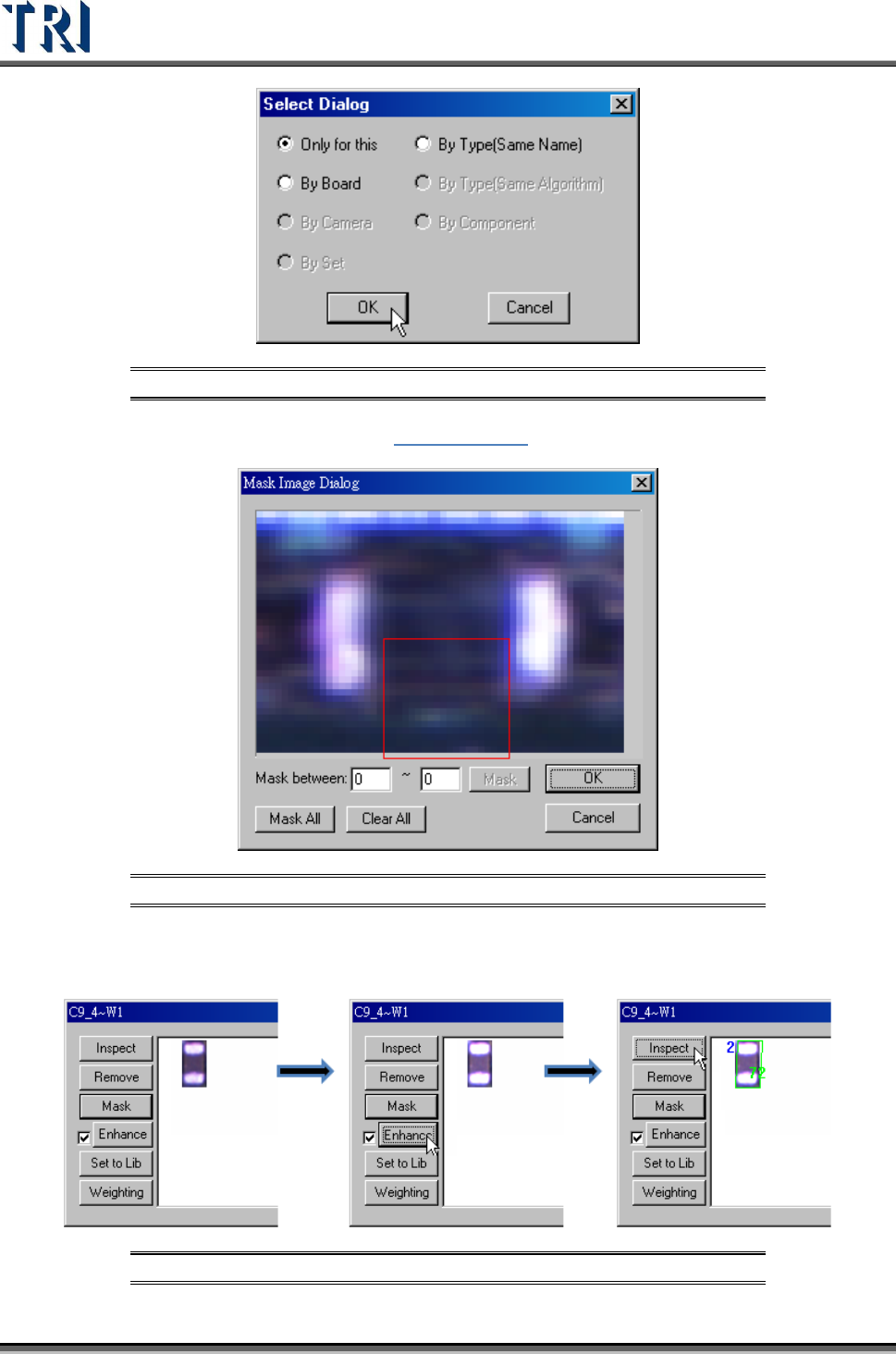
[Mask] – Mask the image. See 8.7.3 Property for reference.
Figure 447: Mask Image Dialog
Enhance – Enhance the brightness and contrast for an alternative image. Unselect
the check box to recover the original image.
Figure 448: Enhance Image Process
Test Research Inc.
TR7500 Series User Guide –Software v.2.9.0 267
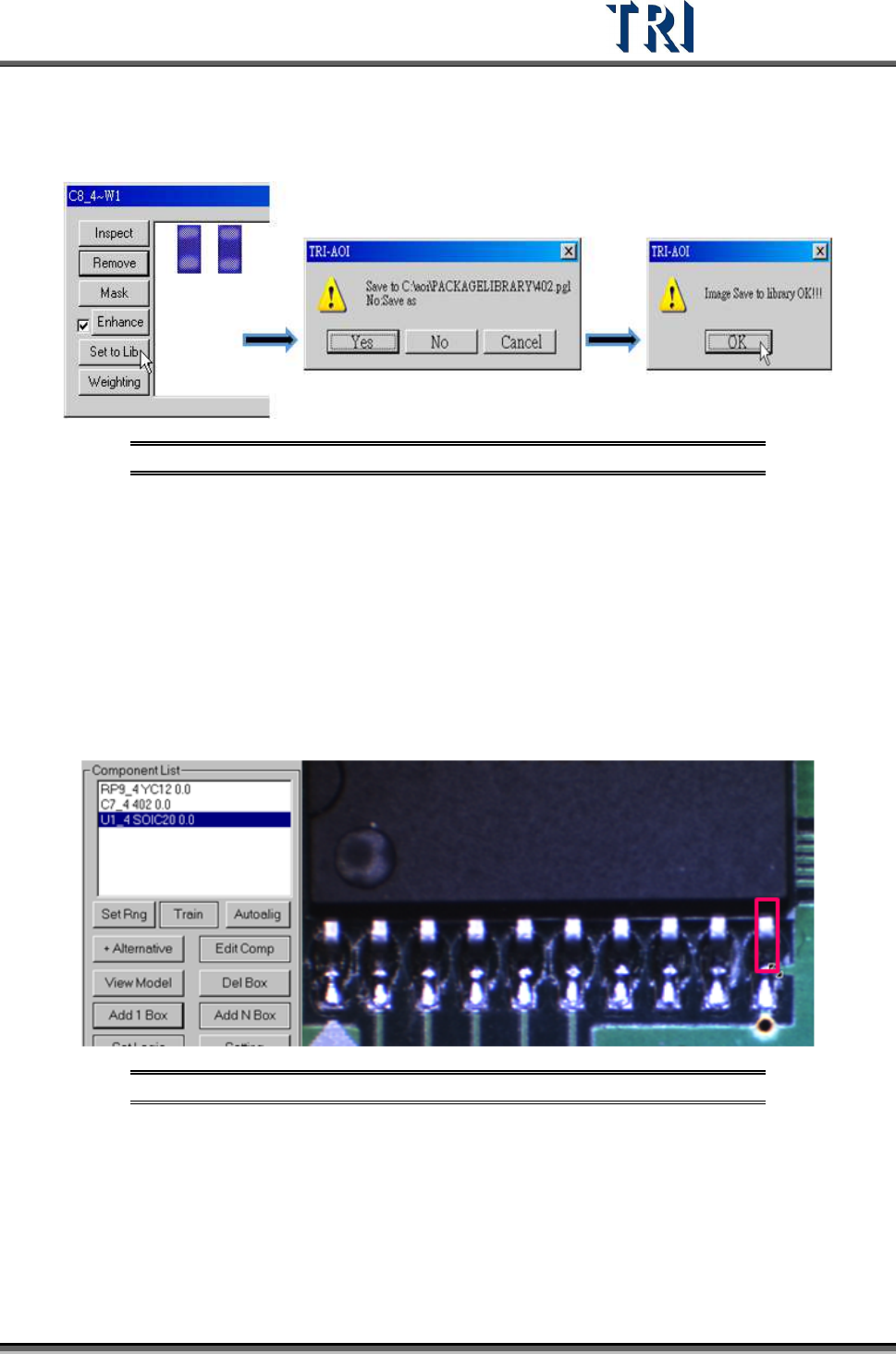
[Set to Lib] – Use this function to save the alternative image back to Package
Library and Image Library. Select an image first and press [Set to Lib]. Then input
the file name and press [Open] to finish setting.
Figure 449: Save Image to Library Process
11.9.2.7 Delete Box
Select an inspection box then press [Delete Box] to delete it.
11.9.2.8 Add 1 Box
Press the button to add an inspection box for the selected component.
Setting Steps
Step1. Select a component and adjust the multi-function window to the size and
position of the inspection box to be added.
Figure 450: Adjust Multi-Function Window
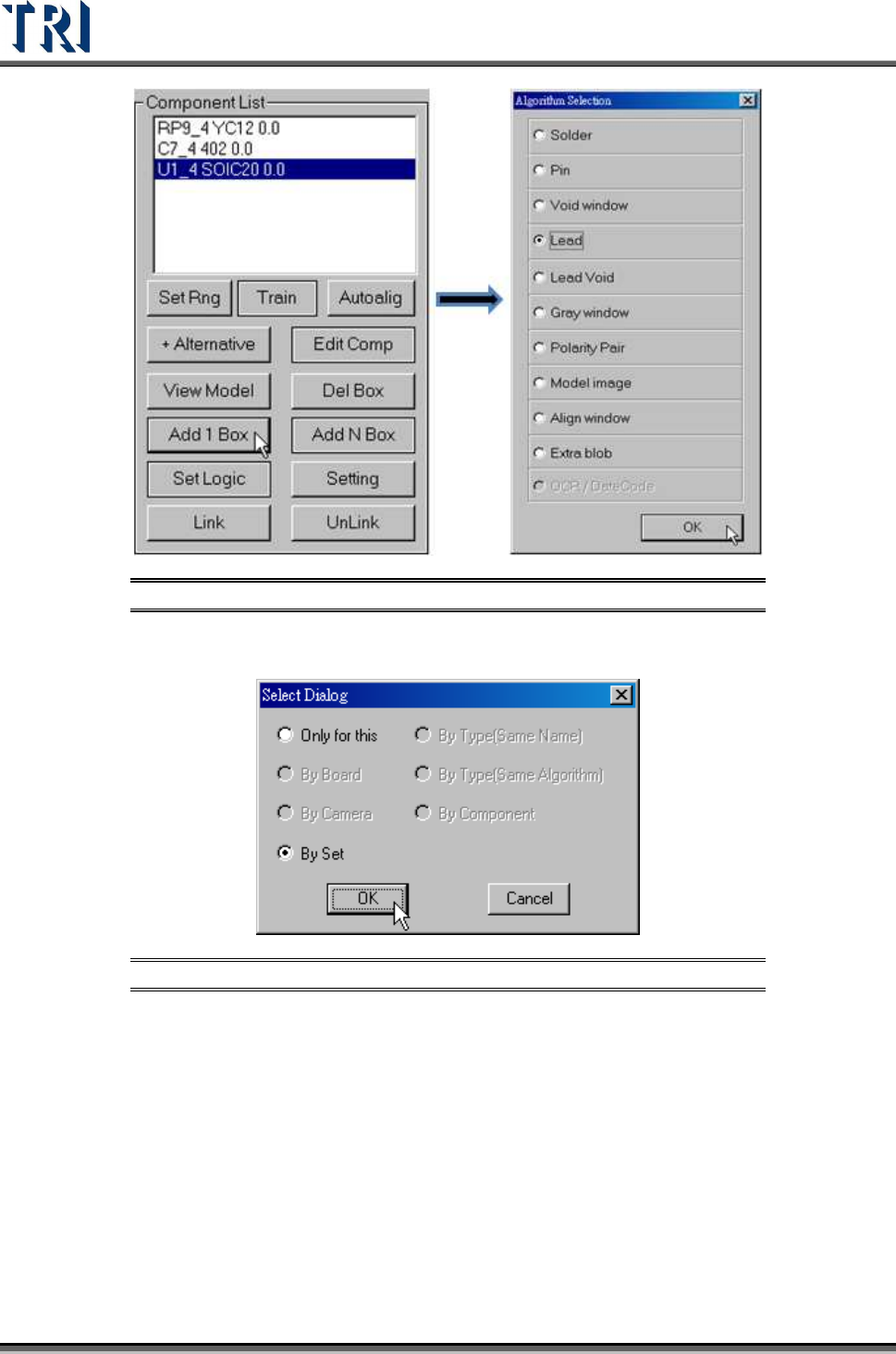
Step2. Press [Add 1 Box] button and select the inspection algorithm.
Test Research Inc.
268 TR7500 Series User Guide –Software v.2.9.0
Figure 451: Add 1 Box & Select Algorithm
Step3. Select the rules to apply the setting.
Figure 452: Select Box Dialog
Step4. Finish adding an inspection box.