TR7500_Series_Software_v29_En.pdf - 第153页
Test Research Inc. TR7500 Series User Guide – Software v.2.9.0 131 C li c k r ig h t b u t t o n o f m o u s e t o s h o w t h e t o o l b a r Figure 212 : Board View Wi ndow – View & Find Option s Figure 213 : Board…
Test Research Inc.
130 TR7500 Series User Guide –Software v.2.9.0
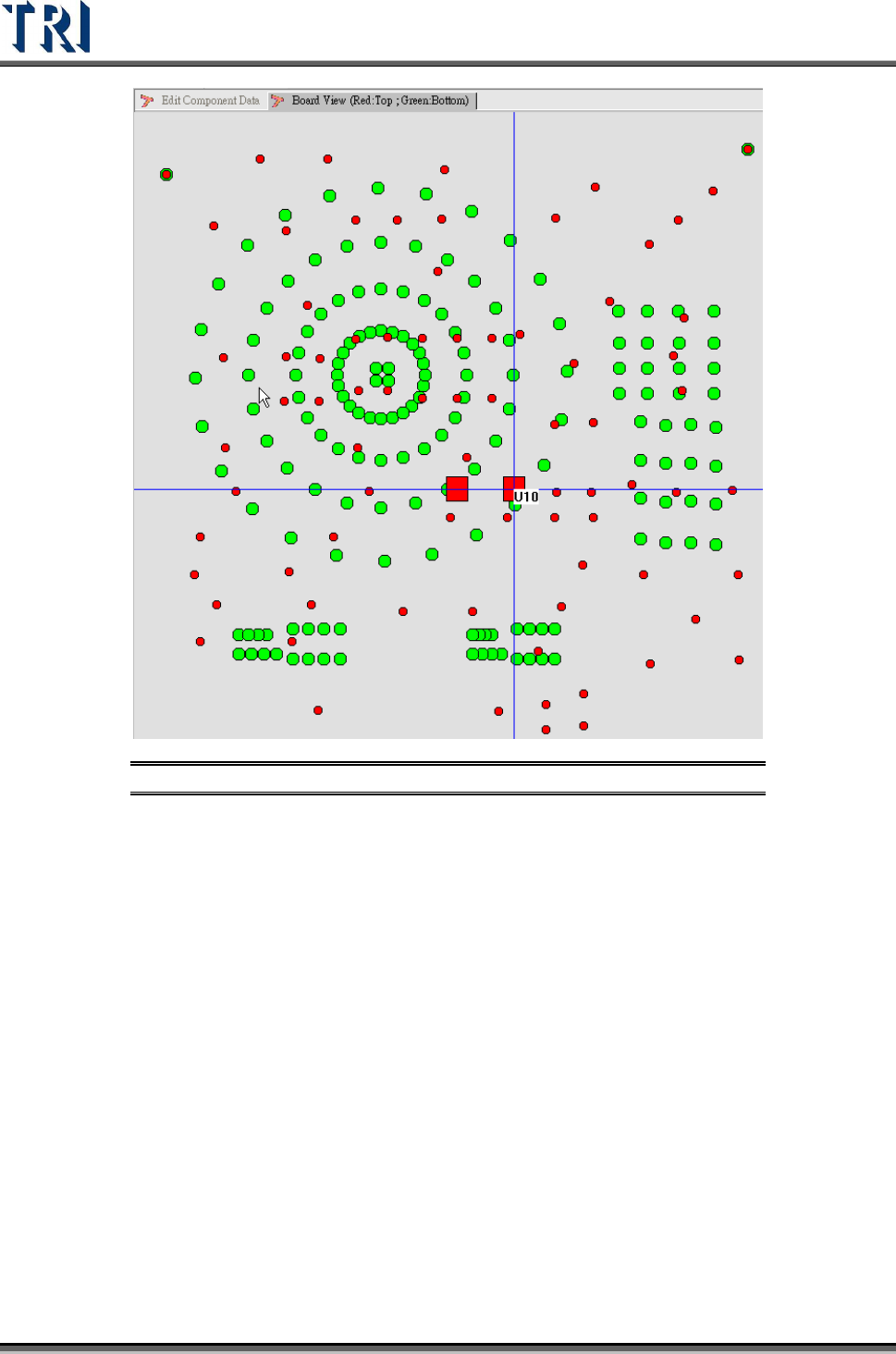
Figure 211: Board View Window
The red points display components on the board’s top side and the green points display
components on the bottom. A square means that its library exists in the [Packagelibrary]
folder.
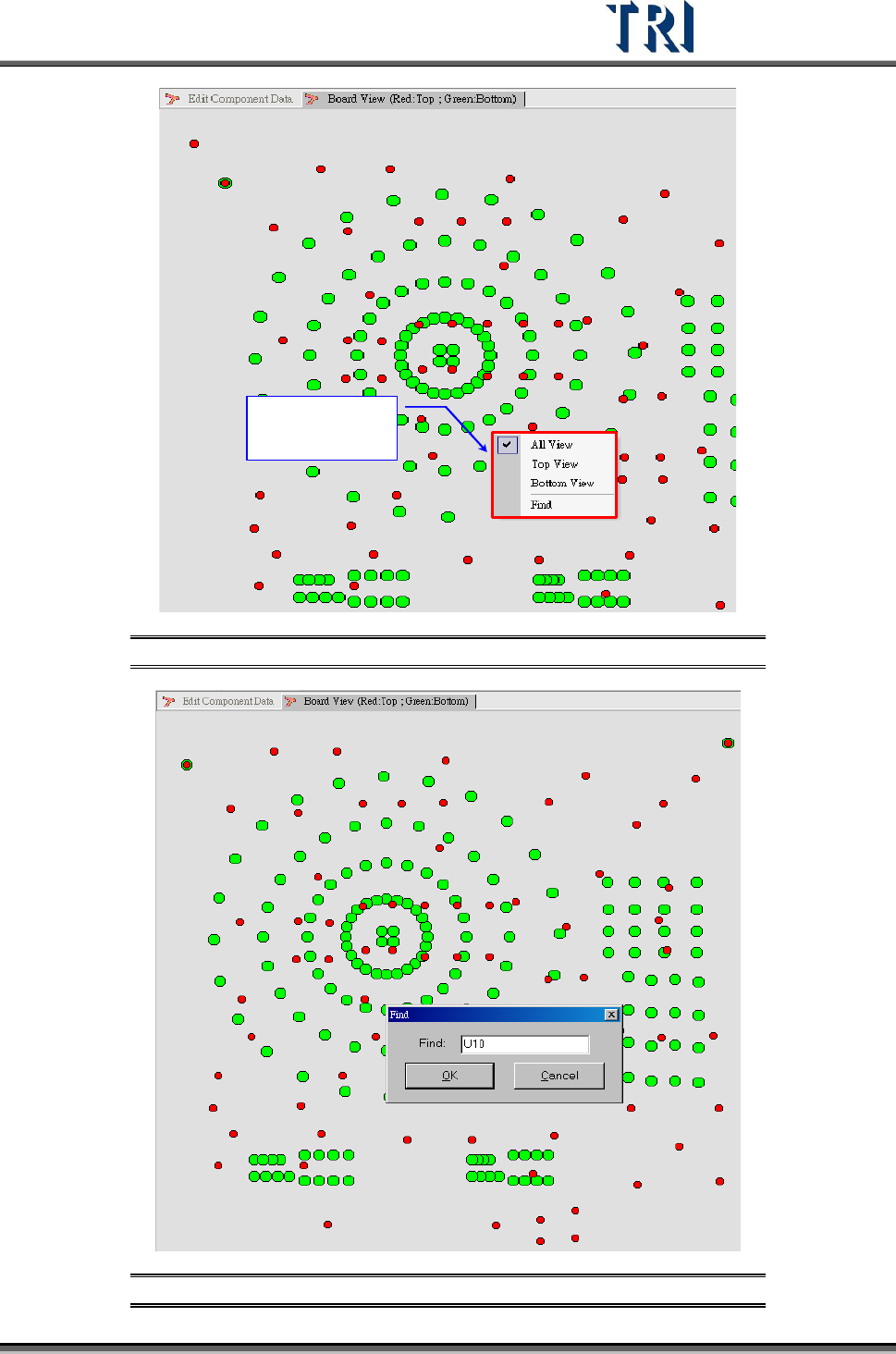
Right-clicking the mouse in this window allows selection of a specified side or a specific
component to review.
Test Research Inc.
TR7500 Series User Guide –Software v.2.9.0 131
C lick rig ht button
of m o use to show
the to olbar
Figure 212: Board View Window – View & Find Options
Figure 213: Board View Window – Find Command
Test Research Inc.
132 TR7500 Series User Guide –Software v.2.9.0
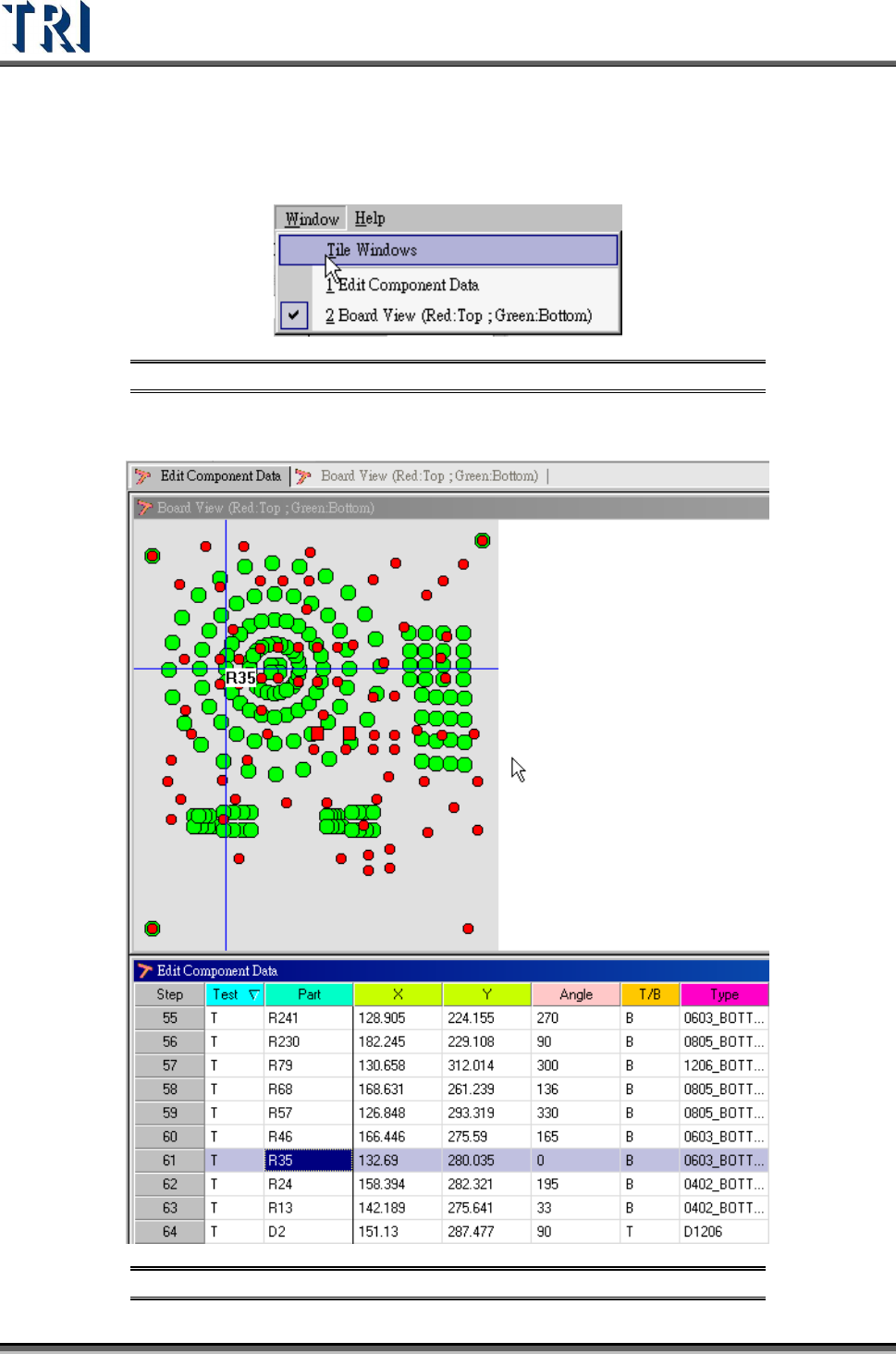
In order to find the mapping of components easily, select [Tile Windows] on the main tool bar.
This function puts the [Board View] and [Edit Component Data] windows together. Select a
component on the [Board View] window to show its information on the corresponding
[Component Data] window and vice versa.
Figure 214: Tile Windows Command
After selecting [W
INDOW
>
T
ILE
W
INDOW
] the screen will look like the figure below.
Figure 215: Tile Windows Result -- Board View (top) & Component Data