TR7500_Series_Software_v29_En.pdf - 第71页
Test Research Inc. TR7500 Series User Guide – Software v.2.9.0 49 3.3.3 Connect Project Server & Project Serve r Setting W he n the project server is installed use r s may access and control all projects in the AOI s…
Test Research Inc.
48 TR7500 Series User Guide –Software v.2.9.0
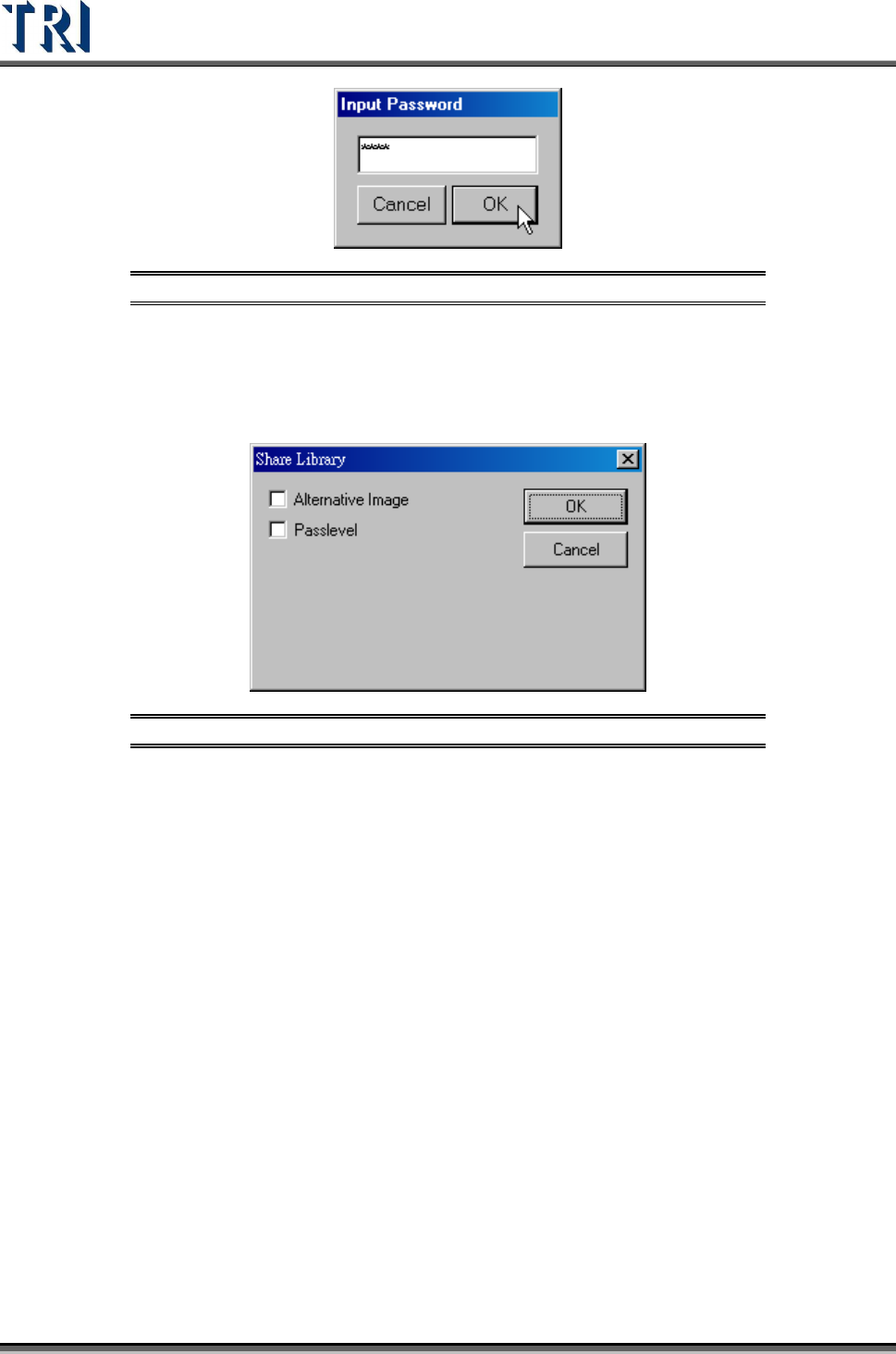
Figure 87: Inverse Pass/Fail Output Password Dialog
3.3.2.6 Share Library Mode
Choosing the [Share Library] function allows users to share an [Alternative Image] or [Pass
Level] of one project with other projects.
Figure 88: Share Library Dialog
[Alternative Image]
[Add Alternate Image]. When a user adds an alternative image to a project,
the system will ask if the user wants to set/share this image to the [Library]. If
yes, the alternative image will be saved to both the current project and the
[Library]. This allows the image to be shared with other projects. If no, the
image is saved to the current project only and is not shared.
[Delete Alternate Image]. When a user wants to delete an alternative image,
the system will ask if the user wants to delete the image from the [Library]. If
yes, the image will be deleted from both the [Library] and the current project.
If no, the image will be deleted from the current project only.
[Refresh the Alternative Image Automatically]. When a project is loaded, the
system will compare the differences between the project images and the
[Library] images. The project images will be updated based on the [Library]
images.
[Pass Level]
If [Pass Level] is selected from the [Share Library] dialog (see Figure 88), the
system will automatically upload all inspection box variables to the [Library]
after the user has changed them. These variables will be loaded into each
[.pre] or [.prj] file type inspection box from [Library]. Inspection box variables
which do not previously exist in the [Library] cannot be changed by this
command.
Test Research Inc.
TR7500 Series User Guide –Software v.2.9.0 49
3.3.3 Connect Project Server & Project Server Setting
When the project server is installed users may access and control all projects in the AOI
system through the [Project Server] function.
1. Select [Project Server Setting]
2. When the [Project Server] dialog appears, enter the appropriate information in the fields.
3. Click on [Save].
4. Open [Connect Project Server] to enter [Link] mode.
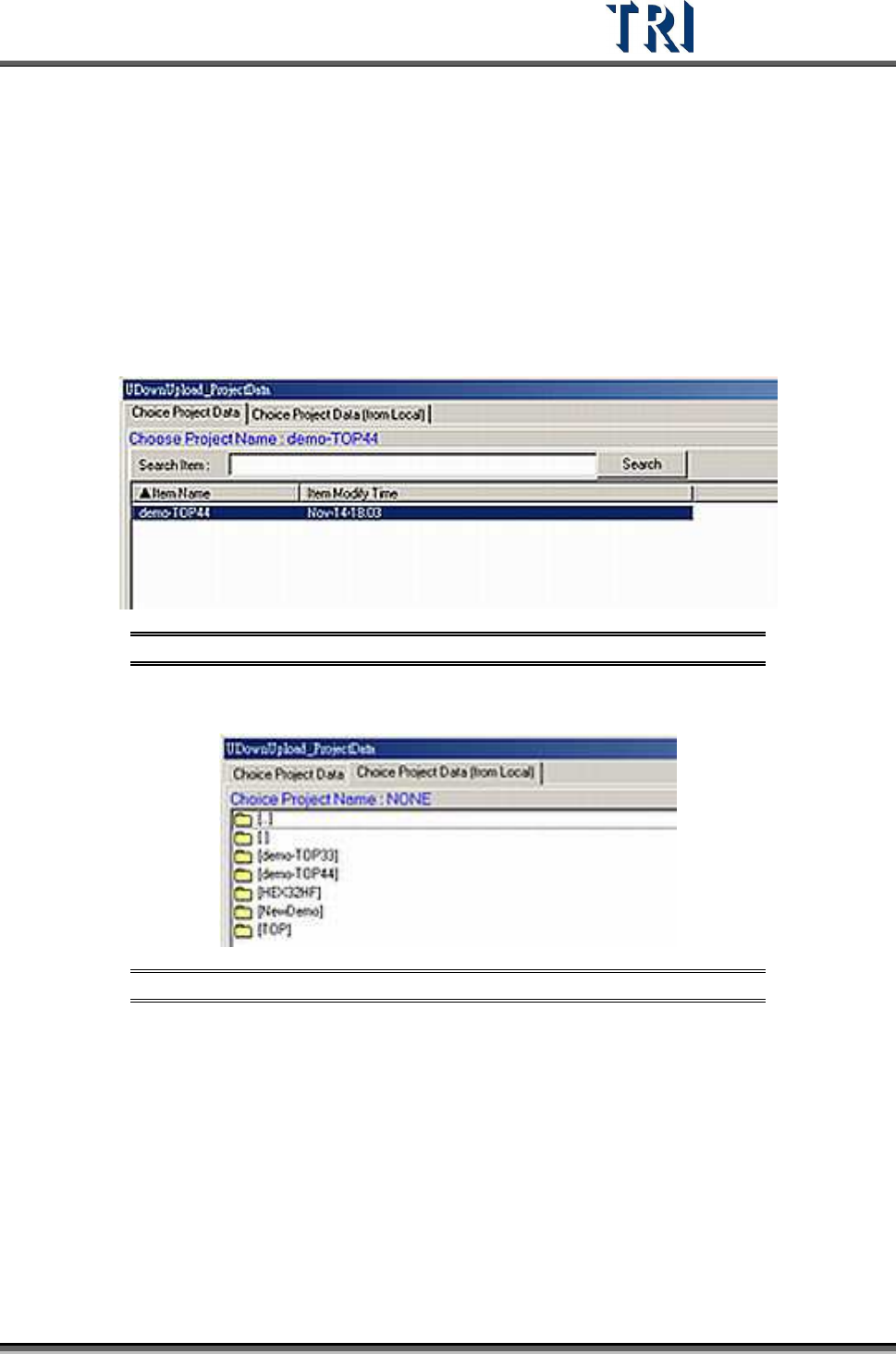
5. The [Project Server] dialog will appear (see figure below). Select the project to download.
Figure 89: Project Server Dialog
6. User may download the local project by selecting [Choose Project Data(from Local)]
Figure 90: Project Server Dialog – Choose Project from Local
7. After saving each program, the system will automatically save and upload the project
back to the [Project Server] under [Link] mode.
Test Research Inc.
50 TR7500 Series User Guide –Software v.2.9.0
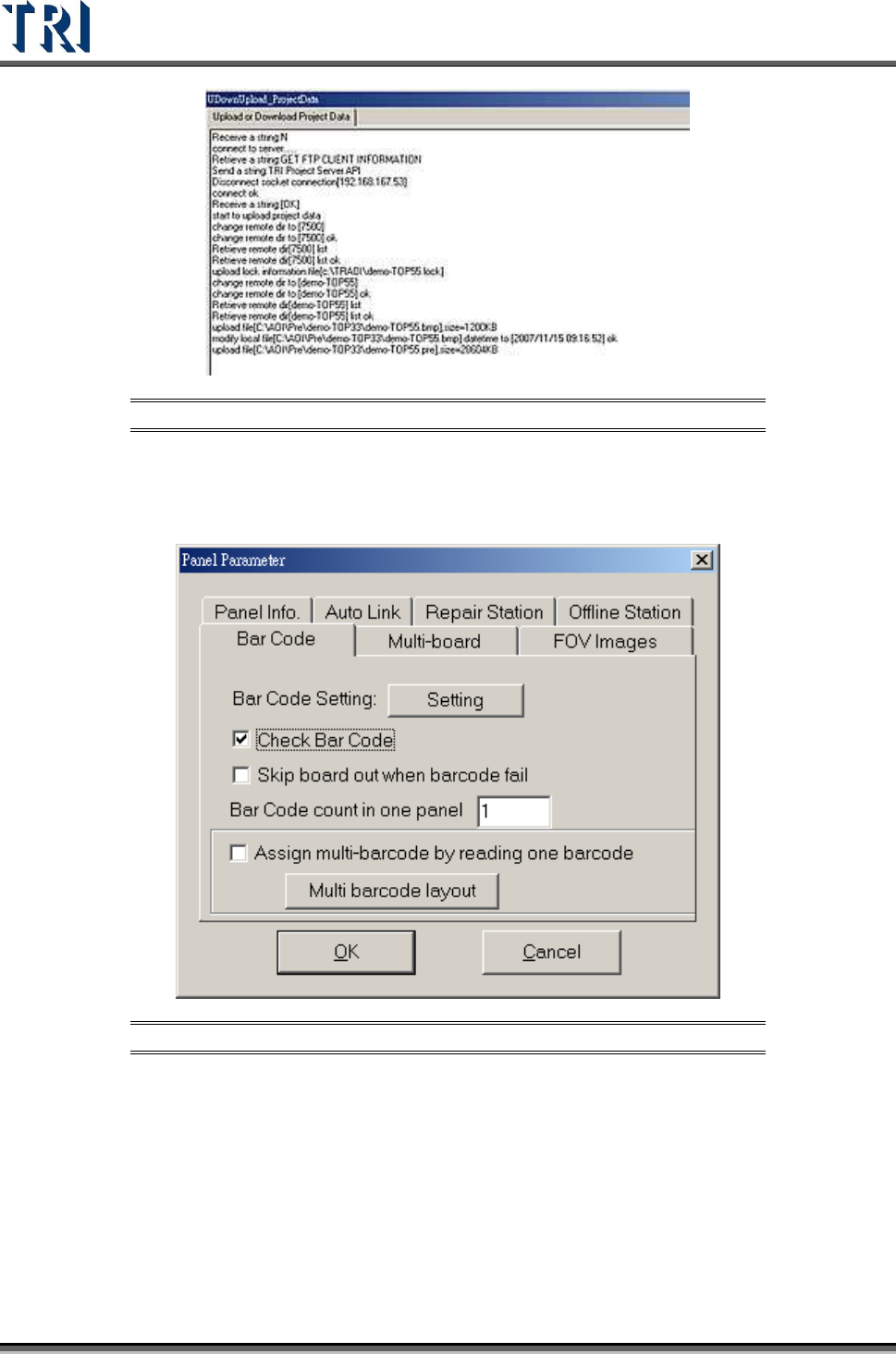
Figure 91: Upload/Download Project Data
3.3.4 Panel Parameter
3.3.4.1 Bar Code Tab
Figure 92: Panel Parameter Screen – Bar Code Tab
[Setting] – Press this button is to enter the Barcode Setting Dialog.
[Check Barcode] –Check to start the function of reading barcode. It must read
barcode before inspecting.
[Barcode count in one panel] – Input the number of barcodes to read on the whole
panel.
[Assign multi-barcode by reading one barcode] – When there is a regular
arrangement of the barcode, this function can be used to read only one barcode
and the system can calculate the others. If the PCB is sent to the machine from the