TR7500_Series_Software_v29_En.pdf - 第26页
Test Research Inc. 4 TR7500 Series User Guide – Software v.2.9.0 1. Browse CAD file path. Figure 5: File Trans lator F unction Screen 2. Browse file path and sel ect a file.
Test Research Inc.
TR7500 Series User Guide –Software v.2.9.0 3
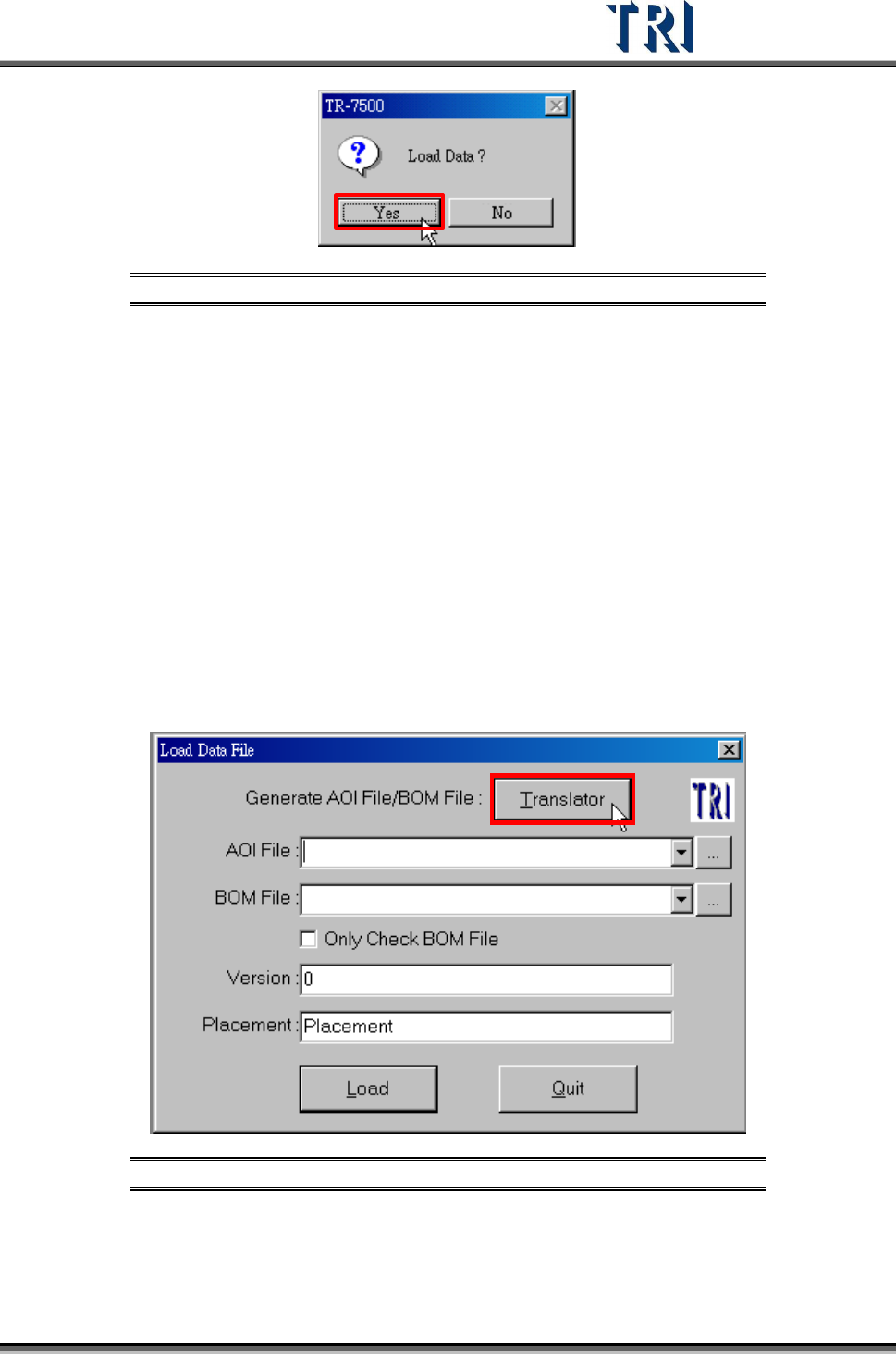
Figure 3: Confirm Load Data Window
2.2 Create Board Information
For a new program, an AOI file (*.aoi) needs to be created first for the TR7500 to read. There
are two types of converters included with the system software: FABMaster and Default.
If there is a file named PARTS.ASC from the FABMaster program, it can be used by
FABMaster to transfer from ASC files to AOI file. Or all component data can be collected --
including component name, X and Y values, rotation angle, and type of component -- and
saved as a .TXT file. Transfer the data from the saved .TXT file to an AOI file by using the
DEFAULT translator. The [Component Name] field must be the characters, figures or
symbols which can be typed directly on the keyboard. The [Type] field must be the
characters or figures which can be typed directly on the keyboard or underline symbol (“_”).
The system will be unable to display or save in the correct format when the content is not
correct.
2.3 Translate a CAD to an AOI file.
Figure 4: Load Data File -- Translator
Test Research Inc.
4 TR7500 Series User Guide –Software v.2.9.0
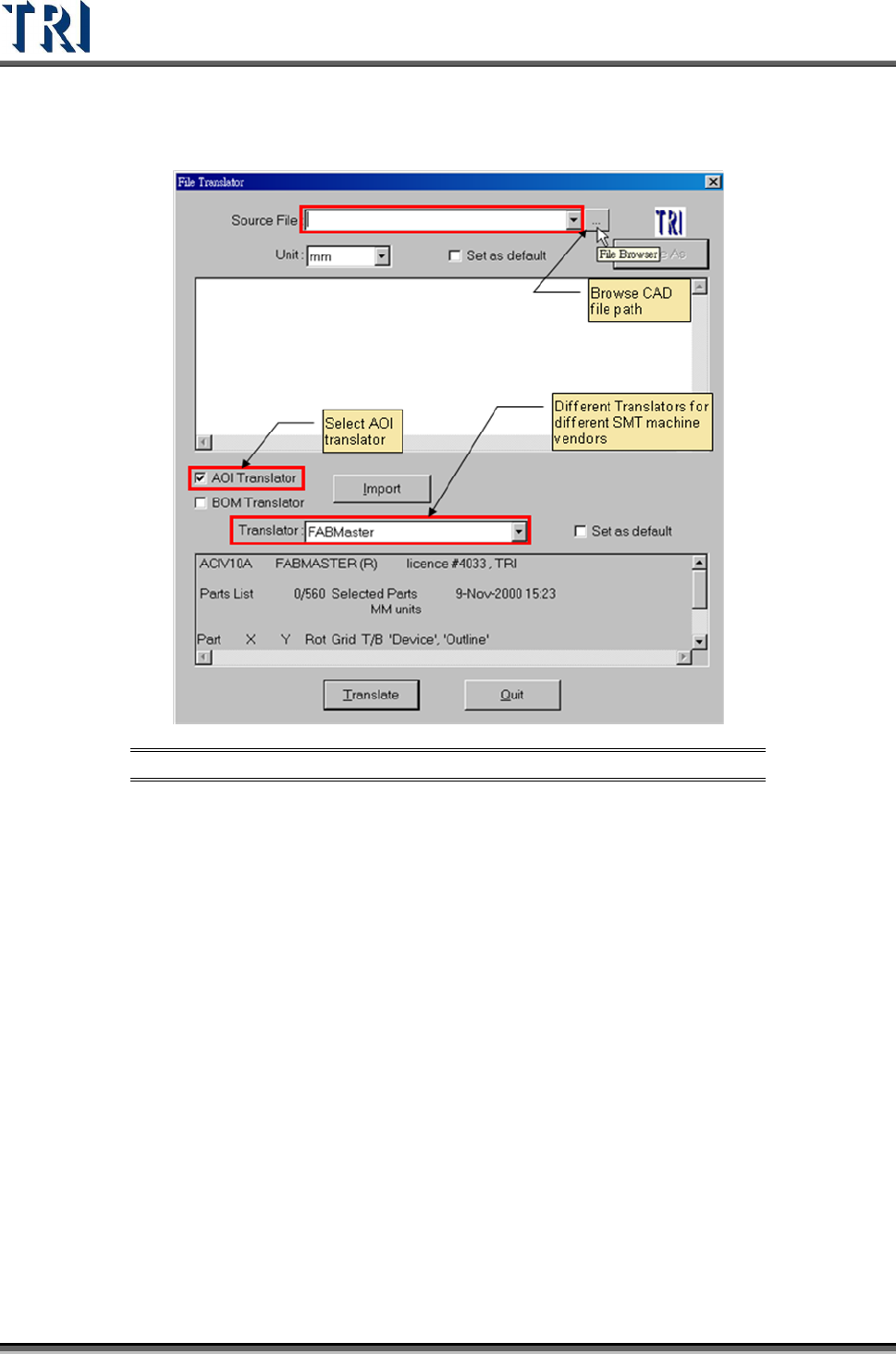
1. Browse CAD file path.
Figure 5: File Translator Function Screen
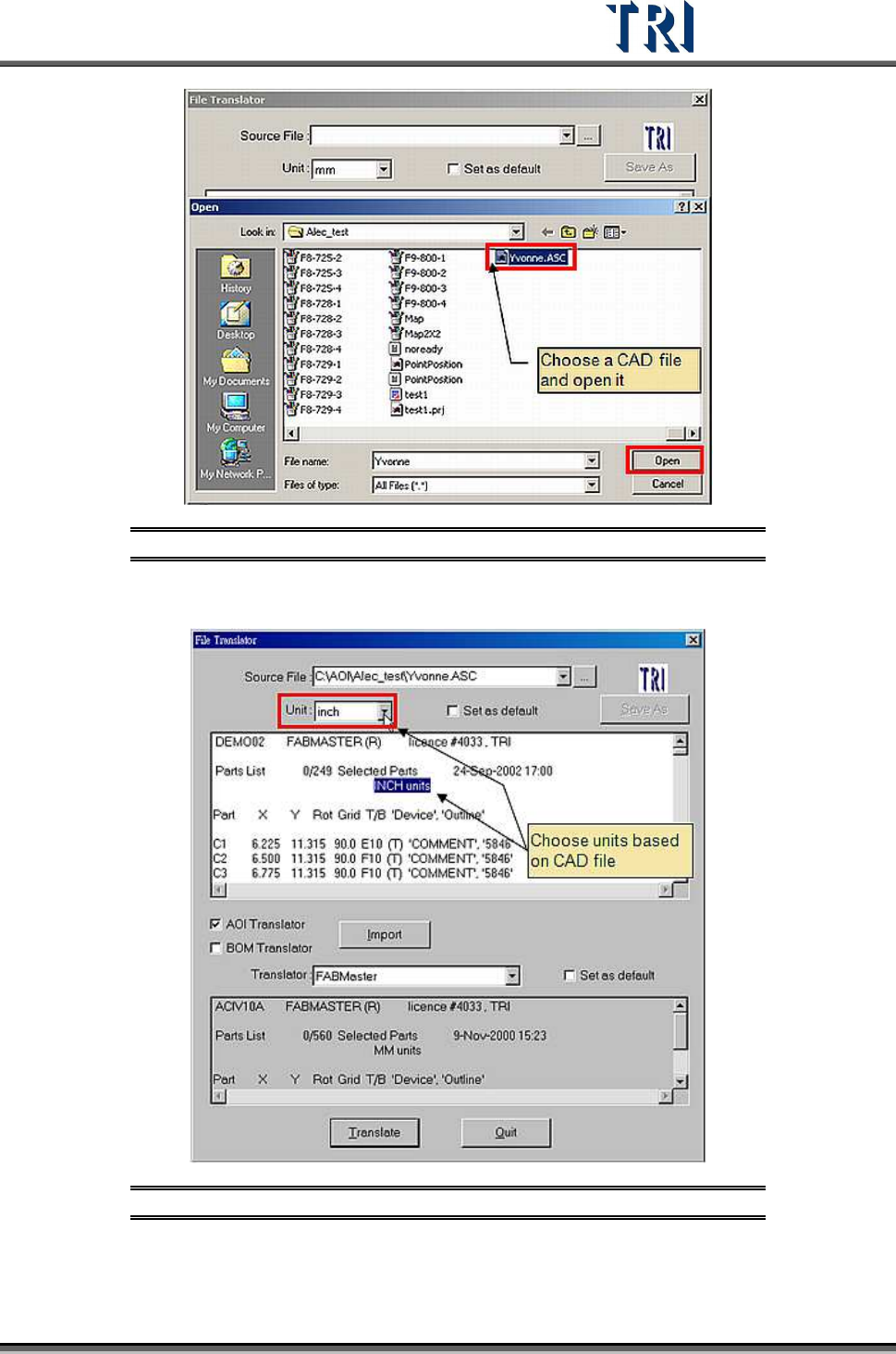
2. Browse file path and select a file.
Test Research Inc.
TR7500 Series User Guide –Software v.2.9.0 5
Figure 6: Select a File to Open
3. Select the Unit field, as defined by the CAD file.
Figure 7: Unit Selection Same as CAD File
4. Click on [TRANSLATE] to begin translation.
5. Transfer successful message will be displayed.