TR7500_Series_Software_v29_En.pdf - 第291页
Test Research Inc. TR7500 Series User Guide – Software v.2.9.0 269 11.9.2. 9 Add N Box Select a box first as the standard ima g e and the sy st em will search in the multi-function window to find simila r images and add …
Test Research Inc.
268 TR7500 Series User Guide –Software v.2.9.0
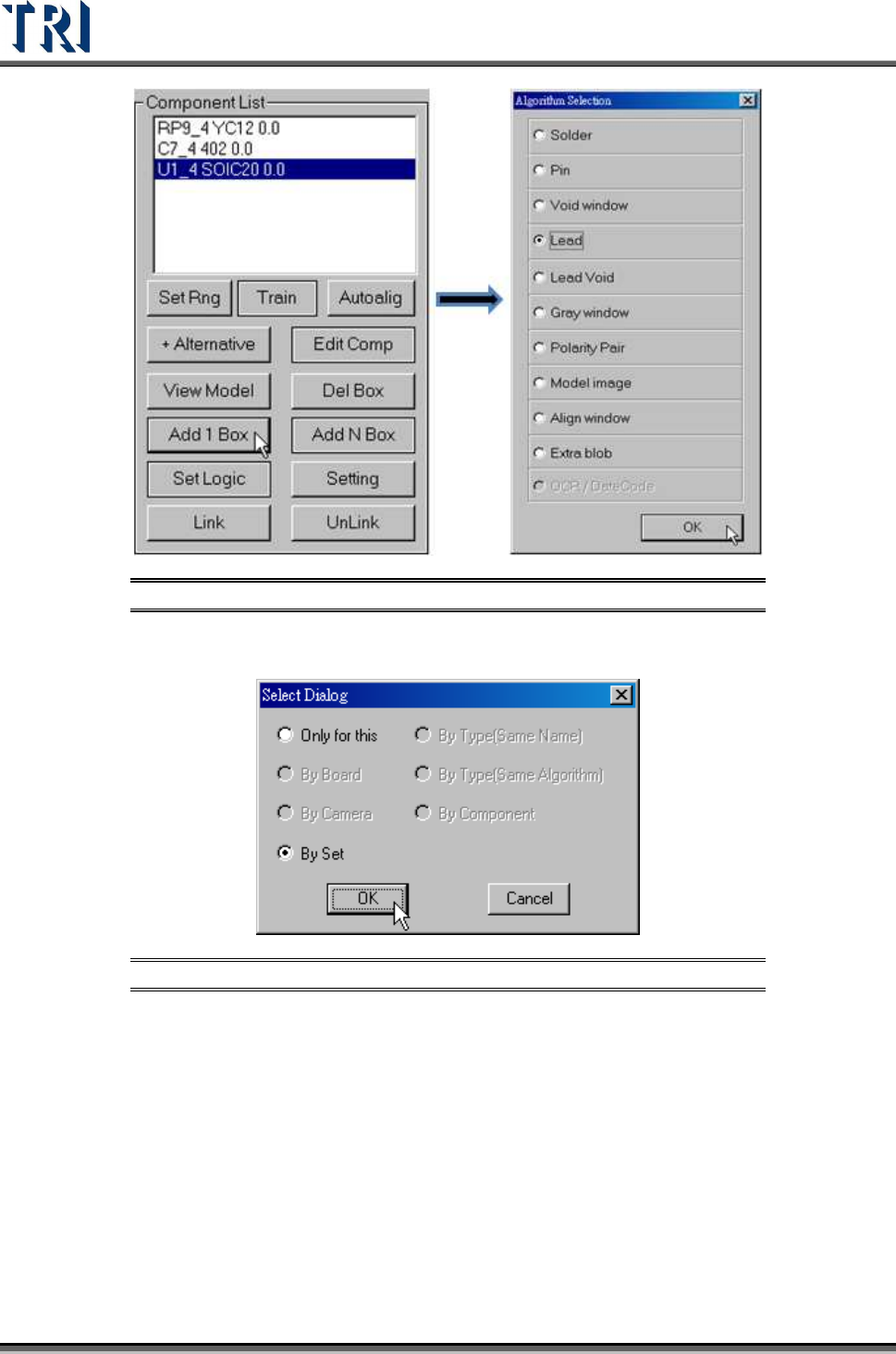
Figure 451: Add 1 Box & Select Algorithm
Step3. Select the rules to apply the setting.
Figure 452: Select Box Dialog
Step4. Finish adding an inspection box.
Test Research Inc.
TR7500 Series User Guide –Software v.2.9.0 269
11.9.2.9 Add N Box
Select a box first as the standard image and the system will search in the multi-function
window to find similar images and add inspection boxes.
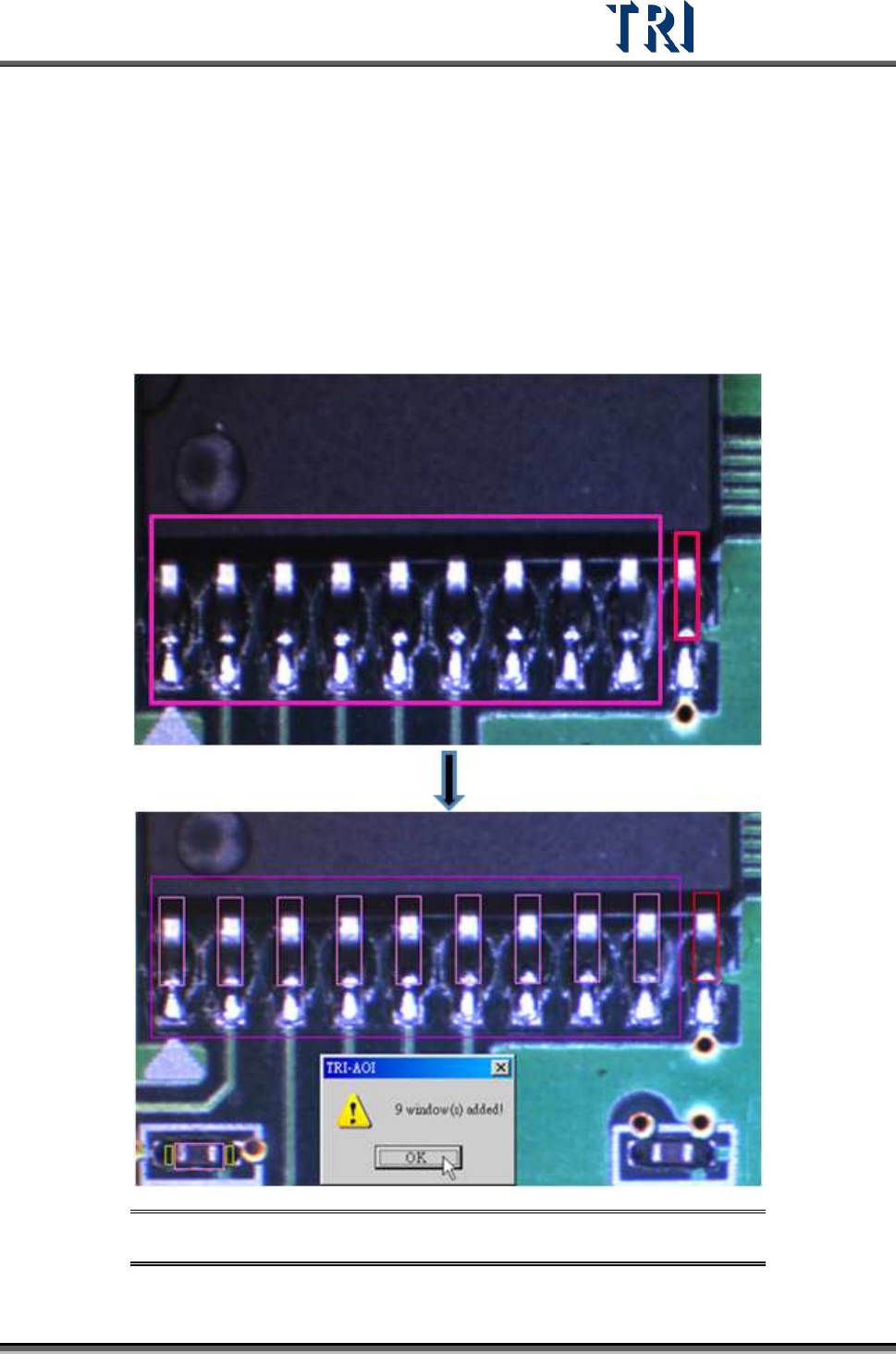
Setting Steps
Step1. Select an inspection box as the standard and adjust the multi-function window
to cover the object area.
Step2. Press [Add N Box] to finish the setting.
Figure 453: Select Inspection Box (Red) & Adjust Multi-Function Window
(Purple)
Test Research Inc.
270 TR7500 Series User Guide –Software v.2.9.0
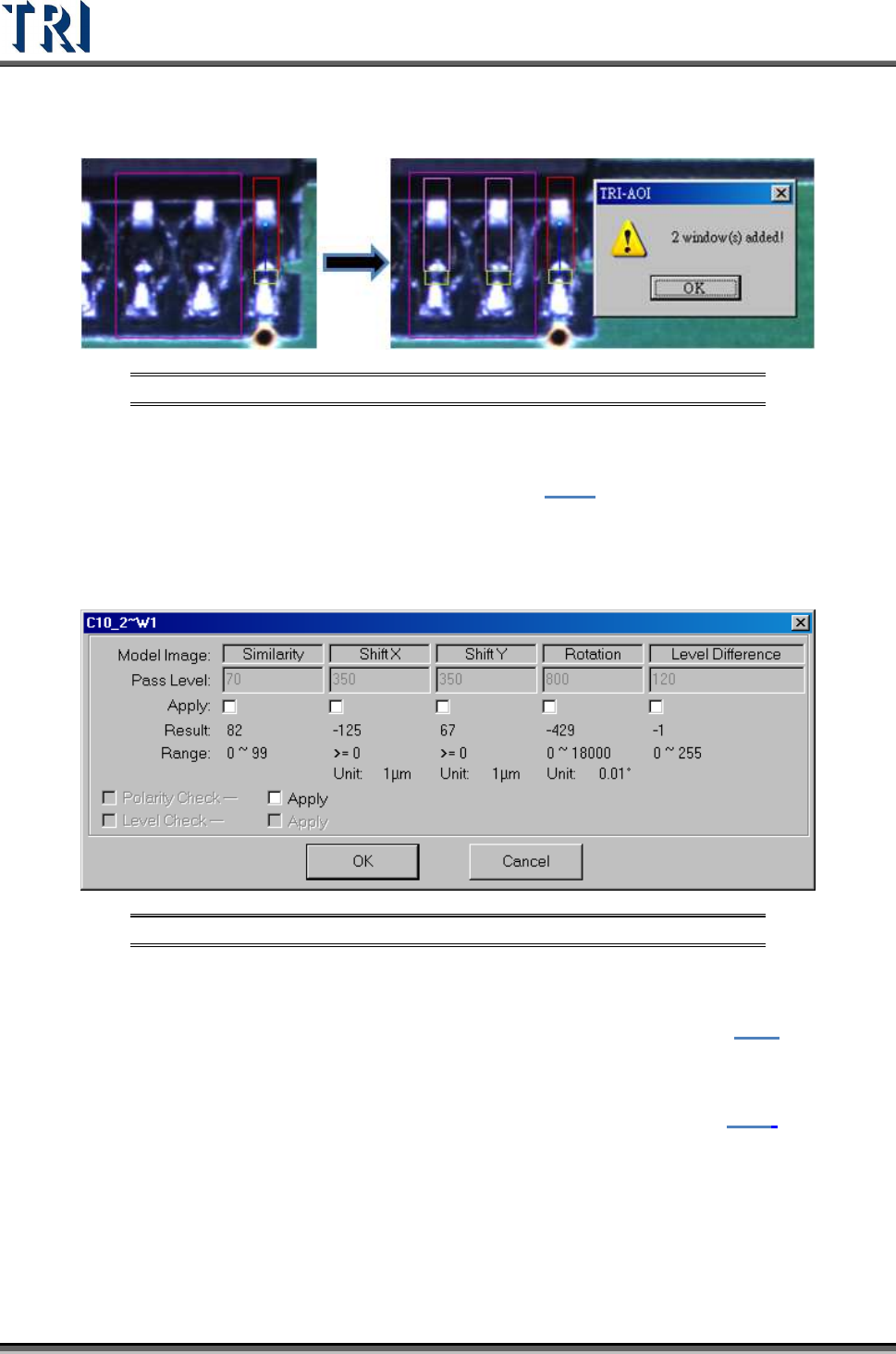
Create the other linked boxes at the same time. If there are some inspection boxes that are
linked with the object boxes, the linked boxes will be created at the same time.
Figure 454: Add Linked Inspection Windows
11.9.2.10 Set Logic
Set the Logic between windows. See more about logic in 8.7.1.
11.9.2.11 Setting
Set the pass level for selected inspection window.
Figure 455: Inspection Window Pass Level
11.9.2.12 Link
Assign windows that are parents and children to link. See more about [Link] in 8.2.2
11.9.2.13 UnLink
Press [Unlink] to break the link between windows. See more about [Unlink] in 8.2.3.
11.9.3 New Comp & Reset Win.
11.9.3.1 New Comp.
Add a new component in the project. The component data will also be added in the AOI file..
Setting Steps
Step1. Move the multi-function window to the center of the component.