TR7500_Series_Software_v29_En.pdf - 第218页
Test Research Inc. 196 TR7500 Series User Guid e –Softwa re v.2.9.0 8.7 Se tting Com mand Figure 330 : Setting Comma nd Menu 8.7.1 Algorithm D ialog Fun ction Desc ription Set algorithms for different inspection box es o…
Test Research Inc.
TR7500 Series User Guide –Software v.2.9.0 195
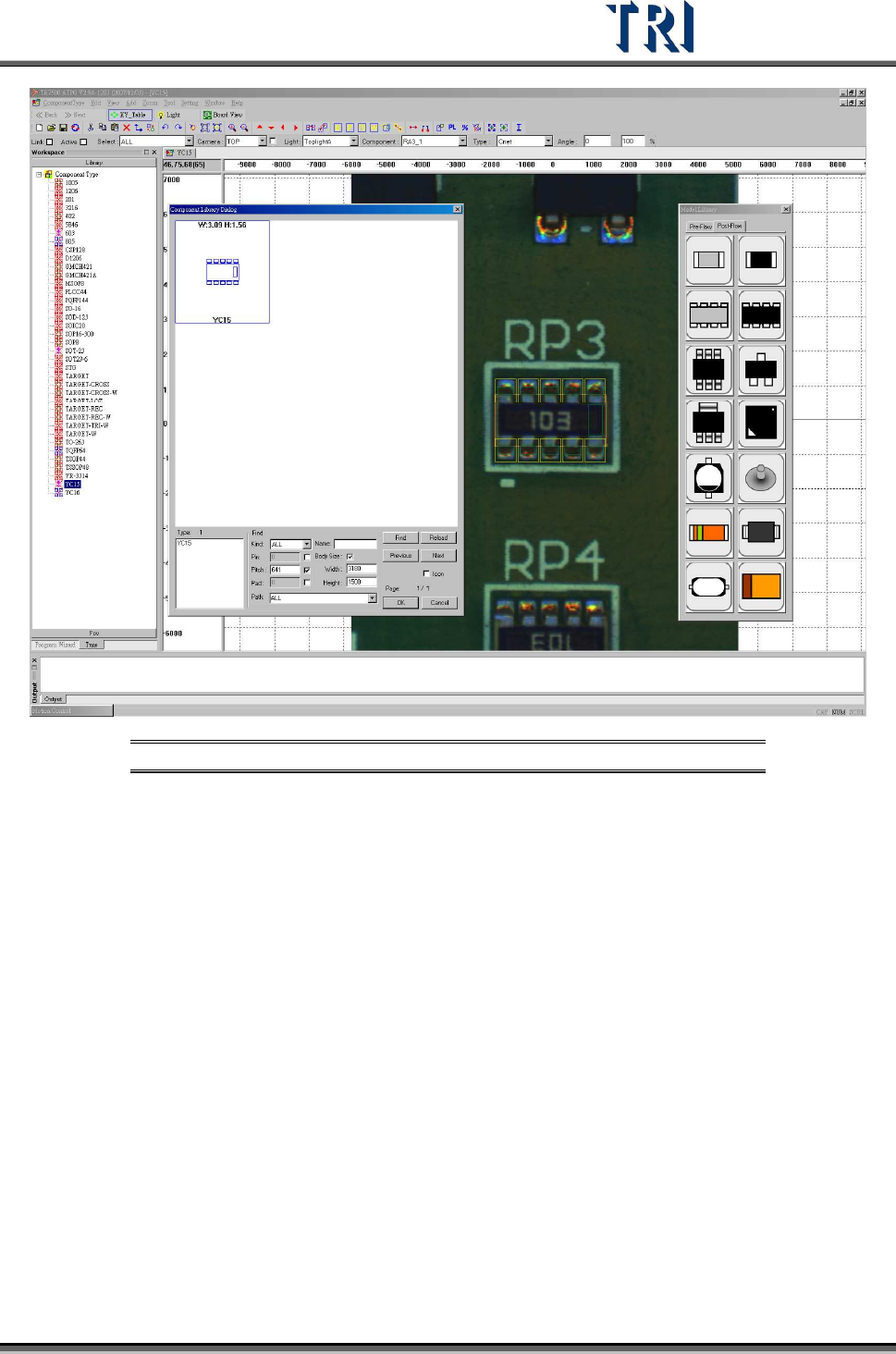
Figure 329: Create Model Library Result
7. Users may need to adjust the location and size of each inspection box after complete
the [Model Library].
8. Users may need to capture some images for [Missing] or [Lead].
Test Research Inc.
196 TR7500 Series User Guide –Software v.2.9.0
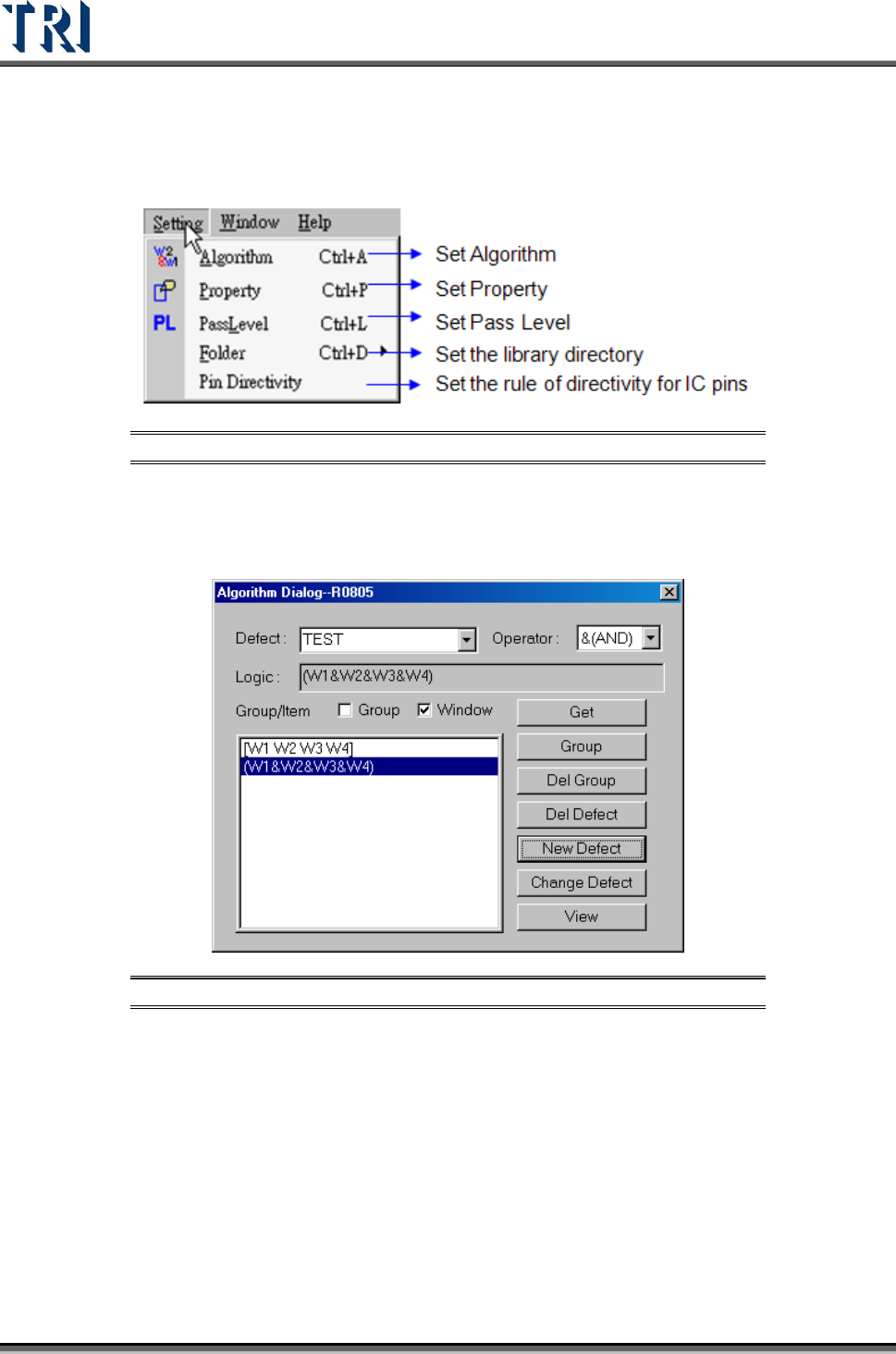
8.7 Setting Command
Figure 330: Setting Command Menu
8.7.1 Algorithm Dialog Function Description
Set algorithms for different inspection boxes on a component.
Figure 331: Algorithm Dialog & Functions
[Defect] – The output inspection defect name.
[Operator] – The defect logic operation operator. There are three options in this
field, [&(AND)], [|(OR)] and [^(XOR)].
[&(AND)] – Show pass if all of the selected windows are passed.
[|(OR)] – Show pass if one of the selected window is passed.
[^(XOR)] – Show pass if the pair of selected windows do not have the same
result.
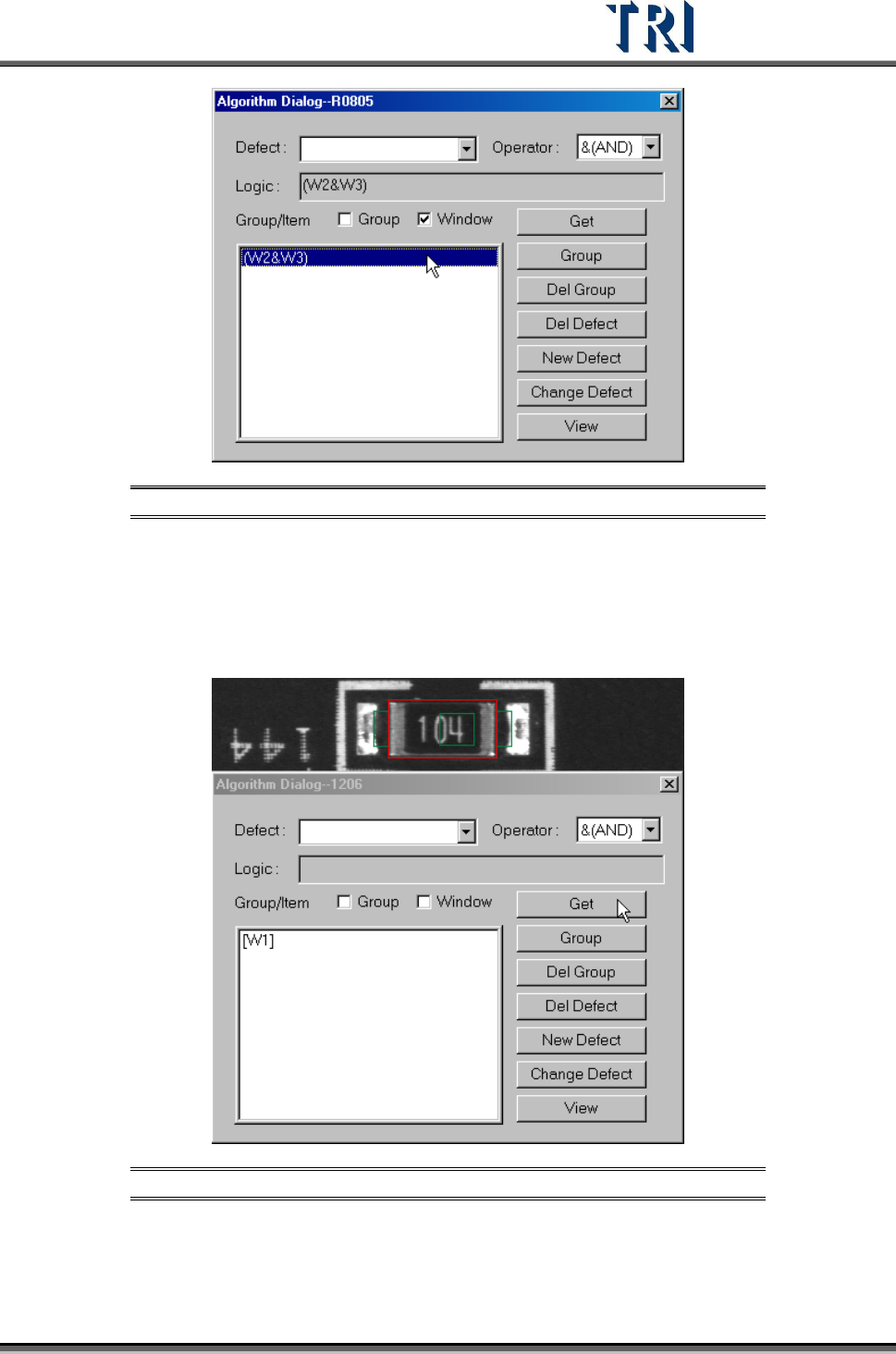
[Logic] – Set the logic operation formula. Double click on the list window and the
formula will be moved to [Logic] field.
Test Research Inc.
TR7500 Series User Guide –Software v.2.9.0 197
Figure 332: Click on List Item to Fill Logic Field
[Group/Item] – Select the logical operation with Group (logical formula) or current
FOV inspection box.
[Get] – Get the inspection boxes name for logic operation.
Get one inspection window.
Figure 333: Click [Get] for One Inspection Window